

Introduction
In this article, I will demonstrate how to build an ASP.NET Core web application using Angular as front end. Both Angular and ASP.NET Core have offered some great improvements in the past few years. In this article, we will learn how to use both of the technologies to build web applications using Entity framework.
Architecture
The architectural overview of any web application build using ASP.NET Core and Angular can be as follows and can be structured as follows. We will have an ASP.NET Core backend that can serve our web application. This API will allow users to perform CRUD operations. The data retrieved will be stored in a database on the server in order to persist and eventually they can be stored using Entity Framework. The API can allow us to serve all of the data that has been added by the users.
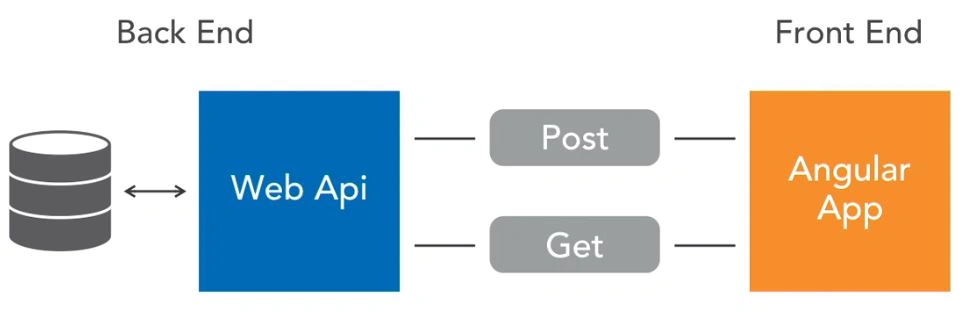
On the frontend, we will be use Angular, with Angular we can create services and components to make requests to the backend to post new data and to get all of the existing data. In such applications we can also introduce authentication with user registration and login.
Full Stack Approach
In order to work with ASP.NET Core and Angular to build a web application, we need to work with both the frontend (Client side) and backend (server side) of a web application. In order to do that we have to implement all of the following concepts inside a web application,
- Backend programming
- Frontend programming
- UI styling and UX design
- Database design, modelling, configuration and administration
- Web server configuration
- Web application deployment
Setting up the project
We can use Visual Studio community in order to develop backend and Visual Studio code to develop the frontend, so we can download the .NET Core SDK from the Microsoft official website and follow through with the installation steps.
Now that we have our backend with Visual Studio installed, the next step is to create and configure our Angular project. In order to set Angular frontend we may need few tools to be installed as well such as node, NPM and Angular CLI or command line interface. First we have to create a directory, now we can use Angular CLI in order to set up the project as it sets up all the projects most projects would need. It also sets up a project that uses typescript instead of plain javaScript.
We need to make sure that node is installed and we have to install Angular CLI as well as create a project.
Open command prompt and make sure you are in the same AngularProject folder. Then we will use the following command to create Angular project files.
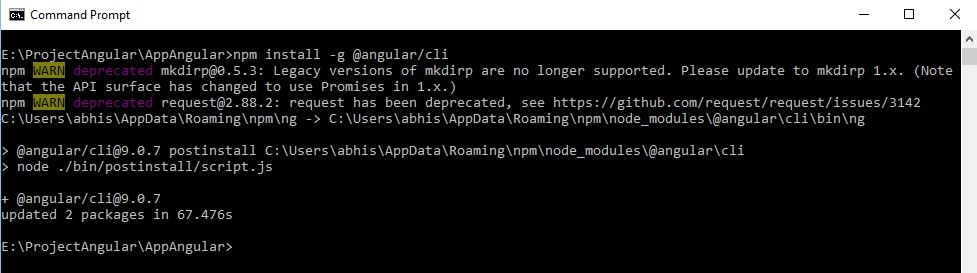
We can access the Angular project by typing the following command.
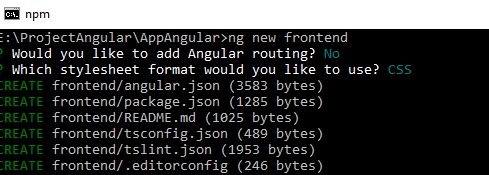
The Angular CLI will create our project by creating all of the files and folder structures. After that it will install all the third party packages the project will need to function.
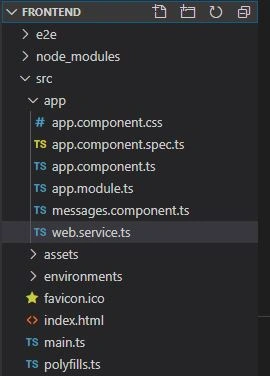
Let’s open the web app with starter template. We can do that by going over to view, then integrate terminal and typing.
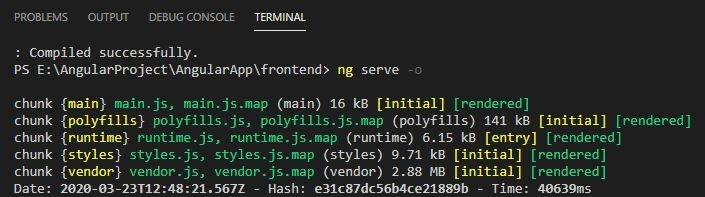
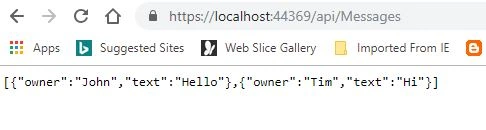
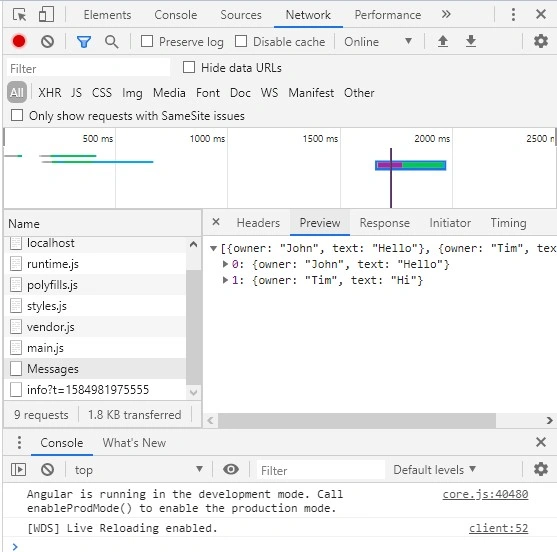
Let’s create a messaging application using Angular inside Visual Studio code and later with the help of ASP.NET Core controllers which will have a route that will provide our messages for our front end.
Components allow us to create different views which we can then use to post and display the messages in our message application in ASP.NET Core. We will be building components, services, directives and modules in our app.
- import {Component} from '@angular/core'
- import {WebService} from './web.service'
- @Component(
- {
- selector: 'messages',
- template: 'this is the messages component<div *ngFor="let message of messages">{{message.text}} by: {{message.owner}}</div>'
- }
- )
- export class MessagesComponent{
- constructor(private webService:WebService){}
- ngOnInit(){
- this.webService.getMessages();
- }
- messages=[{text:'some text',owner:'Tim'},{text:'other message',owner:'Jane'}]
- }
So in order to create a component, right click on the app folder which is inside the source folder. Select new file and name it messages,component.ts. This component will display all of the messages in our message application.
Join the conversation! Your thoughts help the community grow.