

Overview
We have been using SharePoint for many years now. Most of our work in SharePoint was on the OnPremise version before Microsoft rolled out Office 365. As everyone started seeing the benefits of using cloud services, they have started the movement to Office 365. Although this movement is exciting, it is not easy. The major challenge is the amount of data that we have stored in OnPremise over the years. Lifting and shifting data from OnPremise to Office 365 was never easy.
Migrating to Office 365
We can have a simple CSOM (Client Side Object Model) utility to connect to source environment (SharePoint OnPremise) and target environment (SharePoint online) and then start migrating the data. Although this sounds like a very simple one-line statement, the actual migration process involves setting up the information architecture (in terms of needed site columns, content types, lists or libraries) beforehand and migrating the data.
There are excellent paid third party tools available in the market to speed up the migration. A few great tools in this area are:
- Sharegate
- AvePoint
- Metalogix
These tools have been widely used in the industry for migration from any SharePoint source environment to any SharePoint target environment. But these are paid tools!
SharePoint Migration Tool Overview
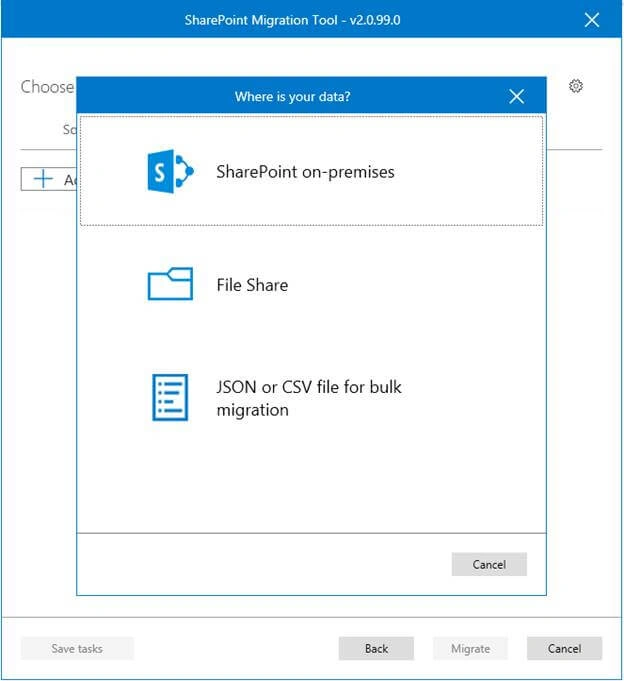
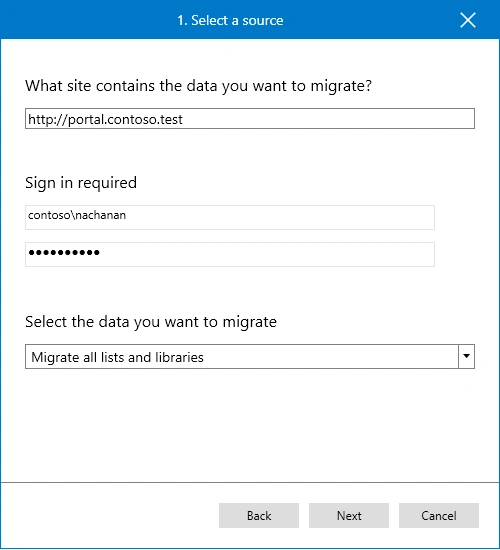
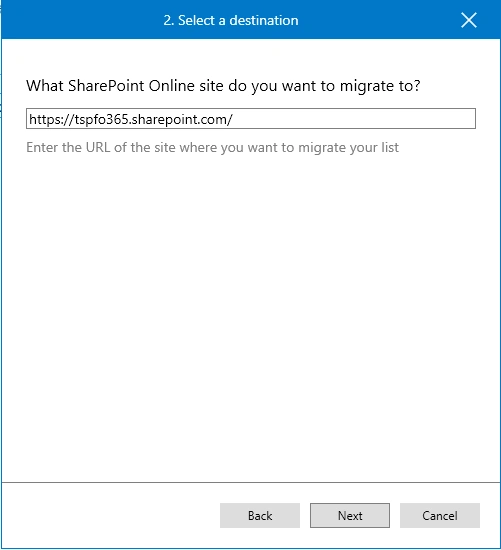
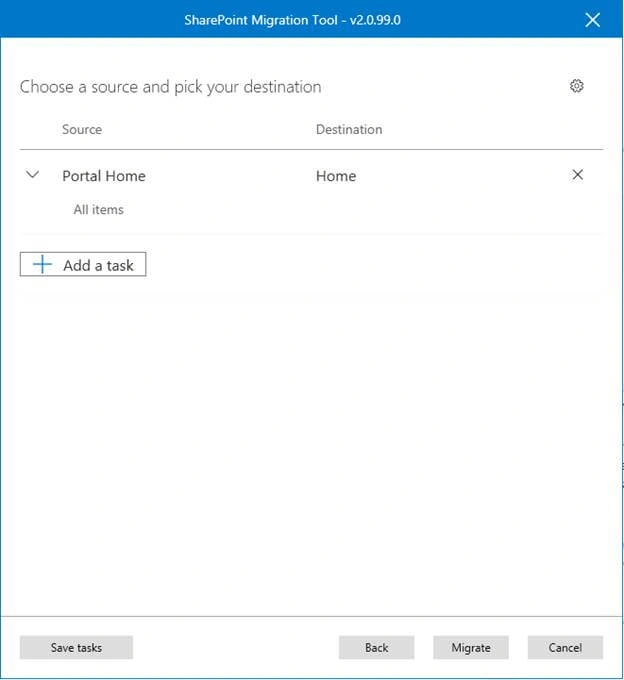
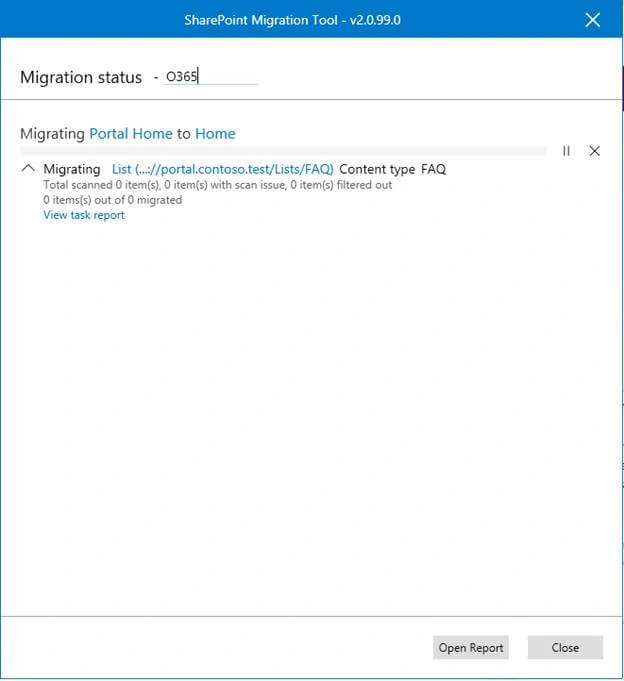
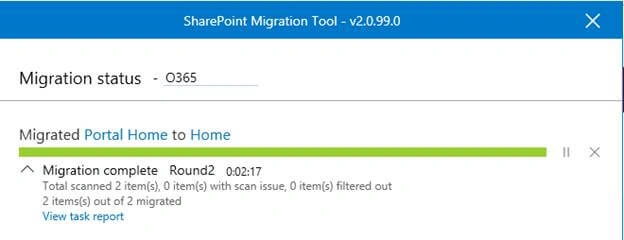
Microsoft has announced the general availability of SharePoint Migration Tool. This tool is very simple to use and helps to migrate content from SharePoint on-premise and file shares to SharePoint online and OneDrive in Office 365.
SharePoint Migration Assessment Tool Overview
Microsoft has also featured SharePoint Migration Assessment Tool (SMAT) as a migration feasibility analysis tool. This tool helps in the pre-migration analysis and remediating the common migration problems. This tool works on both SharePoint 2010 and 2013 version. The SMAT tool carries out the analysis without impacting the current environment.
The SMAT tool can be downloaded from here.
Install SharePoint Migration Tool
The SharePoint Migration Tool can be downloaded from the below locations,
- Click I agree
- Click Install
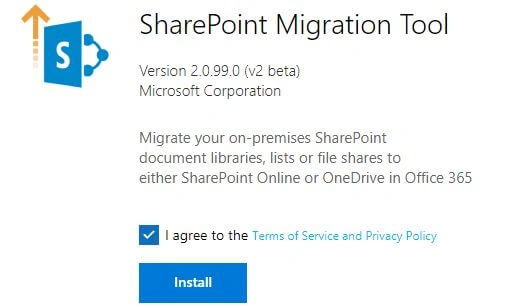
- This will download a file - betabuild.application
- Double click betabuild.application to proceed to installation
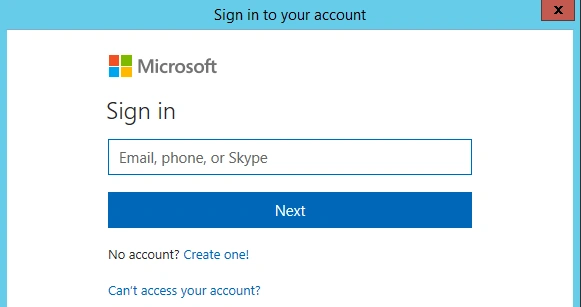
- Click Install
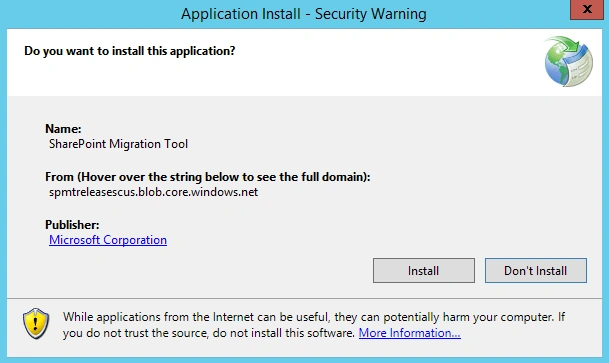
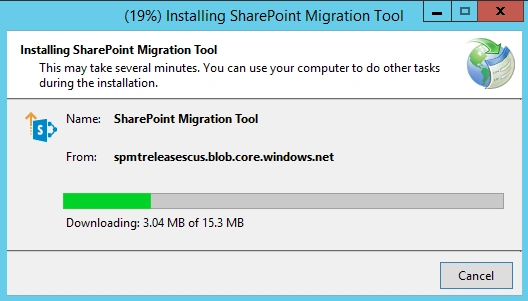
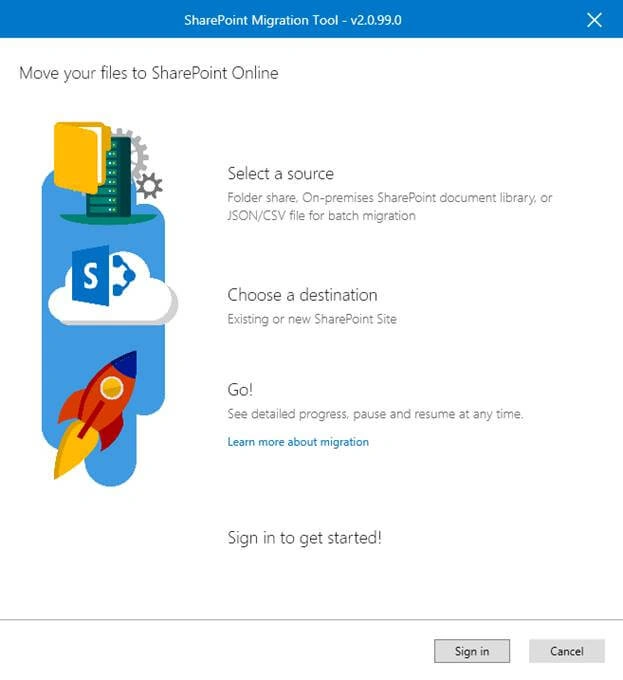
Prasham SabadraPosted May 4, 2018, 4:27 AM
Thanks Nanddeep for sharing this.
Vivek MetePosted May 3, 2018, 10:08 PM
Very useful information, nice one.