

Introduction
Part1 : Introduction to WPF
How to Build a WPF Application in Visual Studio?
- Select "File" | "New" | "Project..." to display the "New Project Dialog"; see:
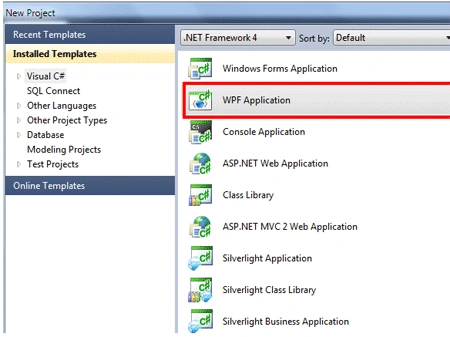
- Select "WPF Application"
- Provide a good name for the application and click OK
- As you press OK, the following screen will be shown:
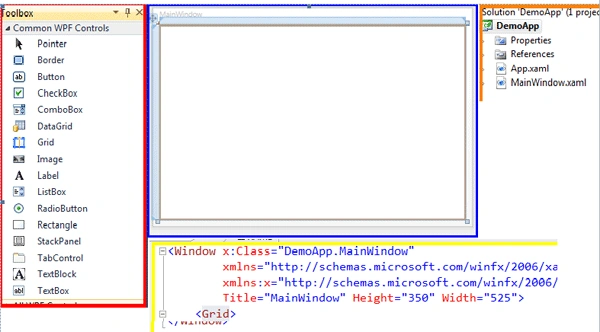
- The Rectangle with the red color is the "ToolBox".
- The Toolbox contains the controls that you can place on the window.
- The Square Box colored with blue is the "Window Designer", i.e the Designer page where all the controls are placed.
- The Window Designer lets you build a Windows Forms form graphically. It allows you to add controls to the window, resize and rearrange them.
- The Rectangle with the yellow color is the "XAML Editor", where the XAML code is written as per application logic.
- The XAML Editor lets you manually edit the window's XAML code.
- The Box colored with orange is the "Solution Explorer".
- The Solution Explorer lists the application's files and folders.
Introduction to Controls
Button
- This Button represents a WPF button and is enclosed in <Button></Button> tags.
- There are several and common properties of this control which developers have been using for ages. But we will look at two of them:
- x:Name: It indicates the id of the control.
- Content: Text of the Button. E.g. <Button Content="Button2"/>
Image : Displays a graphical image. There are two important and useful properties of the image controls as follows:
- Stretch and it takes following parameters as values:
- None: Picture is not stretched at all and gets the display at its original size.
- Fill: It stretches the image to fill the control and leads to picture distortion.
- Uniform: Picture is stretched at an equal amount vertically and horizontally to make it fit in the Image control.
- UniformtoFill: The picture is stretched by the same amount vertically and horizontally until it completely fills the Image control. If the picture doesn't have the same width-to-height ratio as the Image control, then some portion of the image will stick out past the edges of the control and will be clipped.
- StretchDirection: It determines whether the picture can be enlarged or shrunk to satisfy the stretch property. It takes two parameters as values:
- UpOnly: Image can only be stretched to make it larger.
- DownOnly: Image can only be shrunk to make it smaller.
- Both: Image can be stretched or shrunk.
Kamal RawatPosted Nov 6, 2012, 5:48 AM
@ismael: you can contact me at [email protected]
Kamal RawatPosted Oct 3, 2012, 12:35 AM
@Gaurav: ya sure i will be covering all the controls...Thanks for your valuable suggestions.
Rohatash KumarPosted Oct 3, 2012, 12:16 AM
Good Article for beginners to understand the how properties can be used in WPF. Thanks
Richa GargeditedPosted Oct 2, 2012, 11:30 PMEdited Oct 2, 2012, 11:31 PM
Very nice explanation......... Thanx for posting
Gaurav GuptaPosted Oct 2, 2012, 11:08 PM
Nice Explanation. There is another control DataGrid in WPF. Can you explain about it?
Ismael MendozaPosted Oct 2, 2012, 6:08 PM
I'd like to learn XAML
Ismael MendozaeditedPosted Oct 2, 2012, 6:08 PMEdited Oct 2, 2012, 6:09 PM
.