

Introduction
As soon as we wake in the morning, we start to make decisions - do we stay in bed? (weekend, yea!), or get out of the bed? (get to work, must catch the train...). Once we make that first decision, we might take an action (grab a coffee!), or ponder another decision (do I need to visit the bathroom first?). As the day progresses, our life is one decision after another. Its the same in every organization. In one way, we can say that life, and how it goes, is based on infinite possibilities of flow-states :)
This article is about a very useful Javascript library called 'JS plumb', and how it can help us build flow-chart or work-flow style capabilities into our .net web based applications. As you might expect these days, its not restricted to .net, and not restricted to MVC, but for this article, that's what I've chosen to focus on.
Background
I have frequently come across situations where I wish to give the user the some form of decision making in how a program executes. This may be based on a simple series of hard-coded states (yes/no, if X then choose from a list of Y actions), or may be more complex with an underlying automation system such as that provided by Windows workflow foundation. I always loved the visual aspect of workflow foundation, and missed the ability to be able to provide that wonderful drag and drop work-flow-builder experience we have in visual studio to the end user.
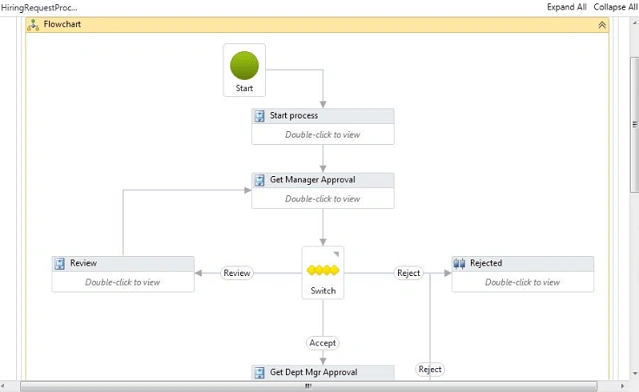
When I came across JSPlumb, I was immediately excited by the possibilities. It's a very flexible library that manages objects on a canvas and the connections between them - its focus is on providing a solution for the 'plumbing' part of a flow-chart or work-flow style user interface. As with a lot of these libraries, there is an open source community edition, and one that's more advanced. The latter is known as JSPlumb Toolkit and comes with commercial support. JSPlumb uses SVG and runs on all browsers from IE9 and up.
The basics
Before we start jumping into code, let's have a look at the basics of how things hang together visually with flow-charts, and JSPlumb in particular.
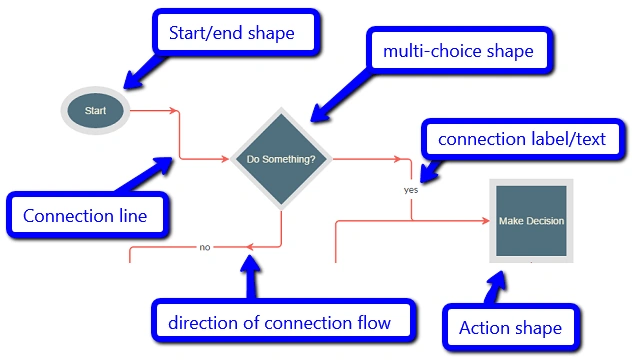
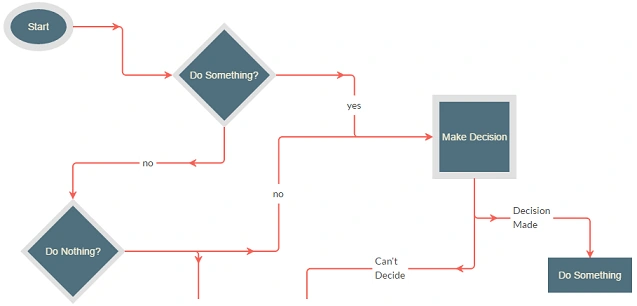
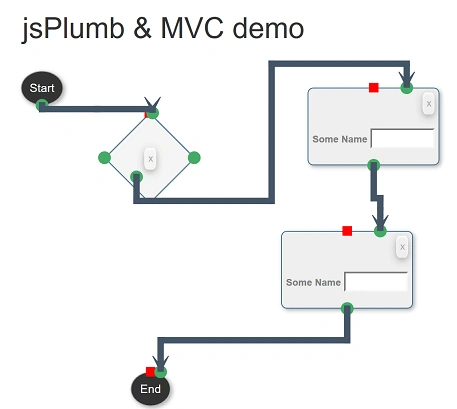
There are a lot of common things you will be aware of in the above diagram,
- a workfow or flow-chart usually has some kind of starting point
- there are lines that connect things together
- we have shapes that represent decisions that have to be made, and actions to be taken
- the direction of the connection between shapes is usually represented by arrows, and annotated with text of some kind.
If we zoom in on that picture a little bit closer, JSPlumb defines things as follows,
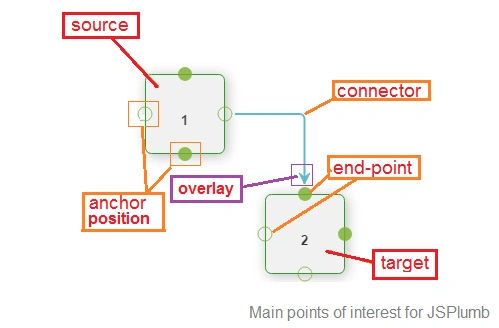
The visual objects are split into two groups. There are the objects of interest which are called the 'source' and 'target', and then the things that connect these objects. Each source or target can have 0:M anchor positions. The anchors are points on the object that the connectors can hook onto. Connectors allow objects to be linked together. Connectors link to an end-point at an anchor at either end on the source or target - as they are bidirectional, there is no start or end 'end-point', simply, endpoints!
Getting started
The first thing to understand about the library is that it works using a series of DIV objects that you define. Unlike other JS libraries that get you to define a DIV as a boundary and use this as a canvas to draw on, JSPlumb simply says - "tell me what DIVs are your flow-chart shapes, and I will connect them". This makes sense, given the name of the library - its not flowchartJS or WorkFlowJS, its about joining things together, its literally the 'plumbing' !
To demonstrate this, let's define two DIVs, and then join them together with JSPlumb. First, the divs...
- <div class="shape" id="shape1"></div>
- <div class="shape" id="shape2"></div>
and some styling
- .shape {
- float:left;
- margin:10px;
- width: 100px;
- height: 100px;
- border: solid 1px;
- }
And now, the magic....
- jsPlumb.ready(function() {
- jsPlumb.connect({
- source:"shape1",
- target:"shape2"
- });
- });
In the same way we can direct Javascript to trigger when the DOM is ready, in this case we tell jsPlumb to execute the 'connect' method for our first two shapes onces its loaded and ready to go. Heres how it looks once rendered ... all smiley-face like!
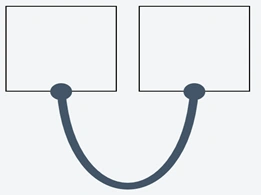
We didn't have to define the position for the connection or the anchor or endpoint shape - it used its own defaults, 'bottom' and 'round'.
Shapes
The building blocks of our flowchart are shapes - we connect them together, but the shape itself usually signifies something. Diamonds or triangles mean decisions, circles convergence points, etc. It all depends on the application (think flow-chart versus entity relationship diagram versus web based work-flow). JSPlumb is not responsible for styling the shapes, thats up to you, and your old friend CSS. Whatever you stlye, JSPlumb will hook up. Here are some examples you may commonly see in a flow-chart application.
NB
You can get some great CSS Shape examples at CSS Tricks, for fine tuning of colours you could do worse than refer to HTMLColorCodes.
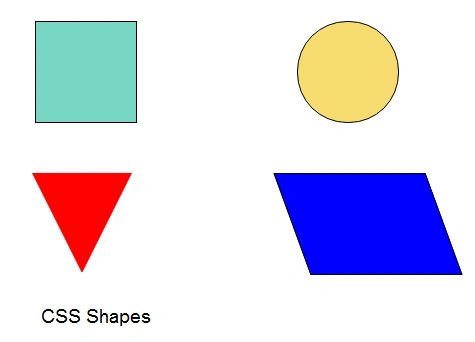
HTML Declaring the CLASS to style each DIV
- <div id="shape1" class="shape square"></div>
- <div id="shape2" class="shape circle"></div>
- <div id="shape3" class="shape triangle-down"></div>
- <div id="shape4" class="shape parallelogram"></div>
CSS styling for each example
- .shape {
- float:left;
- margin:80px;
- width: 100px;
- height: 100px;
- border: solid 1px;
- }
- .square {
- width: 100px;
- height: 100px;
- background: #76D7C4;
- }
- .circle {
- width: 100px;
- height: 100px;
- background: red;
- -moz-border-radius: 50px;
- -webkit-border-radius: 50px;
- border-radius: 50px;
- background: #F7DC6F
- }
- .triangle-down {
- width: 0;
- height: 0;
- border-left: 50px solid transparent;
- border-right: 50px solid transparent;
- border-top: 100px solid red;
- }
- .parallelogram {
- width: 150px;
- height: 100px;
- -webkit-transform: skew(20deg);
- -moz-transform: skew(20deg);
- -o-transform: skew(20deg);
- background: blue;
- }
Let's see what else we can do to tweak the endpoints and connections. First, let's look at the anchors, the points on the shape itself that the connectors hook onto.
Anchors
Changing where the connectors anchor is done by setting the anchors property
- jsPlumb.ready(function() {
- jsPlumb.connect({
- source:"shape1",
- target:"shape2",
- anchor:"Top"
- });
- });
Valid options are,
- Top(also aliased as TopCenter)
- TopRight
- Right(also aliased as RightMiddle)
- BottomRight
- Bottom(also aliased as BottomCenter)
- BottomLeft
- Left(also aliased as LeftMiddle)
- TopLeft
- Center
Some examples
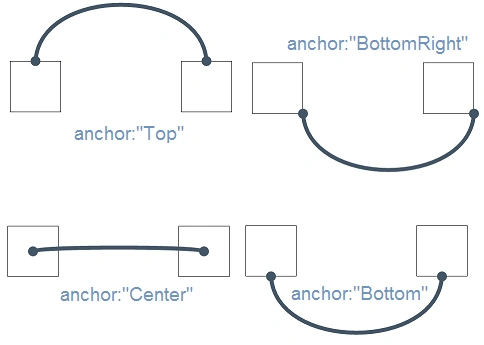
In addition to the static anchors listed above, there are other options available to you including Dynamic and Peripheral. The latter are interesting, as they are dynamically created depending on the type of shape you define the object source or target DIV to be. For example, if you have a decision object, you might choose a diamond shape - in this case the library will automatically put the anchors in the most logical position which would be the corners of the diamond. You get similar options using for example the circle/oval - the documentation for jsplumb anchors outlines what you need to know should you need this level of flexibility.
Endpoints
Endpoints are the intersection of connectors and anchors. They can be styled using some built-in shapes, images or custom CSS.
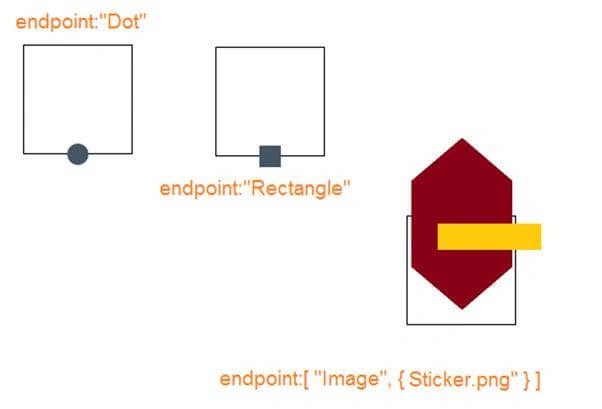
Different endpoint types you can use are as follows,
- DotThis Endpoint draws a dot on the screen. It supports three constructor parameters,
- radius- Optional; defaults to 10 pixels. Defines the radius of the dot.
- cssClass- Optional. A CSS class to attach to the element the Endpoint creates.
- hoverClass- Optional. A CSS class to attach to the element the Endpoint creates whenever the mouse is hovering over the element or an attached Connection.
- RectangleDraws a rectangle. Supported constructor parameters are,
- widthOptional; defaults to 20 pixels. Defines the width of the rectangle.
- heightOptional; defaults to 20 pixels. Defines the height of the rectangle.
- cssClass A CSS class to attach to the element the Endpoint creates.
- hoverClass A CSS class to attach to the element the Endpoint creates whenever the mouse is hovering over the element or an attached Connection.
- ImageDraws an image from a given URL. This Endpoint supports three constructor parameters,
- src Specifies the URL of the image to use
- cssClass A CSS class to attach to the element the Endpoint creates.
- hoverClass A CSS class to attach to the element the Endpoint creates whenever the mouse is hovering over the element or an attached Connection.
- BlankDoes not draw anything visible to the user. This Endpoint is probably not what you want if you need your users to be able to drag existing Connections - for that, use a Rectangle or Dot Endpoint and assign to it a CSS class that causes it to be transparent.
Connectors
The lines that allow us to create the links between shapes are connectors. Like endpoints and anchors, they have different options that we can use. The connector carries with it some of the other concepts,
- Anchors are the places on the shapes that connectors can hook onto
- Endpoints are a visual representation of one end of a connection, which are mostly but not always attached visibly to shapes, giving an indication of where connectors can hook onto
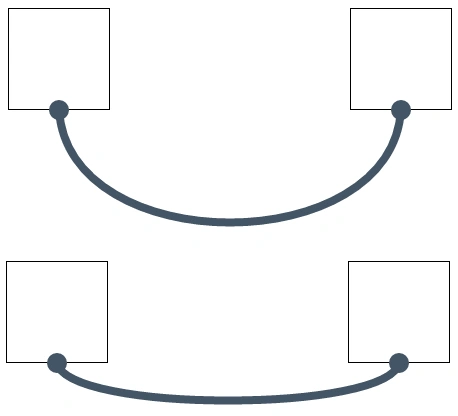
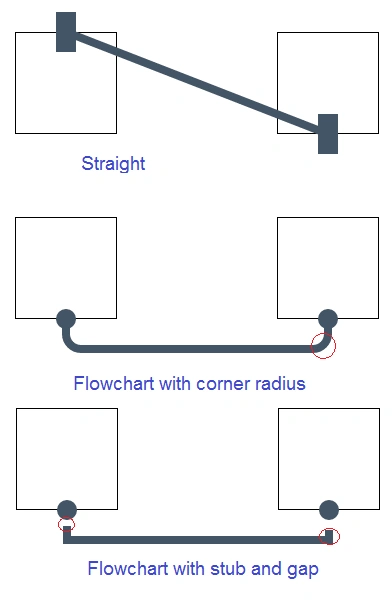
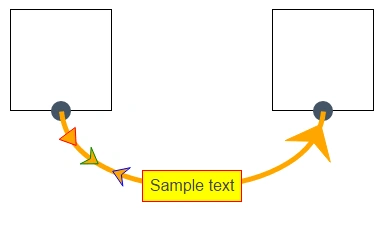
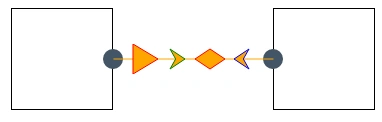
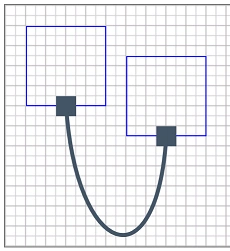
JSPlumb has four standard connectors - a bezier curve (this is the default), a straight line, a 'flowchart' mode, and a 'state machine' mode.
Connectors and their options are generally specified using the connector property when we call any of the following methods
Robert WallePosted May 7, 2026, 5:55 AM
This article breaks down JsPlumb’s core components for building interactive JS flowcharts/workflows in C# ASP.NET 5 MVC really clearly, which is super helpful for developers; if you’re looking for other free, user-friendly online tools to boost your coding efficiency, MyToolHub is a great go-to.<a href="https://mytoolhub.app/">free online tool mytoolhub</a>
Paramjeet SinghPosted Nov 17, 2017, 1:01 PM
Its too helpful.. Thanks allen
Humayun Kabir MamunPosted Nov 15, 2017, 5:48 AM
Thanks Allen for this helpful article.