Introduction
In my previous article, we can learn how to set up a HomeGroup and how you can change the password for the HomeGroup in Windows 8.
Set Up HomeGroup Sharing Feature in Windows 8
Now in this article, I am showing how to join the Homegroup of Windows 8 from Windows 7. After joining the Windows 8 HomeGroup in Windows 7 you are now able to share the files and resources between the systems. You can easily establish the communication between Windows 8 and Windows 7 systems over the HomeGroup network.
Here I am using a Windows 7 system to join the HomeGroup network of Windows 8.
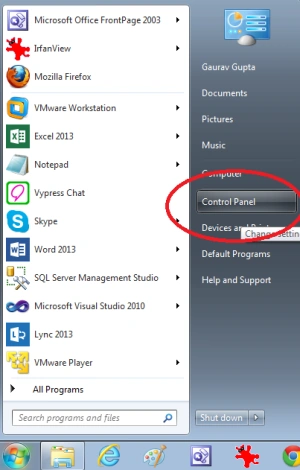
Open the Control Panel window.
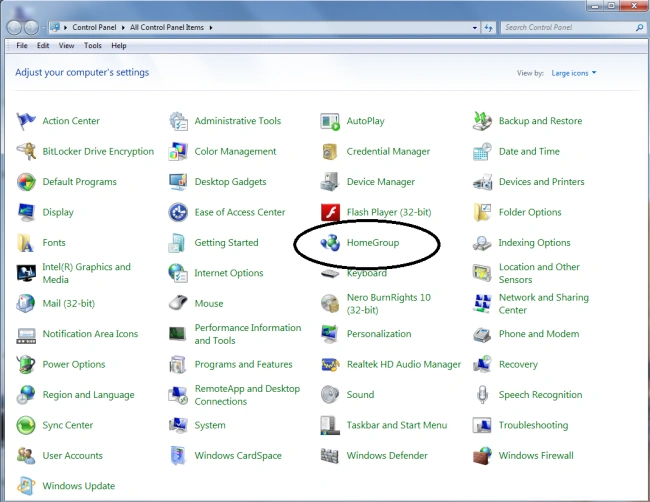
Select the homegroup option from it.
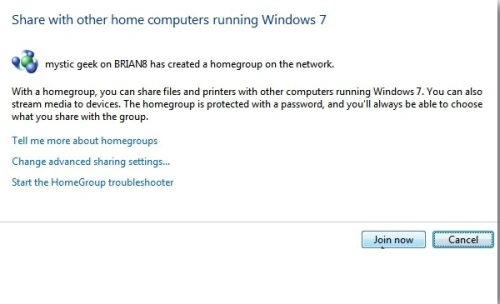
On the next screen click on the "Join Now" button.
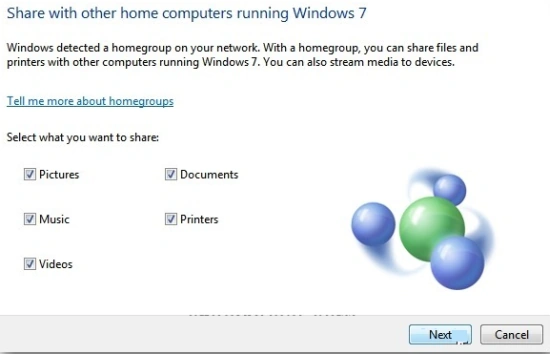
Then decide which files and folders you want to share on the Windows 8 HomeGroup. Click Next.
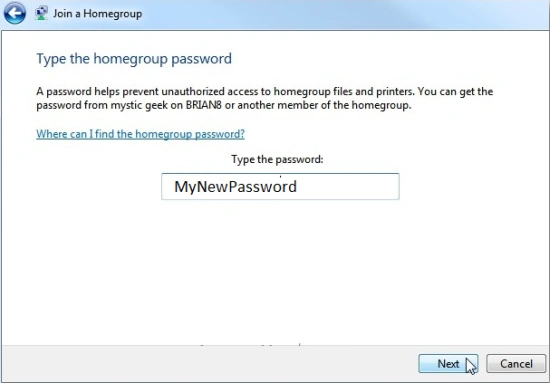
Enter the password and click Next.
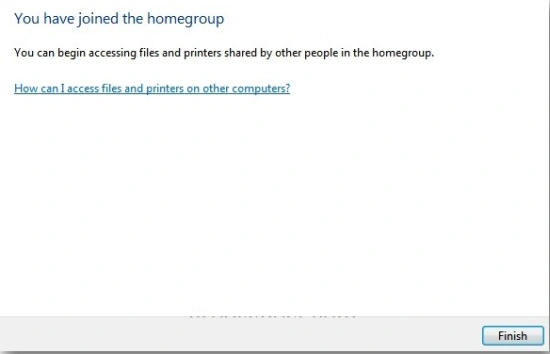
Now you've successfully connected to the Windows 8 Homegroup. Click Finish.
Conclusion
Now you can easily share a document, files, and printers between the Windows 8 and Windows 7 computers over your home network.


Vithal WadjePosted Jan 1, 2013, 1:21 AM
super work keet it up