

Introduction
In this article, you will learn how to move a node up and down in Kendo TreeList in ASP.NET MVC, using JavaScript. Many times, while working with TreeList, we need to move a node up & down in ASP.NET MVC.
If you are going to display any tree on GUI, then you can use TreeView and TreeList. Generally, it is a tree structure with parent & child relationship.
The basic structure which you'll need to implement any tree will be a collection of nodes. If you need to only navigate down the tree, then a First Node needs a List of children. If you need to navigate up the tree, then the last node needs a link to its parent node.
In this article, you will learn how to move a node up and down in Kendo TreeList in ASP.NET MVC, using JavaScript. Many times, while working with TreeList, we need to move a node up & down in ASP.NET MVC.
If you are going to display any tree on GUI, then you can use TreeView and TreeList. Generally, it is a tree structure with parent & child relationship.
The basic structure which you'll need to implement any tree will be a collection of nodes. If you need to only navigate down the tree, then a First Node needs a List of children. If you need to navigate up the tree, then the last node needs a link to its parent node.
Step 1
Create a new MVC Empty Project, using Visual Studio.
Add new Layout.cshtml into the shared folder. Add references of Kendo, CSS and JavaScript into this Layout.cshtml.
Create a new MVC Empty Project, using Visual Studio.
Add new Layout.cshtml into the shared folder. Add references of Kendo, CSS and JavaScript into this Layout.cshtml.
- <!DOCTYPE html>
- <html>
- <head>
- <title>@ViewBag.Title - My Telerik MVC Application</title>
- <style>
- .k-header h1 {
- margin: 0;
- padding: 30px 15px;
- font-size: 32px;
- font-weight: lighter;
- }
- /* Sticky footer styles
- -------------------------------------------------- */
- html {
- position: relative;
- min-height: 100%;
- }
- body {
- /* Margin bottom by footer height */
- margin-bottom: 60px;
- }
- .footer {
- position: absolute;
- bottom: 0;
- width: 100%;
- /* Set the fixed height of the footer here */
- height: 60px;
- background-color: #f5f5f5;
- }
- .container-fluid .text-muted {
- margin: 20px 0;
- }
- .placeholders {
- margin: 30px auto;
- }
- .placeholder img {
- display: inline-block;
- }
- p .k-button {
- margin: 0 15px 0 0;
- }
- .btn-toggle {
- position: absolute;
- top: 0;
- left: 0;
- box-shadow: none;
- height: 48px;
- }
- .btn-toggle .k-icon {
- opacity: 1;
- }
- .btn-toggle,
- .k-primary.btn-toggle:hover,
- .btn-toggle:focus:active:not(.k-state-disabled):not([disabled]),
- .btn-toggle:focus:not(.k-state-disabled):not([disabled]) {
- box-shadow: none;
- border-radius: 0;
- }
- .btn-toggle .k-i-hbars,
- .k-primary.btn-toggle:hover .k-i-hbars,
- .btn-toggle:focus:active:not(.k-state-disabled):not([disabled]) .k-i-hbars,
- .btn-toggle:focus:not(.k-state-disabled):not([disabled]) .k-i-hbars {
- background-position: -80px -32px;
- }
- @@media (max-width: 768px) {
- .k-item {
- display: block;
- clear: both;
- float: none;
- width: 100%;
- }
- .k-header h1 {
- margin: 0;
- padding: 16px 15px 14px 60px;
- font-size: 18px;
- font-weight: lighter;
- }
- }
- </style>
- <link href="@Url.Content("~/Content/kendo/2016.2.504/kendo.common-material.min.css")" rel="stylesheet" type="text/css" />
- <link href="@Url.Content("~/Content/kendo/2016.2.504/kendo.mobile.all.min.css")" rel="stylesheet" type="text/css" />
- <link href="@Url.Content("~/Content/kendo/2016.2.504/kendo.dataviz.min.css")" rel="stylesheet" type="text/css" />
- <link href="@Url.Content("~/Content/kendo/2016.2.504/kendo.material.min.css")" rel="stylesheet" type="text/css" />
- <link href="@Url.Content("~/Content/kendo/2016.2.504/kendo.dataviz.material.min.css")" rel="stylesheet" type="text/css" />
- <script src="@Url.Content("~/Scripts/kendo/2016.2.504/jquery.min.js")"></script>
- <script src="@Url.Content("~/Scripts/kendo/2016.2.504/angular.min.js")"></script>
- <script src="@Url.Content("~/Scripts/kendo/2016.2.504/jszip.min.js")"></script>
- <script src="@Url.Content("~/Scripts/kendo/2016.2.504/kendo.all.min.js")"></script>
- <script src="@Url.Content("~/Scripts/kendo/2016.2.504/kendo.aspnetmvc.min.js")"></script>
- </head>
- <body>
- <header>
- <div class="content-wrapper">
- <div class="float-left">
- <h2 class="site-title" style="margin-left: 30%;font-size: 1.2em !important;">www.CoderFunda.com</h2>
- </div>
- </div>
- </header>
- @RenderBody()
- <div class="container-fluid">
- <div class="row">
- </div>
- </div>
- <footer class="footer">
- <div class="container-fluid">
- <p class="text-muted">Copyright © 2002-2015 Telerik. All rights reserved.</p>
- </div>
- </footer>
- </body>
- </html>
Now, add one model into a Model folder & give the name as Product. Add some properties into it.
- public class Product
- {
- public int Id { get; set; }
- public int SrNo { get; set; }
- public string Name { get; set; }
- public int? ParentId { get; set; }
- public int ChildId { get; set; }
- }
Add HomeController in Controller. There are two action methods; where the first will be adding a some dummy data to our properties & returns an IEnumerable result. Second one is used to bind the data into a tree structure format, using parent child relationship.
- public class HomeController : Controller
- {
- public HomeController()
- {}
- public ActionResult Index()
- {
- return View();
- }
- public JsonResult GetTree([DataSourceRequest] DataSourceRequest request)
- {
- var result = TreeList()
- .ToTreeDataSourceResult(request,
- e => e.ChildId,
- e => e.ParentId,
- e => e
- );
- return Json(result, JsonRequestBehavior.AllowGet);
- }
- private IEnumerable<Models.Product> TreeList()
- {
- List<Models.Product> objCmp = new List<Models.Product>();
- objCmp.Add(new Models.Product() { Id = 1, SrNo = 100, Name = "Pen", ParentId = null, ChildId = 1 });
- objCmp.Add(new Models.Product() { Id = 2, SrNo = 101, Name = "Ink Pen", ParentId = 1, ChildId = 2 });
- objCmp.Add(new Models.Product() { Id = 3, SrNo = 102, Name = "Jel Pen", ParentId = 1, ChildId = 3 });
- objCmp.Add(new Models.Product() { Id = 4, SrNo = 103, Name = "Marker Pen", ParentId = 1, ChildId = 4 });
- objCmp.Add(new Models.Product() { Id = 11, SrNo = 200, Name = "Books", ParentId = null, ChildId = 11 });
- objCmp.Add(new Models.Product() { Id = 12, SrNo = 201, Name = "Horror", ParentId = 11, ChildId = 12 });
- objCmp.Add(new Models.Product() { Id = 13, SrNo = 202, Name = "Satire", ParentId = 11, ChildId = 13 });
- objCmp.Add(new Models.Product() { Id = 14, SrNo = 203, Name = "Mystery", ParentId = 11, ChildId = 14 });
- IEnumerable<Models.Product> itemsResult = objCmp.ToList();
- return itemsResult.AsEnumerable();
- }
- }
Add View by right clicking on Action Method Index, which will show a tree list with the hierarchy. This tree contains a read method from which we are binding the records to treelist. Also, take two buttons, where first is to move a tree node in up & another one to move a tree node down. I have added some custome css for better look & feel of headers of treelist. Now, add a JavaScript code into a document.ready function. For onclick button, I am going to write the code, which will move the record up & down.
- @using System.Web.Optimization
- @using Kendo.Mvc.UI
- @using Kendo.Mvc.Extensions
- @{
- Layout = "~/Views/Shared/_Layout.cshtml";
- }
- <style type="text/css">
- .myCSS {
- font-weight: 800 !important;
- text-align: center !important;
- background-color: #F1E1AE !important;
- border-color: #ffffff;
- border-style: solid;
- border-width: thin;
- }
- </style>
- <br />
- <br />
- <div class="col-xs-12">
- <div class="row">
- <div class="col-xs-6" style="height:450px; width:60%; margin-left:5%">
- @(Html.Kendo().TreeList<TreeList.Models.Product>()
- .Name("ProductTreeList")
- .Columns(columns =>
- {
- columns.Add().Field(e => e.SrNo).Title("Sr. No.").Width(10).HeaderAttributes(new { @class = "myCSS" });
- columns.Add().Field(e => e.Name).Width(20).HeaderAttributes(new { @class = "myCSS" });
- columns.Add().Field(e => e.ParentId).Hidden(true).Width(5);
- columns.Add().Field(e => e.ChildId).Hidden(true).Width(5);
- })
- .DataSource(dataSource => dataSource
- .Read(read => read.Action("GetTree", "Home"))
- .ServerOperation(false)
- .Model(m =>
- {
- m.Id(f => f.ChildId);
- m.ParentId(f => f.ParentId);
- m.Expanded(true);
- m.Field(f => f.SrNo);
- })
- )
- .Selectable(true)
- .Height(480)
- )
- </div>
- <div align="right" class="col-xs-2" style="margin-right:20%;">
- <div>
- <button id="btnUp" type="button" class="btn btn-primary" style="line-height:1.0;">Move Up</button>
- </div>
- </div>
- <br />
- <div align="right" class="col-xs-2" style="margin-right:20%;">
- <div>
- <button id="btnDown" type="button" class="btn btn-primary" style="line-height:1.0;">Move Down</button>
- </div>
- </div>
- </div>
- </div>
- <script>
- $(document).ready(function () {
- var myProductList = $("#ProductTreeList").data("kendoTreeList");
- $('#btnUp').click(function (e) {
- var rowIndex = myProductList.dataItem(myProductList.select());
- var selectedSrNo = rowIndex.SrNo;
- var data = myProductList.dataSource.data();
- for (var i = 0; i < data.length; i++) {
- var currentDataItem = data[i];
- var currentSrNo = currentDataItem.get("SrNo");
- var currentName = currentDataItem.get("Name");
- var currentChildId = currentDataItem.get("ChildId");
- var oldName;
- var oldChildId;
- if (currentSrNo == (selectedSrNo - 1)) {
- oldName = currentName;
- oldChildId = currentChildId;
- }
- if (currentSrNo == selectedSrNo) {
- data[i].set("SrNo", (selectedSrNo - 1));
- data[i].set("Name", oldName);
- data[i].set("ChildId", oldChildId);
- data[i -1].set("SrNo", (selectedSrNo));
- data[i - 1].set("Name", currentName);
- data[i - 1].set("ChildId", currentChildId);
- }
- }
- });
- $('#btnDown').click(function (e) {
- var rowIndex = myProductList.dataItem(myProductList.select());
- var selectedSrNo = rowIndex.SrNo;
- var data = myProductList.dataSource.data();
- for (var i = 0; i < data.length; i++) {
- var currentDataItem = data[i];
- var currentSrNo = currentDataItem.get("SrNo");
- var currentName = currentDataItem.get("Name");
- var currentChildId = currentDataItem.get("ChildId");
- if (currentSrNo == (selectedSrNo)) {
- data[i].set("SrNo", (data[i + 1].get("SrNo")));
- data[i].set("Name", (data[i + 1].get("Name")));
- data[i].set("ChildId", (data[i + 1].get("ChildId")));
- data[i + 1].set("SrNo", (selectedSrNo));
- data[i + 1].set("Name", currentName);
- data[i + 1].set("ChildId", currentChildId);
- return;
- }
- }
- });
- });
- </script>
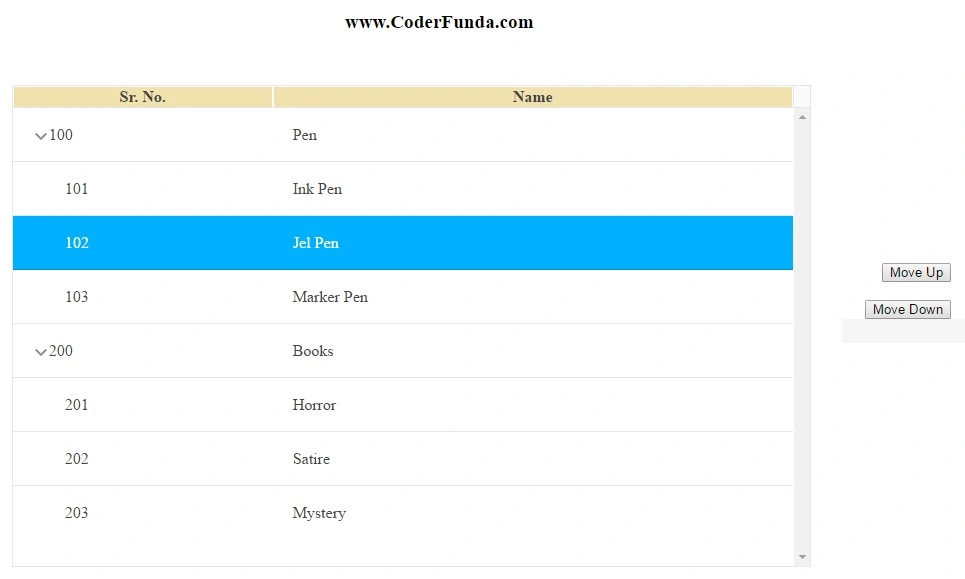
Now, run the Application. First, select the node, which you want to move up or down.
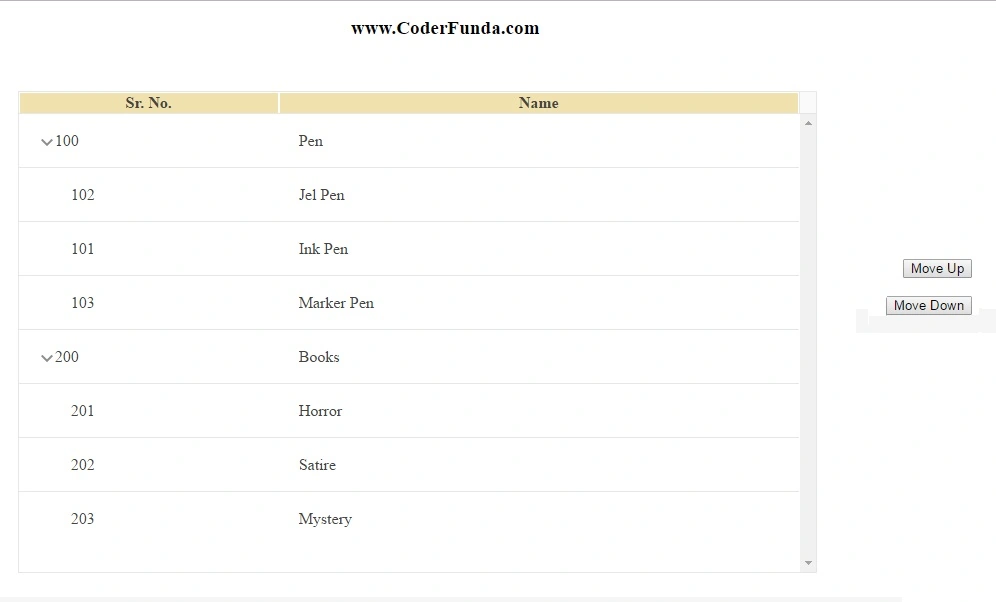
If we select record 'Jel Pen' with Sr. No 102 & click Move up, then we will get the result, as shown below.
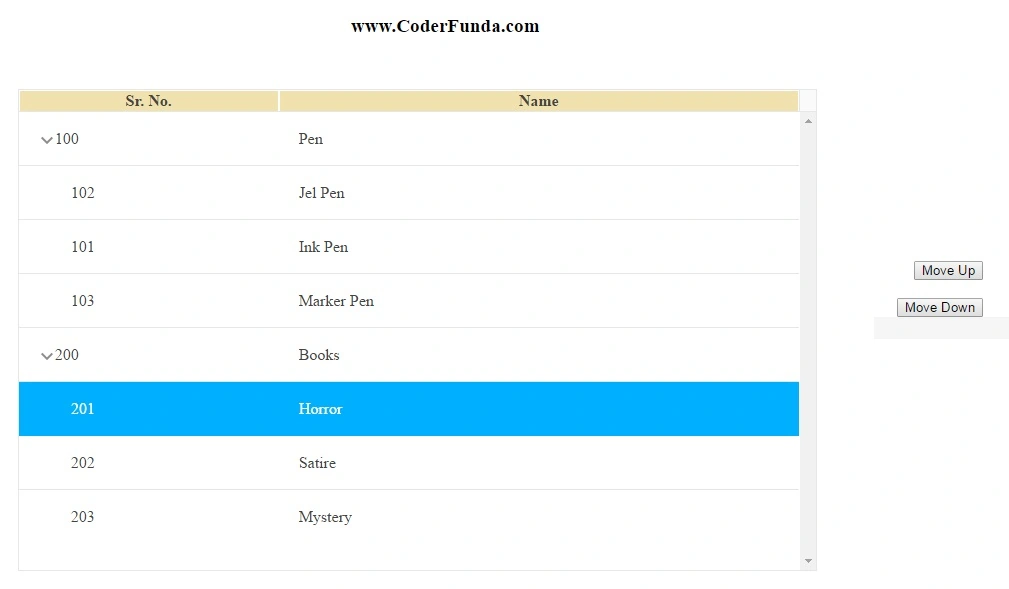
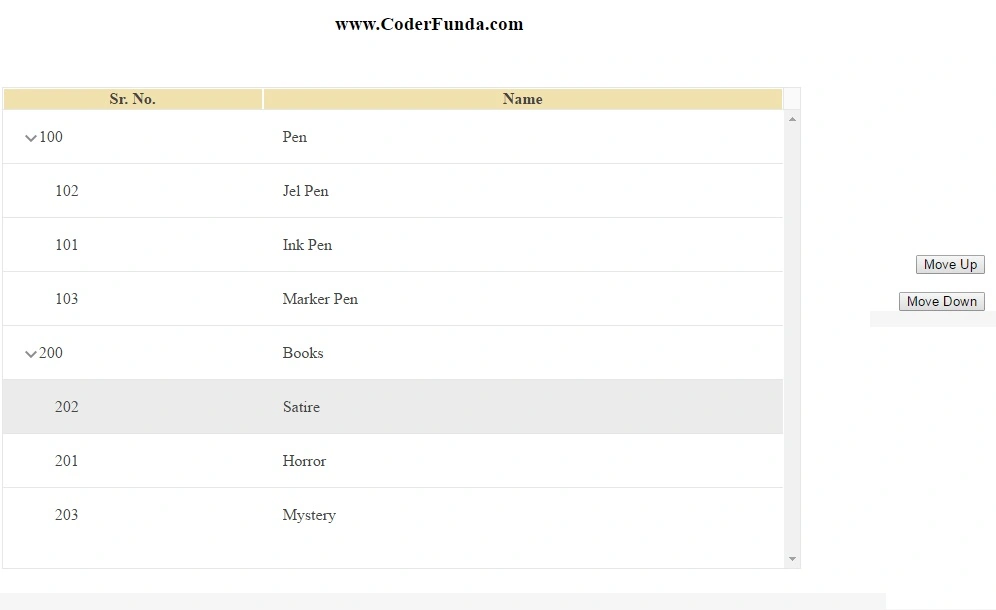
If we select record 'Horror' with Sr. No. 201 & click Move down, then we will get the result, as shown below.
Important
- This treelist has only 2 levels i.e. parent nodes and children nodes.
- For simplicity, this example uses some dummy data.
- This example may not be covered in all real-world scenarios.
- Please note that this is a custom implementation. Feel free to modify the implementation, as per your preferences.
Summary
In this article, you learned the basics of how to move a Kendo TreeList node up and down in ASP.NET MVC, using JavaScript.
In this article, you learned the basics of how to move a Kendo TreeList node up and down in ASP.NET MVC, using JavaScript.
Join the conversation! Your thoughts help the community grow.