

Introduction
Since the announcement of Kotlin at Google I/O 2017, we have seen a series of tutorials in Kotlin. If you are new to Kotlin, you can learn Kotlin from our previous articles.
We covered the basics of Kotlin and Hello World functions, how to use ListView, RecyclerView in Kotlin, and how to implement SQLite storage in Kotlin with CRUD operations.
In this article, we will learn how to make a server call (i.e. HTTP Connection) from a Kotlin-powered application to web services.
Coding Part
I have divided the coding part into 3 steps as shown in the following.
- Creating a new project.
- Setting up the project with Fuel HTTP.
- Implementing the Fuel HTTP Service Call.
Let’s start coding for Fuel HTTP.
Step 1 - Creating a new project
- Open Android Studio and select "Create a new project".
- Name the project as per your wish and tick the Kotlin checkbox support.
- Then Select your Activity type (For Example Navigation Drawer Activity, Empty Activity, etc.).
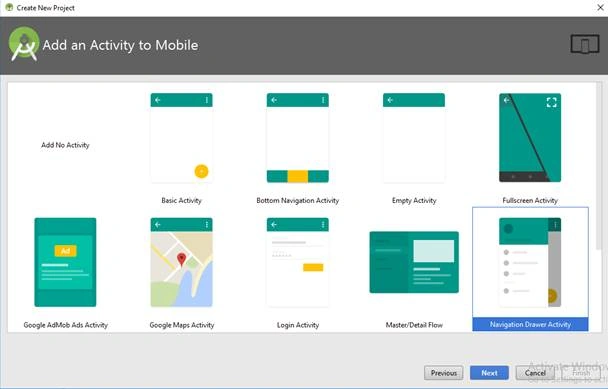
- Then, click the “Finish” button to create a new project in Android Studio.
Step 2 - Setting up the project
Now, we will be setting up the project for Fuel HTTP.
- Open your app level gradle file and add the following line.
- implementation 'com.github.kittinunf.fuel:fuel-android:1.6.0'
- If you are using Android Studio Version below 3.0, then add the following (Optional Step).
- compile 'com.github.kittinunf.fuel:fuel-android:1.6.0'
- Then click “Sync Now” to download the library and add to the project.
After this, you are ready to implement HTTP Service Call from your Application.
Step 3 - Fuel HTTP implementation
Now, we will be setting up the project for Fuel HTTP.
- Open your AndroidManifest.xml and Add permission to access the internet.
- <uses-permission android:name="android.permission.INTERNET"/>
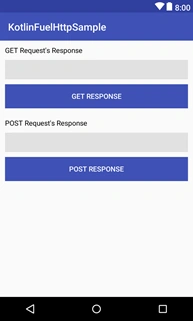
- Open your activity_main.xml file and create the User Interface as you want or paste the following code.
- <?xml version="1.0" encoding="utf-8"?>
- <ScrollView xmlns:android="http://schemas.android.com/apk/res/android"
- xmlns:tools="http://schemas.android.com/tools"
- android:layout_width="match_parent"
- android:layout_height="match_parent"
- tools:context="com.androidmads.kotlinfuelhttpsample.MainActivity">
- <LinearLayout
- android:layout_width="match_parent"
- android:layout_height="wrap_content"
- android:gravity="center"
- android:orientation="vertical">
- <TextView
- android:layout_width="match_parent"
- android:layout_height="wrap_content"
- android:padding="10dp"
- android:text="GET Request's Response"
- android:textColor="#000000" />
- <TextView
- android:id="@+id/tvGetResponse"
- android:layout_width="match_parent"
- android:layout_height="wrap_content"
- android:layout_marginLeft="10dp"
- android:layout_marginRight="10dp"
- android:background="#e1e1e1"
- android:padding="10dp"
- android:text="" />
- <Button
- android:layout_width="match_parent"
- android:layout_height="wrap_content"
- android:layout_margin="10dp"
- android:background="@color/colorPrimary"
- android:onClick="httpGetJson"
- android:text="GET RESPONSE"
- android:textColor="#ffffff" />
- <TextView
- android:layout_width="match_parent"
- android:layout_height="wrap_content"
- android:padding="10dp"
- android:text="POST Request's Response"
- android:textColor="#000000" />
- <TextView
- android:id="@+id/tvPostResponse"
- android:layout_width="match_parent"
- android:layout_height="wrap_content"
- android:layout_marginLeft="10dp"
- android:layout_marginRight="10dp"
- android:background="#e1e1e1"
- android:padding="10dp"
- android:text="" />
- <Button
- android:layout_width="match_parent"
- android:layout_height="wrap_content"
- android:layout_margin="10dp"
- android:background="@color/colorPrimary"
- android:onClick="httpPostJson"
- android:text="POST RESPONSE"
- android:textColor="#ffffff" />
- </LinearLayout>
- </ScrollView>
Tony GarciaPosted Nov 27, 2020, 3:30 PM
Thank you for this - it really helped me get my app doing what I needed. But I'm having a problem when I get a Connection Refused error - I can't seem to catch the exception, and it's causing my app to completely fail. I have the "Fuel.get" call wrapped in a try catch but it never reaches my exception handler. Any tips?
Mushtaq M APosted Jul 16, 2019, 8:08 AM
thanks bro
jaime avilesPosted Jul 14, 2019, 11:53 AM
Very nice thank my friend