Introduction

This article explains Checkboxes in Android. Android Studio is used to create the sample.
CheckBox
A CheckBox is a type of two-state button that can either be checked or unchecked.
In this article I used three CheckBoxes that, when clicked, display a toast that contains the id of that checkbox. If you check the first checkBox then it displays checkbox1 and if you check the second CheckBox then the toast displays checkbox2. I have also used a button so when clicking the button the state of the checkboxes display on the screen that shows which TextBox is selected. If one TextBox is selected then it shows checkbox1:true and another with false. If all the checkboxes are selected then it shows checkbox1:true, checkbox2:true, checkbox3:true.
Step 1
Create a project like this:
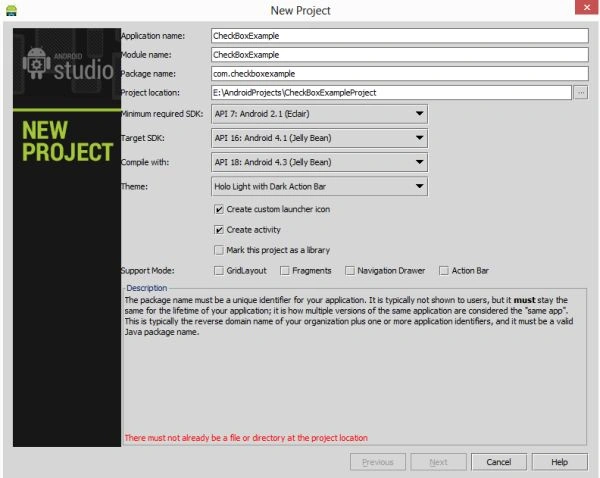
Clipboard06.jpg
Step 2
Create an XML file and the following.
In this, I used three checkboxes and a button that show the state of all the checkboxes on a click.
  1. <RelativeLayout xmlns:android="http://schemas.android.com/apk/res/android"
  2. xmlns:tools="http://schemas.android.com/tools"
  3. android:layout_width="match_parent"
  4. android:layout_height="match_parent"
  5. android:paddingLeft="@dimen/activity_horizontal_margin"
  6. android:paddingRight="@dimen/activity_horizontal_margin"
  7. android:paddingTop="@dimen/activity_vertical_margin"
  8. android:paddingBottom="@dimen/activity_vertical_margin"
  9. tools:context=".MainActivity"
  10. android:background="#83a697">
  11. <TextView
  12. android:layout_width="wrap_content"
  13. android:layout_height="wrap_content"
  14. android:text="Check Box Example"
  15. android:layout_centerHorizontal="true"
  16. android:textStyle="bold"
  17. android:textColor="#00ffff"
  18. android:textSize="30dp" />
  19. <CheckBox
  20. android:id="@+id/checkbox1"
  21. android:layout_width="wrap_content"
  22. android:layout_height="wrap_content"
  23. android:layout_marginTop="70dp"
  24. android:text="Check1"
  25. android:textStyle="bold"
  26. android:textColor="#00ffff" />
  27. <CheckBox
  28. android:id="@+id/checkbox2"
  29. android:layout_width="wrap_content"
  30. android:layout_height="wrap_content"
  31. android:layout_marginTop="140dp"
  32. android:text="Check2"
  33. android:textStyle="bold"
  34. android:textColor="#00ffff" />
  35. <CheckBox
  36. android:id="@+id/checkbox3"
  37. android:layout_width="wrap_content"
  38. android:layout_height="wrap_content"
  39. android:layout_marginTop="210dp"
  40. android:text="Check3"
  41. android:textStyle="bold"
  42. android:textColor="#00ffff" />
  43. <Button
  44. android:layout_width="wrap_content"
  45. android:id="@+id/buttonDelete"
  46. android:layout_height="wrap_content"
  47. android:layout_marginTop="300dp"
  48. android:layout_centerHorizontal="true"
  49. android:textColor="#00ffff"
  50. android:text="Show Message" />
  51. </RelativeLayout>
Step 3
Create a Java class file and write the following.
First I created the layout, the id of the checkboxes and button. Now set checkbox1 on its clickListener() and oncheck get the state of the checkbox. I also used the button to show the state of the checkboxes.
  1. package com.checkboxexample;
  2. import android.os.Bundle;
  3. import android.app.Activity;
  4. import android.view.Gravity;
  5. import android.view.Menu;
  6. import android.view.View;
  7. import android.widget.Button;
  8. import android.widget.CheckBox;
  9. import android.widget.Toast;
  10. public class MainActivity extends Activity {
  11. CheckBox checkBox1, checkBox2, checkBox3;
  12. Button buttonDelete;
  13. @Override
  14. protected void onCreate(Bundle savedInstanceState) {
  15. super.onCreate(savedInstanceState);
  16. setContentView(R.layout.activity_main);
  17. buttonDelete = (Button) findViewById(R.id.buttonDelete);
  18. checkBox1 = (CheckBox) findViewById(R.id.checkbox1);
  19. checkBox2 = (CheckBox) findViewById(R.id.checkbox2);
  20. checkBox3 = (CheckBox) findViewById(R.id.checkbox3);
  21. checkBox1.setOnClickListener(new View.OnClickListener() {
  22. @Override
  23. public void onClick(View v) {
  24. if (checkBox1.isChecked()) {
  25. checkBox1.getText().toString();
  26. Toast.makeText(getApplicationContext(), checkBox1.getText().toString(), Toast.LENGTH_LONG).show();
  27. }
  28. }
  29. });
  30. checkBox2.setOnClickListener(new View.OnClickListener() {
  31. @Override
  32. public void onClick(View v) {
  33. checkBox2.getText().toString();
  34. Toast.makeText(getApplicationContext(), checkBox2.getText().toString(), Toast.LENGTH_LONG).show();
  35. }
  36. });
  37. checkBox3.setOnClickListener(new View.OnClickListener() {
  38. @Override
  39. public void onClick(View v) {
  40. checkBox3.getText().toString();
  41. Toast.makeText(getApplicationContext(), checkBox3.getText().toString(), Toast.LENGTH_LONG).show();
  42. }
  43. });
  44. buttonDelete.setOnClickListener(new View.OnClickListener() {
  45. @Override
  46. public void onClick(View v) {
  47. StringBuffer buffer = new StringBuffer();
  48. buffer.append("checkBox1 :").append(checkBox1.isChecked());
  49. buffer.append("\ncheckBox2 :").append(checkBox2.isChecked());
  50. buffer.append("\ncheckBox3 :").append(checkBox3.isChecked());
  51. Toast toast=new Toast(getApplicationContext());
  52. toast.makeText(getApplicationContext(),buffer.toString(),Toast.LENGTH_LONG).show();
  53. toast.setGravity(Gravity.CENTER_VERTICAL,0,30);
  54. }
  55. });
  56. }
  57. @Override
  58. public boolean onCreateOptionsMenu(Menu menu) {
  59. // Inflate the menu; this adds items to the action bar if it is present.
  60. getMenuInflater().inflate(R.menu.main, menu);
  61. return true;
  62. }
  63. }
Step 4
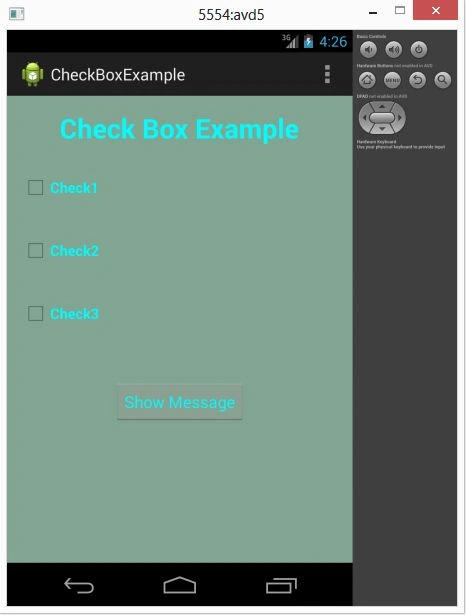
Output image when no checkbox is checked:
2.jpg
Step 5
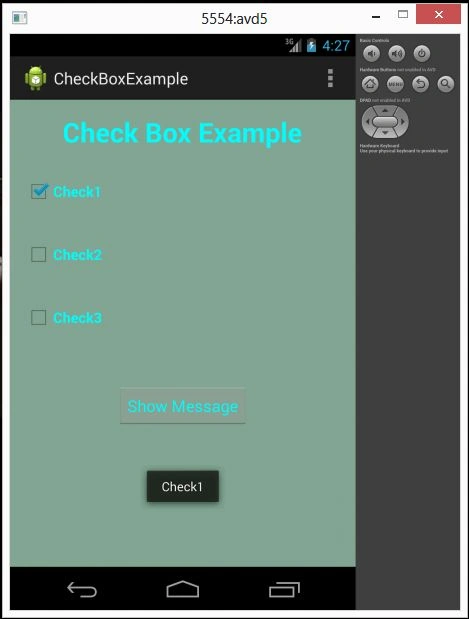
When one checkbox ic checked:
Clipboard04.jpg
Step 6
When two checkboxes are checked:
Clipboard006.jpg