
Introduction
This article explains the custom list view using view and holder in Android. Android Studio is used to create the sample.
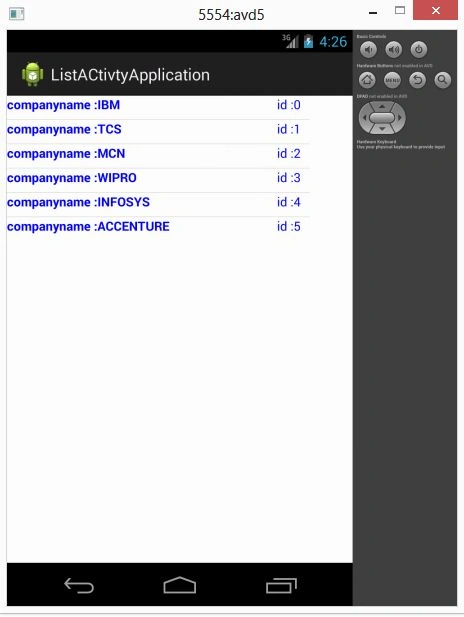
In a simple ListView only one piece of data can be displayed in a row but what will happen when we need to show data in multiple columns of a ListView? For this, we need to create a Custom Adapter to show data in multiple columns of a ListView. In this ListView application, I have shown a company name and company id in two columns. For this I have crated three classes, the first is a CustomListview class where the list view is created and that stores the data into it using the CustomAdapter class. Second I created a List model class that stores data and returns data using methods. In a Custom Adapter class, I get the arraylist by the constructor of the CustomAdapter class.
Now after taking an ArrayList i Have created a View class to get the layout and a holder that holds the views of that layout. Get the object of the arraylist into the object of the Listmodel and set the values into the textview using the setText() method.
Step 1
The following describes how to create the project.
Step 2
Create an XML file with the following in it:
Step 3
Create another XML file with the following in it:
- <?xml version="1.0" encoding="utf-8"?>
- <LinearLayout xmlns:android="http://schemas.android.com/apk/res/android"
- android:orientation="vertical"
- android:layout_width="fill_parent"
- android:layout_height="fill_parent">
- <ListView
- android:id="@+id/listView"
- android:layout_width="wrap_content"
- android:layout_height="wrap_content" />
- </LinearLayout>
- <?xml version="1.0" encoding="utf-8"?>
- <RelativeLayout xmlns:android="http://schemas.android.com/apk/res/android"
- android:layout_width="fill_parent"
- android:layout_height="?android:attr/listPreferredItemHeight"
- >
- <TextView
- android:id="@+id/text1"
- android:textColor="#0000ff"
- android:layout_width="wrap_content"
- android:layout_height="26dip"
- android:layout_alignParentTop="true"
- android:layout_alignParentLeft="true"
- android:textStyle="bold"
- android:text="text1"/>
- <TextView
- android:textColor="#0000ff"
- android:layout_marginLeft="300dp"
- android:text="text2"
- android:id="@+id/text2"
- android:layout_width="fill_parent"
- android:layout_height="wrap_content"/>
- </RelativeLayout>
Join the conversation! Your thoughts help the community grow.