

Introduction
You might be interested in learning HTML5 from the very first article of this series since this is the third part of my Learn HTML5 series.
Server-Sent Events
- EventSource Interface
- Event Stream
The EventSource interface allows the client to receive push notifications from the server as DOM events and and the "event stream" data format, that is used to deliver the individual updates.
For a long time, we previously considered the HTTP protocol as a request-response model that uses bidirectional communication, in other words when you as a client sends a request to the server and waits for the response then again sends a future request. What clear to you.? Here you see that the server cannot communicate with the client unless it's requested, this process is also called COMET.
COMET flow chart
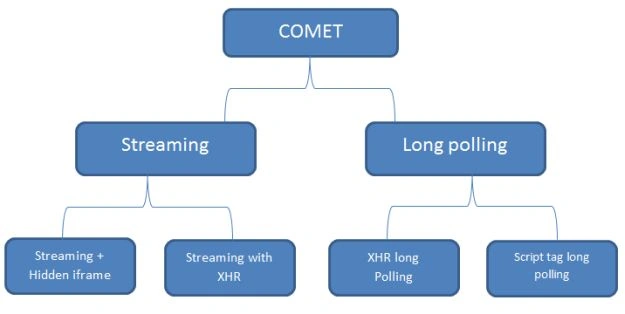 Comet applications can be broadly classified as
Streaming
Comet applications can be broadly classified as
Streaming
In streaming the web/application server is kept open for a long time.
Long polling
In polling, the server holds the connection until it has data to push then the client must open a new polling request.
Streaming with Hidden iframe
In this, the HTML page contains a hidden iframe and this is sent as a chunked block, that implicitly declares it as infinitely long.
Streaming with XHR
XMLHttpRequest object in JavaScript used by Ajax applications for browser–server communication.
XHR long Polling
The client sends a request through the XMLHttpRequest JavaScript object.
Script tag long-polling
Process is nearly the same as XHR long Polling but the script code is embedded in a <script> tag.
Server-Sent Events are designed to reduce the overheads of the preceding only bidirectional communication way. In HTML5 we have a native way to handle SSE, an API is defined in HTML5 that opens an HTTP connection for receiving push notifications time-by-time from a server.
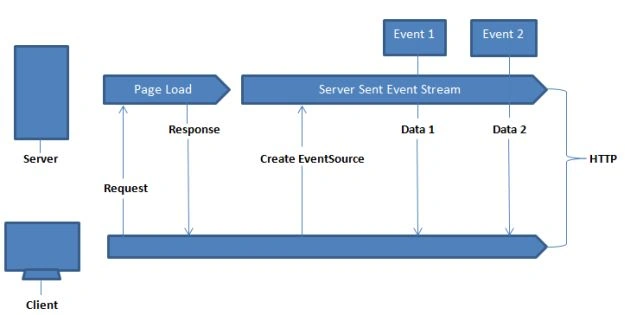 You can enable event-based streaming over HTTP using SSE. As in the picture above you saw it is a one-way connection so that the server can send updates to the client. You just need to create an EventSource object via JS and the server flushing event data as and when there is an update triggered without terminating the stream.
The following are the main interesting points of EventSource that you need to know:
You can enable event-based streaming over HTTP using SSE. As in the picture above you saw it is a one-way connection so that the server can send updates to the client. You just need to create an EventSource object via JS and the server flushing event data as and when there is an update triggered without terminating the stream.
The following are the main interesting points of EventSource that you need to know:
- new EventSource(URL): Used to create an EventSource object that starts listening for events.
- readyState: The readyState tells us whether we are connecting, open, or closed.
- onopen, onmessage: Initiate when new EventSource object occurs.
- addEventListener: Used for default message and custom messages with addEventListener.
- event.data: Used to encode and decode the object using the data property of the event object.
- close: Closes the connection from the client-side.
SSE flow chart
In the following figure, you will see how SSE works after the client/server is connected.
 The very first instance that initiates on the server-side is OutboundEvent. It will initiate when any new event is generated and contains the data that will be passed to the client and here as you might understand when the server sends data to the client it will always be in a serialized format. So, here the OutboundEventWriter comes in the process and serializes the data on the server-side and this time you need to specify the media type of the data in OutboundEvent. There are no restrictions on providing specific media types only.
Now to the client-side, InboundEvent is responsible for handling the incoming data from the server and as for readability InbounEventReader is used to deserialize the data.
Using SSEBroadCaster, we are able to broadcast events to multiple clients that are connected to the server.
Browser support for server-sent events:
The very first instance that initiates on the server-side is OutboundEvent. It will initiate when any new event is generated and contains the data that will be passed to the client and here as you might understand when the server sends data to the client it will always be in a serialized format. So, here the OutboundEventWriter comes in the process and serializes the data on the server-side and this time you need to specify the media type of the data in OutboundEvent. There are no restrictions on providing specific media types only.
Now to the client-side, InboundEvent is responsible for handling the incoming data from the server and as for readability InbounEventReader is used to deserialize the data.
Using SSEBroadCaster, we are able to broadcast events to multiple clients that are connected to the server.
Browser support for server-sent events:
 The following are key features of Server-Sent Events:
- Low latency delivery via a single connection
- Connection are long-lived
- Cross-browser message parsing
- No unbounded buffers in message parsing
- Automatic tracking of last seen message
- Auto reconnect in case of disconnection
- Client message notifications as DOM events
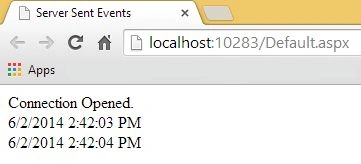
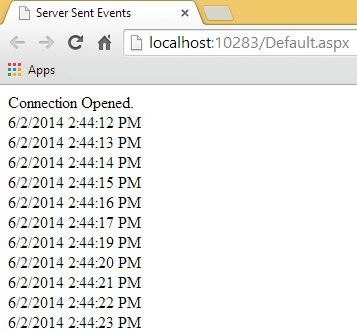
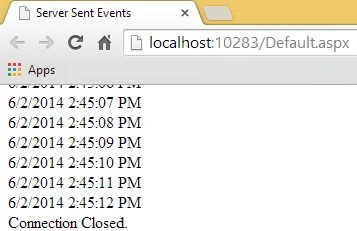
Here's an example of how to work with Server-Sent Events, we create a Server-Side Event request for a specific time and raise an event for date and time and this event will fire each second during the Server-Side Event time duration.
Let's assume you are receiving an updated server date and time each second and then next you need to tell the browser that this response is Server-Side Events response and for that add the Server-Side Events receivers in the initialize function.
Now add the code inside our initialize function using JavaScript EventSource class as in the following:
- <script>
- function initialize() {}
- </script>
- if (window.EventSource == #ff0000) {}
- var source = new EventSource('your data source');
jawad malikPosted Jul 16, 2020, 2:20 PM
Hi ! I want to show my serial port data to view I have a weight device when the port is open device send continuous data so I want to show it on view live any help will be appreciatable.
GuruPrakash JagannathanPosted Jun 2, 2014, 11:28 PM
Hi, Nice Article. I would like to know the code written in GetDateTime.aspx. Because which function will be invoked in that aspx.cs page and how to call onmessage() to output the date time from server (aspx.cs page). Thanks.
Former memberPosted Jun 2, 2014, 5:55 AM
Nice article