Introduction
In this article, I will explain how to turn LED ON/ OFF in Bluetooth using Android Apps In
Arduino Mega 2560. In the setup, we can easily connect it through an Android app. LED turns on when the ON button is pressed, and off when the Off button is pressed.
Parts of list
- Arduino Mega2 560
- Bluetooth (HC05)
- Breadboard
- Hookup wires
Software required
Connection:
Step 1: Connection from the Bluetooth (HC05) to the Arduino Mega 2560.
Figure1: Bluetooth(HC05)
- In the Bluetooth the Vcc can be connected to the 5v supply of the Arduino Mega board.
- In the Bluetooth the Gnd can be connected to the Gnd supply of the Arduino Mega board.
- In the Bluetooth the Tx can be connected to the Rx of the Arduino Mega board.
- In the Bluetooth the Rx can be connected to the Tx of the Arduino Mega board.
Step2: Connection from the LED to the Arduino Mega2560.
- The positive pin of the LED can be connected to the digital pin 13 to the Arduino Mega board.
- The negative pin of the led can be connected to the Gnd to the Arduino Mega board.
Software steps:
- Open the MIT App Inventor
- Click Start, then a new project
- Design the Bluetooth connection in the app inventor.
- Click the toolbar and add the buttons and set the device of the Bluetooth.
- In the program set the code and click the connect, than Al companion.
- Scan the code and see the output on the board.
MIT App Window
MIT App window
Programming
- int led - turn - on - off - in -bluetooth - using - android - apps - in -arduinompin = 13;
- String readString;
- void setup()
- {
- Serial.begin(9600);
- pinMode(led - turn - on - off - in -bluetooth - using - android - apps - in -arduinompin, OUTPUT);
- }
-
- void loop()
- {
- while (Serial.available())
- {
- delay(4);
- char c = Serial.read();
- readString += c;
- }
- if (readString.length() > 0)
- {
- Serial.println(readString);
- if (readString == "ON")
- {
- digitalWrite(led - turn - on - off - in -bluetooth - using - android - apps - in -arduinompin, HIGH);
- }
- if (readString == "OFF")
- {
- digitalWrite(led - turn - on - off - in -bluetooth - using - android - apps - in -arduinompin, LOW);
- }
- readString = "";
- }
- }
Explanation
- In this article it can work through the Android and Bluetooth set up.
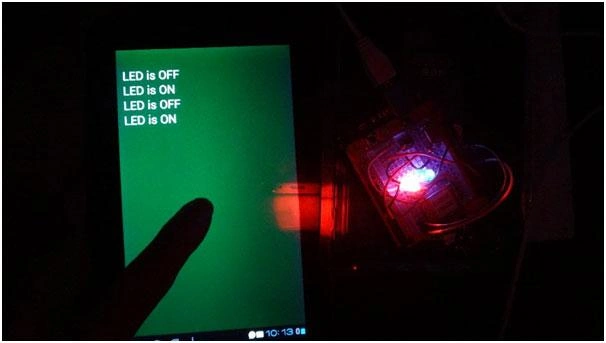
- The LED turns on clicking the ON button.
- The LED turns off clicking the OFF button.
- In another case, we can see the LED on/off in the serial monitor also.
Figure 3: Output
Read articles on Arduino:


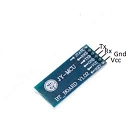 Figure1: Bluetooth(HC05)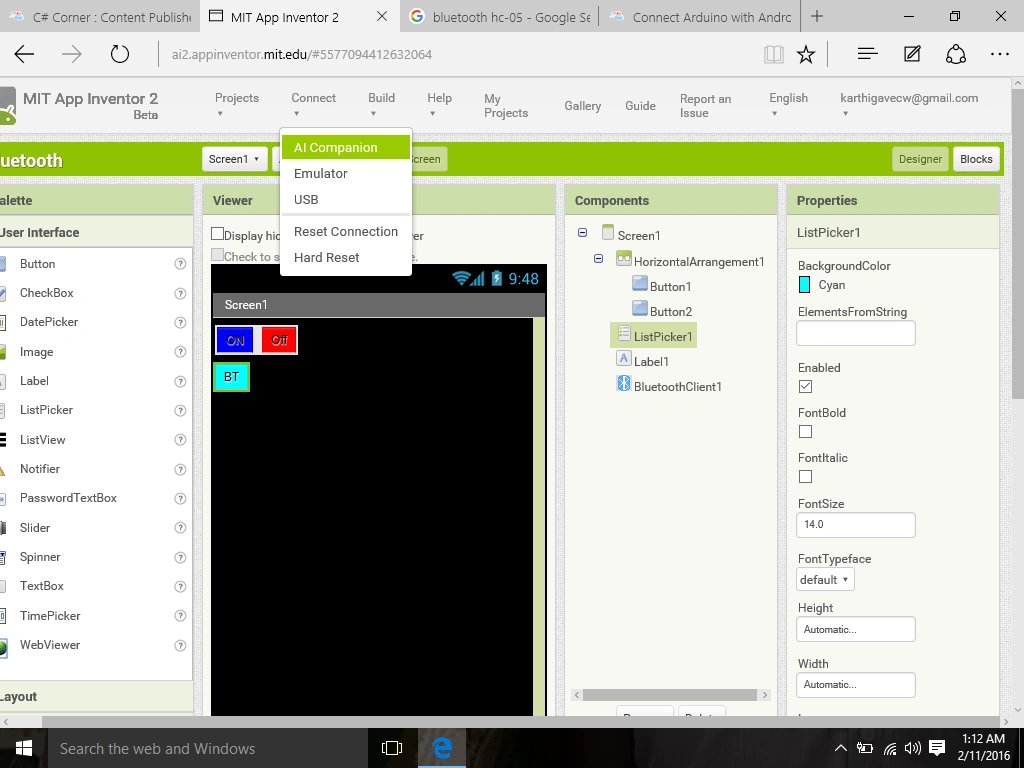
Sr KarthigaPosted Feb 29, 2016, 7:42 PM
thank you asfend sir
Asfend YarPosted Feb 29, 2016, 2:23 PM
good
Sr KarthigaPosted Feb 24, 2016, 7:49 PM
Thank you vignesh mani sir
Vignesh ManiPosted Feb 24, 2016, 6:13 PM
Nice
Sr KarthigaPosted Feb 13, 2016, 4:21 AM
Thank you santhakumar sir
Santhakumar MunuswamyPosted Feb 13, 2016, 3:00 AM
Thanks for nice share
Sr KarthigaPosted Feb 12, 2016, 1:38 AM
Thank you sir
Sibeesh VenuPosted Feb 12, 2016, 12:37 AM
Nice Share
Sr KarthigaPosted Feb 11, 2016, 7:27 PM
Thank you Mohammed sir
Mohammed IbrahimPosted Feb 11, 2016, 1:16 PM
nice
Sr KarthigaPosted Feb 11, 2016, 10:42 AM
Thank you gowtham sir
Gowtham KPosted Feb 11, 2016, 10:30 AM
Good One
Sr KarthigaPosted Feb 11, 2016, 9:53 AM
Thank you raja sir
Raja TPosted Feb 11, 2016, 8:16 AM
Nice, Thanks for sharing
Sr KarthigaPosted Feb 11, 2016, 8:08 AM
Thank you shubham sir
Shubham KumarPosted Feb 11, 2016, 7:38 AM
Nice one
Sr KarthigaPosted Feb 11, 2016, 7:10 AM
Thank you kumaresh sir
Kumaresh RajalingamPosted Feb 11, 2016, 7:10 AM
Good one