

Introduction
Today, in this article let's dig out by learning another new concept in HTML 5. Once implemented, this concept offers a better look & feel for the application and development becomes more light-weight.
Let's get this started off!!!
Question: What is the Autofocus Attribute?
In simple terms "It provides displaying of the cursor when the page gets loaded. It enables the user to directly enter some values or perform some expected operation".
Step 1: The complete code of Autofocus.html looks like this
- <! DOCTYPE html>
- <html>
- <body>
- <div>
- <header>
- <h1 style="color: gray; text-align:center">Working with Autofocus in HTML 5</h1>
- </header>
- <div style="text-align: center">
- FirstName:
- <input type="text" name="fullname" autofocus="autofocus" />
- <footer>
- <p style="color: silver; text-align:center">© Copyright by Vijay Prativadi</p>
- </footer>
- </div>
- </body>
- </html>
Step 2: The output of the Autofocus Application looks like this:

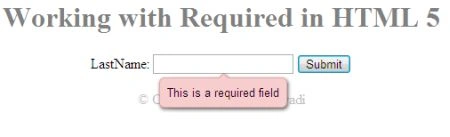
Question: What is Required Attribute?
In simple terms "It shows a validation to the user for some mandatory fields which haven't been entered or left blank".
Step 1: The complete code of the Required.html looks like this
- <! DOCTYPE html>
- <html>
- <head>
- </head>
- <body>
- <form>
- <div>
- <header>
- <h1 style="color: gray; text-align:center">Working with Required in HTML 5</h1>
- </header>
- <center>
- <table>
- <tr>
- <td>
- LastName:
- </td>
- <td>
- <input type="text" name="lastname" required="required" />
- <input type="Submit">
- </td>
- </tr>
- </table>
- </center>
- <footer>
- <p style="text-align: center; color: silver">© Copyright by Vijay Prativadi</p>
- </footer>
- </div>
- </form>
- </body>
- </html>
Step 2: The output of the Required Application looks like this
Question: What is Step Attribute?
In simple terms "It provides flexibility for the user to step up or step down to provide some value for the required field".
Step 1: The complete code of Step.html looks like this:
- <! DOCTYPE html>
- <html>
- <head>
- </head>
- <script type="text/javascript">
- function rangeData(somevalue) {
- ElementById("range").innerHTML = somevalue;
- }
- </script>
- <body>
- <div>
- <header>
- <h1 style="color: gray; text-align:center">Working with Step in HTML 5</h1>
- </header>
- <div>
- <center>
- <table>
- <tr>
- <td>
- Step Attribute:
- </td>
- <td>
- <input type="range" max="100" min="0" step="10" value="go" onchange="rangeData(this.value)" />
- <span id="range">0</span>
- </td>
- </tr>
- </table>
- </center>
- <footer>
- <p style="text-align: center; color: silver">© Copyright by Vijay Prativadi</p>
- </footer>
- </div>
- </body>
- </html>
Step 2: The output of Step Application looks like this:

Question: What is Max & Min(Range) Attribute?
In simple terms "It enables the user to select a required value within specified range".
Step 1: The complete code of maxandmin.html looks like this:
- <! DOCTYPE html>
- <html>
- <body>
- <div>
- <header>
- <h1 style="color: gray; text-align:center">Working with Max and Min(Range) in HTML 5</h1>
- </header>
- <div>
- <center>
- <table>
- <tr>
- <td>
- Max and Min:
- </td>
- <td>
- <input type="date" name="date1" max="2012-02-25" min="1986-01-26" />
- </td>
- </tr>
- </table>
- </center>
- <footer>
- <p style="text-align: center; color: silver">© Copyright by Vijay Prativadi</p>
- </footer>
- </div>
- </body>
- </html>
Step 2: The output of max and min Application looks like this

Question: What is Color Type?
In simple terms "It provides flexibility for the user to choose a required color from the picker".
Step 1: The complete code of Color.html looks like this:


Maria JohnsonPosted Feb 26, 2012, 10:56 PM
Hi Vijay. Its a very good and useful article.