
Introduction : Windows Workflow offers two workflow execution styles out of the box: sequential and event-driven. A sequential workflow completes one activity and moves to the next, executing a sequence of consecutive steps. Event-driven workflows model as a state machine. A state machine consists of a set of states (including an initial state and a final state), and a set of events. The state machine is always in one of the defined states, and cannot transition to a new state until an event arrives. Workflow Runtime exposes a number of events we can use to detect changes in a running workflow.
Following Events are given below :
- WorkflowAborted.
- WorkflowCreated.
- WorkflowCompleted.
- WorkflowStarted.
Step 1 : Open Visual Studio 2010.
- Go to File->New->Project.
- Select Sequential Workflow Library.
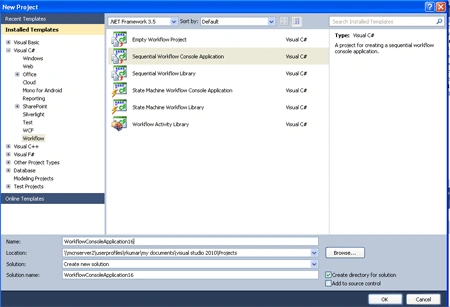
Step 2 : Now drag activity from Toolbox.
- Drag Sequence, Code Activity.
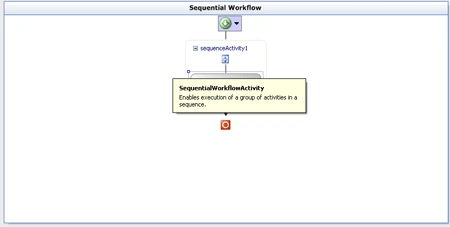
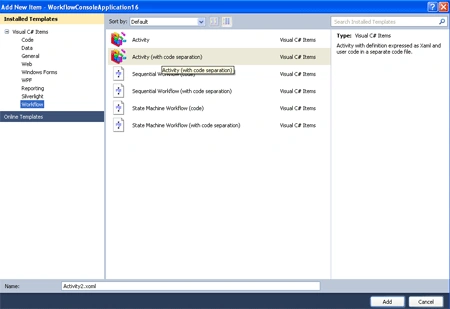
Step 3 : Now go to Solution Explorer and right-click
- Add -> New Item->Activity ( Code Separation).
- When we click OK then the following design window open.
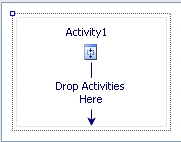
Step 4 : Now go to program.cs option and write the below code.
Code :
using
System;
using
System.Collections.Generic;
using
System.Linq;
using
System.Text;
using
System.Threading;
using
System.Workflow.Runtime;
using
System.Workflow.Runtime.Hosting;
using
System.Workflow.Activities;
namespace
WorkflowConsoleApplication16
{
class Program
{
static void
Main(string[] args)
{
using (WorkflowRuntime
workflowRuntime = new
WorkflowRuntime())
{
AutoResetEvent waitHandle =
new AutoResetEvent(false);
workflowRuntime.WorkflowCompleted +=
delegate(object sender,
WorkflowCompletedEventArgs e) {
waitHandle.Set(); };
workflowRuntime.WorkflowTerminated +=
delegate(object sender,
WorkflowTerminatedEventArgs e)
{
Console.WriteLine(e.Exception.Message);
waitHandle.Set();
};
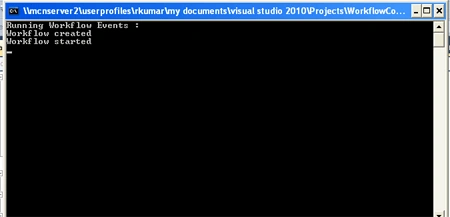
Console.WriteLine("Running
Workflow Events :");
Console.WriteLine("Workflow
created");
Console.WriteLine("Workflow
started");
Console.ReadLine();
WorkflowInstance instance =
workflowRuntime.CreateWorkflow(typeof(WorkflowConsoleApplication16.Workflow1));
instance.Start();
waitHandle.WaitOne();
}
}
}
}
Step 5 : Now go to
Activity1.xaml.cs file and define the event and code for the Sequential
Workflow.
Join the conversation! Your thoughts help the community grow.