

This article explains how to link the bug in a blocked test case using Microsoft Test Manager 2010.
Use the following procedure to do it.
- Click on “Run Tests” and select the blocked test case. Blocked Test Case Opens.
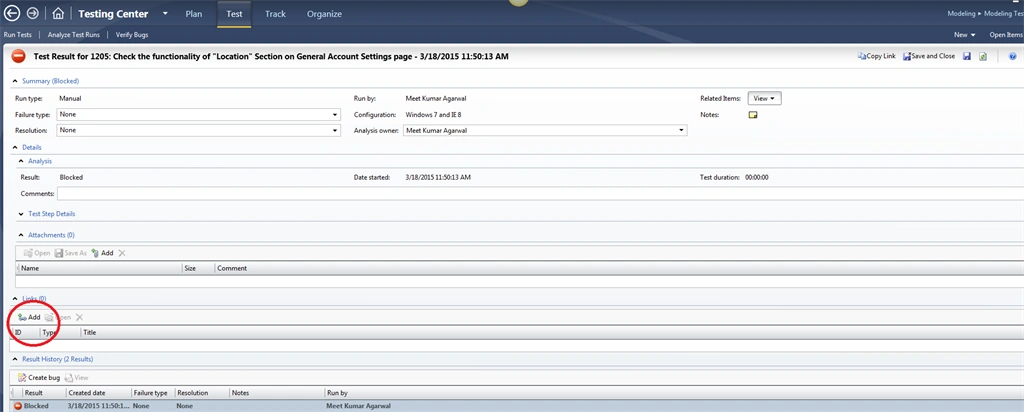
- Click on the “Add” button under “Links” for adding the defect with the blocked test case .
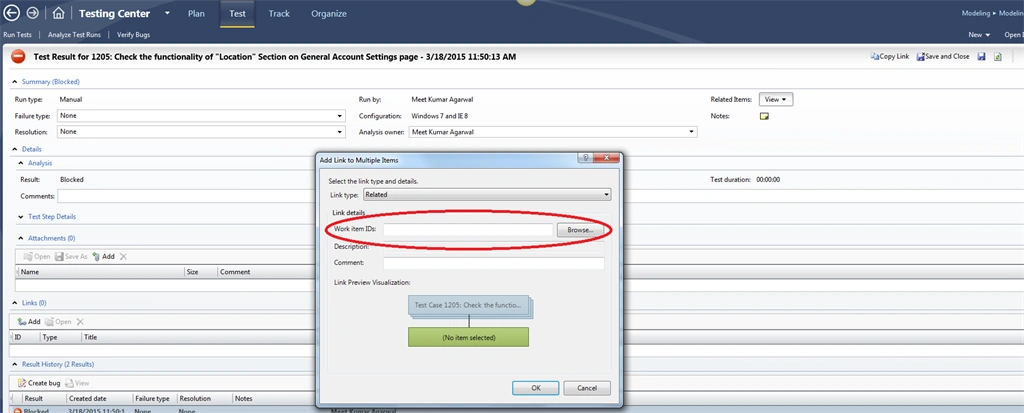
- Click on the “Browse” button.” The "Choose Work Items" dialog box opens.
- Select the “Project”.
- Select the “Saved Query” radio button and click on the relevant dropdown.
- Select and double-click on “My Bugs”.

- Select the “IDs” Radio button.
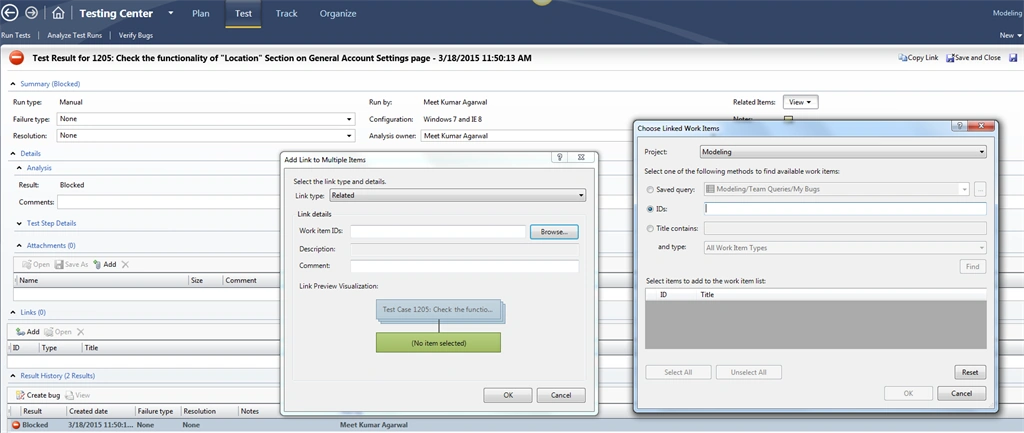
- Enter the “Bug Id” that you want to link (for example Bug Id 7009) and click on the “Find “ button.
The Bug id will be listed below “Select items to add the work items list“.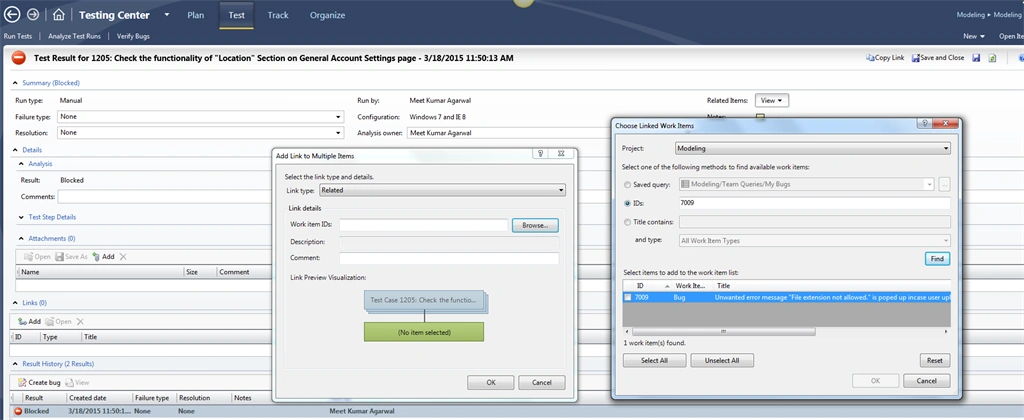
- Check the check box in the form of the listed bug Id.
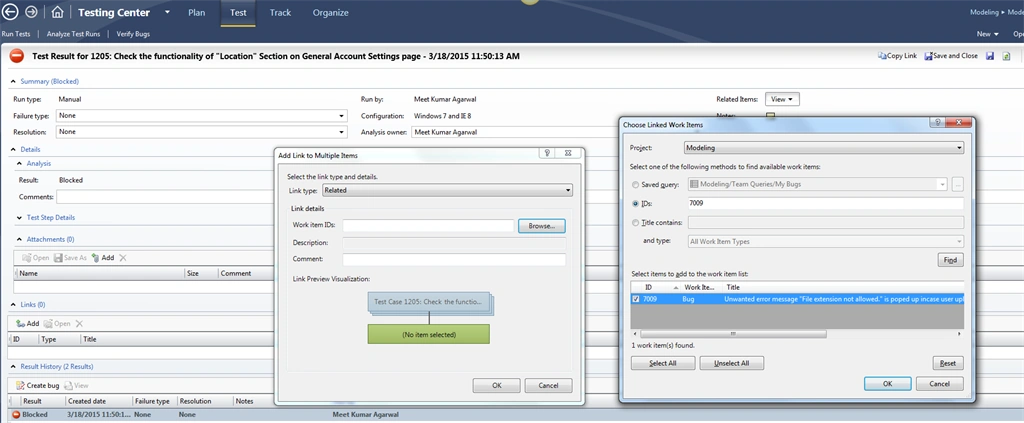
Click on the “OK” button. The chosen work item will closed. - Click on the “OK” button on the “Add Link to Multiple Items” dialog box.
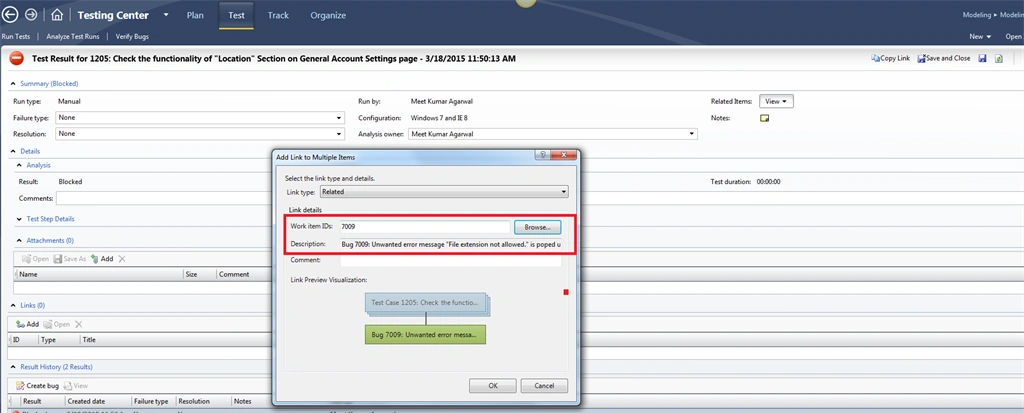
- The Bug Id is added under Links on the blocked test case. Click on the “Save and Close” button.
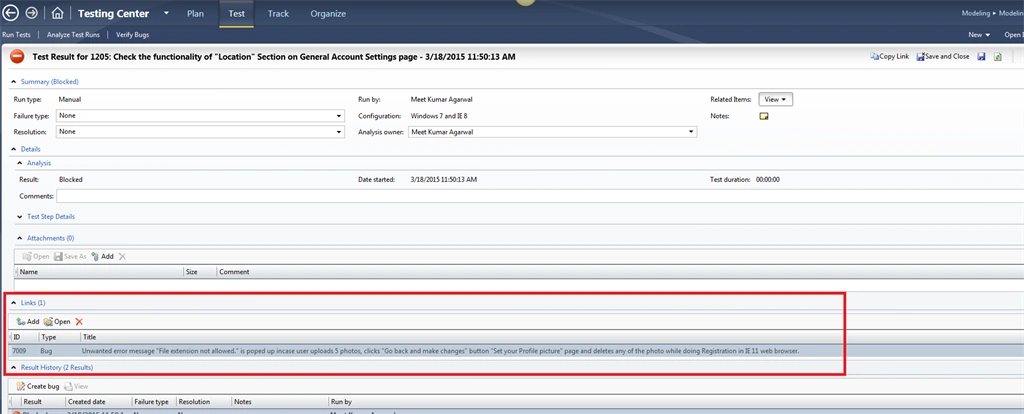
- The Run Tests window opens.

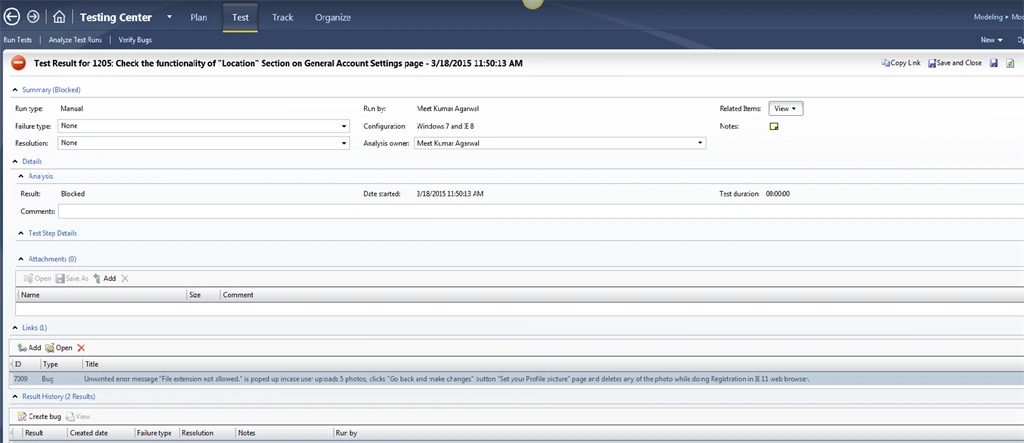
- To verify again. Click on “Blocked Test Case”. The Bug Id is already attached to that blocked test case.
Join the conversation! Your thoughts help the community grow.