Introduction

In this article, I am going to illustrate how a developer can link their app with the Google Play Store so that a user can navigate there to rate the applications by clicking on a particular button or image.
Google provides several application programming interfaces to perform this operation. I am going to explain two aspects - 1. How you can navigate your user to the Play Store when the user's device has Google Play Store installed; 2. when the user device doesn't have Google Play Store (Virtual Device - Emulator).
Creating a Project
Step 1
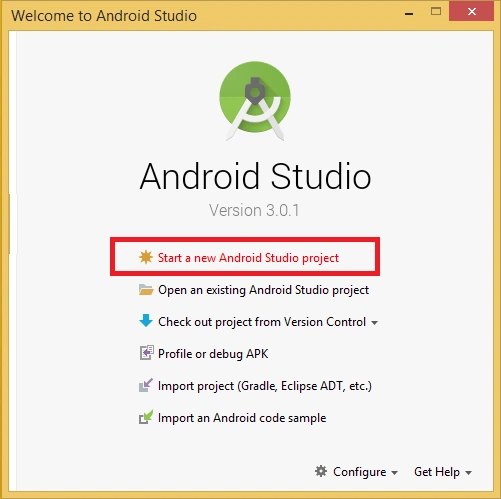
Create a new Android Studio Project as below.
Kotlin
Step 2
Give the name of the project location and package name of your project and then click on Next.
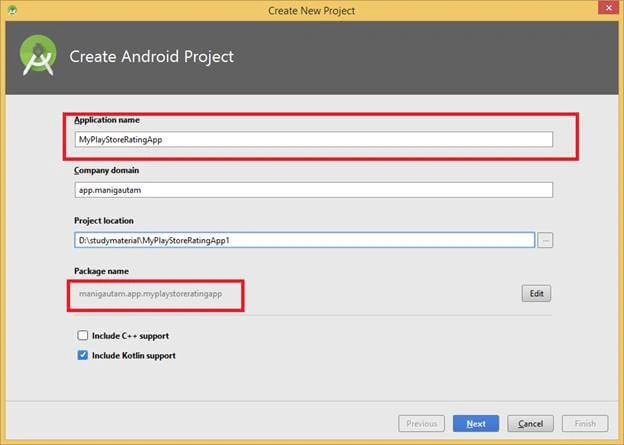
Kotlin
Step-3
Choose "Phone and Tablet" as the application category and set KitKat-API-19 as minimum SDK. Then, click on Next.
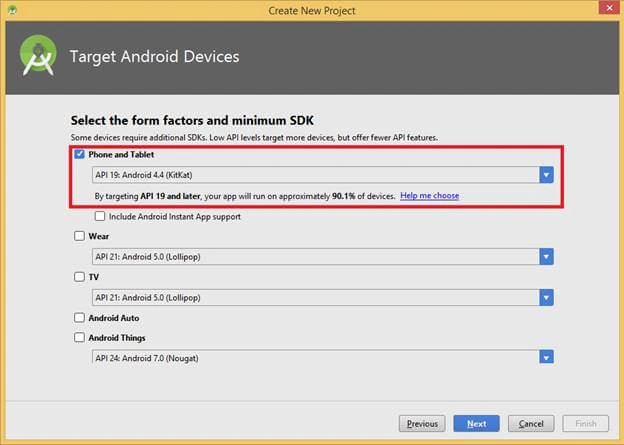
Kotlin
Step-3
Select Empty activity as the main activity of your project and click Next.
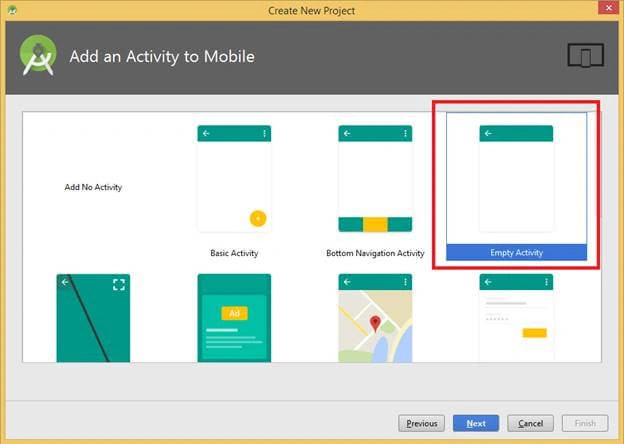
Kotlin
Step-4
One Kotlin file named MainActivity.kt and one Layout file named activity_main.xml will be created.
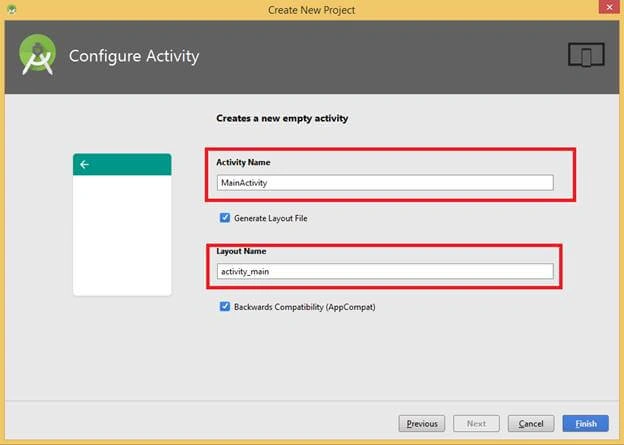
Kotlin
Creating Layout
Step-5
Add the following xml code to your activity_main.xml file.
  1. <?xml version="1.0" encoding="utf-8"?>
  2. <android.support.constraint.ConstraintLayout xmlns:android="https://schemas.android.com/apk/res/android"
  3. xmlns:app="https://schemas.android.com/apk/res-auto"
  4. xmlns:tools="https://schemas.android.com/tools"
  5. android:layout_width="match_parent"
  6. android:layout_height="match_parent"
  7. tools:context="manigautam.app.myplaystoreratingapp.MainActivity">
  8. <Button
  9. android:id="@+id/btnplaystore"
  10. android:layout_width="wrap_content"
  11. android:layout_height="wrap_content"
  12. android:background="@drawable/googleplayimage"
  13. app:layout_constraintBottom_toBottomOf="parent"
  14. app:layout_constraintLeft_toLeftOf="parent"
  15. app:layout_constraintRight_toRightOf="parent"
  16. app:layout_constraintTop_toTopOf="parent"
  17. />
  18. </android.support.constraint.ConstraintLayout>
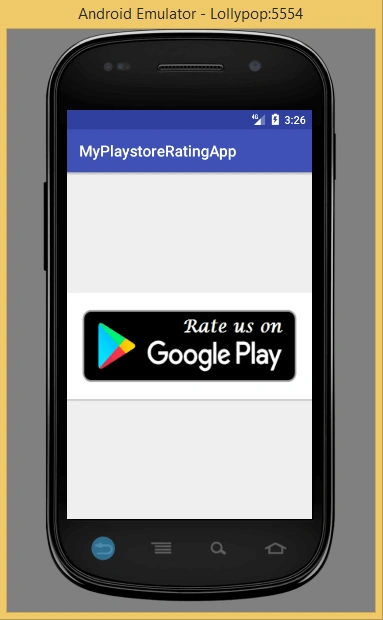
Step-6
Your design should look like this.
Kotlin
Operational Code
Step -7
Initialize the button in Kotlin's file.
Kotlin
We have no need to do parsing of Resource integer value like java here because in the latest version of Kotlin, the function extension technique does it automatically.
Step-8
Set the listener onClick on this button.
Kotlin
Now, the complete Kotlin code of your MainActivity.kt file looks like this.
  1. package manigautam.app.myplaystoreratingapp
  2. import android.content.Intent
  3. import android.net.Uri
  4. import android.support.v7.app.AppCompatActivity
  5. import android.os.Bundle
  6. import android.widget.Button
  7. import kotlinx.android.synthetic.main.activity_main.*
  8. class MainActivity : AppCompatActivity() {
  9. override fun onCreate(savedInstanceState: Bundle?) {
  10. super.onCreate(savedInstanceState)
  11. setContentView(R.layout.activity_main)
  12. var btncallstore:Button=findViewById(R.id.btnplaystore)
  13. btnplaystore.setOnClickListener {
  14. try {
  15. var playstoreuri1: Uri = Uri.parse("market://details?id=" + packageName)
  16. //or you can add
  17. //var playstoreuri:Uri=Uri.parse("market://details?id=manigautam.app.myplaystoreratingapp")
  18. var playstoreIntent1: Intent = Intent(Intent.ACTION_VIEW, playstoreuri1)
  19. startActivity(playstoreIntent1)
  20. //it genrate exception when devices do not have playstore
  21. }catch (exp:Exception){
  22. var playstoreuri2: Uri = Uri.parse("https://play.google.com/store/apps/details?id=" + packageName)
  23. //var playstoreuri:Uri=Uri.parse("https://play.google.com/store/apps/details?id=manigautam.app.myplaystoreratingapp")
  24. var playstoreIntent2: Intent = Intent(Intent.ACTION_VIEW, playstoreuri2)
  25. startActivity(playstoreIntent2)
  26. }
  27. }
  28. }
  29. }
Output
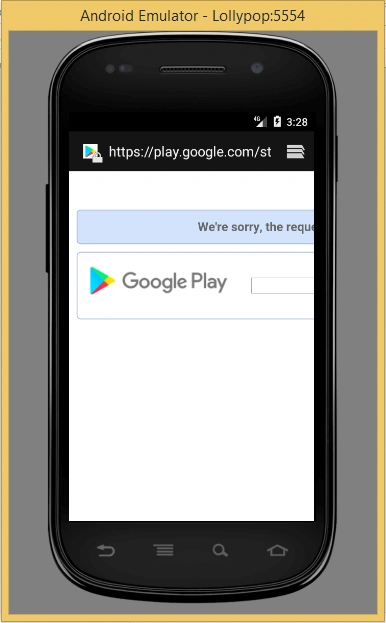
Build and run your application. After running your application, your screen looks like below. When clicked on the button, it will call Google Play Store and display your app so that a user can rate your app.
Kotlin
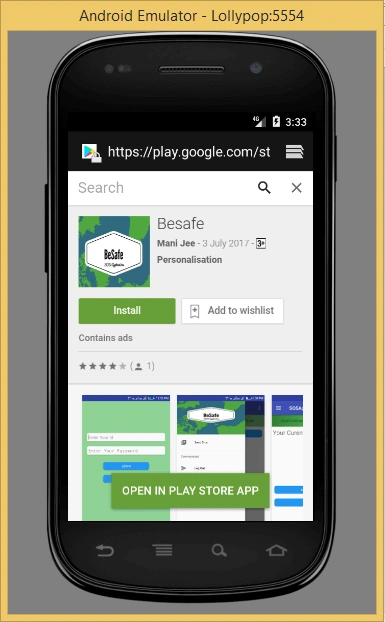
The current sample app is not live; that’s why it's showing that the required application is not found along with the search screen. If your app is live, then it will display the screen of the following live application.
Kotlin