

Introduction
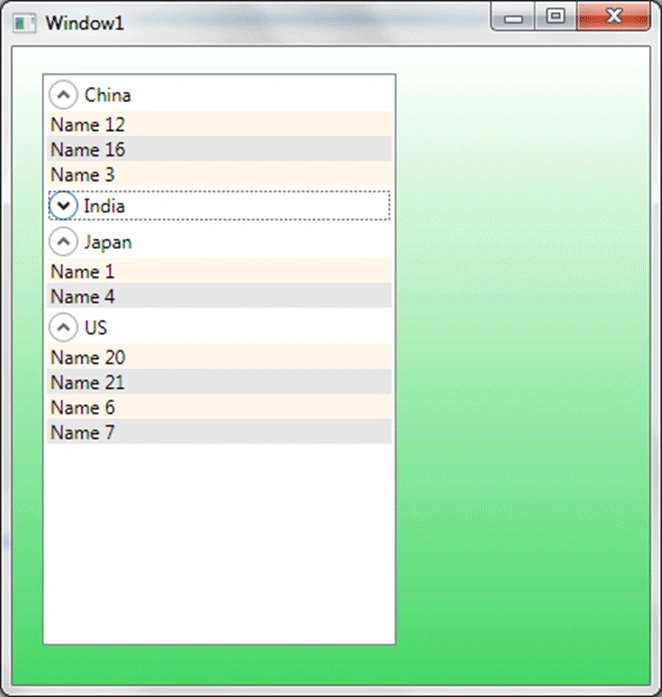
In my previous article we had seen how to achieve grouping and sorting in ListBox. In this article we will see how can we expand and collapse the header and its contents.
Creating WPF Project
Fire up Visual Studio 2008 and create a new WPF Project. Name it as ListBoxSampleWPF.
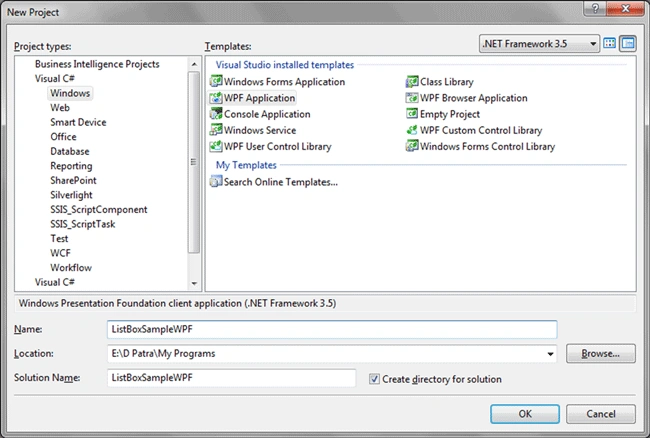
Now we will add a ListBox to the application and it will look as following:
Now let's add some sample data to the ListBox.
public class Person
{
public string Name { get; set; }
public int Age { get; set; }
public string Country
{ get; set; }
}
ObservableCollection<Person>
myList;
public Window1()
{
InitializeComponent();
myList = new ObservableCollection<Person>()
{
new Person{ Name="Name 1", Age=24, Country="Japan"},
new Person{ Name="Name 2", Age=24, Country="India"},
new Person{ Name="Name 3", Age=24, Country="China"},
new Person{ Name="Name 4", Age=24, Country="Japan"},
new Person{ Name="Name 5", Age=24, Country="India"},
new Person{ Name="Name 6", Age=24, Country="US"},
new Person{ Name="Name 7", Age=24, Country="US"},
new Person{ Name="Name 8", Age=24, Country="India"},
new Person{ Name="Name 9", Age=24, Country="India"},
new Person{ Name="Name 10", Age=24, Country="India"},
new Person{ Name="Name 11", Age=24, Country="India"},
new Person{ Name="Name 12", Age=24, Country="China"},
new Person{ Name="Name 13", Age=24, Country="India"},
new Person{ Name="Name 14", Age=24, Country="India"},
new Person{ Name="Name 15", Age=24, Country="India"},
new Person{ Name="Name 16", Age=24, Country="China"},
new Person{ Name="Name 17", Age=24, Country="India"},
new Person{ Name="Name 18", Age=24, Country="India"},
new Person{ Name="Name 19", Age=24, Country="India"},
new Person{ Name="Name 20", Age=24, Country="US"},
new Person{ Name="Name 21", Age=24, Country="US"},
new Person{ Name="Name 22", Age=24, Country="India"},
};
lbPersonList.ItemsSource = myList;
}
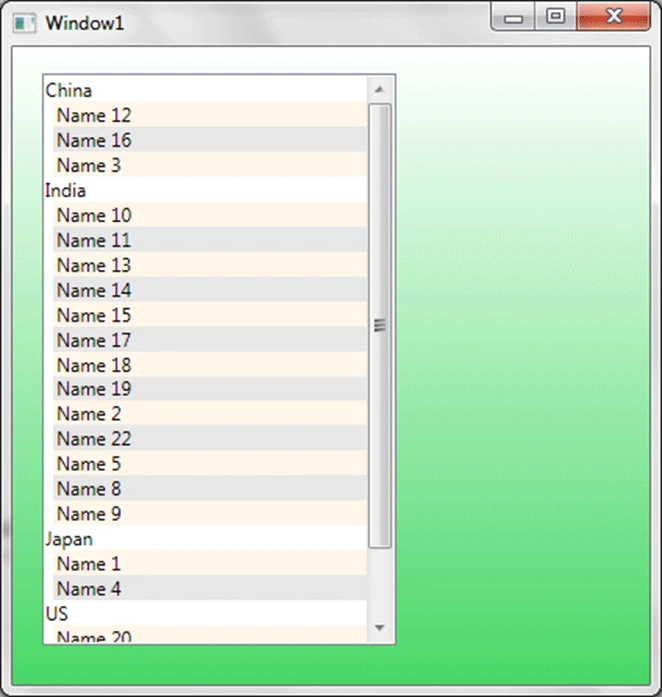
Now we would like to see the persons from different countries. Then add the following code.
ICollectionView view = CollectionViewSource.GetDefaultView(myList);
view.GroupDescriptions.Add(new PropertyGroupDescription("Country"));
view.SortDescriptions.Add(new SortDescription("Country",
ListSortDirection.Ascending));
view.SortDescriptions.Add(new SortDescription("Name", ListSortDirection.Ascending));
lbPersonList.ItemsSource = view;
And in XAML we need to add the GroupStyle for the ListBox.
<ListBox x:Name="lbPersonList" Margin="19,17,162,25" AlternationCount="2">
<ListBox.GroupStyle>
<GroupStyle />
</ListBox.GroupStyle>
<ListBox.ItemTemplate>
<DataTemplate>
RIck MuellerPosted Feb 18, 2010, 8:42 PM
I finally found the solution(thanks to you), but having trouble to get it to work in my app. I have few more bells and whistles, can you give a hand if you have time Thanks
ChrisPosted Feb 18, 2010, 5:01 AM
Good example and well explained, thanks. One question though, how would you go about setting the FontWeight of the group header? Chris.
Baimey RajeshPosted Dec 8, 2009, 1:40 PM
Really good one :)