

Intoduction
In this article we will learn about the ListView in Xamarin. List View is Used to display scrollable list of data. It supports context actions and data biding. We will also see how to add and remove items from the lists. At the end of the article you will have good knowledge about the Lists.
People with the basic knowledge of C# and Xamarin.
Tools
Visual Studio with Xamarin Installed.
Components
- Cells
Data in ListView is presented in cells. Cells shows a row of data. There are built in cells but you can define custom cells too.
- TextCell
Consists of two attributes “Text” and “Detail” to show string of text with a detail of text.
- Image Cell
It displays an image with text. It appears as a TextCell with an image on the left side.
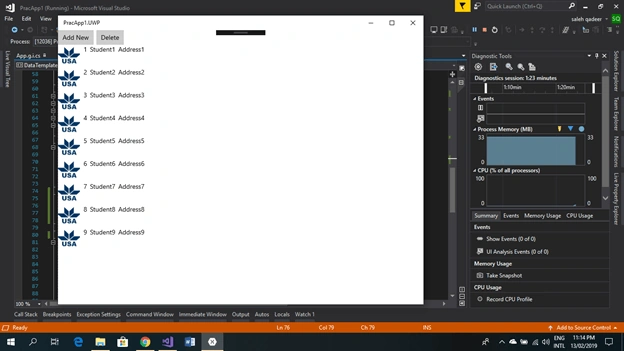
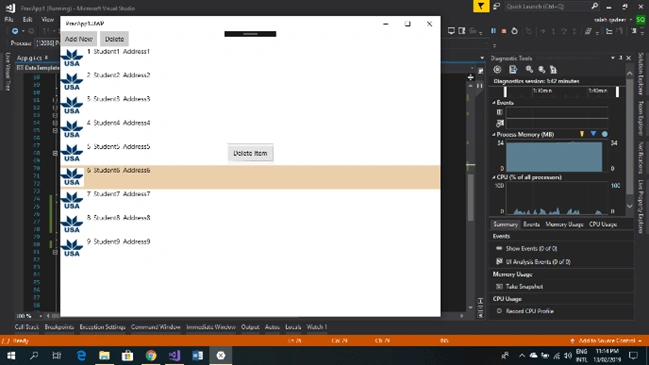
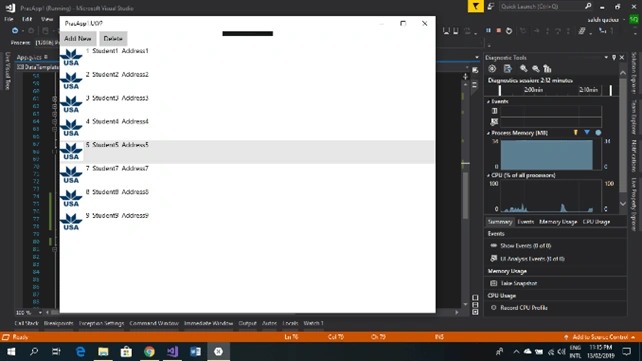
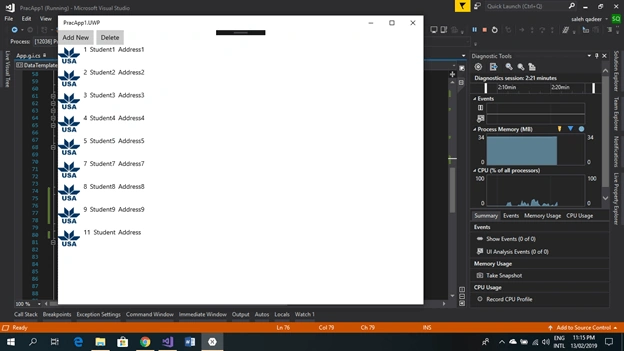
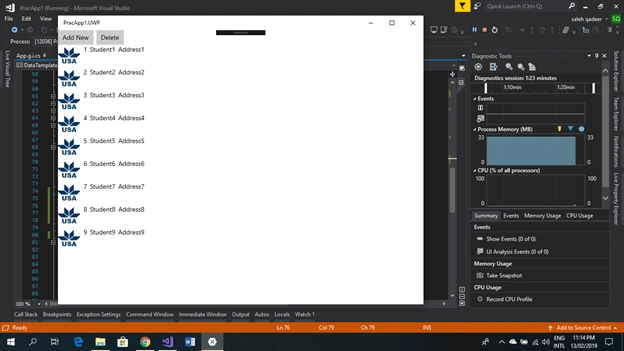
The picture below shows a list with a picture and three labels which are being added dynamically. Lets see how to do this.
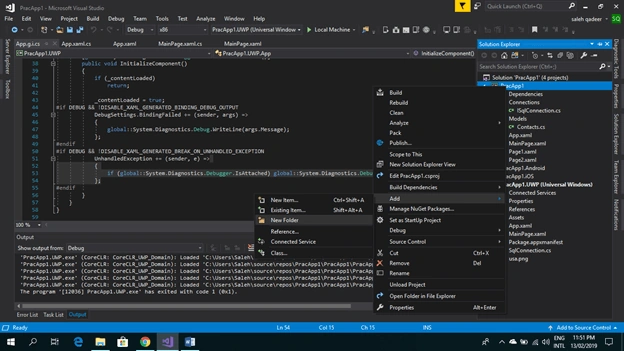
First of all right click on your project and add a new folder “Models” to keep your classes separately.
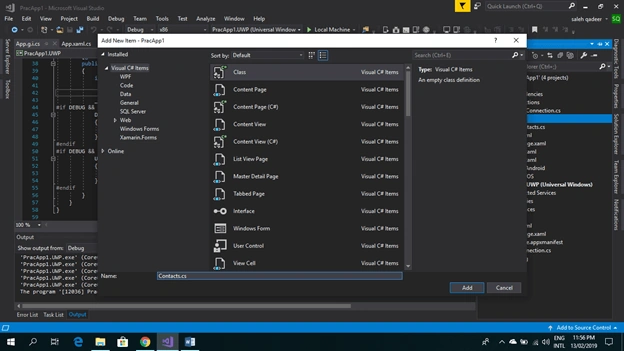
Add a class name “Contacts” and add four properties like ‘Id’, ’name’, ’address’, ’image’ in it.
Use below code in the class
C# Code- public class Contacts
- {
- private int id;
- public int Id
- {
- get { return id; }
- set { id = value; }
- }
- private string name;
- public string Name
- {
- get { return name; }
- set { name = value; }
- }
- private string address;
- public string Address
- {
- get { return address; }
- set { address = value; }
- }
- private string image;
- public string Image
- {
- get { return image; }
- set { image = value; }
- }
- }
After this go to your MainPage.xaml.cs and create a propfull with the name of MyList and don’t forget to make this as an “ObservableCollection”, it updates as the changes occurs. In the MainPage() function create the object of your List by initializing it. And add some items for the first time. For now I am adding 10 item by default for your learning purpose. Name the list in the Xaml and set the item source in C# as the MyList.
C# Code- private ObservableCollection<Contacts> myList;
- public ObservableCollection<Contacts> MyList
- {
- get { return myList; }
- set { myList = value; }
- }
- public MainPage()
- {
- InitializeComponent();
- this.BindingContext = this;
- MyList = new ObservableCollection<Contacts>();
- for (int i = 1; i < 10; i++)
- {
- MyList.Add(new Contacts() { Id = i, Name = "Student" + i.ToString(), Address = "Address" + i.ToString(), Image = "usa.png" });
- }
- ContactsList.ItemsSource = MyList;
- }
Now in XAML create a ListView and give the name to your ContentPage and bind this with the Item Source Of the List. In the header add two buttons to add and delete a item. After that put a tag <ListView.ItemTemplate> and create a <DataTemplate>. Data Template contains the data of the list. Put a ViewCell in it and add Three labels with a image. To add the image just simply copy it and paste outside to your UWP or Android project and add the reference to your tag. And bind each of them with the same name of the property in contacts class.
Larry JosephPosted Sep 3, 2022, 1:51 AM
When you say "After this go to your MainPage.xaml.cs and create a propfull with the name of MyList and don’t forget to make this as an “ObservableCollection”," can you explain further how to create a propfull with the name of MyList. Thanks