This article explains how to make your own custom control in C#. Here in this example I will make a Login Control. To do that open Visual Studio then select "File" -> "New" -> "Project..." then select Windows Forms Control Library.
Image 1.
Now I design my control with User Id and Password Label and Text Box.
Image 2.
The following is my login control code:
- using System;
- using System.Collections.Generic;
- using System.ComponentModel;
- using System.Drawing;
- using System.Data;
- using System.Linq;
- using System.Text;
- using System.Windows.Forms;
-
- namespace MakeOwnCustomControl
- {
- public partial class UserControl1 : UserControl
- {
- public delegate void loginOper();
- public event loginOper checkValue;
-
- public string userID
- {
- set
- {
- txtUserId.Text = value;
- }
- get
- {
- return txtUserId.Text;
- }
- }
- public string password
- {
- set
- {
- txtPassword.Text = value;
- }
- get
- {
- return txtPassword.Text;
- }
- }
-
- public UserControl1()
- {
- InitializeComponent();
- }
-
- private void btnLogin_Click(object sender, EventArgs e)
- {
- if (txtUserId.Text == "" && txtPassword.Text == "")
- {
- MessageBox.Show("User ID & Password can not be null.");
- }
- else if (txtUserId.Text == "")
- {
- MessageBox.Show("Please Enter User ID.");
- }
- else if (txtPassword.Text == "")
- {
- MessageBox.Show("Please Enter Password.");
- }
- else
- {
- if (checkValue != null)
- {
- checkValue();
- }
- else
- {
- MessageBox.Show("Please Enter correct UserId/Password");
- }
- }
- }
- }
- }
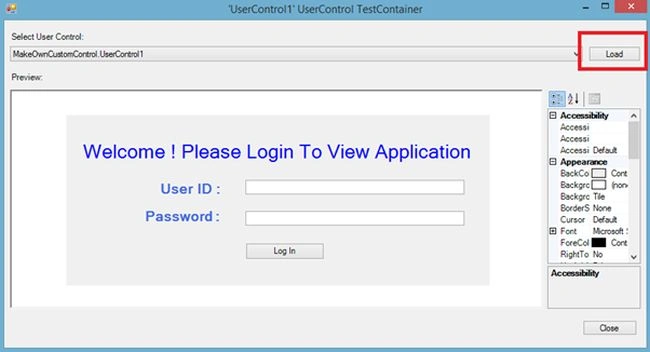
Now compile and run this app.
Image 3
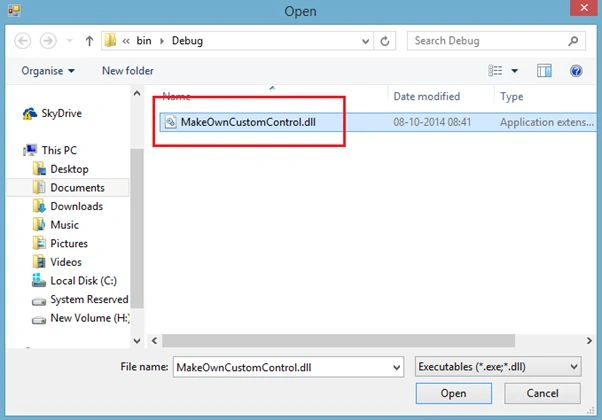
Here click on Load and copy the DLL path.
Image 4.
Now create a new Windows application.
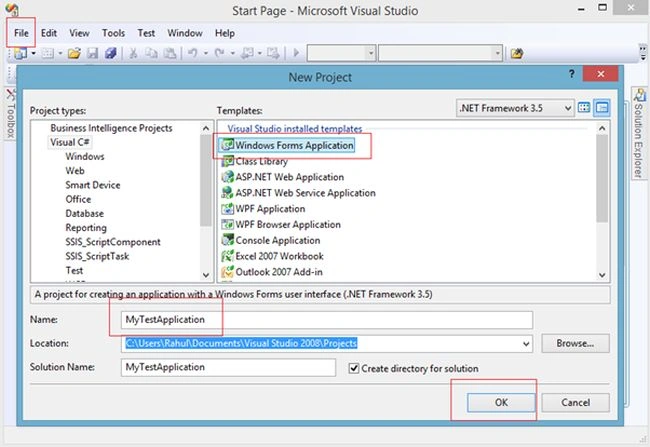
Open Visual Studio then select "File" -> "New" -> "Project..." then select Windows Application.
Image 5.
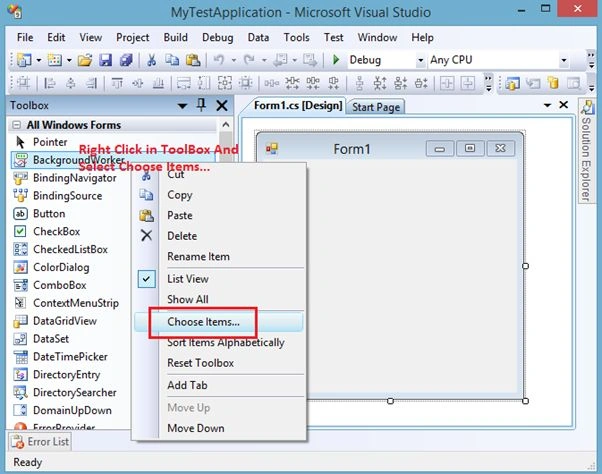
Here select View-> Toolbox then right-click anywhere and select "Choose Items...".
Image 6.
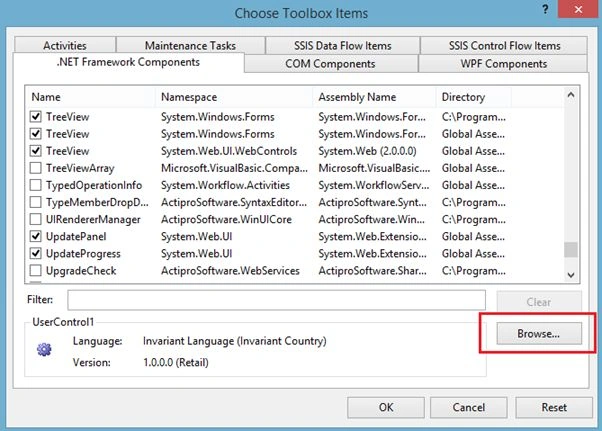
A popup window will open. Click on Browse.
Image 7.
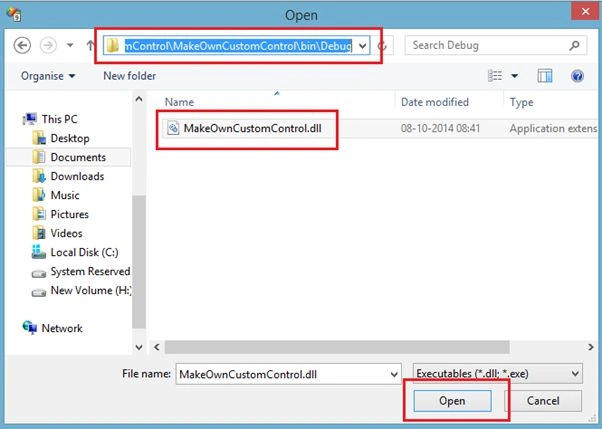
Go to the User Control DLL location (we copied the DLL path earlier). Select the DLL then click Open.
Image 8.
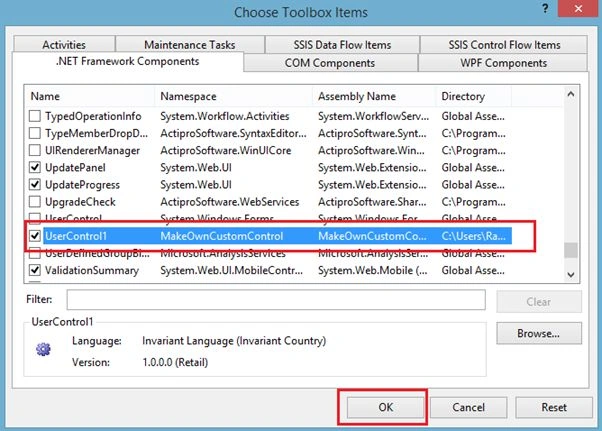
Now you can see your control then click OK.
Image 9.
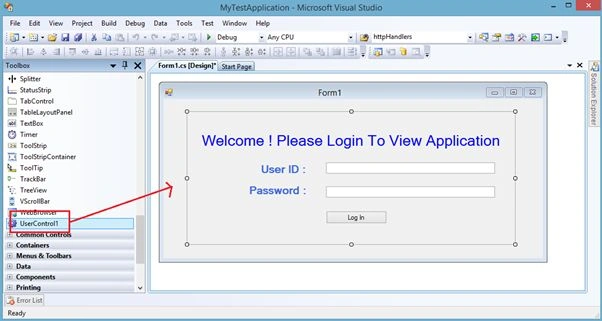
Now go to your form. See that the control is displaying in the toolbox. Drag and drop this control on the form.
Image 10.
Now for the code part of this form.
- using System;
- using System.Collections.Generic;
- using System.ComponentModel;
- using System.Data;
- using System.Drawing;
- using System.Linq;
- using System.Text;
- using System.Windows.Forms;
- using MakeOwnCustomControl;
- using System.Data.SqlClient;
-
- namespace MyTestApplication
- {
- public partial class Form1 : Form
- {
- SqlDataAdapter da;
- DataSet ds;
- SqlConnection con;
-
- UserControl1 myCustomControl;
-
- public Form1()
- {
- myCustomControl = new UserControl1();
- InitializeComponent();
- }
-
- private void Form1_Load(object sender, EventArgs e)
- {
- myCustomControl.checkValue += new MakeOwnCustomControl.UserControl1.loginOper(UserControl1_checkValue);
- }
-
- void UserControl1_checkValue()
- {
- con = new SqlConnection(@"DATA SOURCE=MyPC\SqlServer2k8;INTEGRATED SECURITY=TRUE;DATABASE=TEST");
- da = new SqlDataAdapter("Select * FROM tbl_User Where UserId='" + myCustomControl.userID + "' AND Password='" + myCustomControl.password + "'", con);
- ds = new DataSet();
- da.Fill(ds);
-
-
- if (ds.Tables[0].Rows.Count > 0)
- {
- MessageBox.Show("Welcome !" + ds.Tables[0].Rows[0]["Name"].ToString());
- }
- else
- {
- MessageBox.Show("Please enter correct UserId/Password");
- }
- }
- }
- }
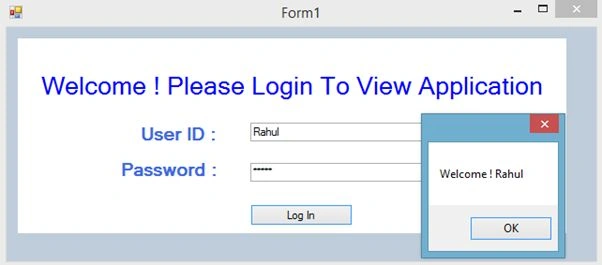
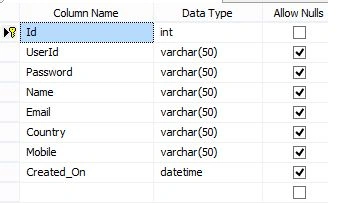
Here I am authenticating User ID and Password from my SQL Table. Now run the application.
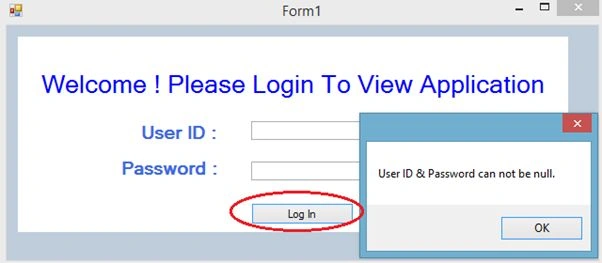
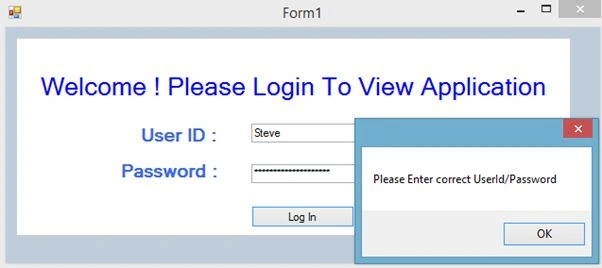
If you don't enter an id and password and click on the Log In button then the following error message will appear.
Image 11.
Image 12.
Image 13.
The following is my data table design from which I am authenticating the user.
Image 14.


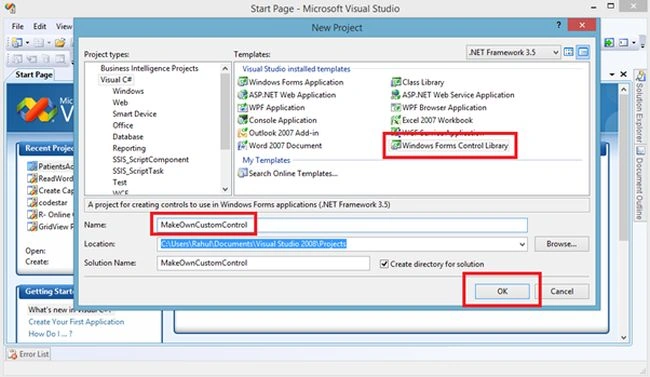 Image 1.
Now I design my control with User Id and Password Label and Text Box.
Image 1.
Now I design my control with User Id and Password Label and Text Box.
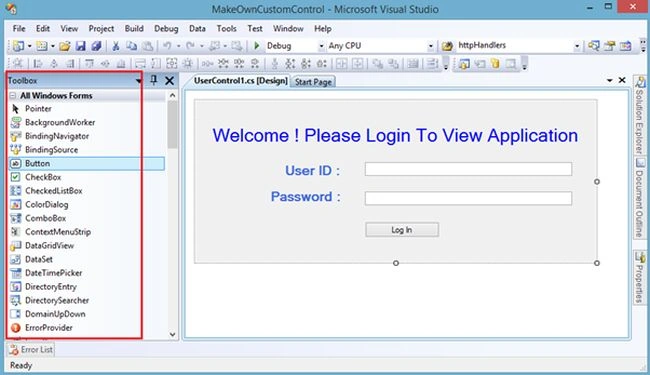 Image 2.
The following is my login control code:
Image 2.
The following is my login control code:
Robert LoPosted Dec 12, 2023, 9:40 AM
It cannot be imported to Delphi, how can I fix it?
Ammar ShaukatPosted Feb 16, 2016, 1:33 AM
Good share
Rahul Kumar SaxenaPosted Feb 26, 2015, 1:02 PM
Thanks...
Udaya kumarPosted Oct 24, 2014, 11:02 AM
Nice post