

Introduction
In this article, we are going to explain how to make Windows 8 boot straight to the Desktop with the Task Scheduler.
Set Task Scheduler to Boot Windows 8 Directly to the Desktop
Step 1
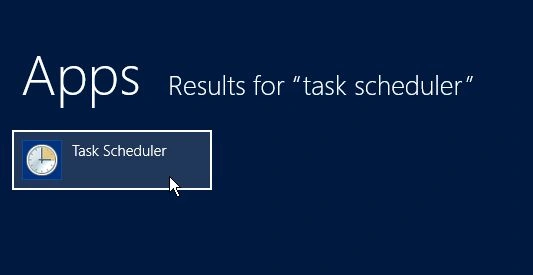
First, we move to the Windows 8 Start Screen, then we press "Win + C" and search for the task scheduler in the search box and click the Task Scheduler icon under the search results.
Step 2
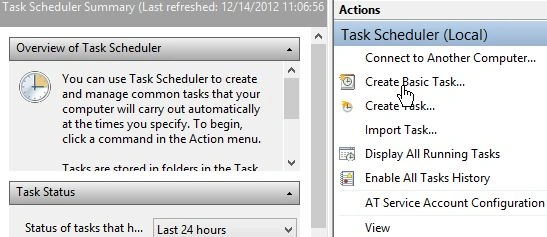
The Task Scheduler will open on the Windows 8 Desktop, then we click "Create Basic Task" under "Actions".
Step 3
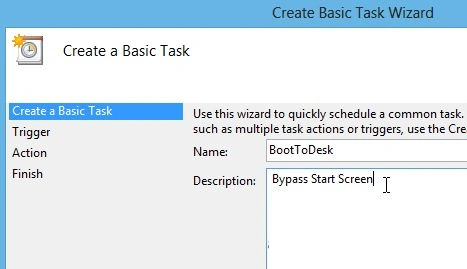
Then we type "task name" and click "Next".
Step 4
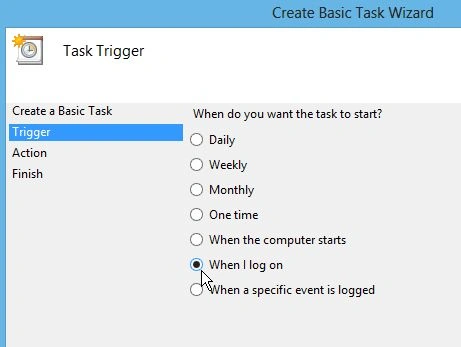
After that, we set the "Trigger" to "When I Log On" and click "Next".
Step 5
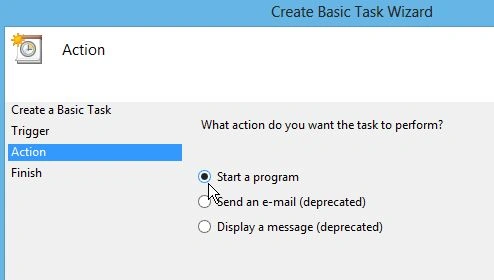
Then we set the "Action" to "Start a program" and click "Next".
Step 6
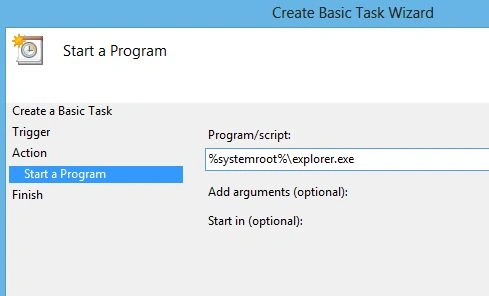
For the Program/Script type: "%systemroot%\explorer.exe" then click "Next".
Step 7
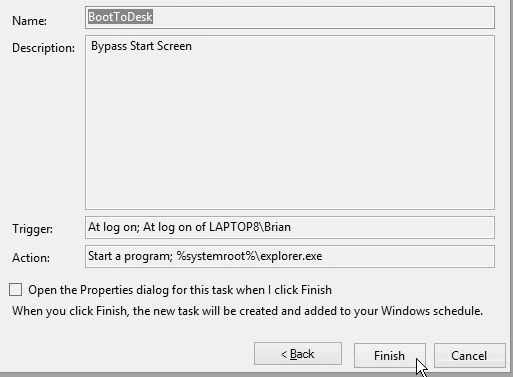
The next screen should look similar to the one below. Click "Finish" and close out of the Task Scheduler.
Step 8
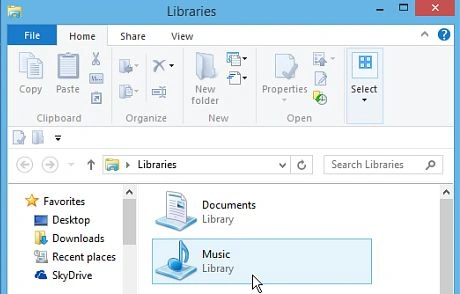
After the process, restart your system and log in. The Start Screen will display for a brief moment, then go directly to the Desktop with an open File Explorer window.
Step 9
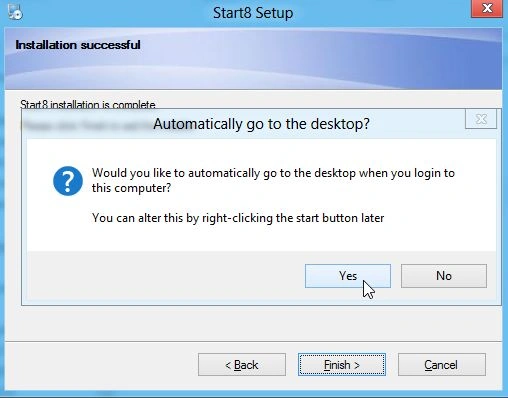
Another way to boot directly to the Desktop is to install a third-party program like Classic Shell or Stardock's Start8.
Summary
In this article, we learned about Make Windows 8 Boot Straight to Desktop With Task Scheduler.
Join the conversation! Your thoughts help the community grow.