Introduction
File manipulation is necessary function in any language. As a developer you must have the ability to work in the file input and output system. By this we mean opening and processing things like text files, html files, word docs, etc. Here we will learn how we will read & write a text file with the C# language; for doing that, we have to import first the System.IO namespace and we will use mainly three classes FileStream, StreamReader, StreamWriter.
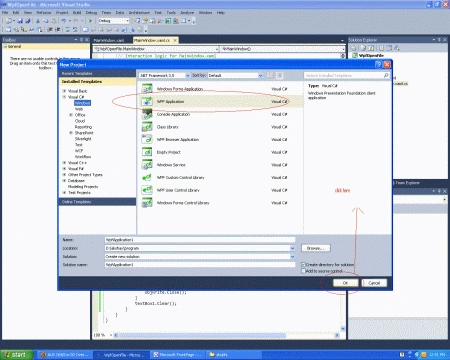
Step 1: Open Visual Studio.
- Select new -> project
- Select your preferred language
- Select a WPF application
- Name the project
- Now name of project is "WpfTextFile"

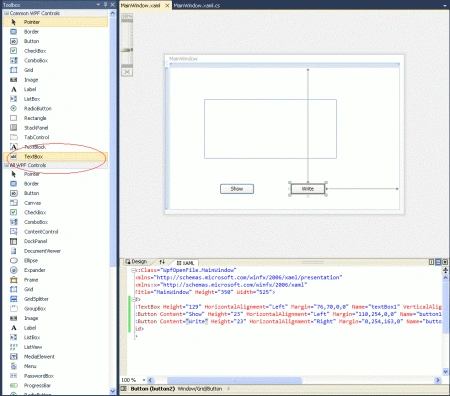
Step 2 : Open the Toolbox of WPF application.
- Drag & Drop two button controls onto the design view.
- Drag & Drop one TextBox control onto the design view.
Step 3 : Now, the final source code of the XAML page is given below:
Code
<Window x:Class="WpfOpenFile.MainWindow"
xmlns="http://schemas.microsoft.com/winfx/2006/xaml/presentation"
xmlns:x="http://schemas.microsoft.com/winfx/2006/xaml"
Title="MainWindow" Height="350" Width="525">
<Grid>
<TextBox Height="129" HorizontalAlignment="Left" Margin="76,70,0,0" Name="textBox1" VerticalAlignment="Top" Width="289" />
<Button Content="Show" Height="23" HorizontalAlignment="Left" Margin="110,254,0,0" Name="button1" VerticalAlignment="Top" Width="75"
Click="Open_show" />
<Button Content="Write" Height="23" HorizontalAlignment="Right" Margin="0,254,163,0" Name="button2" VerticalAlignment="Top" Width="75"
Click="button2_Click" />
</Grid>
</Window>
Step 4 : Now, the Open_show button click code is in the Page1.xaml.cs file.
Code
private void Open_show(object sender, RoutedEventArgs e)
{
{
String File_name = "D:\\shubhi\\Test.txt";
if (System.IO.File.Exists(File_name) == true)
{
System.IO.StreamReader objReader;
objReader = new StreamReader(File_name);
textBox1.Text = objReader.ReadToEnd();
objReader.Close();
}
else
{
MessageBox.Show("File Not Exist");
}
}
}
Step 5 : Now, the Write button click code is in the Page1.xaml.cs file.
Code
private void button2_Click(object sender, RoutedEventArgs e)
{
String File_name = "D:\\shubhi\\Test.txt";
if (System.IO.File.Exists(File_name) == true)
{
FileStream fs = new FileStream(File_name, FileMode.Append, FileAccess.Write);
StreamWriter objWrite = new StreamWriter(fs);
objWrite.Write(textBox1.Text);
objWrite.Close();
}
else
{
FileStream fs = new FileStream(File_name, FileMode.Create, FileAccess.Write);
StreamWriter objWrite = new StreamWriter(fs);
objWrite.Write(textBox1.Text);
objWrite.Close();
}
textBox1.Clear();
}
Step 6 : Now, the final source code in the Page1.xaml.cs file.
Code
using System;
using System.Collections.Generic;
using System.Linq;
using System.Text;
using System.Windows;
using System.Windows.Controls;
using System.Windows.Data;
using System.Windows.Documents;
using System.Windows.Input;
using System.Windows.Media;
using System.Windows.Media.Imaging;
using System.Windows.Navigation;
using System.Windows.Shapes;
using System.IO;
namespace WpfOpenFile
{
/// <summary>
/// Interaction logic for MainWindow.xaml
/// </summary>
public partial class MainWindow : Window
{
public MainWindow()
{
InitializeComponent();
}
private void Open_show(object sender, RoutedEventArgs e)
{
String File_name = "D:\\shubhi\\Test.txt";
if (System.IO.File.Exists(File_name) == true)
{
System.IO.StreamReader objReader;
objReader = new StreamReader(File_name);
textBox1.Text = objReader.ReadToEnd();
objReader.Close();
else
{
MessageBox.Show("File Not Exist");
}
}
private void button2_Click(object sender, RoutedEventArgs e)
{
String File_name = "D:\\shubhi\\Test.txt"
FileStream fs = new FileStream(File_name, FileMode.Append, FileAccess.Write);
if (System.IO.File.Exists(File_name) == true)
{
StreamWriter objWrite = new StreamWriter(fs);
objWrite.Write(textBox1.Text);
objWrite.Close();
}
else
{
FileStream fs = new FileStream(File_name, FileMode.Create, FileAccess.Write);
StreamWriter objWrite = new StreamWriter(fs);
objWrite.Write(textBox1.Text);
objWrite.Close();
}
textBox1.Clear();
}
}
}
Output
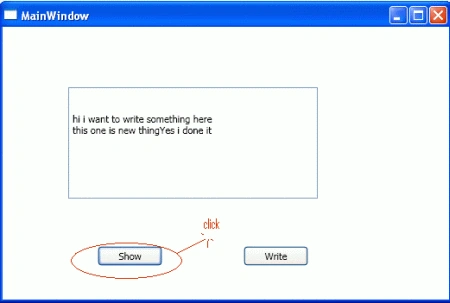
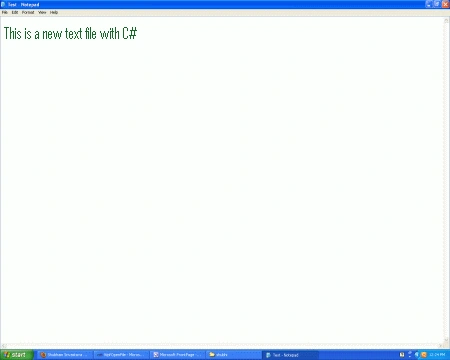
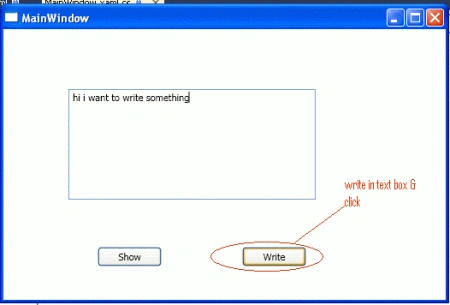
Output from the Write button click.
Output from the show button click.
Resources

Jessica StephenPosted Feb 12, 2012, 11:05 PM
This is something which is very useful.
Monika AroraPosted Feb 12, 2012, 11:03 PM
Its a very useful and good article.