

Scenario
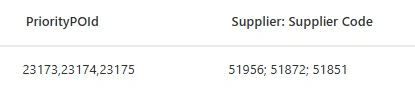
I recently worked on a client requirement where I had to deal with a SharePoint list containing two important fields. One was a multi-select lookup column called Supplier (Supplier Code), and the other was a single line of text column called PriorityPOId as shown in above image.
The initial requirement was straightforward. When a form is submitted, based on the selected supplier codes, a POST API (provided by the client) had to be called for each supplier. Each API call returned a unique POId. After all API calls were completed, all returned POIds were stored in the PriorityPOId column as a comma-separated string.
For example, if the selected suppliers were:
51956; 51872; 51851
Then after API execution, the PriorityPOId column stored:
23173, 23174, 23175
In this case, each supplier code had its own corresponding POId. For example, the first supplier 51956 was linked to 23173, the next one 51872 was linked to 23174, and similarly 51851 was linked to 23175. So basically, the values were matching in the same order they were stored.
Requirement
Now the next requirement was to perform this mapping in Power Automate for business requirement. That means, from the stored data, I needed to map each supplier code with its corresponding POId.
The challenge here is that Supplier is coming as an array (because it is a multi-select lookup), where PriorityPOId is a comma-separated string. So both values are in different formats, and we cannot directly map them.
To solving this, we need to convert both values into arrays and then map them based on their position.
End Result
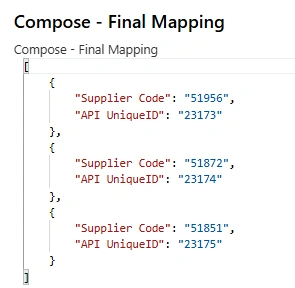
Step-by-Step Solution:
Step 1: Create Flow and Get SharePoint Item
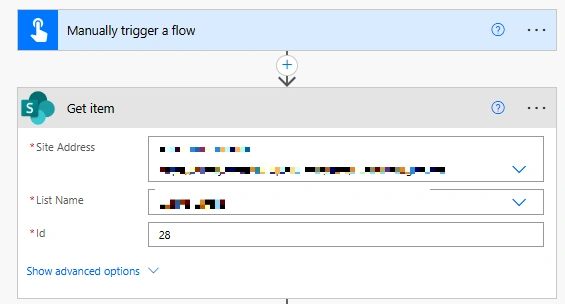
To begin, I created a simple manual flow using the “Manually trigger a flow” option. Since I already knew which record I wanted to test with, I added a Get item action and entered the ID manually.
If you are building this for a real use case, you don’t need to hardcode the ID like this. You can pass it dynamically from a trigger or from any previous step in your flow.
The main purpose of this step is just to get the SharePoint record that contains the Supplier (multi-select lookup) and the PriorityPOId value, so we can use that data in the next steps.
Step 2: Initialize an array variable
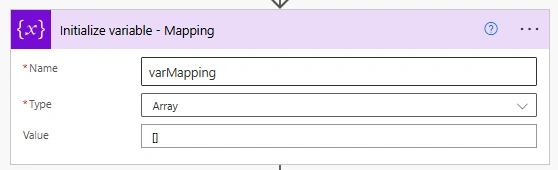
Next, add an Initialize variable action. and Give it a name like varMapping, set the type to Array, and keep the value as an empty array [].
We will use this variable to store the final mapping between Supplier Code and PriorityId.
Step 3: Split the value into an array
After that, add a Compose action and renamed it to something meaningful like Split Values so it is easy to understand what this step is doing later.
In this step, we convert the comma-separated value into an array. just replace PriorityPOId with your own schema/internal name.
split(outputs('Get_item')?['body/PriorityPOId'],',')
Step 4: Add Select Action
Add a Select action to convert the multi-select lookup data into a array of supplier code.
In the From field, pass your multi-select lookup column from the Get item action.
the lookup returns a list of objects, we only need the actual supplier code value. So in the Map section, add below expression:
item()?['Value']This step just gives you a simple list of supplier codes, which we will use in the next steps for mapping.

Step 5: Add Initialize variable
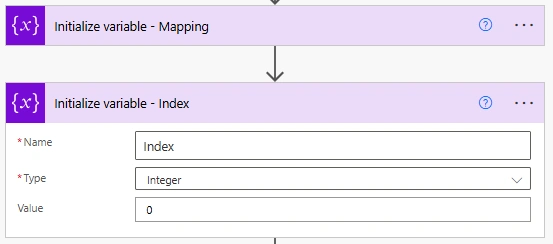
Add one more Initialize variable action just after the mapping variable. Name it Index, set the type to Integer, and keep the value as 0.
This variable is just to keep track of where we are while looping through the supplier codes. As the loop runs, we need to pick the matching PriorityPOId from the array, and this index helps us pick the correct one.
When the loop runs for the first supplier, the index will be 0, then it becomes 1 for the next supplier, and it keeps increasing like that. In the next steps, we will update this value inside the loop so it always matches the current supplier.
Step 6: Loop through supplier codes and get matching PriorityId
Add an Apply to each action. In the input, pass the output of the Select action so the loop runs for each supplier code.
Inside this loop, add a Compose action. This step is used to pick the correct PriorityPOId based on the current position of the loop. and Use the below expression:
outputs('Compose_-_Split_Values')?[variables('Index')]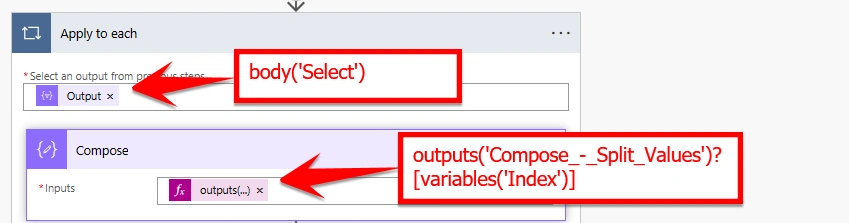
What this is doing is simple - it takes the array we created earlier from the comma-separated values and picks the item at the current index. Since both arrays follow the same order, this gives you the matching PriorityId for the current supplier code.
Step 7: Store the mapping in the array variable
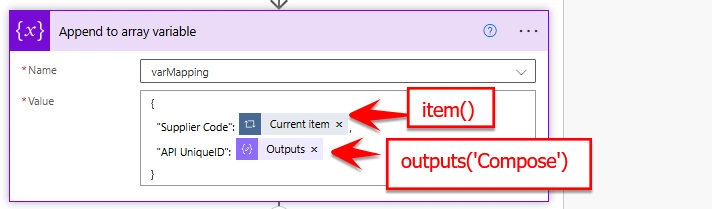
In the same Apply to each loop, add an Append to array variable action. and Select the variable varMapping that we created earlier in Step 2.
In the value, we will store both the supplier code and its matching PriorityId. For the supplier code, use the current item from the loop, and for the PriorityId, use the output of the Compose action we added in the previous step.
{
  "Supplier Code": item(),
  "API UniqueID": outputs('Compose')
}
Step 8: Increase the index value
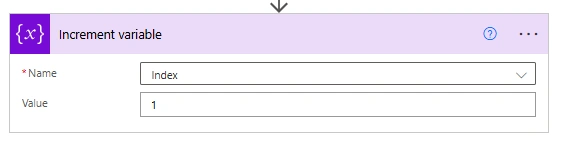
In the same Apply to each loop, add an Increment variable action. and Select the variable Index and set the value to 1.
This just moves the index to the next number after each loop. So when the loop runs again, it picks the next PriorityId for the next supplier.
Step 9: Check the final result
After the Apply to each loop, add one more Compose action.
In this action, just pass the varMapping variable.
Now run the flow and open this Compose output. You will be able to see the final result where each supplier code is matched with its PriorityId.

Overall flow structure
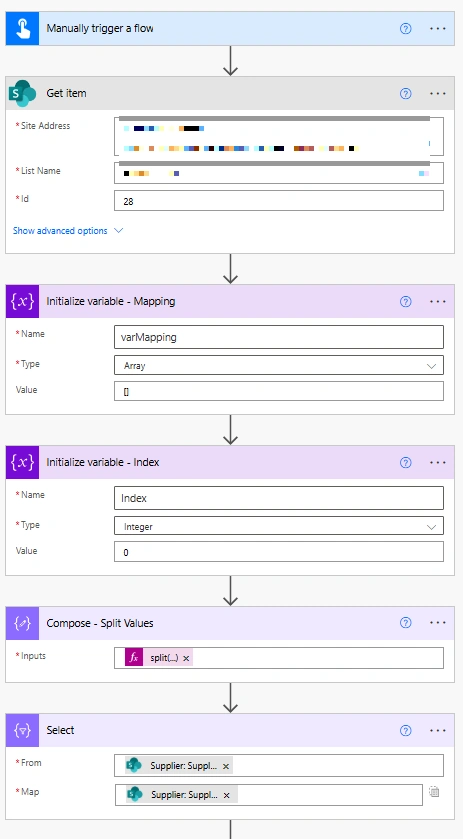
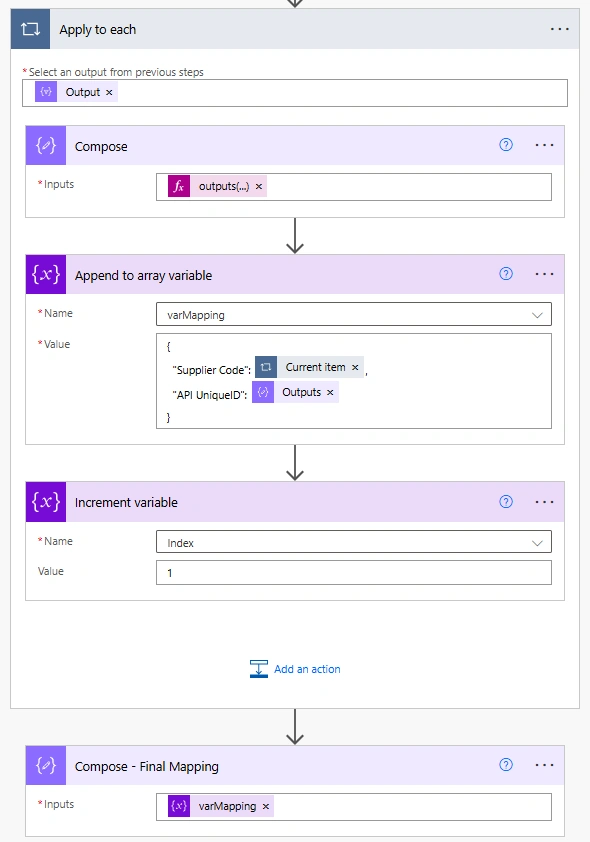
Conclusion
This approach works well when you have one field as a lookup array and another as a comma-separated value. By converting both into arrays and using a simple index, you can match them without much complexity.
Once you understand this pattern, you can reuse it in many similar scenarios.
Join the conversation! Your thoughts help the community grow.