

Introduction
Power Apps empowers users to create dynamic and functional applications with ease, enabling efficient data management and interaction. Among its array of controls, the Display Form Control stands out as a versatile tool for presenting data in a read-only format. In this comprehensive guide, we explore the Display Form Control in Power Apps, including its benefits, features, limitations, and a step-by-step tutorial on creating one using SharePoint list data.
Benefits of Display Form Control
- Effortless Data Presentation: The Display Form Control simplifies the presentation of data by providing a structured and organized layout, enhancing readability and comprehension.
- Streamlined User Experience: Users can view detailed information without the need for complex navigation or interaction, leading to a more intuitive and streamlined user experience.
- Data Consistency: By enforcing a read-only mode, the Display Form Control helps maintain data integrity and consistency, preventing accidental modifications or deletions.
- Time-saving: Displaying data in a predefined format reduces the time and effort required to design and implement custom data presentation solutions.
Features of Display Form Control
- Automatic Data Binding: The Display Form Control automatically binds to a data source, eliminating the need for manual data retrieval and population.
- Customizable Layout: Users can customize the layout and appearance of the display form, including field arrangement, styling, and visibility settings.
- Rich Data Display: Display Form Control supports various data types, including text, numbers, dates, and attachments, allowing for comprehensive data representation.
- Integration Capabilities: The control seamlessly integrates with SharePoint lists, SQL databases, and other data sources, providing flexibility and scalability.
Creating a display form Control with SharePoint list data
- Open Power Apps: Launch Power Apps from your preferred platform.
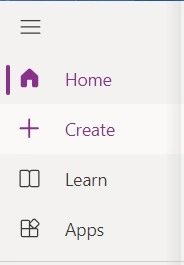
- Click on the "Create" button: Start a new project by clicking on the "Create" button in the Power Apps dashboard.
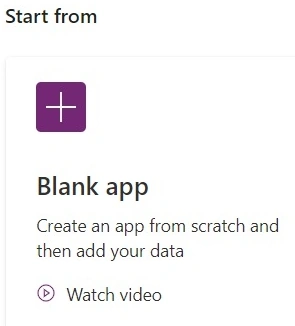
- Click on "Blank app": Choose the "Blank app" option to create a new blank canvas app.
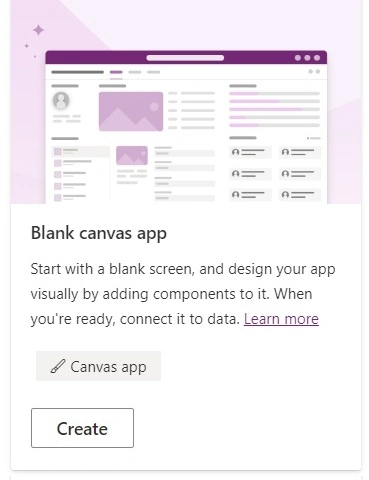
- Select "Blank tablet app": Opt for the "Blank tablet app" template, suitable for tablet device layouts.
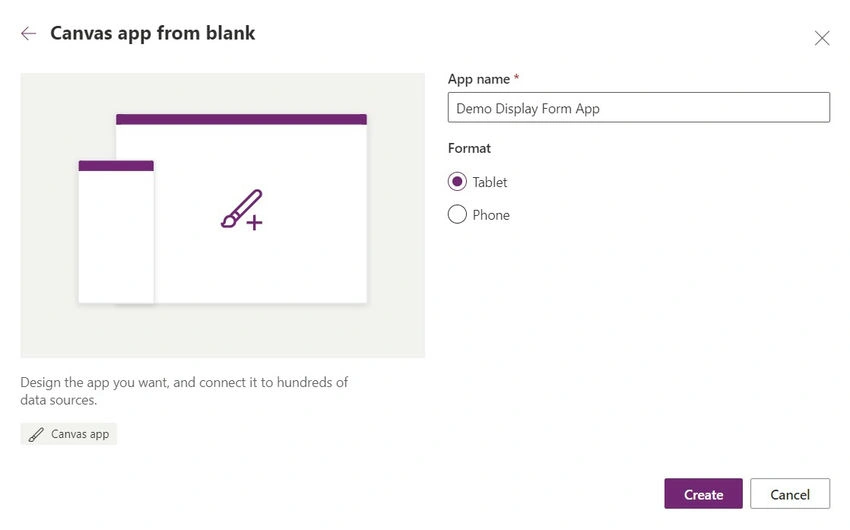
- Provide a name for your app: Enter a descriptive name for your app to distinguish it from others.
- Select "Create" to proceed: Click on the "Create" button to initiate the app creation process.
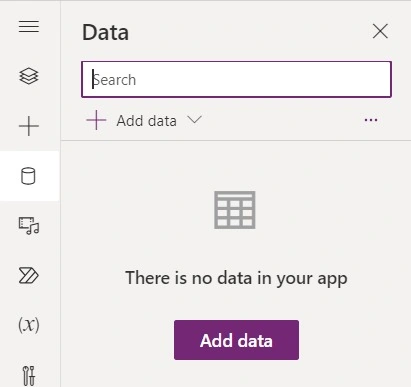
- Navigate to the "Data" tab: Once the app is created, navigate to the "Data" tab located in the ribbon menu.
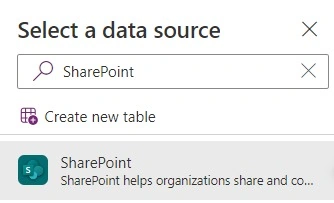
- Select "Connect to data": Click on the "Connect to data" button to add a new data source to your app.
- Choose "SharePoint" from the list of data sources: From the list of available data sources, select "SharePoint" to establish a connection.
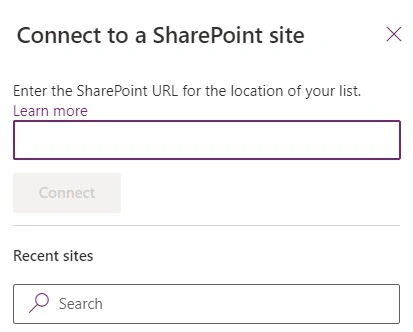
- Enter the URL of your SharePoint site and click "Go": Input the URL of your SharePoint site in the provided field and click "Go" to proceed.
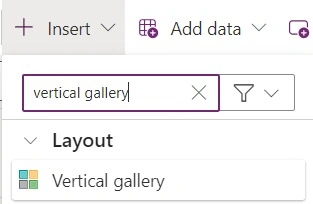
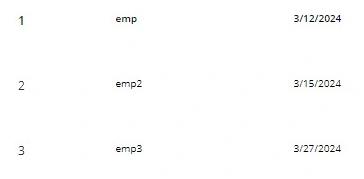
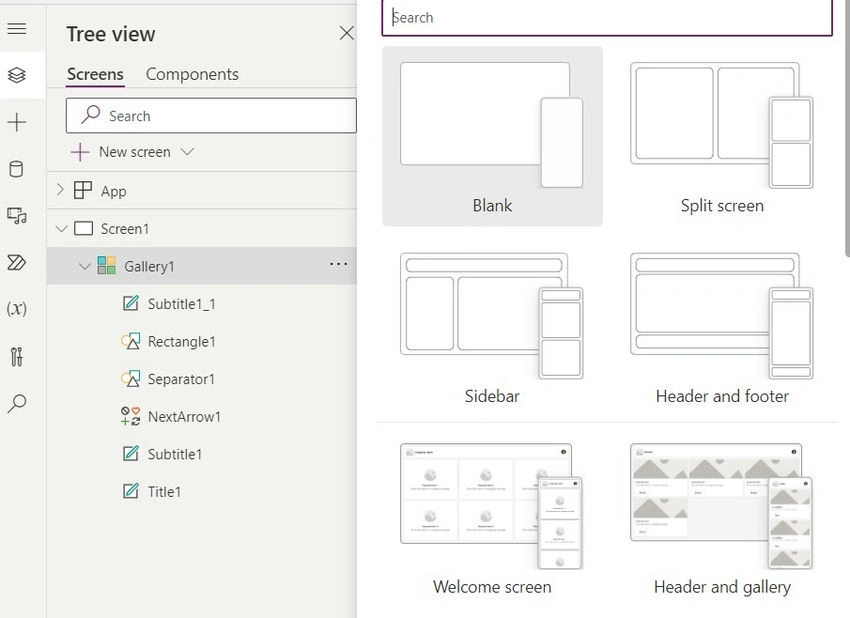
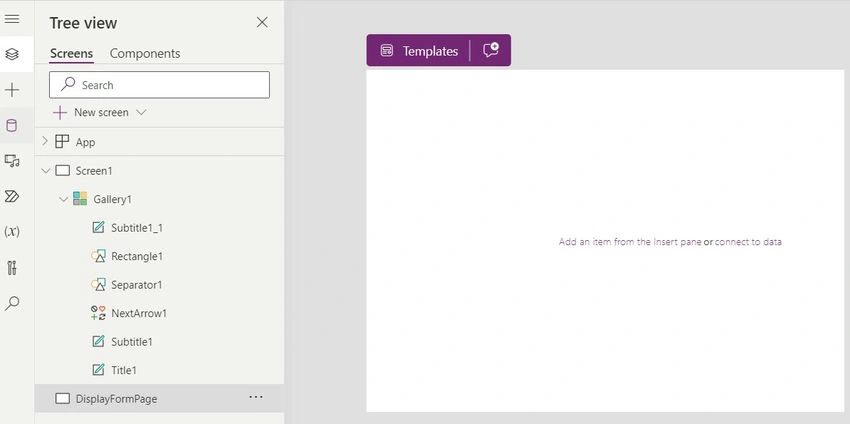
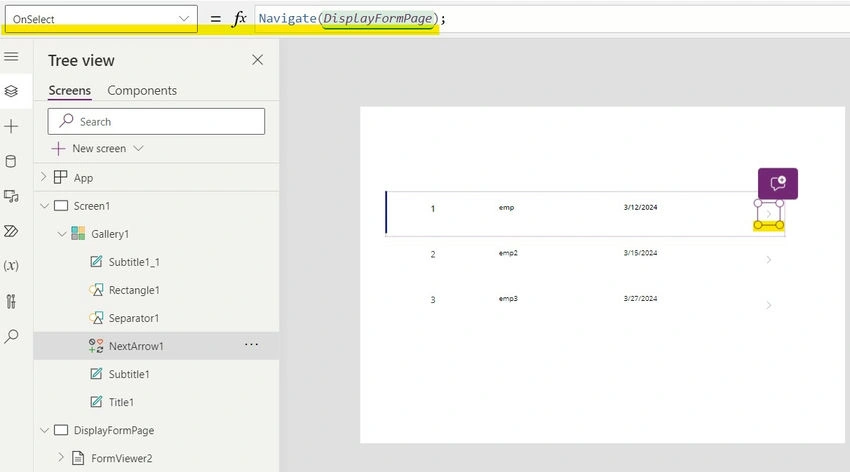
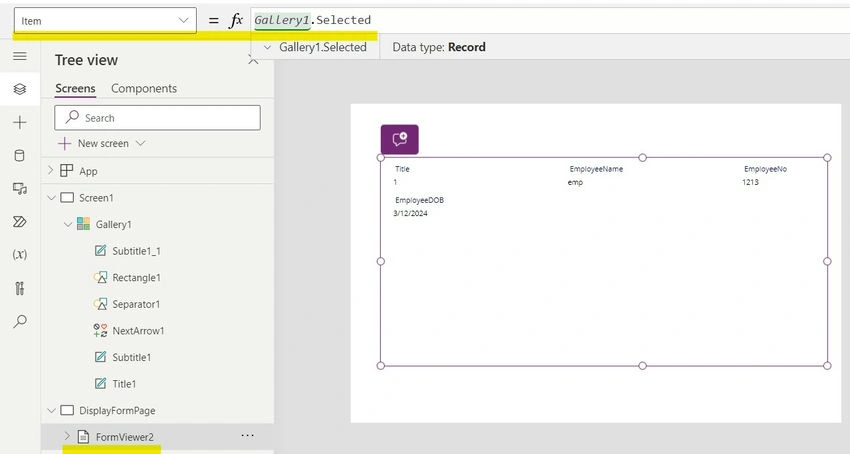
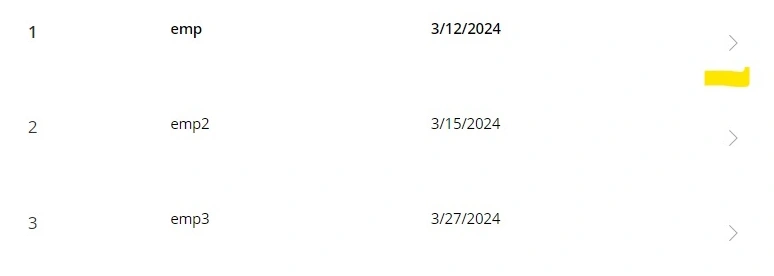
- Add vertical Gallery: Before the form, we should have gallery where we can select the record, and then selected item will be disabled in the Display Form.
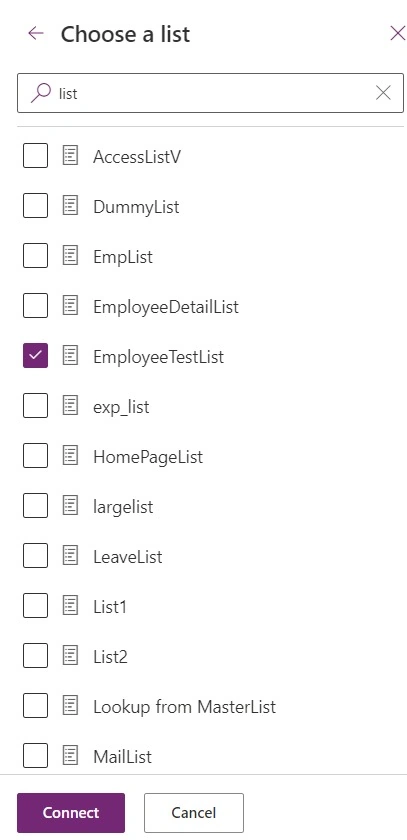
- "Connect" to establish the connection.
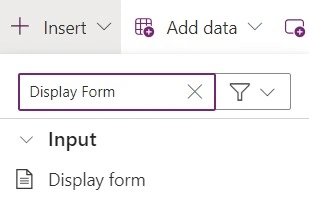
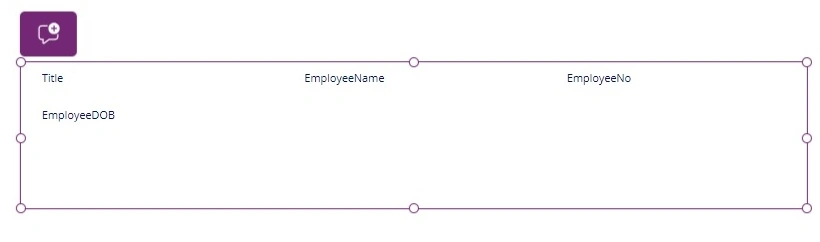
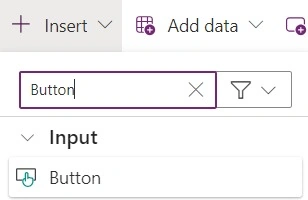
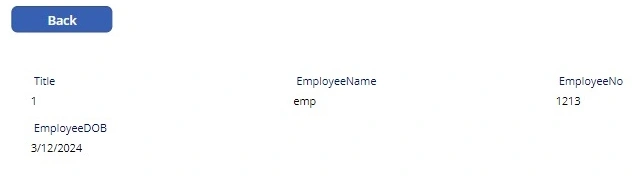
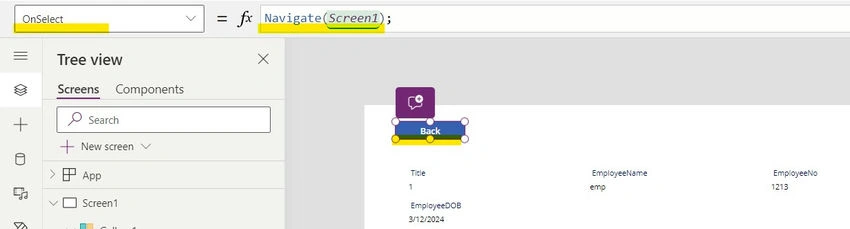
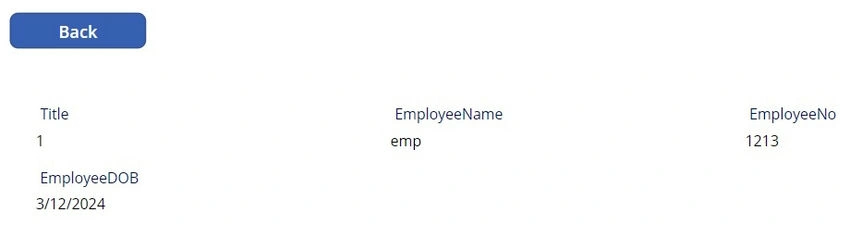
- Insert the Display Form Control: Drag and drop the Display Form Control onto your canvas from the left-hand side menu.

Join the conversation! Your thoughts help the community grow.