

Introduction
In this article, we’ll break down the differences in simple terms, explain when to use each, and provide practical examples you can apply in your own Power BI projects. In Power BI, you often work with Columns and Measures, two types of DAX calculations that look similar but behave very differently. Choosing the right one can impact your visuals, performance, and even how your data responds to filters. In this article, we’ll break down the difference between Measures and Columns, and show when to use each for the best results.
Let’s start by understanding Measures and Calculated Columns in Power BI.
What are Measures ?
A Measure is a dynamic calculation evaluated using DAX (Data Analysis Expressions) at query time, meaning its value depends on the filters, slicers and context of the visual in which it is used.
How to Create a Measure:
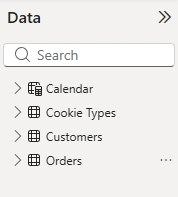
Right-Click or Click on (... ) of the table in the Fields (Data ) pane where you want to store the measure.
Select New measure.
Name the measure (e.g. Total Profit).
Enter your DAX formula (e.g. Total Profit = SUM(Sales[Revenue]) - SUM(Sales[Cost])).
Use the calculator icon to add it to visuals.
OR
You can also create a new measure from the Home or Modeling tab as shown below:

Key Characteristics:
Calculated on the fly, not stored in the model.
Values update automatically when filters or slicers change.
Works on aggregated data (summarized format, such as totals, averages, or percentages), not individual rows.
Memory-efficient—doesn’t take extra space.
Best for:
KPIs and performance indicators
Cards showing totals or important numbers
Totals, subtotals, and percentages
Any calculation that needs to change based on what the user selects
What Are Calculated Columns ?
A Calculated Column is a value calculated for each row in your table when the data is loaded. These values are stored in the data model, just like any other column from your source.
How to Create Calculated Column:
Right-Click or Click on (... ) of the table in the Fields (Data ) pane where you want the column.
Select New column.
Name the column. (e.g. Profit).
Enter your DAX formula (e.g. Profit = Sales[Revenue] - Sales[Cost]).
Press Enter → the column is added to your table and stored in the model.
OR
You can also create a new measure from the Modeling tab as shown below:
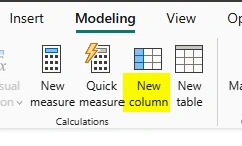
Key Characteristics:
Calculated once during data refresh.
The output is static.
Values exist per row in the table.
Stored in the model → uses memory.
Can be used in:
Slicers
Filters
Rows, columns, and axes of visuals
Relationships
How They Differ:
| Feature | Measure | Calculated Column |
|---|---|---|
| Calculation | At query time, based on filter context | Row by row |
| Storage | Not stored (calculated dynamically) | Stored in the data model |
| Memory Usage | Minimal memory usage | Uses memory for each row |
| Responds to Filters | Yes, updates automatically with slicers/filters | No |
| Best Use | KPIs, totals, averages, percentages, dynamic calculations | Classification, grouping, slicers, axes |
| Example | Total Profit = SUM(Sales[Revenue]) - SUM(Sales[Cost]) | Profit = Sales[Revenue] - Sales[Cost] |
Let's understand it with an example:
Suppose you have a Sales table with these columns:
| Product | Revenue | Cost |
|---|---|---|
| A | 100 | 60 |
| B | 200 | 120 |
| C | 150 | 90 |
You create a Calculated Column for Profit:
Profit = Sales[Revenue] - Sales[Cost]| Product | Revenue | Cost | Profit (Calculated Column) |
|---|---|---|---|
| A | 100 | 60 | 40 |
| B | 200 | 120 | 80 |
| C | 150 | 90 | 60 |
Now, you apply a slicer to show only Product A and B.
Profit column values do NOT change; they remain 40, 80, 60.
Power BI just filters the rows, showing only Product A and B with their stored Profit values (40 and 80).
The calculation itself is not re-evaluated, it’s already fixed in the column.
Contrast with a Measure
If instead you create a Measure:
Total Profit = SUM(Sales[Revenue]) - SUM(Sales[Cost])Applying the same slicer for Product A and B changes the measure dynamically:
Total Profit = (100+200) - (60+120) = 120The value updates based on the filter context.
Conclusion
Measure -> Need a row-by-row values OR Need something for slicers or axis
Calculated Column -> Need a dynamic value OR Need a KPI or summary
Both Measures and Columns are essential tools in Power BI, but they serve very different purposes.
Join the conversation! Your thoughts help the community grow.