

When ASP.NET Core was released, Tag Helpers were introduced—a new feature for encapsulating HTML markup. The purpose of adding Tag Helpers to the framework was to give developers an HTML-like experience when using server-rendered bits of markup. The idea here isn't to replace HTML Helpers, but to offer another approach that follows the same conventions as HTML by using tags and attributes.
Experienced ASP.NET developers might find that Tag Helpers take some getting used to. The syntax for writing a Tag Helper is lighter and doesn't require special @ escape characters like traditional Razor. While Tag Helpers require less context switching, it can feel like a black box at first glance. To overcome the learning curve of Tag Helpers, we'll get an understanding of some of the basic concepts. Using this knowledge, we'll learn how to migrate existing HTML Helper patterns to Tag Helpers. Through this process, we'll form a solid reference for utilizing Tag Helpers in ASP.NET Core projects.
Getting StartedBefore we begin working with Tag Helpers, it's important to ensure our project is configured to use Tag Helpers. At the very least, we need to be using an ASP.NET Core project. Tag Helpers aren't available in ASP.NET 4.x MVC projects.
Inside of our ASP.NET Core project, we need to ensure that Tag Helpers are enabled. This includes any third-party Tag Helper libraries we want to use. To declare Tag Helpers for our project, we'll use @addTagHelper directives in the *_ViewImports.cshtml* file. Within this file, all namespaces available to the view scope of the application are declared. In the following example, we have both the native ASP.NET Core Tag Helpers as well as additional UI components from the Telerik UI for ASP.NET Core package.
- **_ViewImports.cshtml**
- @* Default ASP.NET Core Tag Helpers *@
- @addTagHelper *, Microsoft.AspNetCore.Mvc.TagHelpers
- @* Telerik UI For ASP.NET Core Tag Helpers *@
- @addTagHelper *, Kendo.Mvc
Let's do a quick test to make sure our Tag Helpers are working correctly by writing our first Tag Helper. We'll use the /Home/Index.cshtml view as a workspace to begin writing our markup. In the view, add a Tag Helper to create a simple link. To do this, we'll write <a asp-action="Index">Home</a>. If everything is configured correctly, the code highlights with a bold font.
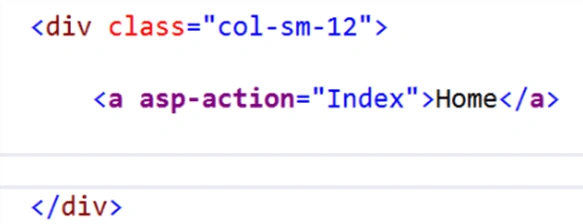
Now that we've written our first Tag Helper, let's use it to identify a few common patterns that will help when discovering new Tag Helpers and learning how to convert from the HTML Helper syntax to Tag Helpers.
We'll continue using the Anchor Tag Helper as an example. Let's look at some characteristics of the markup to identify common patterns used by Tag Helpers. By understanding these patterns, we can more easily discover Tag Helpers through IntelliSense. We'll also learn about where certain parameters have moved.
Tag Helper AttributesIf we compare the Anchor Tag Helper with the HTML Helper equivalent, we can identify key differences. In the example below, the named parameters are used on the HTML Helper to help identify where the values map to the equivalent Tag Helper. As we can see, this version uses a Tag Helper attribute in combination with an HTML <a> anchor tag to identify the action name. The link text simply follows normal HTML conventions for an anchor tag.
<a asp-action="Index">Home</a>
@Html.ActionLink(linkText: "Home", actionName: "Index")
Tag Helper attributes require less abstraction from HTML itself, providing less visual friction throughout the markup. We can see more blending of HTML and Tag Helpers when we begin to add standard HTML attributes to the element.
Standard AttributesTo add standard HTML attributes to the markup using HTML Helpers, we would use the htmlAttributes parameter and pass in an anonymous object. Since the parameter is written as an anonymous C# object, it must follow C# rules and only C# IntelliSense is applied. This means that we must escape C# keywords, and no IntelliSense is provided for CSS or HTML.
@Html.ActionLink("Home", "Index", new { @class="btn btn-primary", role="button" })
When we write these same standard attributes using a Tag Helper, the attributes are treated as HTML. Since the context hasn't changed to C#, we no longer need to escape keywords. We continue to get the proper IntelliSense.
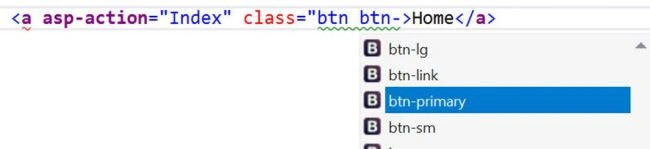
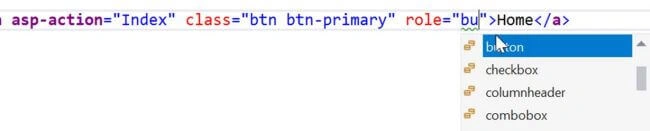
<a asp-action="Index" class="btn btn-primary" role="button">Home</a>
Just as standard attributes are treated as normal HTML, so is the inner content of a Tag Helper. The action name, Home, is simply written as content inside the tag.
Tags & ContentAs we saw in the previous example, setting the action name within a Tag Helper is effortless. Because Tag Helpers embrace the natural flow of HTML, container UI elements are much easier to represent using Tag Helpers than with HTML Helpers. An HTML <form> is a primary example of a how HTML Helpers can make things difficult. Since HTML Helpers don't have a begin/end concept, they often rely on @using statements as a proxy being a content container.
- @using (Html.BeginForm("Register", "Account", FormMethod.Post, new { @class = "form-horizontal"}))
- {
- <!-- Form Content -->
- }
We can rewrite this same markup using a Form Tag Helper. The Form Tag Helper and BeginForm HTML Helper are functionally similar. They both generate the HTML <form> element and action attribute value for an MVC controller action or named route. Additionally, a hidden Request Verification Token is rendered to prevent cross-site request forgery (when used with the [ValidateAntiForgeryToken] attribute in the HTTP Post action method).
The Form Tag Helper improves readability since it requires no using statement, {} braces, or @ escape characters.
- @using (Html.BeginForm("Register", "Account", FormMethod.Post, new { @class = "form-horizontal"}))
- {
- <!-- Form Content -->
- }
- <form asp-action="Register" asp-controller="Account" method="post" class="form-horizontal">
- <!-- Form Content -->
- </form>
The content of a form can be any HTML, HTML Helper, or Tag Helper. The impact of migrating a form to use only standard HTML and Tag Helpers reduces the overall visual friction on the markup.
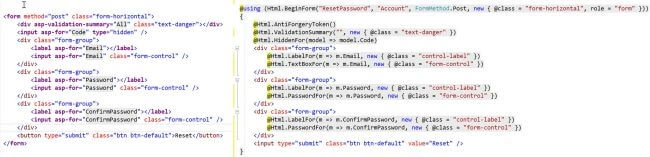
Tag Helpers flow naturally into an HTML structure as content containers. As natural content containers, Tag Helpers boast another feature that sets them apart from HTML Helpers—the child Tag Helper.
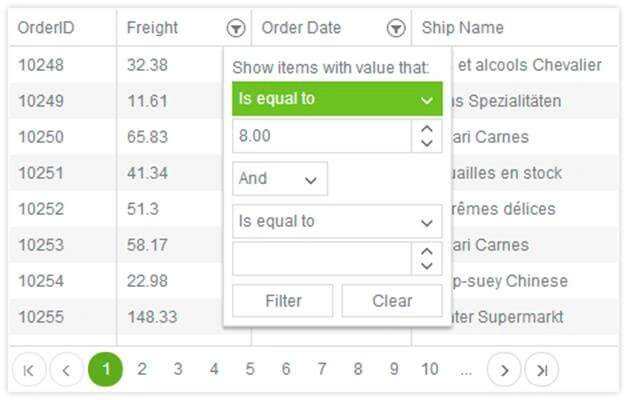
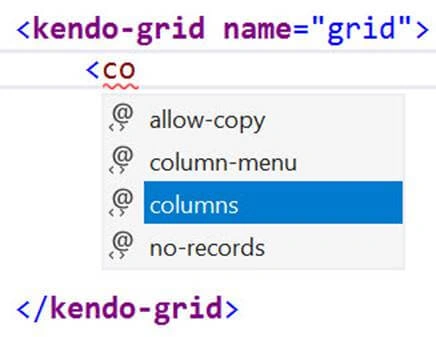
Child Tag HelpersChild Tag Helpers allow the composition of complex UI elements by using parent-child relationships. Child Tag Helpers are specific to the parent and only available within the context of the parent element. Consider a complex UI component, such as the Telerik UI for ASP.NET Core Kendo UI grid, which has many configurable elements. Such elements include data source, columns, rows, templates, and edit modes. In addition, the data grid has properties to enable features like sorting, filtering, and paging. The grid can be created through a fluent HTML Helper or chain-able set of APIs that render HTML.
Using the grid HTML Helper, various aspects of the grid are configured through the API chain. The chain begins with setting the Name property. We then build a Columns configuration, enable features, and configure a DataSource.
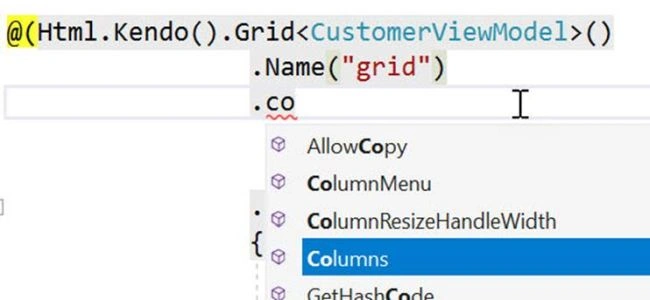
Thanks to the fluent API chain and IntelliSense, setting up the grid and all of its various parts is a streamlined process.

Vishal PrajapatiPosted Mar 26, 2018, 11:31 AM
Thanks for sharing..