

This article shows how to create a Mini Paint Application using a C# Windows Forms application. I will show some basic features of the paint application. Before starting, I hope you have a basic undersanding of GDI+ Graphics. I have added comments to the code so that you can easily understand the code.
Let's understand the Mini Paint Application structure:
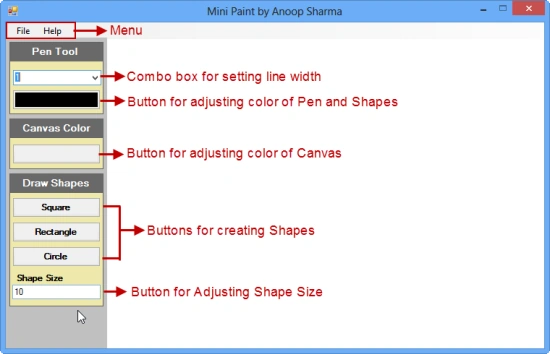
Here is the code used in this application:
- using System;
- using System.Drawing;
- using System.Windows.Forms;
- namespace MiniPaint
- {
- public partial class Form1 : Form
- {
- public Form1()
- {
- InitializeComponent();
- g = pnl_Draw.CreateGraphics();
- }
- bool startPaint = false;
- Graphics g;
- //nullable int for storing Null value
- int? initX = null;
- int? initY = null;
- bool drawSquare = false;
- bool drawRectangle = false;
- bool drawCircle = false;
- //Event fired when the mouse pointer is moved over the Panel(pnl_Draw).
- private void pnl_Draw_MouseMove(object sender, MouseEventArgs e)
- {
- if(startPaint)
- {
- //Setting the Pen BackColor and line Width
- Pen p = new Pen(btn_PenColor.BackColor,float.Parse(cmb_PenSize.Text));
- //Drawing the line.
- g.DrawLine(p, new Point(initX ?? e.X, initY ?? e.Y), new Point(e.X, e.Y));
- initX = e.X;
- initY = e.Y;
- }
- }
- //Event Fired when the mouse pointer is over Panel and a mouse button is pressed
- private void pnl_Draw_MouseDown(object sender, MouseEventArgs e)
- {
- startPaint = true;
- if (drawSquare)
- {
- //Use Solid Brush for filling the graphic shapes
- SolidBrush sb = new SolidBrush(btn_PenColor.BackColor);
- //setting the width and height same for creating square.
- //Getting the width and Heigt value from Textbox(txt_ShapeSize)
- g.FillRectangle(sb, e.X, e.Y, int.Parse(txt_ShapeSize.Text), int.Parse(txt_ShapeSize.Text));
- //setting startPaint and drawSquare value to false for creating one graphic on one click.
- startPaint = false;
- drawSquare = false;
- }
- if(drawRectangle)
- {
- SolidBrush sb = new SolidBrush(btn_PenColor.BackColor);
- //setting the width twice of the height
- g.FillRectangle(sb, e.X, e.Y, 2*int.Parse(txt_ShapeSize.Text), int.Parse(txt_ShapeSize.Text));
- startPaint = false;
- drawRectangle = false;
- }
- if(drawCircle)
- {
- SolidBrush sb = new SolidBrush(btn_PenColor.BackColor);
- g.FillEllipse(sb, e.X, e.Y, int.Parse(txt_ShapeSize.Text), int.Parse(txt_ShapeSize.Text));
- startPaint = false;
- drawCircle = false;
- }
- }
- //Fired when the mouse pointer is over the pnl_Draw and a mouse button is released.
- private void pnl_Draw_MouseUp(object sender, MouseEventArgs e)
- {
- startPaint = false;
- initX = null;
- initY = null;
- }
- //Button for Setting pen Color
- private void button1_Click(object sender, EventArgs e)
- {
- //Open Color Dialog and Set BackColor of btn_PenColor if user click on OK
- ColorDialog c = new ColorDialog();
- if(c.ShowDialog()==DialogResult.OK)
- {
- btn_PenColor.BackColor = c.Color;
- }
- }
- //New
- private void newToolStripMenuItem_Click(object sender, EventArgs e)
- {
- //Clearing the graphics from the Panel(pnl_Draw)
- g.Clear(pnl_Draw.BackColor);
- //Setting the BackColor of pnl_draw and btn_CanvasColor to White on Clicking New under File Menu
- pnl_Draw.BackColor = Color.White;
- btn_CanvasColor.BackColor = Color.White;
- }
- //Setting the Canvas Color
- private void btn_CanvasColor_Click_1(object sender, EventArgs e)
- {
- ColorDialog c = new ColorDialog();
- if(c.ShowDialog()==DialogResult.OK)
- {
- pnl_Draw.BackColor = c.Color;
- btn_CanvasColor.BackColor = c.Color;
- }
- }
- private void btn_Square_Click(object sender, EventArgs e)
- {
- drawSquare = true;
- }
- private void btn_Rectangle_Click(object sender, EventArgs e)
- {
- drawRectangle = true;
- }
- private void btn_Circle_Click(object sender, EventArgs e)
- {
- drawCircle = true;
- }
- //Exit under File Menu
- private void exitToolStripMenuItem_Click(object sender, EventArgs e)
- {
- if(MessageBox.Show("Do you want to Exit?","Exit",MessageBoxButtons.YesNo,MessageBoxIcon.Information)==DialogResult.Yes)
- {
- Application.Exit();
- }
- }
- //About under Help Menu
- private void aboutMiniPaintToolStripMenuItem_Click(object sender, EventArgs e)
- {
- About a = new About();
- a.ShowDialog();
- }
- }
- }
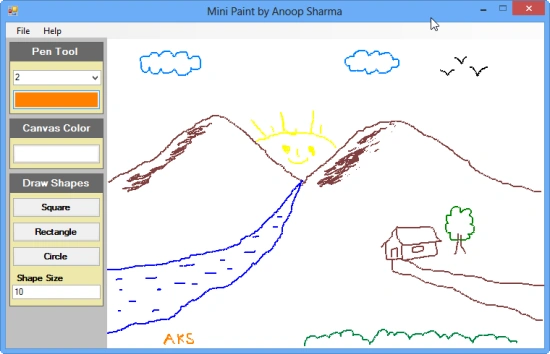
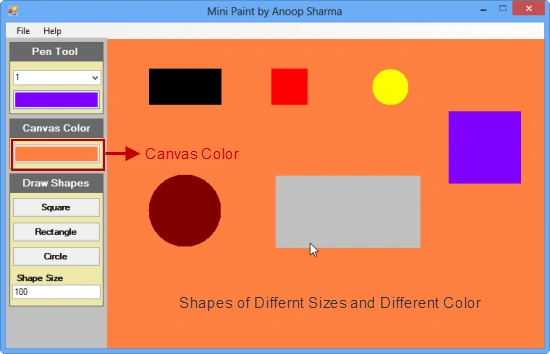

I hope you like it. Thanks.
Luis BernalPosted May 29, 2023, 11:20 PM
Nice. But, I need to know, hoy I delete some lines or something... for medical applications... please. =)
jack ammoPosted Dec 7, 2020, 10:02 PM
Thanks for uploading this project it is very helpful reference for my school project
Danish AamirPosted Dec 15, 2019, 8:46 AM
Will it work on VS2019(community version)
Abhishek DebnathPosted Apr 16, 2018, 1:50 AM
Why cant i access the main method in this paint project??
You FakePosted Apr 12, 2018, 7:38 AM
Which version should I use??.Mine is 2010 version of visual studio
Abhishek DebnathPosted Apr 4, 2018, 10:13 AM
Please help me out
Abhishek DebnathPosted Apr 4, 2018, 10:12 AM
Error 1 The name 'pnl_Draw' does not exist in the current context C:\Users\Animesh Debnath\AppData\Local\Temporary Projects\WindowsFormsApplication1\Form1.Designer.cs 12 17 WindowsFormsApplication1Error 2 The name 'btn_PenColor' does not exist in the current context C:\Users\Animesh Debnath\AppData\Local\Temporary Projects\WindowsFormsApplication1\Form1.Designer.cs 28 33 WindowsFormsApplication1 Error 3 The name 'cmb_PenSize' does not exist in the current context C:\Users\Animesh Debnath\AppData\Local\Temporary Projects\WindowsFormsApplication1\Form1.Designer.cs 28 68 WindowsFormsApplication1 Error 4 The name 'btn_PenColor' does not exist in the current context C:\Users\Animesh Debnath\AppData\Local\Temporary Projects\WindowsFormsApplication1\Form1.Designer.cs 42 48 WindowsFormsApplication1 Error 5 The name 'txt_ShapeSize' does not exist in the current context C:\Users\Animesh Debnath\AppData\Local\Temporary Projects\WindowsFormsApplication1\Form1.Designer.cs 45 57 WindowsFormsApplication1 Error 6 The name 'txt_ShapeSize' does not exist in the current context C:\Users\Animesh Debnath\AppData\Local\Temporary Projects\WindowsFormsApplication1\Form1.Designer.cs 45 88 WindowsFormsApplication1 Error 7 The name 'btn_PenColor' does not exist in the current context C:\Users\Animesh Debnath\AppData\Local\Temporary Projects\WindowsFormsApplication1\Form1.Designer.cs 52 48 WindowsFormsApplication1 Error 8 The name 'txt_ShapeSize' does not exist in the current context C:\Users\Animesh Debnath\AppData\Local\Temporary Projects\WindowsFormsApplication1\Form1.Designer.cs 54 59 WindowsFormsApplication1 Error 9 The name 'txt_ShapeSize' does not exist in the current context C:\Users\Animesh Debnath\AppData\Local\Temporary Projects\WindowsFormsApplication1\Form1.Designer.cs 54 90 WindowsFormsApplication1 Error 10 The name 'btn_PenColor' does not exist in the current context C:\Users\Animesh Debnath\AppData\Local\Temporary Projects\WindowsFormsApplication1\Form1.Designer.cs 60 48 WindowsFormsApplication1 Error 11 The name 'txt_ShapeSize' does not exist in the current context C:\Users\Animesh Debnath\AppData\Local\Temporary Projects\WindowsFormsApplication1\Form1.Designer.cs 61 55 WindowsFormsApplication1 Error 12 The name 'txt_ShapeSize' does not exist in the current context C:\Users\Animesh Debnath\AppData\Local\Temporary Projects\WindowsFormsApplication1\Form1.Designer.cs 61 86 WindowsFormsApplication1 Error 13 The name 'btn_PenColor' does not exist in the current context C:\Users\Animesh Debnath\AppData\Local\Temporary Projects\WindowsFormsApplication1\Form1.Designer.cs 80 17 WindowsFormsApplication1 Error 14 The name 'pnl_Draw' does not exist in the current context C:\Users\Animesh Debnath\AppData\Local\Temporary Projects\WindowsFormsApplication1\Form1.Designer.cs 87 21 WindowsFormsApplication1 Error 15 The name 'pnl_Draw' does not exist in the current context C:\Users\Animesh Debnath\AppData\Local\Temporary Projects\WindowsFormsApplication1\Form1.Designer.cs 89 13 WindowsFormsApplication1 Error 16 The name 'btn_CanvasColor' does not exist in the current context C:\Users\Animesh Debnath\AppData\Local\Temporary Projects\WindowsFormsApplication1\Form1.Designer.cs 90 13 WindowsFormsApplication1 Error 17 The name 'pnl_Draw' does not exist in the current context C:\Users\Animesh Debnath\AppData\Local\Temporary Projects\WindowsFormsApplication1\Form1.Designer.cs 98 17 WindowsFormsApplication1 Error 18 The name 'btn_CanvasColor' does not exist in the current context C:\Users\Animesh Debnath\AppData\Local\Temporary Projects\WindowsFormsApplication1\Form1.Designer.cs 99 17 WindowsFormsApplication1 Error 19 The type or namespace name 'About' could not be found (are you missing a using directive or an assembly reference?) C:\Users\Animesh Debnath\AppData\Local\Temporary Projects\WindowsFormsApplication1\Form1.Designer.cs 128 13 WindowsFormsApplication1 Error 20 The type or namespace name 'About' could not be found (are you missing a using directive or an assembly reference?) C:\Users\Animesh Debnath\AppData\Local\Temporary Projects\WindowsFormsApplication1\Form1.Designer.cs 128 27 WindowsFormsApplication1
Abhishek DebnathPosted Apr 4, 2018, 10:12 AM
I have tried to run this program but i got many errors
kaynat anjumPosted May 22, 2017, 7:08 AM
G.DrawLine(p, new Point(initX ?? e.X, initY ?? e.Y), new Point(e.X, e.Y)); In above line what is the meaning of ??
MIhai IonescuPosted Dec 9, 2016, 7:39 AM
This example DO NOT SAVE THE IMAGE.CreateGraphics is just a temporary canvas, so you rarely, if ever, use that for drawing purposes, if you try to save the paint to an image. Instead define a Bitmap property and on the Paint event of the panel draw the bitmap on the panel like this: void panel1_Paint(object sender, PaintEventArgs e) { e.Graphics.DrawImage(bmp, Point.Empty); } and on the mouse down event use the graphics from the image using (Graphics g = Graphics.FromImage(bmap)) { g.FillEllipse(Brushes.Black, e.X, e.Y, 10, 10); } panel.Invalidate(); Like this. The example above is working fine until you want to save the paint to a file. Then you will see that the image comes in blank.
fatih kerimPosted Oct 29, 2015, 12:04 AM
very good source. But i could not save my image. haw can i save as jpg?
Chirag MistryPosted Oct 1, 2015, 1:24 PM
How can we save the image in jpg format
sandeep patilPosted Aug 24, 2015, 4:00 PM
Hi Anoop, can i get ur mail id, i need ur help
sandeep patilPosted Aug 24, 2015, 3:59 PM
Great work!!
Anoop Kumar SharmaPosted Aug 4, 2015, 11:05 PM
Thanks Mohammed Ibrahim.!!
Mohammed IbrahimPosted Aug 4, 2015, 3:08 AM
nice
Nilesh JadavPosted Jul 6, 2015, 8:52 AM
Nice one Anoop! This is really i was looking for !
Balaji vadivelPosted Mar 3, 2015, 4:40 AM
i'm new to this bro.. can u help me.. i really need to know this.. if yes pls reply...!
Tariq HashmiPosted Nov 3, 2014, 3:47 AM
wow
yuvraj khosePosted Oct 30, 2014, 1:37 AM
thank you
Abhishek JaiswalPosted Sep 20, 2014, 11:41 AM
Cool and crunchy! :)
Mahesh ChandPosted Aug 21, 2014, 9:00 PM
Not bad. Does it has drag drop and move objects using mouse and touch :)