
Building the sample
You have to install and configure it in your Windows system. Please make sure though MongoDB command prompt that it works.
For MongoDB installation and configuration on Windows sytem, you can go through
- http://social.technet.microsoft.com/wiki/contents/articles/26542.mongo-db-installation-in-windows-7.aspx
- http://prmdpandit.jbko.in/Archive/2014/9/mongo%20db%20installation%20in%20windows
or
Follow the steps given below.
MongoDB installation
- Go to http://www.mongodb.org/downloads Download 32bit zip file.
- After download, extract the file to c::/.
- Change <MongoDB 2.6 Standard> folder name to <MongoDB>
- Go to C:\MongoDb\ and create tow folder.
- Data
- Log
- mongodb.log(Text File)
- Go back int to the C:\mongodb \
Create config file for MongoDB.
<Mongo.config> create in the mongodb folder
- Open mongo.config file and paste this.
dbpath=C:\mongodb\Data
logpath=C:\mongodb\Log\mongodb.log
diaglog=3Save the file.
- Go to the Wind+R or run and type cmd and open with an administrator.
or
Open DOS as an administrator.
- Change Directory c:\mongodb\bin\>
- c:\mongodb\bin\>mongod.exe --config="c:\mongodb\mongo.config" press enter
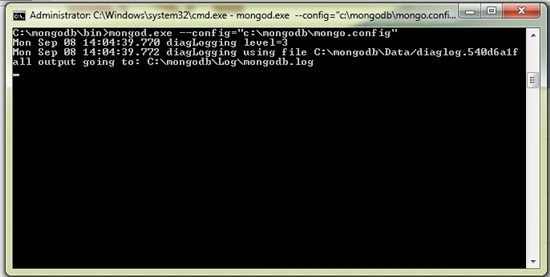
- Open new command prompt with an administrator.
- Go to c::\mongodb\bin\> mongo.
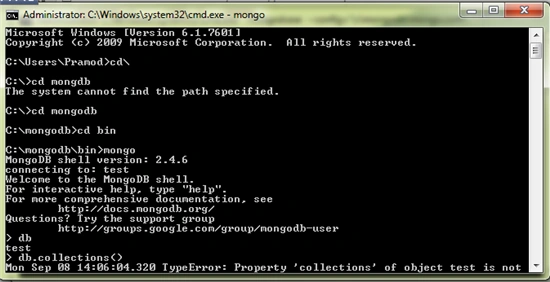
- Now, the Server will start and you are in MongoDB prompt.
> use test
>db
Description
Befor starting, please check your MongoDB Service, if it's running or not.
Follow the steps given below.
After installing MongoDB in your system, let's test some DB query in to MongoDB environment.
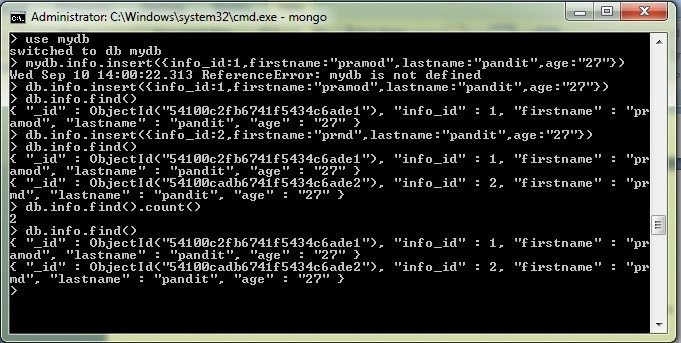
>Use mydb <press enter>
switch to my db
For other commands, please refer to the image given below.
This Application shows how the basic CRUD opration on MongoDB runs by using wpf C# and .NET with WPF GridView control.
In this Application, you have the functionality given below.
- You can configure the Local and server based mongodb configuration.
- Insert the new record in to the database collection.
- You can select the particular record.
- After selecting the particular record, you can update the selected record.
- After selecting the particular record, you can delete the selected record.
- You can select the record by, using the WPF GridView control etc.
It is immediately reflected in the GridView after any transaction on MongoDB by our Application.
You have to add MongoDB driver DLL for .NET.
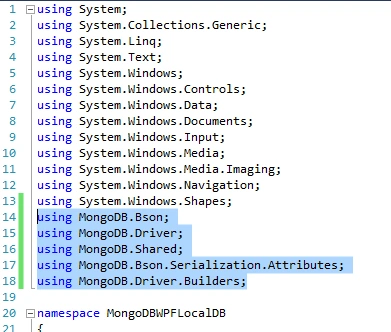
To downlaod, .NET driver DLL, you can refer the link given below.
https://github.com/mongodb/mongo-csharp-driver/releases
I had already inserted it in to the debug folder but if you have any problem, you can get from there.
After the execution, the Application image is given below.
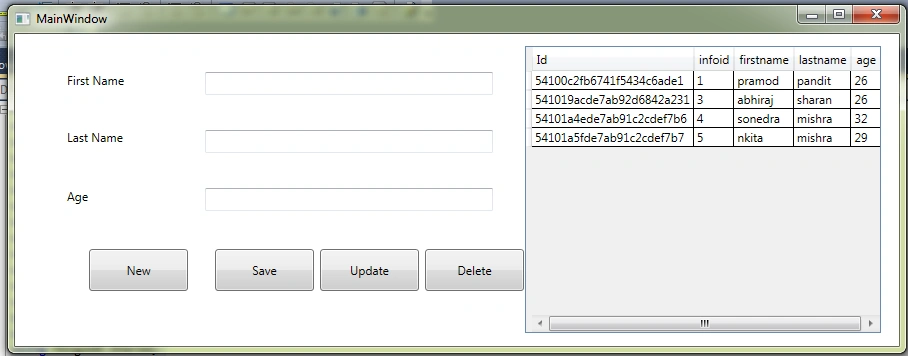
This is all the basic code, which I am using for simple CRUD operations in WPF C# and .NET, please go through the code.
C#
Nathan NelsonPosted May 25, 2017, 10:45 PM
Nice article, since I am learning WPF can I see your entire code including xaml?
Rafnas T PPosted May 2, 2017, 2:25 AM
Nice beginning, keep going...