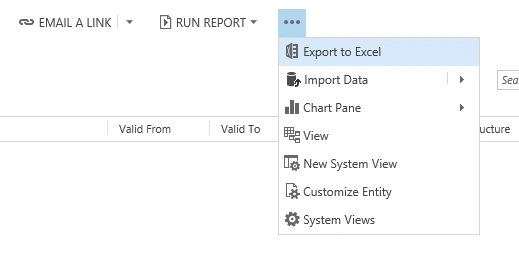
In CRM on any tabular formatted data view you get a menu item to Export to Excel.
Click on Export to Excel, you will see the following options wherein you get a chance to select the type of worksheet to export, either static, dynamic or dynamic PivotTable.
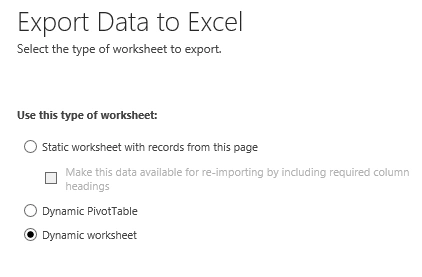
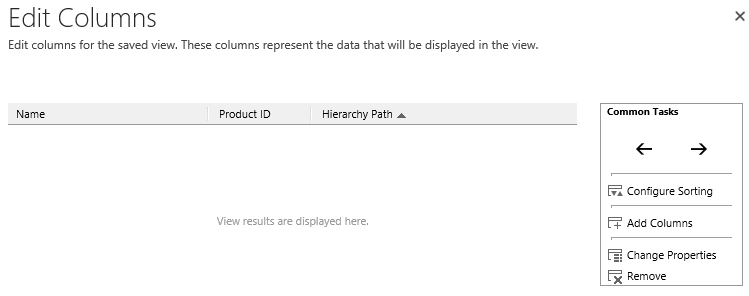
For our example here I am choosing Dynamic worksheet. You get a chance to delete/add the columns that you want to export.
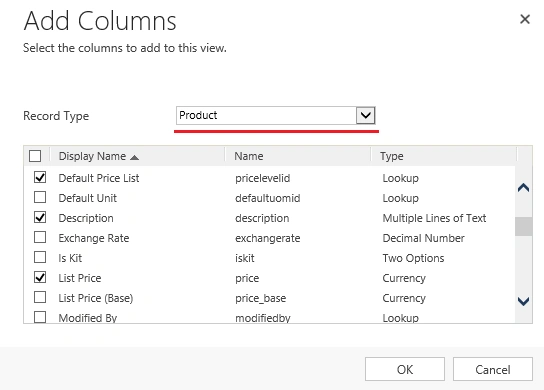
As shown below, you can chose a different record type than the one you are working on and add those relevant columns as well.
Once you click OK, the data will be exported to a XML file that you can open in Excel. You can see the connection details that are created by default in the Excel file that is newly generated. Click on existing connections à Connection à Properties and you will see the connection string as below.
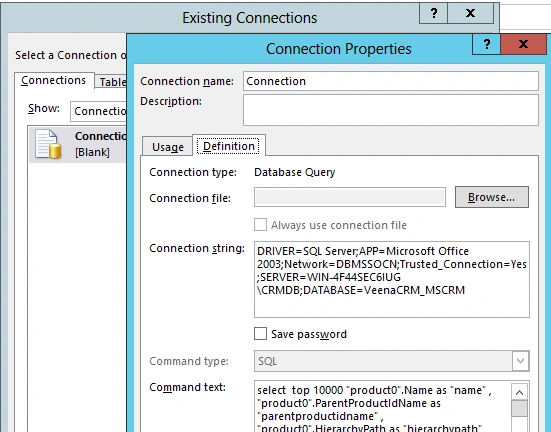
You also see the SQL Command Text that is generated for the connection and the data that is exported. You will get a Security warning and you need to enable content to view data.
Please note that this is a one-way connection, not two ways. The changes you make in Excel will not be updated back to Microsoft Dynamics CRM. And any change in CRM will reflect in Excel once you click Refresh Data from CRM.
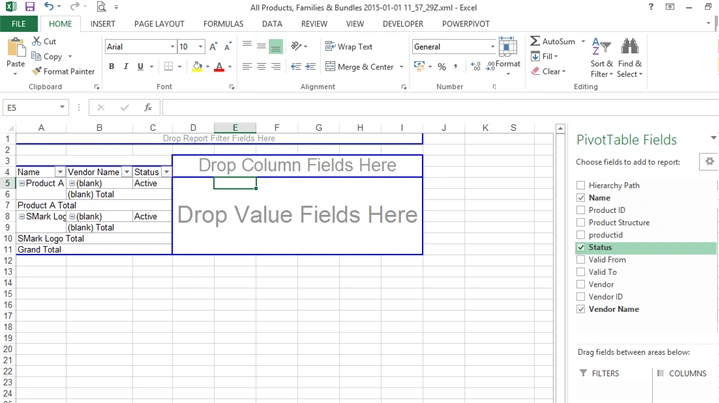
You can do the same for PowerTable and you can utilize the power of PowerPivot and PowerTable to further analyse Microsoft Dynamics CRM data.



Join the conversation! Your thoughts help the community grow.