

How To Setup MVC Application With MongoDB Server?
Step 1. Let’s start with the MongoDB server installation for our application. In this application, I am using MongoDB 3.0.4 server. The following image indicates the installation of the server. Setup files downloaded from MongoDB's official website.

Step 2. Now it’s time to check server has been installed properly or not on the machine. So go to location ‘ C:\Program Files\MongoDB\Server\3.0\bin’. After successful installation of the server bin folder contains the following mentioned files.

Step 3. Start MongoDB. To start MongoDB, execute the following from the command prompt: C:\ProgramFiles\MongoDB\Server\3.0\bin\mongod This will start the main MongoDB database process. Now waiting for the connections message in the console. Output indicates that mongod.exe running successfully.

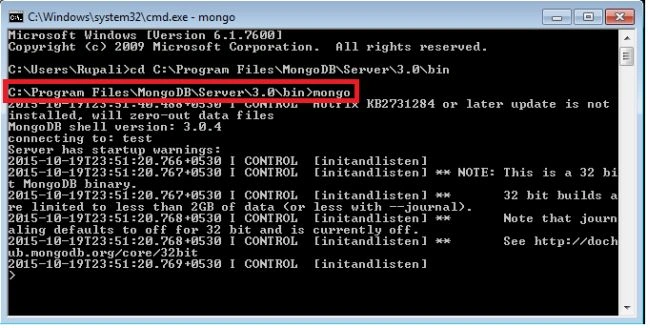
Step 4. Connect to MongoDB in order to perform database operations Run the command from a new command prompt: C:\Program Files\MongoDB\Server\3.0\bin\mongo Execute the command ‘show dbs’ – it shows a list of databases present at the server. This will open the mongo shell and you can connect your application by running the following commands:
MVC Application with MongoDB
MVC Application UI: We are going to design the following user interface using MVC & all CRUD operations are performed using the MongoDB database, so all the methods which we are going to use are with respect to MongoDB database syntax.

Application Folder & File Structure are as follows:
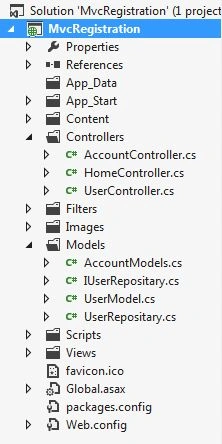
UserRepositary Model Class File: We are going to use this model class to perform CRUD operations in the MongoDB database.
Create Application Database
using MongoDB.Bson;
using MongoDB.Driver;
using MongoDB.Driver.Builders;
using System;
using System.Collections.Generic;
using System.Linq;
using System.Web;

namespace MvcRegistration.Models
{
    public class UserRepositary : IUserRepositary
    {
        ObjectId id = new ObjectId();

        MongoClient client = null;
        MongoServer server = null;
        MongoDatabase database = null;
        MongoCollection UserDetailscollection = null;

        string connectionString = "mongodb://localhost";
        private List<UserModel> _UserList = new List<UserModel>();

        public UserRepositary()
        {
            try
            {
                client = new MongoClient(connectionString);

                server = client.GetServer();

                database = server.GetDatabase("MVCDB");

                UserDetailscollection = database.GetCollection<UserModel>("UserModel");
            }
            catch (Exception ex)
            {
                Console.WriteLine(ex.Message);
            }
        }
    }
}
above code will create the 'MVCDB' database at the MongoDB server.
We can test whether the database is created or not using the command 'show dbs'.

References
To gain a more comprehensive understanding of the subject, please read the next part,
Puja JaiswalPosted Dec 8, 2016, 5:40 AM
Can you please show the IUserRepoository code aswell?
Willy EstuardoPosted Oct 7, 2016, 1:03 AM
What happend if the DB is not created? It is happing to me
Bhuvanesh MohankumarPosted May 3, 2016, 11:47 AM
Good one...
Rupesh KahanePosted Nov 7, 2015, 10:44 AM
good explanation...
Santhakumar MunuswamyPosted Oct 25, 2015, 11:50 AM
Good one
Rupali ShindePosted Oct 21, 2015, 3:56 AM
thanks
Gowtham KPosted Oct 21, 2015, 3:36 AM
Great Work
Sibeesh VenuPosted Oct 21, 2015, 1:11 AM
Nice Share
Mukesh KumarPosted Oct 21, 2015, 12:35 AM
GOOD JOB
Humayun Kabir MamunPosted Oct 21, 2015, 12:33 AM
Nice...
Priyaranjan K SPosted Oct 20, 2015, 12:28 PM
Good One
Nilesh JadavPosted Oct 20, 2015, 11:29 AM
Nice start on Mangodb mam !!
Harshad PansuriyaPosted Oct 20, 2015, 9:04 AM
Nice one