

Today, navigation is one of the most common functionalities in websites. Poor navigation may lead to user frustration and make visiting your website an un-engaging experience. Research proves that if your website can’t engage a user without 2 minutes, that user may never visit your website again.
Navigation bar or nav bar is one of the controls used to drive web navigation. Nav bar provides the current position of a user while browsing a website and moves as the user moves from page to page. Nav bar also allows a user to go back and jump between pages.
Angular is one of the most popular frameworks for building Websites and building navigation may be time consuming. As a Web developer, when building navigation bars, you have two major choices. You can either create your own navigation or use an existing navigation control that is developed by industry experts and veterans. One such control is Infragistics’s Ignite UI for Angular’s Nav Bar. One of the key advantages of using Ignite UI is that it’s designed for modern Web, and it is designed to fit and adjust for all screen sizes and works with all browsers and devices without doing any manual work. Learn more and download Ignite UI for Angular here.
- Install Ignite UI for Angular
- Create Angular Project with Ignite UI
- Import the IgxNavbarModule
- Adding the igx-navbar
- Adding fonts in “index.html”
- Adding Icons in navbar
- Adding back button in navbar
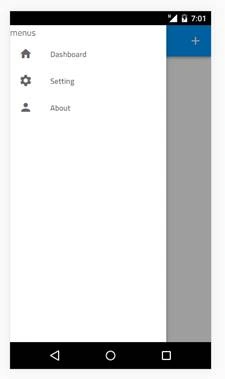
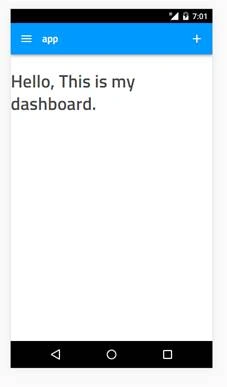
- Using Navbar and NavigationDrawer together
- Conclusion
Install Ignite UI for Angular
You should have node and npm installed on your machine. If you are new to npm, check out the npm documentation here.
Once npm is installed, open the command prompt and run
“npm install -g igniteui-cli”
This will install Ignite UI on your machine and it is ready to use.
Create an Angular project with Ignite UI
To create new project, run the below command:
“ng new nav-bar-demo”
To get in to the project, type:
“cd nav-bar-demo”
Now, it’s time to install the Ignite UI for the current project.
Run the following command,
“npm install igniteui-angular”
Let’s add the required Ignite UI styles and the HammerJs library in the angular-cli.json.
Open the “angular.json” and add below code snippet as shown Listing 1.
- "styles": [
- "../node_modules/igniteui-angular/styles/igniteui-angular.css"
- ]
- "scripts": ["../node_modules/hammerjs/hammer.min.js"]
Listing 1.
Now we have configured Ignite UI with our Angular project successfully.
Run the following command on command prompt to run the Angular application.
ng serve --open
Application will run using the following address and port http://localhost:4200.
Import IgxNavbarModule
Open the “app.module.ts” file and import the igxNavBarModule in import section of @NgModule
- import { IgxNavbarModule, IgxIconModule } from 'igniteui-angular';
- @NgModule({
- imports: [
- IgxNavbarModule,
- ],
- providers: [],
- bootstrap: [AppComponent]
- })
- export class AppModule { }
Listing 2.
Add nav-bar component
Let’s add the new component named nav-bar. To do that, run the below command on command prompt.
ng generate component components/nav-bar
Listing 3.
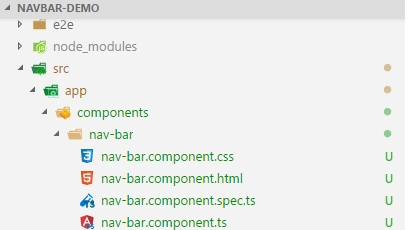
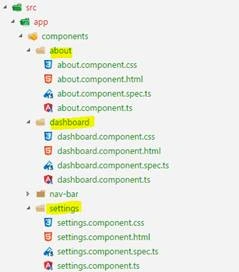
Figure 1.
Now add the <app-nav-bar></app-nav-bar> in app.component.html file.
Adding igx-navbar
Let’s add the igx-navbar directive in “nav-bar.component.html” page as showing in listing 4.
- <article class="sample-column">
- <div class="navbar-sample">
- <igx-navbar title="Navbar Sample" actionButtonIcon="menu" [isActionButtonVisible]="true"> </igx-navbar>
- </div>
- </article>
Listing 4.
Adding fonts in “index.html”
- <!doctype html>
- <html lang="en">
- <head>
- <meta charset="utf-8">
- <title>NavbarDemo</title>
- <base href="/">
- <meta name="viewport" content="width=device-width, initial-scale=1">
- <link rel="icon" type="image/x-icon" href="favicon.ico">
- <link href="https://fonts.googleapis.com/icon?family=Material+Icons" rel="stylesheet">
- <link href="https://fonts.googleapis.com/css?family=Titillium+Web:300,400,600,700" rel="stylesheet">
- <link href="https://fonts.googleapis.com/css?family=Roboto:300,400,500,700" rel="stylesheet">
- </head>
- <body>
- <app-root></app-root>
- </body>
- </html>
Listing 5.
Now, run the application using “ng server --open”
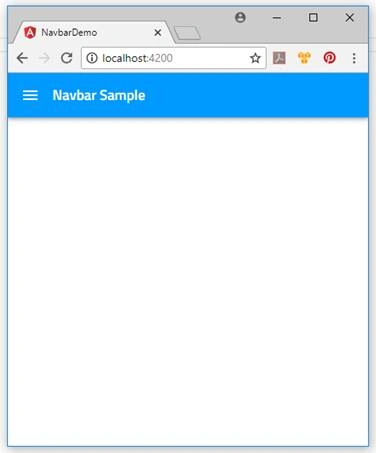
Figure 2.
Adding Icons in navbar
Let’s add the icons in navbar to make it more appealing. Add the “IgxIconModule” in app.module.ts file as showing in Listing 6.
- import { IgxNavbarModule, IgxIconModule } from 'igniteui-angular';
- @NgModule({
- imports: [
- IgxNavbarModule,
- IgxIconModule
- ],
- export class AppModule { }
Listing 6.
Now, open the navbar.component.html and add the following html for icon,
- <article class="sample-column">
- <div class="navbar-sample">
- <igx-navbar title="Navbar Sample" actionButtonIcon="menu" [isActionButtonVisible]="true">
- <igx-icon name="search"></igx-icon>
- <igx-icon name="favorite"></igx-icon>
- <igx-icon name="more_vert"></igx-icon>
- </igx-navbar>
- </div>
- </article>
Listing 7.
Now, run the application to view the output,
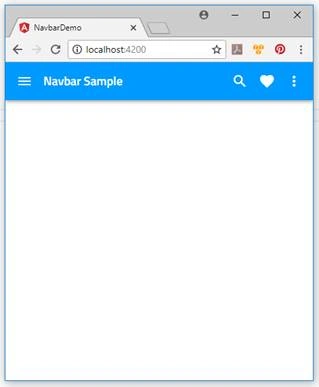
Figure 3.
Adding back button in navbar
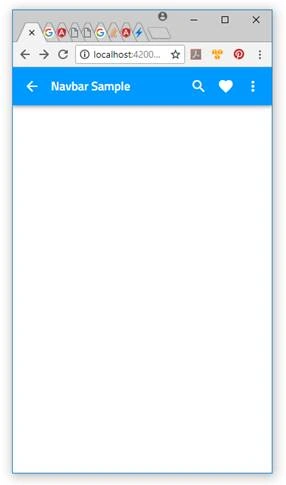
Let’s add the back button in the navbar. To do that, we need to add a few properties in the igx-navbar
- actionButtonIcon="arrow_back"
- [isActionButtonVisible]="canGoBack()"
- (onAction)="navigateBack()"
MM JAckPosted Jul 17, 2024, 9:55 AM
Nyce Article
Akash BoradPosted Jul 25, 2018, 8:16 AM
Nice Article, Thanks.
Farhan AhmedPosted Jul 24, 2018, 12:10 AM
Nice........