

Once you have completed requirement gathering and you are ready this database structure. Just crate excel file for this database structure (PFA attached excel). If we go with our traditional approach then, using this excel file developer will start creating entity and then it’s services and so on.
In large project it will take time for developer to write all code for this, but we can do all this stuff using UiPath Sequence in few minutes only. We will read this excel file and using provided data, will create different Entity classes (.cs file) i.e. final output of this step will be two C# libraries in our solution.
So now guys you will be having some questions like
What is RPA?
RPA stands for Robotic Process Automation. Using RPA technology we can automate business processes. We can configure software as a robot to capture transactions, managing and scrapping data, triggering some responses based on different triggers (see article) and interacting with other application (desktop/web/app from citrix env) systems. Basically it allows us to automate some task which is getting performed by human across application and systems.
Benefits
- Speed up the process
- Increase throughput
- Less human error
- Cost-saving
What is UiPath Studio?
Software designed to automate business processes using RPA. In this tool we have number of activities to automate our process. It’s a desktop application currently fully supporting VB to create process (in near future tool will have full support to C# also). We can create process in sequence or in flowchart manner.
What is Sequence?
Sequence is a one of the type of workflows from UiPath. It is executed as single block activity (because they do not use connectors) so suitable to linear processes, also easily go to one activity to another. They can be reused, as a standalone process or as part of a flowchart.
How to create C# library using UiPath? Answer is using Recording feature.
Recording
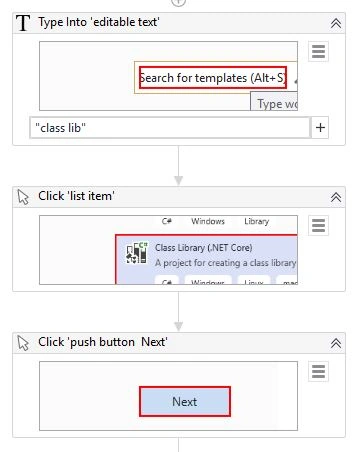
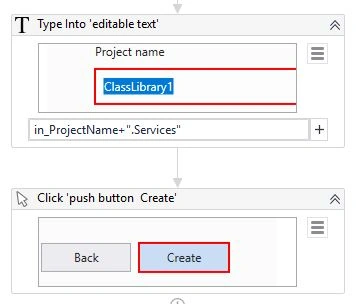
It’s a great feature of UiPath, it saves lot of time. It helps us to record whatever actions we perform on a window. These recorded actions can be modified so we can use it in other processes also. While recording all elements are highlighted so you can easily select your required element.
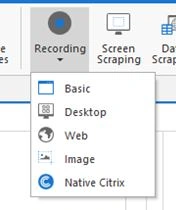
There are 5 types of recording, whatever type you select some actions are not recordable like,
- Keyboard shortcuts
- Modifier Keys
- Right Click
- Mouse hover
There are dedicated activities to add above actions our sequence.
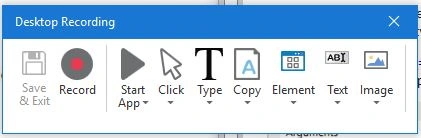
We will be using Desktop recording for our process, because is suitable for all kind of desktop application and its multiple actions, as it generates partial selectors for each activity. Mostly used when you have to record more than one action.
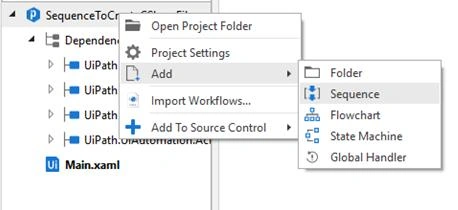
Create Process in UiPath, default main sequence will be created but add new sequence “Create VS Project”.
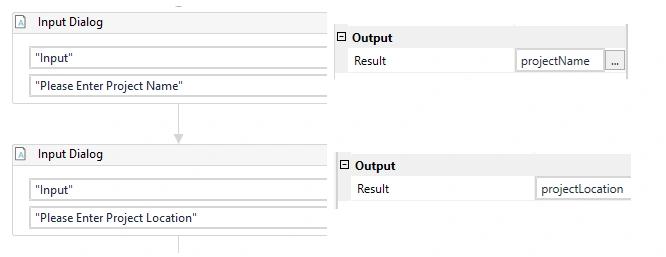
We will take project name and location as input also from user, so add “Input Dialog” in Main sequence like,
Then add “Create VS Project” sequence in after above “input dialog” by simply dragging it from left side menu. It will be added using “Invoke” activity, this activity is used to integrate sequence inside another sequence.
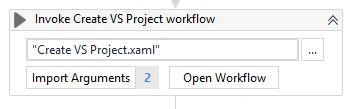
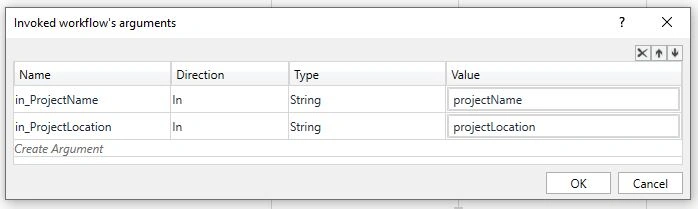
These are arguments we need to pass to “Create VS Project”. Argument direction can be In/Out, In, Out which are self-explainer.
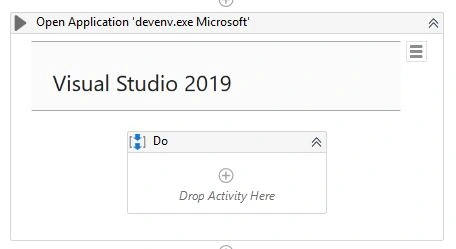
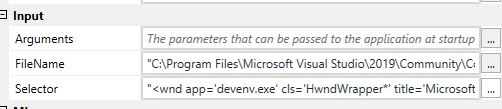
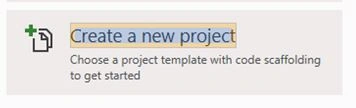
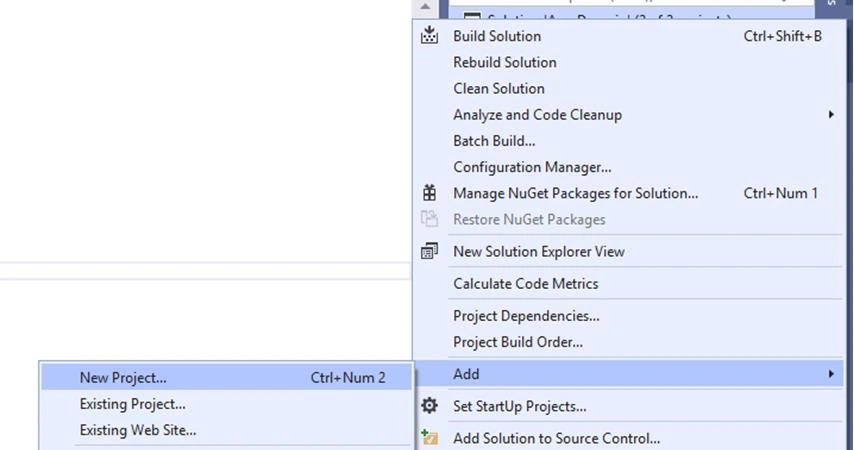
Before starts recording, open Visual Studio 2019 then in “Create VS Project” use Open Application,






vighnesh kumarPosted Apr 8, 2020, 4:43 PM
Very nice, good start
Sourav Kumar DasPosted Oct 22, 2019, 12:20 AM
Nice Article.