
Introduction
In this blog, we will discuss the new features in SharePoint Server 2019.
Communication sites
In communication sites, you can share news, showcase a story, and broadcast a message to other people. It’s easy to create.
Creating a Communication Site
- Open this URL - https://*DomainName*/my/_layouts/15/sharepoint.aspx
- Select Communication site.
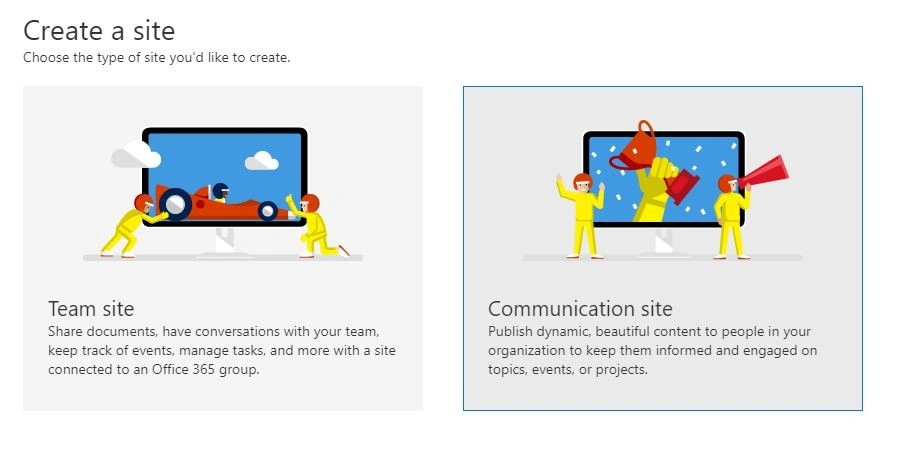
Figure 1- SharePoint 2019 - Creating a communication site
- Select layout design.
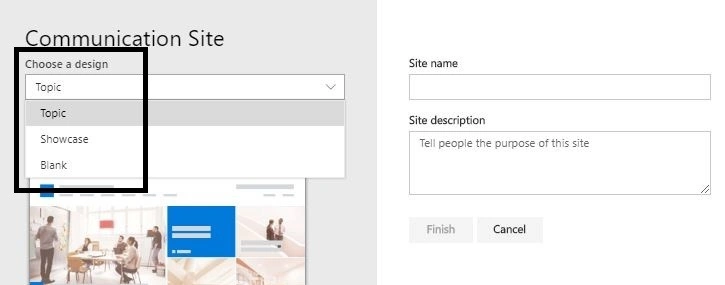
Figure 2- SharePoint 2019 – Choosing site design while creating Communication Site
Communication sites have three out-of-the-box layout designs: Topic, Showcase, and Blank.
- Topic is meant to share information such as news, events, and other content.
- Showcase is to use photos or images to showcase a product, team, or event.
- Blank can be used to create your own design.
Modern lists and libraries
SharePoint Server 2019 supports modern SharePoint lists and libraries.
Modern SharePoint Libraries allow users to quickly view information about their documents, including permissions and metadata.
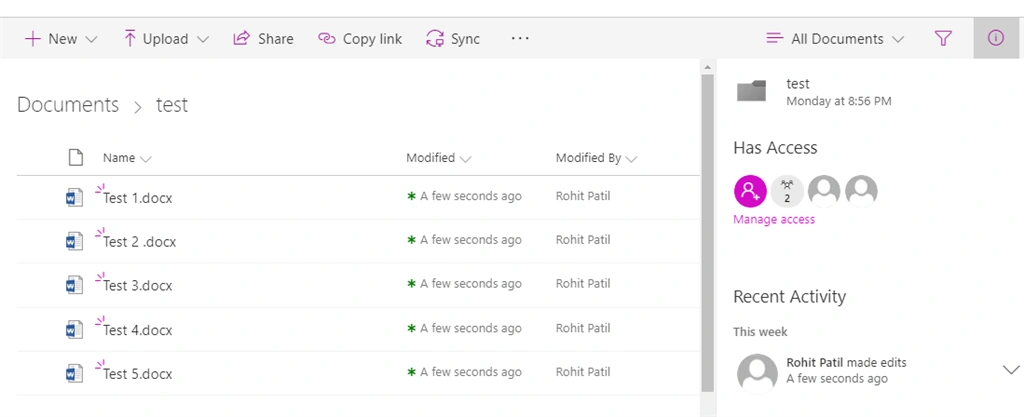
Figure 3 – SharePoint 2019 – Modern Document library
SharePoint 2019 Modern lists include Conditional Formatting. Conditional Formatting allows users to configure different display rules for specific columns in order to quickly view the status of that item.
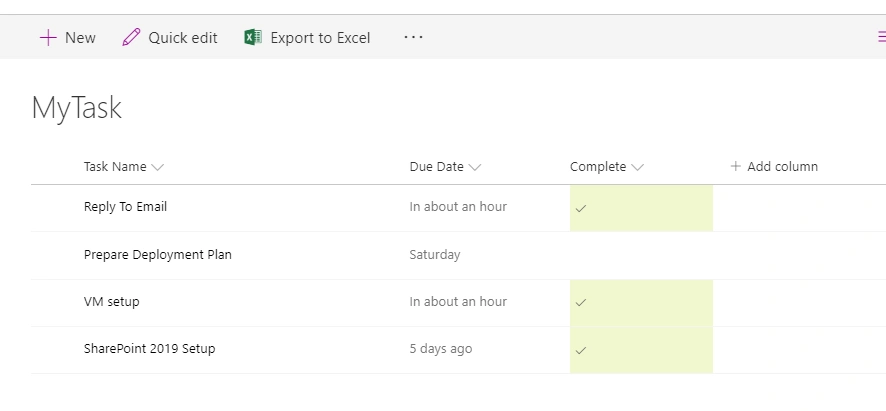
Figure 4- SharePoint 2019 – List – Conditional Formatting
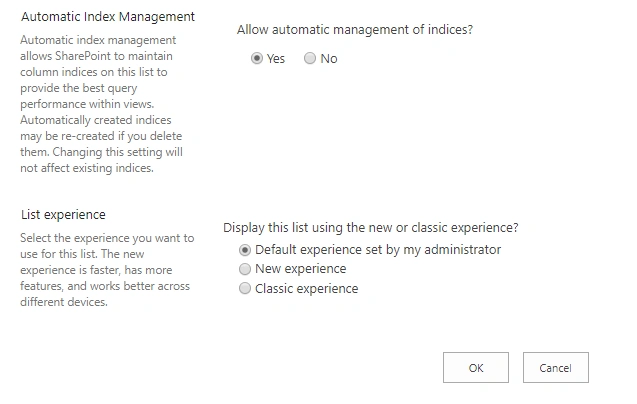
Figure 5- SharePoint 2019 -List experience setting
Increased storage file size in SharePoint document libraries
SharePoint 2019 Server support storing files up to 15 GB in SharePoint document libraries. Note – The large volume of very large files can affect farm performance.
For Software boundaries and limits for SharePoint Servers 2019, please refer below link;
https://docs.microsoft.com/en-us/sharepoint/install/software-boundaries-and-limits-0
Fast Site Creation
The Fast Site Creation feature allows SharePoint administrators to quickly create site collections based on an existing template.
This fast site creation feature actually uses a copy of a site template that is stored in the content database.
Fast site creation is supported by the following site templates:
- OneDrive personal site [SPSPERS#10]
- Team site (modern only) [STS#3]
- Communication site [SITEPAGEPUBLISHING#0]
Use the Get-SPWebTemplatesEnabledForSiteMaster cmdlet to display a full list of site master web templates on the farm.
Modern sharing experiences
SharePoint Server 2019 now supports modern sharing experiences. This provides a simplified sharing UI. It will help to easily share links with others in the organization. Furthermore, it will warn a user when sharing a large group or a large number of items.
SharePoint 2019 libraries combine the power of SharePoint and OneDrive which helps to experience modern sharing. It also solves many of the syncing and integration issues which existed in previous versions of SharePoint.
Modern search experience
SharePoint Server 2019 comes with a modern search experience. In the SharePoint home page, you can find search boxes. This is also available on communication sites and modern team sites.
The most visual difference is that in modern search, you see results even before you start typing in the search box, and the results update as you type.
As an administrator, you cannot turn off classic or modern search. Users get the classic search experience on publishing sites and classic team sites. In the Search Centre, Users get the modern search experience on the SharePoint home page, communication sites, and modern team sites. From the administrator’s perspective there are some differences between the search experiences.
Modern Team sites
Modern Team sites are responsive by default. They include an out of the box news publishing engine, allowing users to share news with the team.
Modern team site includes a group of modern web pages, document libraries, lists for data management, and web parts that you can customize as per your needs. In SharePoint Server 2019, the new team sites are by default modern site and classic sites are still supported as well.
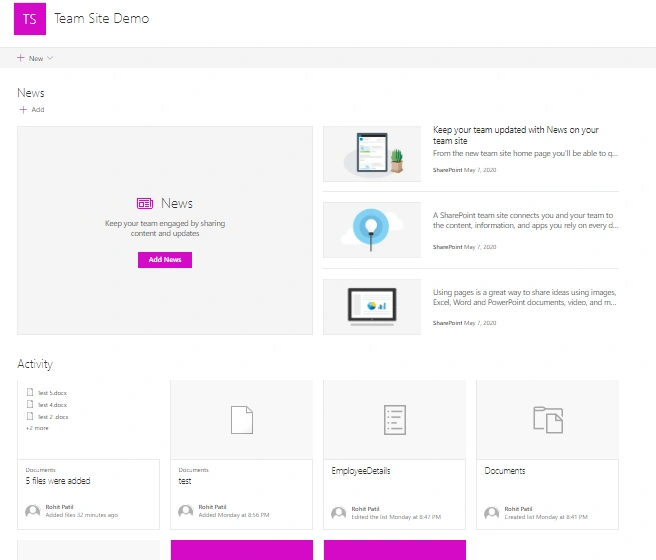
Figure 6- SharePoint 2019 – Modern Team site
Modern Site Pages, modern web parts
Modern Site Pages
Modern pages provide a fast, easy way to build responsive pages using the functionality of modern web parts.
Modern web parts
Modern web parts are designed to be easier to use, to be faster, and to look great. Modern pages use modern web parts. Please note that, for security reasons, modern web parts do not allow for the insertion of code like Jscript and also note that the classic web parts cannot be used on modern pages, and modern web parts cannot be used on classic pages.
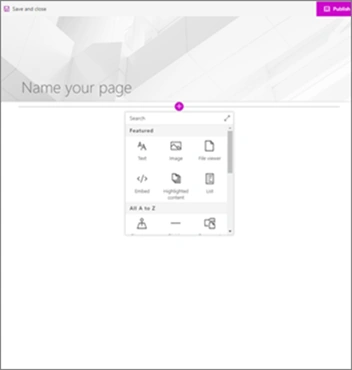
Figure 7- SharePoint 2019 – Adding modern web part
The Sharepoint Home
SharePoint home is a modern UX page, available out-of-box- in SharePoint Server 2019 with appropriate configurations where a user can easily find and access their SharePoint sites and portals. It is a personalized experience that allows users to view activities in the sites they follow and also helps users to create new, modern sites on a self-service basis.
You can reach the SharePoint home page by clicking on the “SharePoint” icon in the SharePoint app launcher. The SharePoint home page replaced the old sites.aspx experience.
Integration with Power Apps and Power Automate
SharePoint Server 2019 brings the cloud closer to the Customers. The cloud features Power Apps and Power Automate are designed to automate business processes, like routing documents for approval. Power Apps and Power Automate can connect with your on-premises data and need to be configured via a gateway.
Power BI
You can use Power BI Report Server, which is the version of Power BI for On-Premises to create stunning reports and easily display them in SharePoint Server 2019.
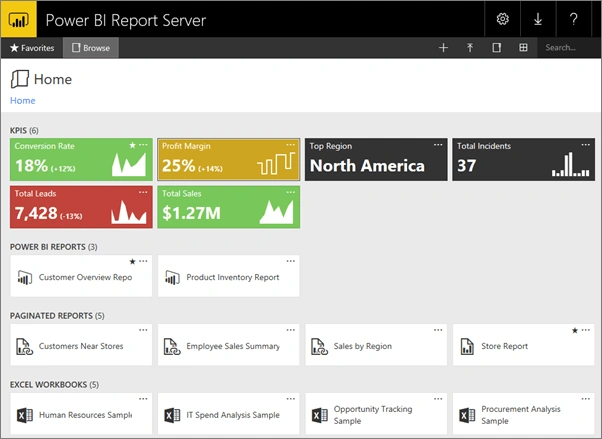
Figure 8- SharePoint 2019 – Power BI Dashboard
Self-service site creation on the SharePoint home page now supports AAM zones
The self-service site creation experience in SharePoint supports creating new sites in a different web application, regardless of whether the web application is hosted on the local farm or a remote farm. This gives greater flexibility and control in managing SharePoint farms.
- By default, the SharePoint home page and team sites only use modern site templates when self-service site creation is enabled. If you want users to only create classic sites you can add the (/_layouts/15/scsignup.aspx) page for users to use classic site templates.
- The ability for farm administrators to hide the Create Site link from the SharePoint home page, so users have to go through their IT organization to create new sites.
The self-service site creation experience in the SharePoint home page supports non-default Alternate Access Mapping zones.
For more information, please refer to the below URL.
SMTP authentication when sending emails
SharePoint Server 2019 now supports the authentication of SMTP servers when sending email messages. SharePoint Server 2019 will still support anonymous connections to SMTP servers that don’t require authentication. This makes it easier for customers to integrate SharePoint into highly secure environments where authentication is required to send emails. Customers no longer need to configure smart host relays for SharePoint in these environments. Authentication can be configured through the Central Administration website and also through PowerShell.
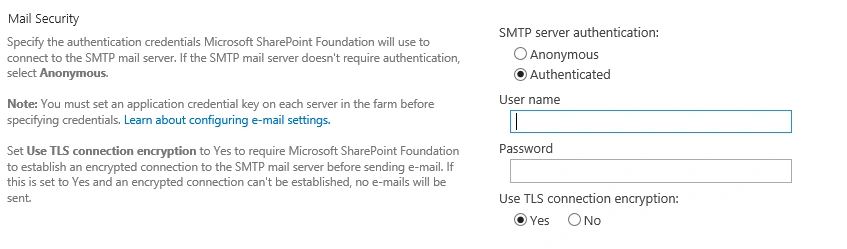
Figure 9- SharePoint 2019 – SMTP
For more information:
- https://docs.microsoft.com/en-us/SharePoint/administration/outgoing-email-planning
- https://docs.microsoft.com/en-us/SharePoint/administration/outgoing-email-configuration
Use of # and % characters in file and folder names
SharePoint Server 2019 now supports # and % characters in file and folder names. This makes it easier to sync to content from personal storage devices to SharePoint and also increased the maximum file path length limit from 260 characters to 400 characters.
Sync files with OneDrive sync app (NGSC)
SharePoint Server 2019 allows organizations to run on-premises. Users can use the new OneDrive sync app (NGSC – Next Generation Sync Client) instead of Groove.exe to sync files. A document can sync from SharePoint Server 2019 team sites with the user devices. The OneDrive sync app supports advanced features such as Files On-Demand, push notifications, and IRM protection.
Sagar PardeshiPosted May 12, 2020, 11:43 PM
Good article..