Introduction
In this article, I will show you how to create a Notification Alert Android app using Android Studio.
Requirements
Steps to be followed.
Follow these steps to create a Notification Alert app using Android Studio. I have attached the source code too.
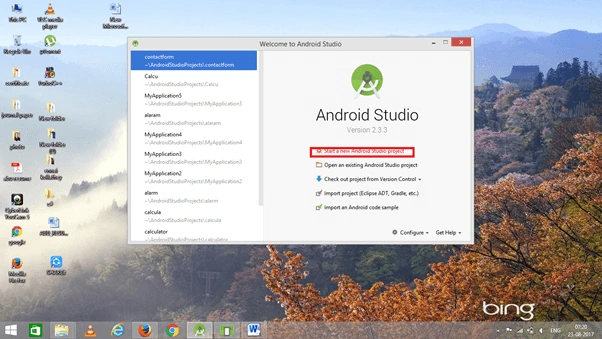
Step 1
Open Android Studio and start a new Android project.
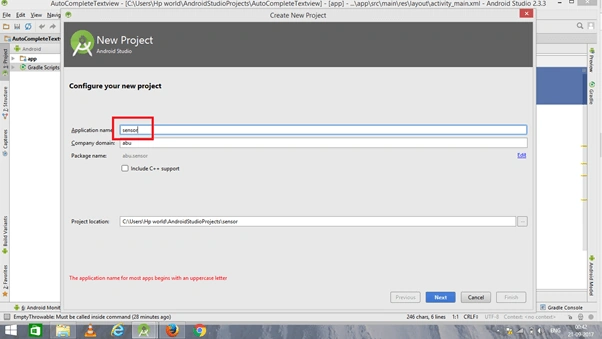
Step 2
You can choose your application name and choose where your project is stored on the system. If you wish to use C++ for coding the project, mark the "Include C++ support", and click the "Next" button.
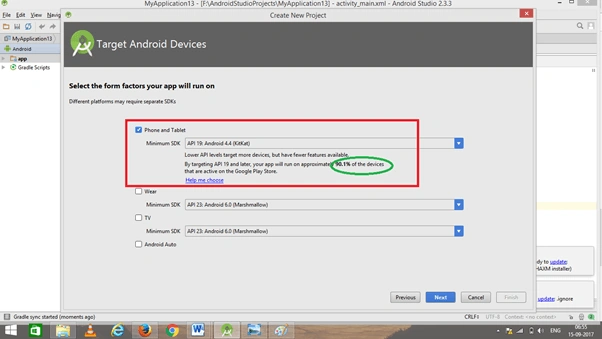
Step 3
Now, select the version of Android and select the target Android devices. We need to choose the SDK level which plays an important role to run the application.
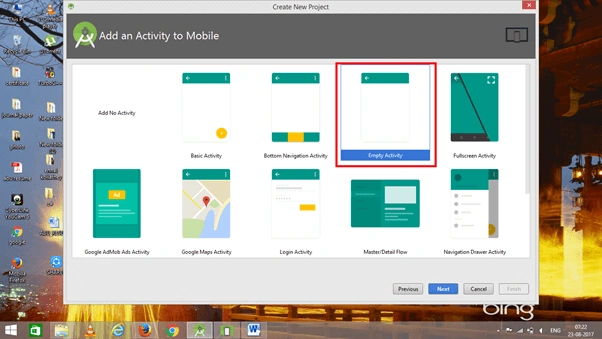
Step 4
Now, add an Activity and click the "Next" button.
Step 5
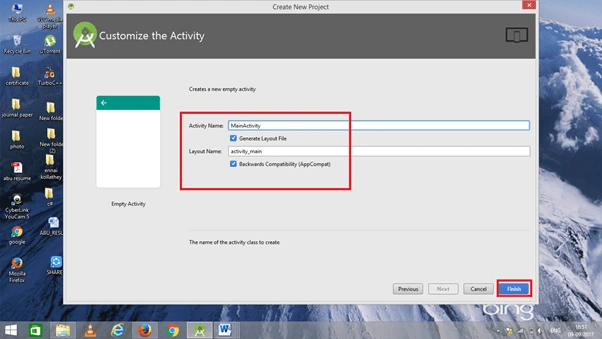
Add the Activity name and click "Finish".
Step 6
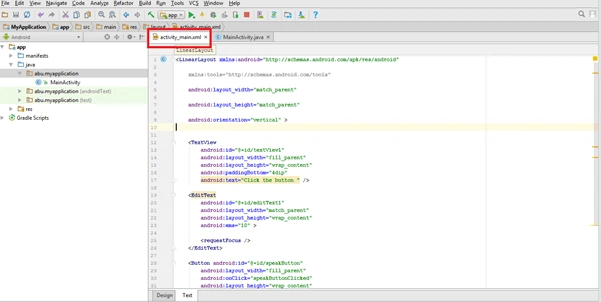
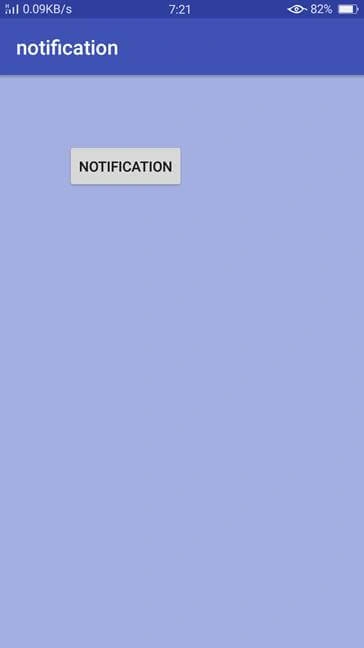
Go to activity_main.xml. This XML file contains the designing code for our Android app.
The XML code is given below.
- <?xml version="1.0" encoding="utf-8"?>
- <RelativeLayout
- xmlns:android="http://schemas.android.com/apk/res/android"
- xmlns:tools="http://schemas.android.com/tools"
- android:id="@+id/rl"
- android:layout_width="match_parent"
- android:layout_height="match_parent"
- android:padding="16dp"
- tools:context=".MainActivity"
- android:background="#a3aee1"
- >
- <Button
- android:id="@+id/btn"
- android:layout_width="wrap_content"
- android:layout_height="wrap_content"
- android:text="Notification"
- android:layout_margin="50dp"
- />
- </RelativeLayout>
Step 7
Go to MainActivity.java. This Java program is the backend language for Android.
The java code is given below.
- package abu.notification;
- import android.app.NotificationManager;
- import android.content.Context;
- import android.content.res.Resources;
- import android.graphics.BitmapFactory;
- import android.support.v4.app.NotificationCompat;
- import android.support.v7.app.AppCompatActivity;
- import android.os.Bundle;
- import android.view.View;
- import android.widget.Button;
- import android.widget.RelativeLayout;
- import android.graphics.Bitmap;
- public class MainActivity extends AppCompatActivity {
- private Context mContext;
- private Resources mResources;
- private RelativeLayout mRelativeLayout;
- private Button mButton;
- @Override
- protected void onCreate(Bundle savedInstanceState) {
- super.onCreate(savedInstanceState);
- setContentView(R.layout.activity_main);
- mContext = getApplicationContext();
- mResources = getResources();
- mRelativeLayout = (RelativeLayout) findViewById(R.id.rl);
- mButton = (Button) findViewById(R.id.btn);
- mButton.setOnClickListener(new View.OnClickListener() {
- @Override
- public void onClick(View view) {
- NotificationCompat.Builder builder = new NotificationCompat.Builder(mContext);
- builder.setSmallIcon(R.drawable.notification_small_icon);
- Bitmap bitmap = BitmapFactory.decodeResource(mResources, R.drawable.notification_large_icon);
- builder.setLargeIcon(bitmap);
- builder.setContentTitle("Notification Title");
- builder.setContentText("Hello! Notification service.");
- int notificationId = 001;
- NotificationManager manager = (NotificationManager) getSystemService(NOTIFICATION_SERVICE);
- manager.notify(notificationId, builder.build());
- }
- });
- }
- }
Step 8
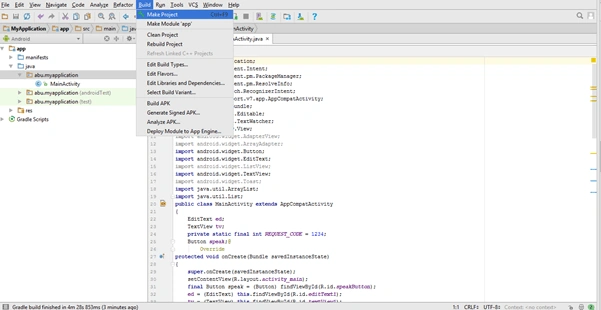
Now, go to the menu bar and click "Make Project" or press ctrl+f9 to debug the error.
Step 9
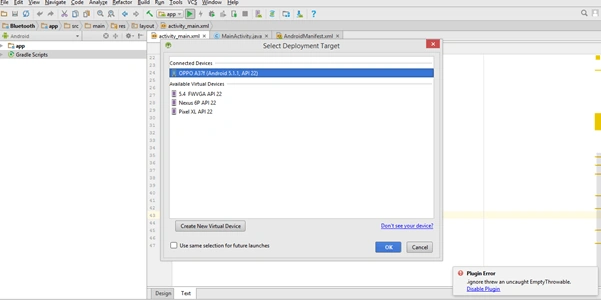
Then, click the Run button or press shift+f10 to run the project. And, choose the virtual machine option and click OK.
Conclusion
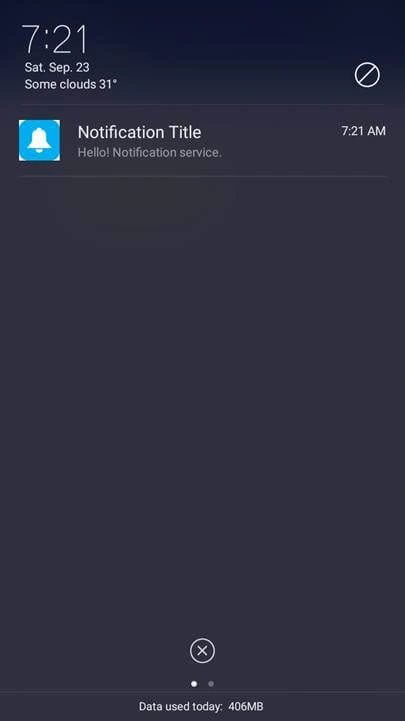
We have successfully created the Notification Alert app using Android Studio.


 The XML code is given below.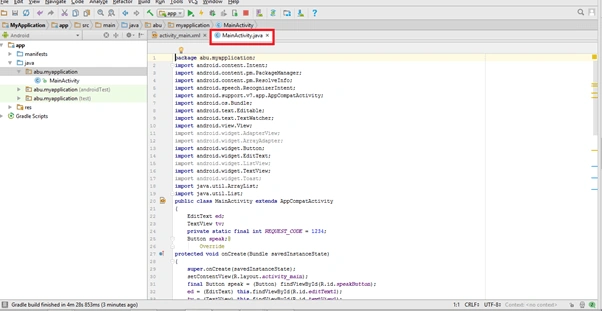
Join the conversation! Your thoughts help the community grow.