

In this article, we will learn, what a node package manager is, how to create a package.json file and write description in details about it. Also learn how to delete, update and edit value of keys in the package.json file. Also learn how to list all command list and how to install the javascript library.
All these points in step by step.
Node Package Manager (NPM)
NPM acronyms Node Package Manager for JavaScript and the world's largest software registry, with approximately 3 billion downloads per week. The registry contains over 600,000 packages (building blocks of code). It is a package manager for the JavaScript programming language. It is the default package manager for the JavaScript runtime environment Node.js. It consists of a command-line client, also called NPM. It is the world's largest software registry. Which makes it very easy for developers to share, reuse and update the code. It is very amazing.
The most use of NPM for installing modules or packages or manage the packages.
How to check NPM installed or not
You can check it by using the command prompt, PowerShell, or any other terminals.
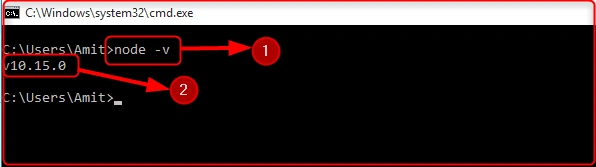
I have used the command prompt. Open command prompt (win + r) use small or caps doesn’t matter and type Node -v press enter. If NPM is installed then it shows the NPM version otherwise it displays a message.
Listing 1.0
Point 1: node – v command is used to check the existence of NPM is installed or not,
Point 2: In my computer system NPM is already installed then it shows the NPM version (v10.15.0).
point 3: If it not installed then shows an error message which is shown below,
"NPM: The term ‘NPM is not recognized as the name of a cmdlet, function, script file or operable program. Check the spelling of a name, or if a path was included, verify that the path is correct and try again."
How to install NPM
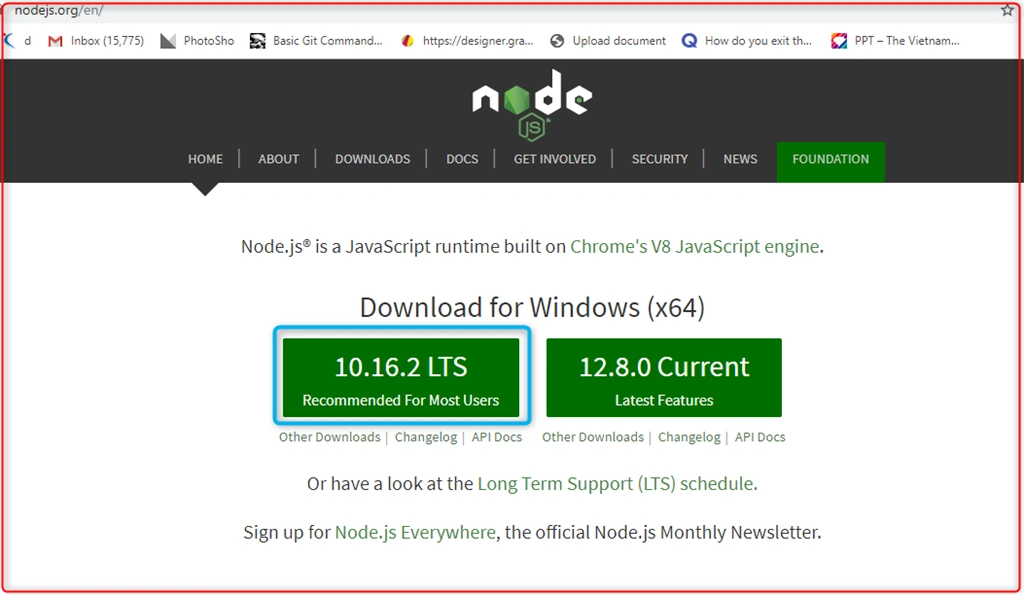
NPM is distributed with Node.js which means that when you download Node.js when installing node.js then it will automatically install our machine. Go to Node JS and download node.js
Listing 2.0
In the above Listing 2, there are two types of Node.js library there.
First: 10.16.2 LTS and 12.8.0 Current. You can download any one from each of these.
Both will do the same thing but,
- 12.8.0 Current Version 10.16.2 LTS provides Long Turm Support.
- 12.8.0 Current it means It is recently created & testing phases.
Now go to 10.16.2 LTS and download it and installed it.
After installation is completed then you can check that which version of NPM Installed.
Note
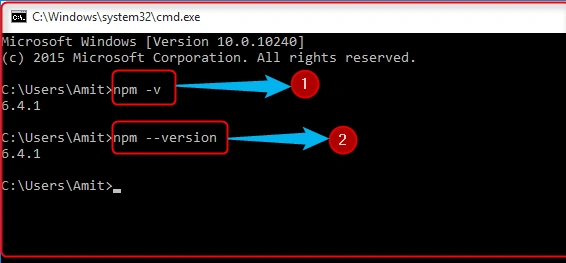
Check the node version, use bellow command.
Check the node version, use bellow command.
Syntax
- npm -v
- npm-version
Listing 3.0
In the above, both (points 1 and 2) will do the same output.
And you can see here in our system NPM version 6.4.1 is installed successfully.
How to Update NPM
If you want to update NPM version with globally then use below command:
Syntax
- npm install npm@latest -g
Show NPM all command
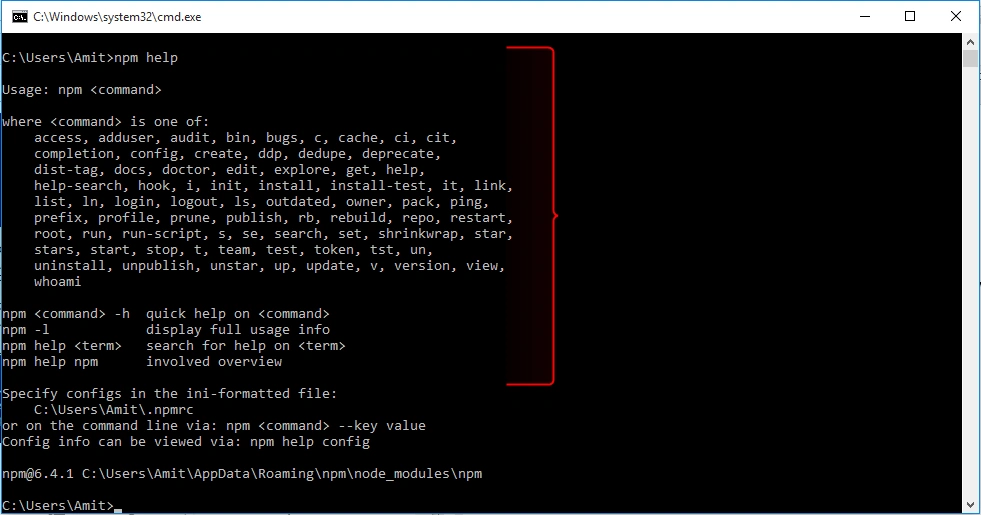
If you want to show all command which is provided by NPM use below syntax,
Syntax:
- npm help
Output
Listing 4.0
In the above snapshot, we can see that all commands are provided by NPM. Each and every command have its own meaning.
How to create a new package file, install, uninstall, update, delete and dependency inside package.json file.
Whenever we create a new package then package.json file is created.
How to set up the new and existing packages.
NPM init: This command is used to set up new or existing packages. It creates a new package.json file inside the project or folder.
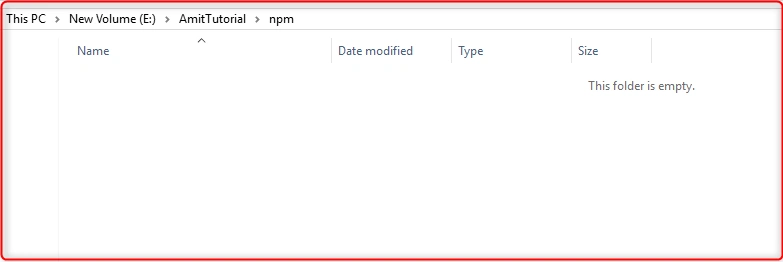
I have created a new folder which is NPM, and inside this folder create a new package using npm init.
Listing 5.0
As you can see here the NPM folder is empty.
Now, I am going to create NPM packages inside this folder.
Use the below command for creating a new package file using.
Syntax
- npm init
Listing 6.0
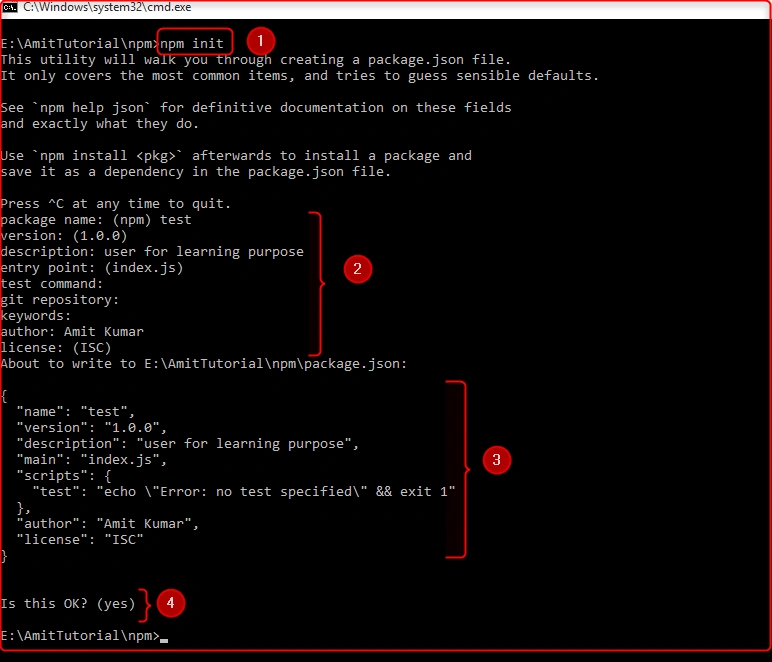
In Listing 6.0 when I execute NPM init command, then this command takes some user input, which you can see the point 2, NPM init command asks those points which are given below step by step.
-
package name: Which you can enter any name or left blank.
-
version:you can enter version number which you want otherwise left blank then it takes default which is written there.
-
description:you can write your own description which you want to, otherwise you can left blank.
-
entry point:You can give any file name, which is suitable for you.
-
test command:You can give any tool for testing purpose, otherwise you can let blank.
-
git repository:If you have any git repository then you can write otherwise left blank.
-
keywords: You can write an array of string ( keywords) in double quotes(" ").
-
license: If you have any license then write otherwise left blank.
And press enter then package.json file will be created inside those folders (NPM) which I have created. Now you can see point 3 is the whole JSON file.
Now in the above images point 4asks the user are you okay with given details which you have passed, if a user is ok with all details which are provided by them then pressed enter then package.json file will be created, if a user is not ok then press n and abort it.
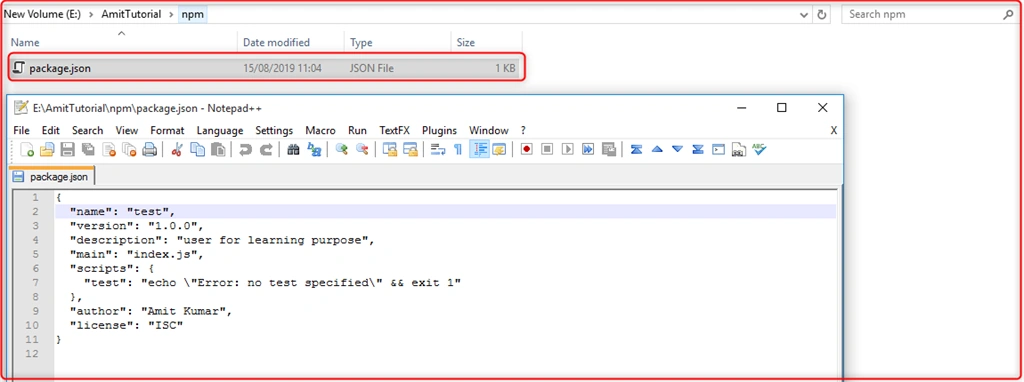
Now in the NPM folder, our package.json file is created successfully and I opened this file with NPP (Notepad++), and you can see all the details which I have entered shown package.json file.
Listing 7.0
Arun Kumar SinghPosted Oct 8, 2019, 5:42 AM
Its not Nuget its Node Package Manager please correct it
Sourav Kumar DasPosted Oct 8, 2019, 3:27 AM
Hi Amit Sir, this article title is wrong it is mentioned as 'Nuget' it should be 'Node'.