
We often should know, whether were any changes on our form or not. And if such changes were, some process is carried out: just a message, some property has to be changed to "false", etc. There are no problems if we use "standard" controls (controls from the Toolbox: TextBox, ComboBox, etc), because every such control has OnChanged event (I mean TextChanged, SelectedIndexChanged, etc.) and we can catch every change. But... a little more interesting situation can be.
For example: we use UserControl1 that contains four TextBoxes, three ComboBoxes and UserControl2 that, in its turn, contains two TextBoxes and UserControl3 that, in its turn..., and so on; we have to catch any change on our form and when the number of changes of the UserControl2 will be equaled 2 we should "switch off" (enabled = false) this control.... In this case we have to "supply" the controls with event OnChanged.
In this article I will show some ways how to create user controls with OnChanged event. The examples are written using C# for Windows applications.
First of all let's divide our OnChanged events(which we are going to create) into two big parts: the events that have no event data and events that have.
The first case: The events that have no event data.
In this case in the code page of your user control you have to declare a delegate for OnChanged event and an event itself :
public delegate void Changed_EventHandler(object sender,EventArgs e);
public event Changed_EventHandler C_Changed;
But .NET ( !!! ) have made part of this work: there is a method that handles the event that has no event data. And this is EventHandler Delegate. Using that you can replace (if you want) two lines of the above code by one:
public event EventHandler C_Changed;
Now you can add the next code
if (C_Changed != null) {C_Changed(this, e);}
to every OnChanged event of your control (again, saying "OnChanged event" I mean TextChanged, SelectedIndexChanged, etc.) and to force the control "to notice" each change occurring on it.
But more "elegant and programmer" way (if it is possible to say so) is use of a method, named OnC_Changed, that raises the event in all cases, that you need. In this case you can easily to use some method doOnChanged that executes the process logic for the C_Changed event :
protected virtual void OnC_Changed ( EventArgs e )
{
if (C_Changed != null)
{
//Invokes the delegates.
C_Changed(this, e);
doOnChanged();
}
}
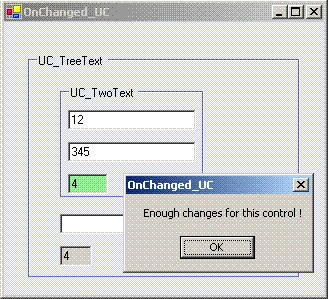
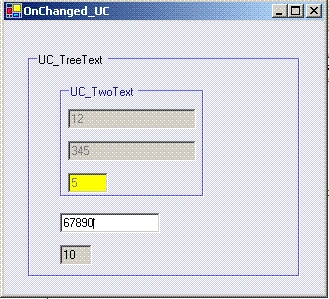
And now let's pass to practice and create some test project that has to have a Windows form with a user control "UC_TreeText". The last one consists of : textbox "textBox_C1", textbox "textbox _C2" with ReadOnly property set to "true" (just to see total of changes of the UC_TreeTex control), user control "UC_TwoText". In its turn the UC_TwoText control consists of : textbox "textBox_C1" , textbox "textBox_C2", textbox "textBox_C3" with ReadOnly property set to "true" (just to see total of changes of the UC_TwoText control).
The process logic at changes of the UC_TwoText control is the following: at each change of the control color of the textBox_C3 control should vary and we should see total of changes of the UC_TwoText control. The process logic at changes of the UC_TreeText control is the following: at each change of the control we should see total of changes of the UC_TreeText control.
Our solution (named "WinProjects_Test") includes (by analogy) two projects: Output Type of the first project is "Windows Application" (named "OnChanged_UC") and Output Type of the second is "Class Library" (named "OnChanged_UC_Controls"). The second project includes two User Controls: "UC_TreeText" and "UC_TwoText". The first project includes only a Windows form: "Form1".
The sequence of creation of our projects is the following.
After creating the solution with two projects add to the UC_TwoText control three textbox controls (with the names specified above). Double-click textBox_C1 and textBox_C2 to add TextChanged events and then add to the code page of the UC_TwoText control the next code:
#region "forEventChanged"
public event EventHandler C_Changed;
private int NumChanges = 0;//the number of changes
// The protected OnC_Changed method raises the event by invoking
// the delegates. In this case the sender is always this.
protected virtual void OnC_Changed(EventArgs e)
{
if (C_Changed != null)
{
//Invokes the delegates.
C_Changed(this, e);
doOnChanged();
}
}
//The method doOnChanged executes the process logic
//for "C_Changed" event.
private void doOnChanged()
{
//increase value of NumChanges by one
++NumChanges;
//changes BackColor to another color
if (textBox_C3.BackColor != Color.Yellow)
{
textBox_C3.BackColor = Color.Yellow ;
}
else
{
textBox_C3.BackColor = Color.LightGreen ;
}
//write down and show the number of changes
textBox_C3.Text = NumChanges.ToString();
}
#endregion
private void textBox_C1_TextChanged(object sender, System.EventArgs e)
{
OnC_Changed(e);
}
private void textBox_C2_TextChanged(object sender, System.EventArgs e)
{
OnC_Changed(e);
}
Now add to the UC_TreeText control two textbox controls (with the names specified above) and the UC_TwoText control. Double-click textBox_C1; then right-click on the UC_TwoText and select Properties, click "Events" button, double-click on "C_Changed". Now the UC_TreeText.cs code page are ready for adding a few lines of the following code:
#region "forEventChanged"
public event EventHandler C_Changed;
private int NumChanges =0;//the number of changes
// The protected OnC_Changed method raises the event by invoking
// the delegates. In this case the sender is always this.
protected virtual void OnC_Changed(EventArgs e)
{
if (C_Changed != null)
{
//Invokes the delegates.
C_Changed(this, e);
doOnChanged();
}
}
//The method doOnChanged executes the process logic
//for "C_Changed" event.
private void doOnChanged()
{
++NumChanges;
textBox_C2.Text = NumChanges.ToString();
}
#endregion
private void textBox_C1_TextChanged(object sender, System.EventArgs e)
{
OnC_Changed(e);
}
private void uC_TwoText1_C_Changed(object sender, System.EventArgs e)
{
OnC_Changed(e);
}
Inside of the OnChanged_UC project from "My User Controls" tab drag and drop on the Form1 our UC_TreeText control.
Ba Bui DinhPosted Jan 5, 2009, 11:45 PM
Can you give me one sample to understand easy!