

Introduction
This article will talk about three ways of binding object properties with SilverLight user interfaces. We will first go through the fundamentals of the 3 bindings and then take up a small sample which will demonstrate how the binding works. We have also attached the source for the same.
Other Silverlight FAQ
In case you are a complete fresher to silverlight then below are some silverlight FAQ's which can give you a quick start in this topic.
Silverlight FAQ Part 1:- For article click here This tutorial has 21 basic FAQ's which will help you understand WPF, XAML, help your build your first silverlight application and also explains the overall silverlight architecture.
SilverLight FAQ Part 2 (Animations and Transformations):- For article click here This tutorial has 10 FAQ questions which starts with silverlight animation fundamentals and then shows a simple animated rectangle. The article then moves ahead and talks about 4 different ways of transforming the objects.
One way bindings
As the name so the behavior. In one way bindings data flows only from object to UI and not vice-versa. For instance you can have a textbox called as 'TxtYear' which is binded with an object having property 'Year'. So when the object value changes it will be reflected on the silverlight UI, but the UI cannot update the year property in the object.
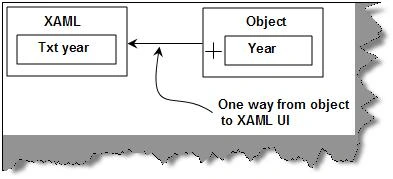
It is a three step procedure to implement one way binding. First create your class which you want to bind with the silverlight UI. For instance below is a simple class called as 'ClsDate' with a 'Year' property.
public class clsDate
{
private int _intYear;
public int Year
{
set
{
_intYear = value;
}
get
{
return _intYear;
}
}
}
In the second step you need to tie up the 'Year' property with a silver light UI text box. To bind the property you need to specify 'Binding Path=Year' in the text property of the text box UI object. 'Year' is the property which we are binding with the text box UI object.
<TextBox x:Name="txtCurrentYear" Text="{Binding Path=Year}" Height="30" Width="150" VerticalAlignment="Center" HorizontalAlignment="Center"></TextBox>
The final step is to bind the text box data context with the date object just created.
public partial class Page : UserControl
{
public Page()
{
InitializeComponent();
clsDate objDate = new clsDate();
objDate.Year = DateTime.Now.Year;
txtCurrentYear.DataContext = objDate;
}
}
Two way binding
Two way binding ensure data synchronization of data between UI and Objects. So any change in object is reflected to the UI and any change in UI is reflected in the object.
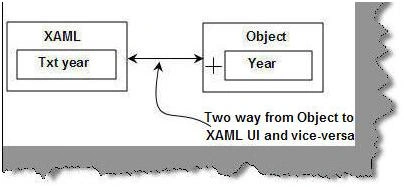
To implement two way binding there are two extra steps with addition to the steps provided for 'OneWay'. The first change is we need to specify the mode as 'TwoWay' as shown in the below XAML code snippet.
<TextBox x:Name="txtEnterAge" Text="{Binding Path=Age, Mode=TwoWay}" Height="30" Width="150" VerticalAlignment="Center" HorizontalAlignment="Center"></TextBox>
Second change is we need to implement 'INotifyPropertyChanged' interface. Below is the class which shows how to implement the 'INotifyPropertyChanged' interface. Please note you need to import 'System.ComponentModel' namespace.
public class clsDate : INotifyPropertyChanged
{
public event PropertyChangedEventHandler PropertyChanged;
private int _intYear;
public int Year
{
set
{
_intYear = value;
OnPropertyChanged("Year");
}
get
{
return _intYear;
}
}
private void OnPropertyChanged(string property)
{
if (PropertyChanged != null)
{
PropertyChanged(this,new PropertyChangedEventArgs(property));
}
}
}
Join the conversation! Your thoughts help the community grow.