

Introduction
In this article, I will describe how to optimize Media Streaming on a network in Windows 8 and how to change the advanced sharing settings. Windows 8 provides you a Media Library. In Windows 8 Media Streaming gives you your Media Library. In this article, I will show how you can choose the option of Media Streaming for PC. Media Streaming is Media sharing. In Media Streaming, you can send your music, video, and pictures to another PC but all devices should be sharing in the same home network.
In Media Streaming, you can send the pictures, video, and music with the help of making a folder in your other PC but the same network. After setting up Media Streaming, you can select video, music, pictures which will be available sharing on a device which is your network. You can select which device will have access to your media. To use Media Streaming, both Computers should be running the same OS e.g. Windows 8. This means that if you are sending your video, pictures, and music in your PC and receiving in another PC but both are running in the same OS like Windows 8 in a home network. Basically in this, we understand only streaming by default all PCs and Devices and how to change the settings of the PCs and Devices.
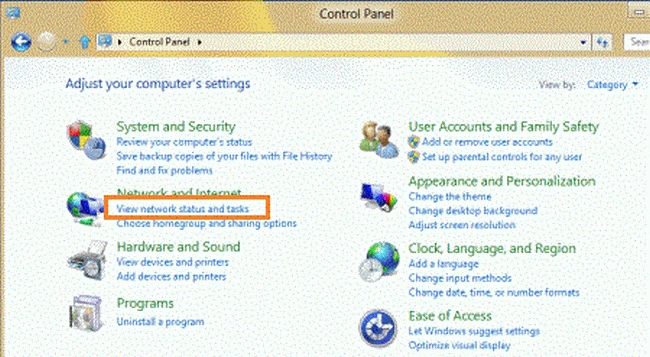
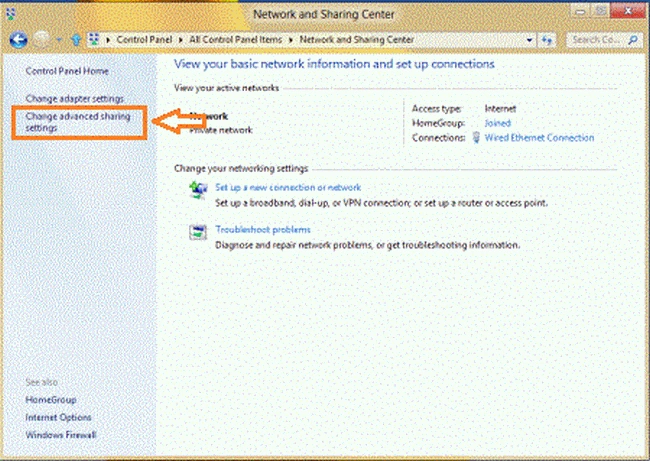
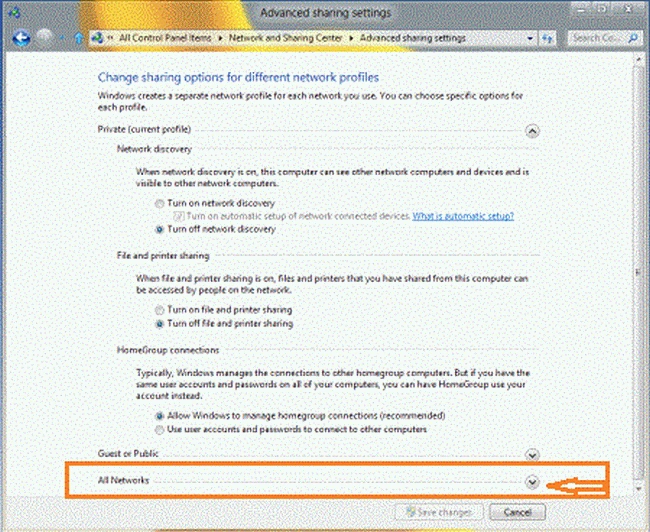
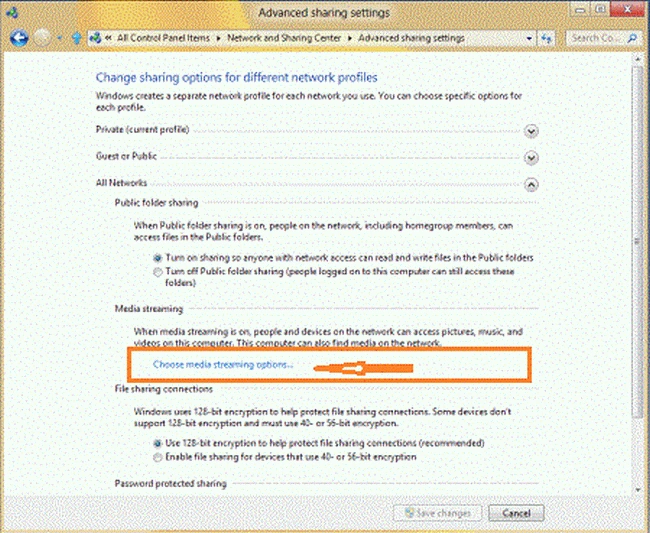
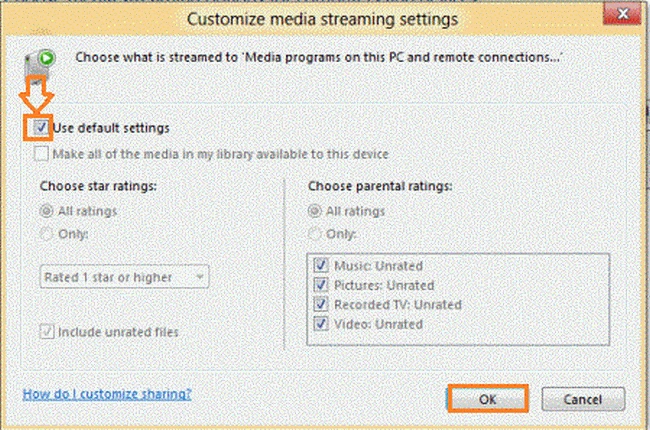
If you want Media Streaming, first open the Control Panel and select the "View network status and tasks" and click on it. After opening the network status tasks, you can select the "Change advanced sharing settings" and in the sharing settings, you click on the drop-down menu of All Networks. After clicking on All Networks, you can choose Media Streaming options and in this, you can Customize the Media and change the settings. These steps are shown in the figure below. If you turn on Media Streaming, the Windows media player automatically detects another PC on a home network but in the Media Streaming Setting, you can choose which files to stream.
Steps How to Optimize Media Streaming on a Network in Windows 8
Step 1
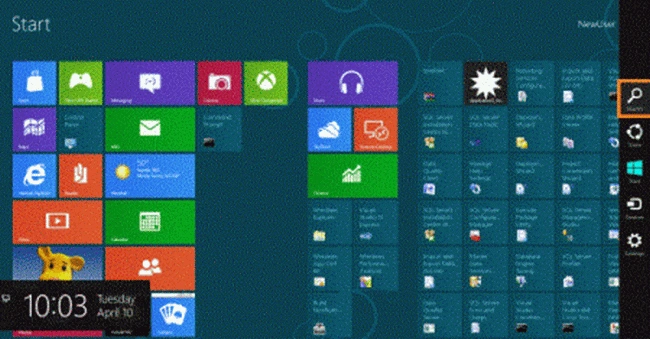
In the Windows 8 OS, you can move the cursor on the right bottom and click on the search box. In the search box, you can specify which you want.
Step 2
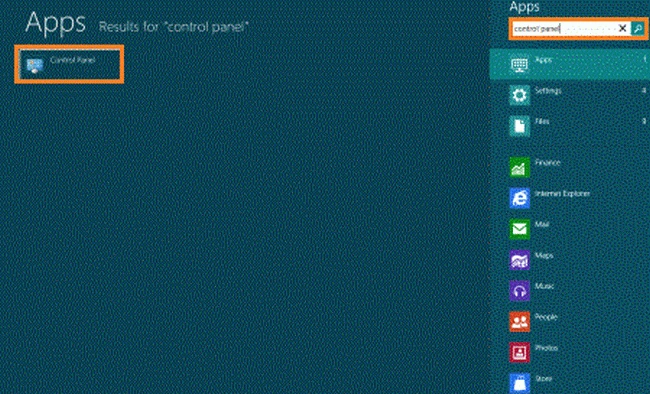
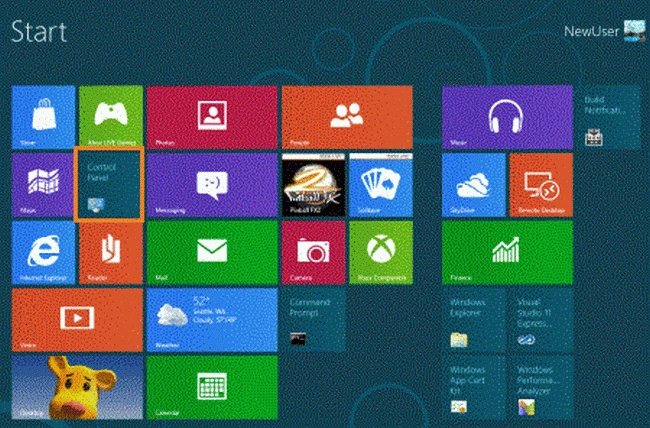
In the search box, you can type the name Control Panel and click on the Control Panel.
Join the conversation! Your thoughts help the community grow.