

Angular elements are the most exciting feature of Angular Framework version 6.x. It has been buzzed about since Angular 6.x was released and why not? After all, you can use the component which is built on Angular on any web platform regardless of it running on Angular or not. It is a great feature, but it is still in an early phase. We can’t use that Angular element outside of the Angular project. (The Angular team is still working on it to make it available on any web platform.) But in this article, I will show how we can manage an Angular element outside the Angular environment; i.e., we will be using it on any web platform.
So, let’s dive into the process to create an Angular element step by step.
Configuration & Setup
First, we will create a blank application using Angular CLI.
ng new angularElementDemoApp
After creating the application using CLI, add the following command.
ng add @angular/elements (it will work with angular 6.x framework & rxjs 6.x only)
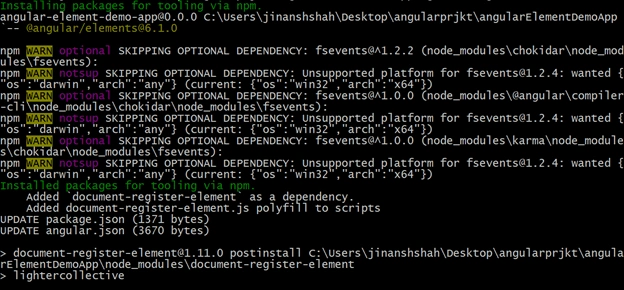
Or run the following command.
npm install @angular/elements - -save
And for the browser compatibility, download some polyfill packages.
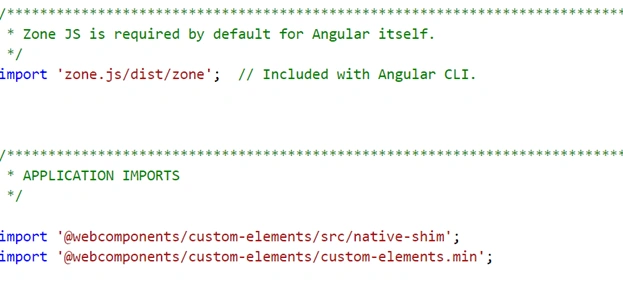
npm install @webcomponents/custom-elements - -save
Then, also, update polyfill.ts file as shown in the image below.
Create the component
Now, create the component. There is nothing special about a component; i.e., we are not doing anything special about the component. It is just a simple component with two buttons, one for incrementing the counter and the other for decrementing the counter, and one heading to display the counter.
Generate the component using Angular-cli,
ng g c demo-counter
And, change the demo-counter.component.html with the following one.
- <button (click)="onIncrClick()" >+</button>
- <h1>{{count}}</h1>
- <button (click)="onDecrClick()" >-</button>
It is just simple HTML with two buttons and one header, as said above. Also, change the demo-counter.component.ts file with the following code.
- export class DemocounterComponent implements OnInit {
- count:number=0;
- constructor() { }
- ngOnInit() {
- }
- onIncrClick(){
- this.count=this.count+1;
- }
- onDecrClick(){
- this.count=this.count-1;
- }
- }
It is a simple code like when the user presses the + button, it will be incrementing the counter by one and when the user presses the – button, it will decrement the counter by one. Nothing special about the component.
Now, I want to use this component outside the Angular application; i.e., on any web platform. To do so, first, we will register it as a custom element.
Setting Up app.module.ts,
As you can see, by default inside the app.module.ts, it will bootstrap to AppComponent, but in our case, we don’t want to do such a thing.
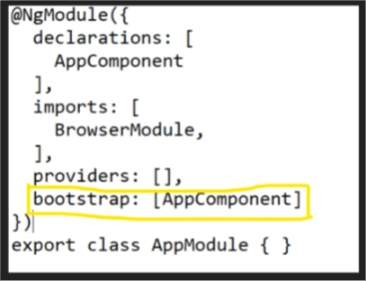
So, in our case, we will remove the bootstrap array from @NgModule and add one method in AppModule class. The name of the method is ngDoBootstrap() which can be used to bootstrap manually.
And also, inside AppModule, we will create our customElement and register it. So finally, our updates app.module.ts will look like below.
- import { BrowserModule } from '@angular/platform-browser';
- import { NgModule,Injector } from '@angular/core';
- import { createCustomElement } from '@angular/elements';
- import { DemocounterComponent } from './democounter/democounter.component';
- @NgModule({
- declarations: [
- DemocounterComponent
- ],
- imports: [
- BrowserModule
- ],
- entryComponents:[
- DemocounterComponent
- ],
- providers: [],
- bootstrap:[]
- })
- export class AppModule {
- public constructor(private injector:Injector){
- }
- ngDoBootstrap(){
- const el=createCustomElement(DemocounterComponent,{injector:this.injector});
- customElements.define('demo-counter',el);
- }
- }
Vivek EalumalaiPosted Aug 5, 2018, 2:01 AM
Nice article. Is there any specific reason we are converting three files into one common file ?
Hardik DeshaniPosted Aug 4, 2018, 2:57 AM
Nice article Thanks for sharing this article
Amit Kumar SinghPosted Aug 3, 2018, 10:11 PM
Thanks for sharing this article ......