Locator: one that locates something.
From Selenium's perspective, locator means something which can identify the Web Elements in Web Application GUI.
Selenium provides us with different types of locators.
- ID
- Name
- Class Name
- CSS Selector
- XPath
- Link Text
- Partial Link Text
- Tag Name
Now, let’s have a look at how to use these locators in real time.
ID
The most common way to locate a Web element is ID. This can be done only when the ID attribute is available for that web element. To locate a web element using id, we use the attribute value of “id”.
Syntax
- driver.findElement(By.id("<<ID of the particular Web Element>>"));
Example
Open IRCTC website with the below link (open in Chrome).
https://www.irctc.co.in/eticketing/loginHome.jsf
In login section, you will see a user ID textbox, as shown in the below figure.
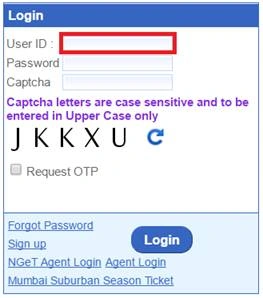
In this example, we will locate this textbox using ID and pass some text into it. Inspect the TextBox by right clicking on it to find out the id attribute value.
Here, the id attribute value for the textbox is “usernameId”.
- System.setProperty("webdriver.chrome.driver","D:/Drivers/chromedriver.exe");
- WebDriver driver = new ChromeDriver();
- driver.get("https://www.irctc.co.in/eticketing/loginHome.jsf");
- WebElement textbox=driver.findElement(By.id("usernameId"));
- textbox.sendKeys("Reddy");
Run the above script to check in real time.

Name
The next locator is Name. To locate a web element using Name, we use the attribute value of “name”.
Syntax
- driver.findElement(By.name("<< Name of the particular Web Element >>"));
Example
Open IRCTC website with the below link again. In login section, you will see user ID textbox.
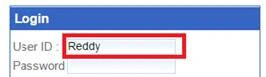
In this example, we will locate this textbox using Name and pass some text into it. Inspect the textbox by right clicking on it to find out the name attribute value.
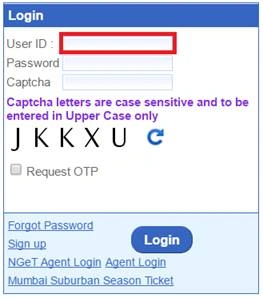
Here, the name attribute value for the textbox is “j_username”.
- System.setProperty("webdriver.chrome.driver","D:/Drivers/chromedriver.exe");
- WebDriver driver = new ChromeDriver();
- driver.get("https://www.irctc.co.in/eticketing/loginHome.jsf");
- WebElement textbox=driver.findElement(By.name("j_username"));
- textbox.sendKeys("Yadagiri");
Run the above script to check in real time.

Class Name
The next locator is Class Name. To locate a web element using Class Name, we use the attribute value of “class”.
Syntax
- driver.findElement(By.className("<< Class Name of the particular Web Element >>"));
Example
Open IRCTC website and inspect the textbox by right clicking on it to find out the class attribute value.
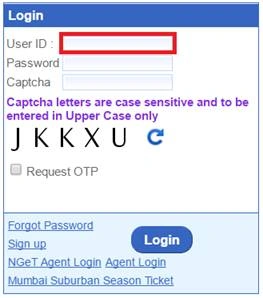
Here, the class attribute value for the textbox is “loginUserId”.
- System.setProperty("webdriver.chrome.driver","D:/Drivers/chromedriver.exe");
- WebDriver driver = new ChromeDriver();
- driver.get("https://www.irctc.co.in/eticketing/loginHome.jsf");
- WebElement textbox=driver.findElement(By.className("loginUserId"));
- textbox.sendKeys("Yadagiri Reddy");
Run the above script to check in real time.

CSS Selector
CSS Selector uses pattern to locate the Web element. The CSS Patterns are of different types. The most commonly used is combination of tag and attribute value.
For CSS Selector patterns, refer the below link.
https://www.w3schools.com/cssref/css_selectors.asp
Syntax
- driver.findElement(By.cssSelector("<< CSS Selector for the particular Web Element >>"));
Example
Open IRCTC website and inspect the textbox by right clicking on it to find out the name attribute value.
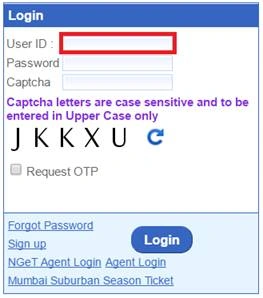
Here, the name attribute value for the textbox is “j_username”.
- System.setProperty("webdriver.chrome.driver","D:/Drivers/chromedriver.exe");
- WebDriver driver = new ChromeDriver();
- driver.get("https://www.irctc.co.in/eticketing/loginHome.jsf");
- WebElement textbox=driver.findElement(By.cssSelector("css=input[name=j_username]"));
- textbox.sendKeys("Yadagiri Reddy");
Run the above script to check in real time.
XPath
To locate a web element using XPath, we use the XPath expression.
XPaths are of two types:
- Absolute XPath
- Relative XPath
Absolute XPath
It starts from the root element of the HTML page.the root element for every HTML Page is "html"
It starts with “/” (single slash).
It looks like the below:
/html/body/div[2]/div[1]/div/div/div[5]/input
Relative XPath
It starts with “//” (double slash).
It looks like the below:
//input[@id=’UserName’]
Note
Absolute XPaths are not recommended because a slight change in the DOM structure will make the XPath invalid.
Syntax
- driver.findElement(By.xpath("<< XPath expression for the particular Web Element >>"));
Example
Open IRCTC website and inspect the textbox by right clicking on it to find out the id attribute value.
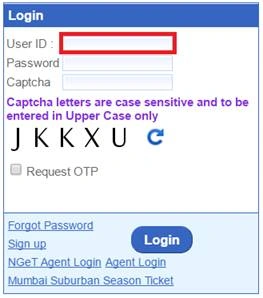
Here, the id attribute value for the textbox is “usernameId”.
- System.setProperty("webdriver.chrome.driver","D:/Drivers/chromedriver.exe");
- WebDriver driver = new ChromeDriver();
- driver.get("https://www.irctc.co.in/eticketing/loginHome.jsf");
- WebElement textbox=driver.findElement(By.xpath("//input[id=’usernameId’]"));
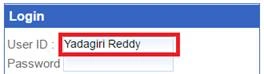
- textbox.sendKeys("Yadagiri Reddy");
Run the above script to check in real time.
Link Text
Link text is generally used to locate web elements of type link. For links, HTML page uses the tag name called “a”. Sometimes, we may not have any id, name, or classname for the link.
In this case, we are going to locate that link with the help of visble Linktext.
Syntax
- driver.findElement(By.linkText("<< Link text for the particular Web Element(link) >>"));
Example
Open IRCTC website and inspect the Forgot Password link by right clicking on it to find out the link text.

Here, the link text for the Forgot Password link is “Forgot Password”.
- System.setProperty("webdriver.chrome.driver","D:/Drivers/chromedriver.exe");
- WebDriver driver = new ChromeDriver();
- driver.get("https://www.irctc.co.in/eticketing/loginHome.jsf");
- WebElement forgotPasswordLink=driver.findElement(By.linkText("Forgot Password"));
- forgotPasswordLink.click();
Partial Link Text
Partial Link text is also used to locate web elements of type link. Here, we use the some portion (partial) of the visible link text.
Syntax
- driver.findElement(By.partialLinkText("<< Partial link text for the particular Web Element(link) >>"));
Example
Open IRCTC website and inspect the Forgot Password link by right clicking on it to find out the link text.

Here, the link text for the Forgot Password link is “Forgot Password”.
Here, we will use partial link text such as “Forgot”.
- System.setProperty("webdriver.chrome.driver","D:/Drivers/chromedriver.exe");
- WebDriver driver = new ChromeDriver();
- driver.get("https://www.irctc.co.in/eticketing/loginHome.jsf");
- WebElement forgotPasswordLink=driver.findElement(By.partialLinkText("Forgot"));
- forgotPasswordLink.click();
Tag Name
Tag Name locator is used to locate web element using its tag name. Like for Textbox, we use the tag called “input”. This can be used only when one element is present with the Tag name. Otherwise it will locate the first available tag in DOM of the page.
Syntax
- driver.findElement(By.tagName("<< Tag name of the particular Web Element >>"));
I didn’t find any particular website to demonstrate this locator with example.
Now, you may have a doubt that which locator is best out of all these locators.
The answer is -
It actually depends on the requirement. But out of all locators, ID is the best locator performance-wise, because ID uses JavaScript command document.getElementById() which is optimized by all browsers available in the market today. If the id is not available, then the next option is Name. If the Name locator is also not available, then CSS Selector.
CSS Selector works in all browsers but in the IE browser some of the styles we use in CSS Selector may not work.
XPath is the best locator to find unique elements when there is no attribute available for the target element. But in performance wise XPath is not preferable. Because it needs to traverse the whole DOM of the page for the element to locate. Particularly in the IE browser it is very slow.
If you are interested in watching this full information explained in a video, please watch this video
And to know more about the differences between XPath and CSS Selector, please watch
this video.
I hope you find this article useful. Please provide your valuable feedback, questions, or comments about this article.


Pavan RamamurthyPosted Apr 9, 2021, 6:09 AM
Good article
Hadshana KamalanathanPosted Jul 22, 2018, 4:49 AM
Good one..
Khaja MoizuddinPosted Jun 27, 2017, 3:07 PM
Thanks & Good Article for beginners.....
Khaja MoizuddinPosted Jun 27, 2017, 3:13 AM
Good Article , can you tell how to check elements on a page with different classes / xpath /tagname in single line code.