

Overview
The transformation of classic to modern SharePoint is a phased journey. The first phase is to analyze your classic SharePoint site's readiness for modern SharePoint. When we think of transforming classic sites to modern, our tenant might have hundreds or even thousands of sites. It is a tough choice to decide which site will be a good candidate to start with. The first thought comes to mind is to prepare the list of components in our site (e.g. custom web parts, JavaScript codes, custom actions, etc.) and select the site with lesser customizations. It is a good idea, however, preparing this inventory by going through those thousands of sites is never easy.
Microsoft has a tool called SharePoint Modernization Scanner already available for this, which helps to understand the readiness of a site for modernization.
In this article, we will explore the SharePoint Modernization Scanner to carry out the analysis of site compatibility and readiness for modernization.
Why SharePoint Modernization Scanner?
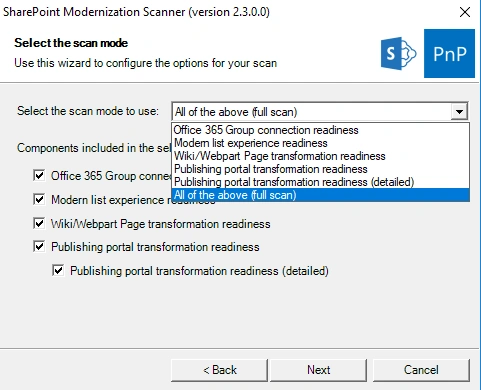
This tool from Microsoft helps to carry out a detailed analysis of -
- the readiness of the site to connect to Office 365 group
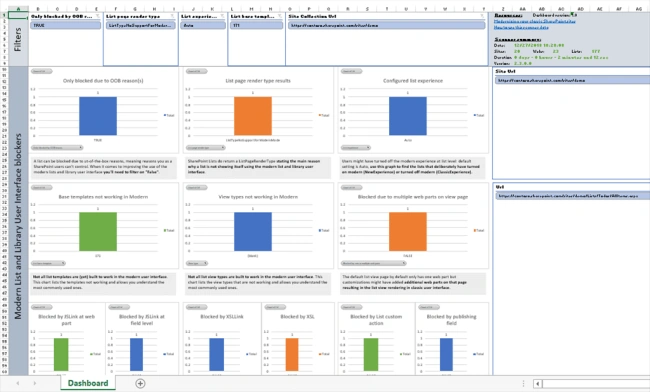
- the compatibility of the lists and libraries for modern user interface
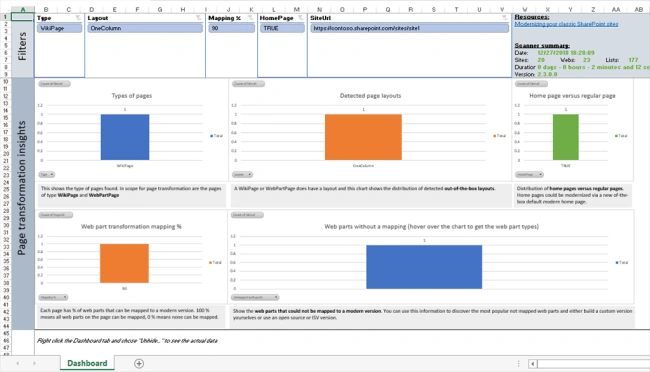
- the readiness of Wiki and web part pages for page modernization
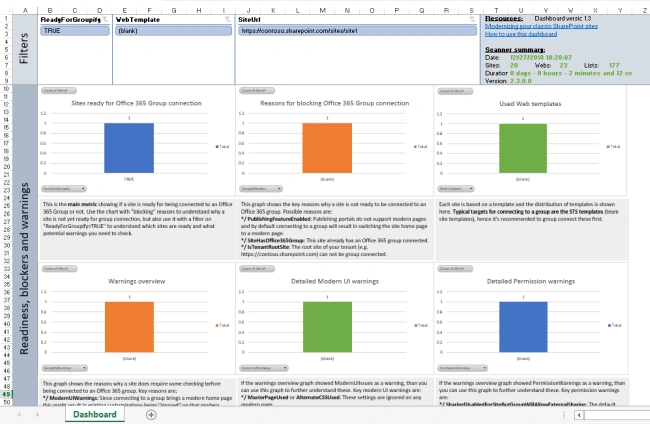
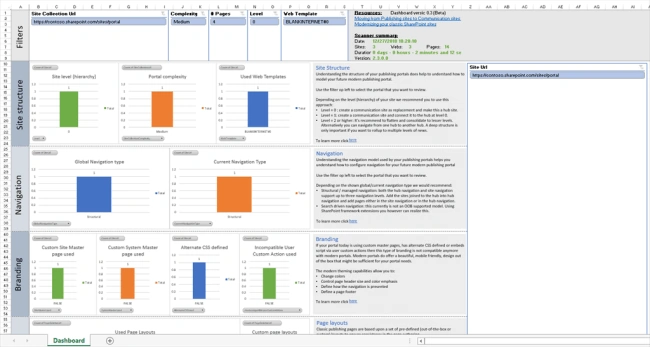
The outcome of this tool can be used to drive the planning, remediation, and migration while transforming classic sites to modern. This tool will provide the factual data in a dashboard manner.
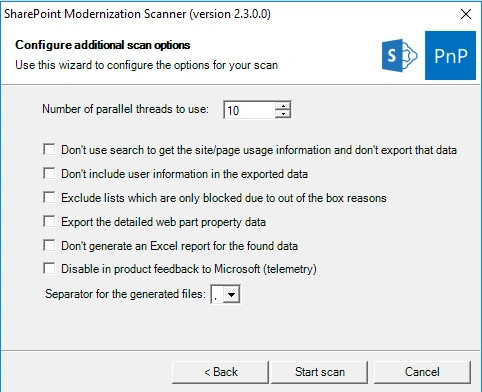
Download, Install and Configure
Download the latest version of the tool from here. The tool provides multiple ways of authentication to connect to the SharePoint site.
- Azure AD App Only
- Azure ACS App Only
- Username and password
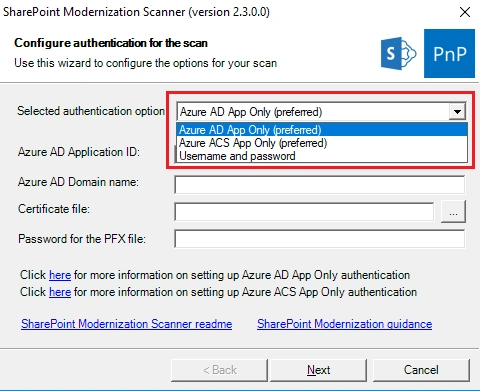
In this article, we will explore the “Username and password” option as it does not require any additional configuration.
- Select the “Username and password” option.
- Enter the username and password.
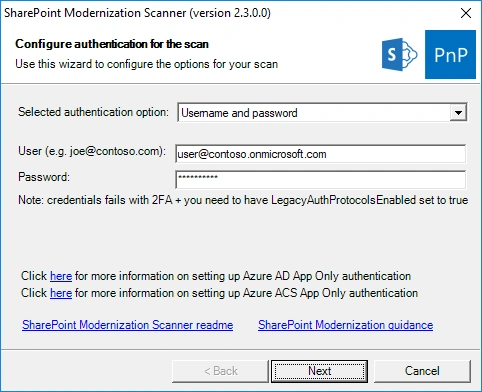
- Click "Next".
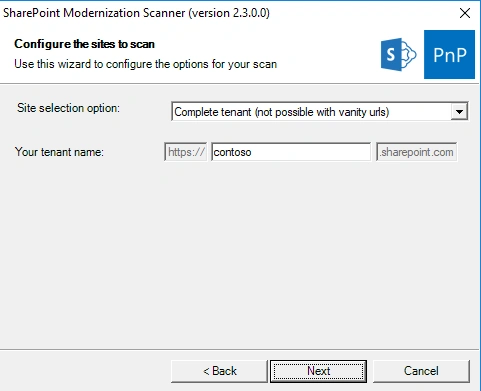
- Enter your tenant name
Ano MepaniPosted Jan 21, 2019, 9:38 PM
Very useful article and tool as well.