Introduction
In this article I describe how to create Windows Store Apps for animation using JavaScript. Use the Page animation to bring the first page of an application onto the screen or when transitioning to a new page. The contents of the new page animates in sections. Put the app in a Snap view to see the Snap version of this animation.
I assume you can create a simple Windows Store App using JavaScript; for more help visit Simple Windows Store Apps using JavaScript.
To start the creation of the apps, add two JavaScript pages by right-clicking on the js folder in the Solution Explorer and select Add > new item > JavaScript Page and then give an appropriate name. In the same way, add a HTML page to your project.
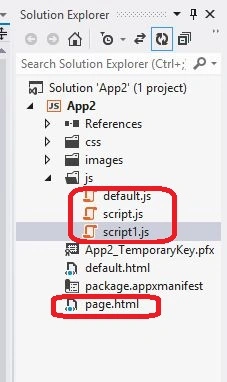
Write the following code in the default.html:
<!DOCTYPE html>
<html>
<head>
<meta charset="utf-8" />
<title>My Apps</title>
<link rel="stylesheet" href="//Microsoft.WinJS.1.0/css/ui-light.css" />
<script src="//Microsoft.WinJS.1.0/js/base.js"></script>
<script src="//Microsoft.WinJS.1.0/js/ui.js"></script>
<link rel="stylesheet" href="/sample-utils/sample-utils.css" />
<link rel="stylesheet" href="/css/default.css" />
<script src="/js/script1.js"></script>
<script src="/js/default.js"></script>
</head>
<body role="application" style="background-color: gray">
<center><div id="rootGrid">
<div id="content">
<h1 id="featureLabel"></h1>
<div id="contentHost"></div>
</div>
</div></center>
</body>
</html>
Write the following code in the default.js:
(function () {
"use strict";
var sampleTitle = "";
var Pages = [
{ url: "Page.html", title: "Show page" }
];
function activated(eventObject) {
if (eventObject.detail.kind === Windows.ApplicationModel.Activation.ActivationKind.launch) {
eventObject.setPromise(WinJS.UI.processAll().then(function () {
var url = WinJS.Application.sessionState.lastUrl || Pages[0].url;
return WinJS.Navigation.navigate(url);
}));
}
}
WinJS.Navigation.addEventListener("navigated", function (eventObject) {
var url = eventObject.detail.location;
var host = document.getElementById("contentHost");
host.winControl && host.winControl.unload && host.winControl.unload();
WinJS.Utilities.empty(host);
eventObject.detail.setPromise(WinJS.UI.Pages.render(url, host, eventObject.detail.state).then(function () {
WinJS.Application.sessionState.lastUrl = url;
}));
});
WinJS.Namespace.define("Apps", {
sampleTitle: sampleTitle,
Pages: Pages
});
WinJS.Application.addEventListener("activated", activated, false);
WinJS.Application.start();
})();
Write the following code in the page.html:
(function () {
"use strict";
var sampleTitle = "";
var Pages = [
{ url: "Page.html", title: "Show page" }
];
function activated(eventObject) {
if (eventObject.detail.kind === Windows.ApplicationModel.Activation.ActivationKind.launch) {
eventObject.setPromise(WinJS.UI.processAll().then(function () {
var url = WinJS.Application.sessionState.lastUrl || Pages[0].url;
return WinJS.Navigation.navigate(url);
}));
}
}
WinJS.Navigation.addEventListener("navigated", function (eventObject) {
var url = eventObject.detail.location;
var host = document.getElementById("contentHost");
host.winControl && host.winControl.unload && host.winControl.unload();
WinJS.Utilities.empty(host);
eventObject.detail.setPromise(WinJS.UI.Pages.render(url, host, eventObject.detail.state).then(function () {
WinJS.Application.sessionState.lastUrl = url;
}));
});
WinJS.Namespace.define("Apps", {
sampleTitle: sampleTitle,
Pages: Pages
});
WinJS.Application.addEventListener("activated", activated, false);
WinJS.Application.start();
})();
Write the following code in the script.js:
(function () {
"use strict";
var page = WinJS.UI.Pages.define("Page.html", {
ready: function (element, options) {
runAnimation.addEventListener("click", runEnterPageAnimation, false);
}
});
function runEnterPageAnimation() {
var pageSections = pageSectionsControl.value;
content.style.overflow = "hidden";
var enterPage;
switch (pageSections) {
case "1":
enterPage = WinJS.UI.Animation.enterPage(rootGrid, null);
break;
case "2":
enterPage = WinJS.UI.Animation.enterPage(rootGrid, null);
break;
case "3":
enterPage = WinJS.UI.Animation.enterPage(rootGrid, null);
break;
}
outputText.innerText = "Animation Appeared inH" + pageSections + " section(s).";
}
})();
Write the following code in the script1.js:
(function () {
var PageOutput = WinJS.Class.define(
function (element, options) {
element.winControl = this;
this.element = element;
new WinJS.Utilities.QueryCollection(element)
.setAttribute("role", "region")
.setAttribute("aria-labelledby", "outputLabel")
.setAttribute("aria-live", "assertive");
element.id = "output";
this._addOutputLabel(element);
this._addStatusOutput(element);
}, {
_addOutputLabel: function (element) {
var label = document.createElement("h2");
label.id = "outputLabel";
label.textContent = "";
element.parentNode.insertBefore(label, element);
},
_addStatusOutput: function (element) {
var statusDiv = document.createElement("div");
statusDiv.id = "statusMessage";
element.insertBefore(statusDiv, element.childNodes[0]);
}
}
);
var currentPageUrl = null;
WinJS.Navigation.addEventListener("navigating", function (evt) {
currentPageUrl = evt.detail.location;
});
WinJS.log = function (message, tag, type) {
var isError = (type === "error");
var isStatus = (type === "status");
var statusDiv = document.getElementById("statusMessage");
};
function activated(e) {
WinJS.Utilities.query("#featureLabel")[0].textContent = Apps.sampleTitle;
}
WinJS.Application.addEventListener("activated", activated, false);
WinJS.Namespace.define("Apps", {
PageOutput: PageOutput
});
})();
Output


Summary
In this article I described how to create a Windows Store App for animation using JavaScript. I hope this article has helped you in understanding this topic. Please share it. If you know more about this, your feedback and constructive contributions are welcome.


Join the conversation! Your thoughts help the community grow.