

Introduction
This article provides a simple example of using jQuery along with the jQuery tablesorter and tablesorter.pager plug-ins to provide sorting and paging support for a listview within the context of an ASP.NET MVC application. JQuery has partnered with Microsoft and is now integrated within the IDE to include the availability of intellisense support.
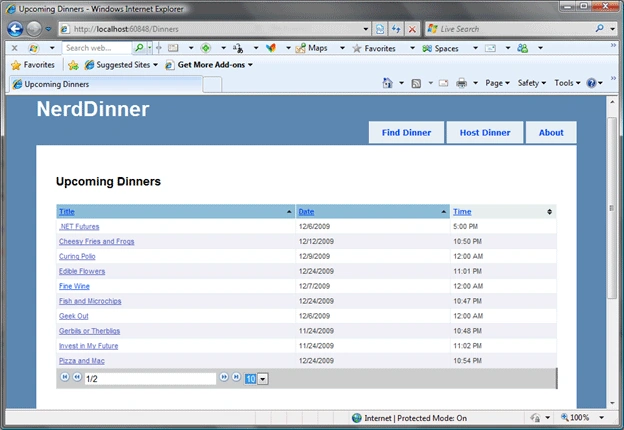
Figure 1: the NerdDinner MVC Application Modified with jQuery's Tablesorter and Pager
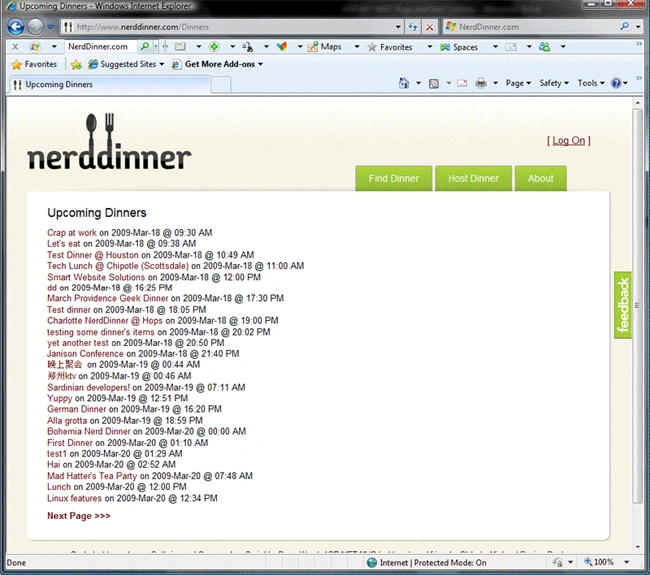
Figure 2: The live NerdDinner website with the original list of upcoming dinners
I used the NerdDinner tutorial project as the basis for this project: http://www.nerddinner.com. The original code and a preview of the pending MVC book authored by Hanselman, Guthrie, et al is available for download if you'd care to have a look; at present there does not appear to be a VB version of the project for those interested in that:
The source code is located here: http://nerddinner.codeplex.com.
The free e-book is available here: http://tinyurl.com/aspnetmvc.
The original version of this project used the paged list approach to providing table paging; the original project did not include column sorting. In modifying the project, I left in the existing code so that you can comment out or expose the original for comparison.
Rather than using the paged list approach, this example uses jQuery along with the tablesorter and the tablesorter.pager plug-ins. They both may be downloaded from this location: http://tablesorter.com/. jQuery itself, along with the documentation file needed to support intellisense, may be downloaded from here: http://jquery.com/.
As for MVC, it and a growing number of sample applications and tutorials are available here: http://www.asp.net/mvc/.
Getting Started
The download includes the modified NerdDinner MVC application; that MVC application is described in detail within the free e-book mentioned earlier. Most of the implementation details with regards to creating a table that may be both paged and sorted with jQuery are pretty simple, one really need only add references to the JavaScript files, the style sheet, and the graphics and add a little JavaScript to put it all together.
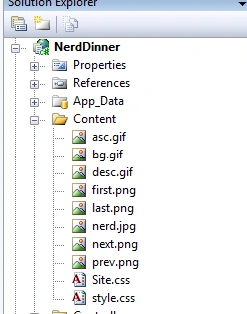
Figure 3: Added images and style sheets are placed in the Content Folder
I am not going to go into any details as to how the NerdDinner sample application works; that again is addressed in the e-book. The controller and model code were not modified in anyway; all of the changes made to the original were made to the view used to show upcoming dinners.
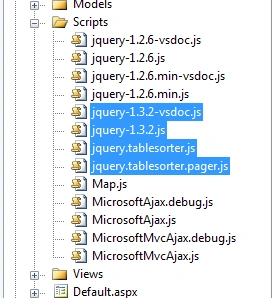
Figure 4: Added JavaScript and Visual Studio Documentation Files
JQuery version 1.3.2 and the documentation file needed to support intellisense were added but are not necessary; the tablesorter and pager controls are added through the two JavaScript files shown in Figure 4 (jquery.tablesorter.js and jquery.tablesorter.pager.js); these files are necessary.
Figure 5 shows the overall NerdDinner solution; this solution is described in great detail in the free e-book mentioned at the beginning of this article.
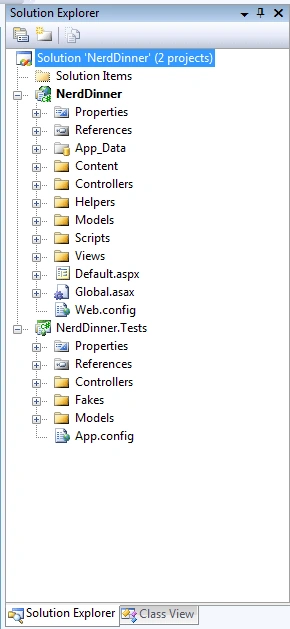
Figure 5: Solution Explorer showing NerdDinner
The Code
There were no modifications to the NerdDinner solution code; all of the code necessary to support the addition of the tablesorter and pager plug-in was made within the markup and through the addition of the related JavaScript.
Code: The Master Page.
In order to make use of the tablesorter and pager jQuery plug-ins, we need to reference the scripts in the master page; to that end, the following two lines were added to Site.Master.
- <%--Added for Tablesorter and Pager--%>
- <script src="/Scripts/jquery.tablesorter.js" type="text/javascript"></script>
- <script src="/Scripts/jquery.tablesorter.pager.js"
- type="text/javascript"></script>
- <link href="../../Content/style.css" rel="stylesheet" type="text/css" />
Aside from the addition of these three lines, the Site.Master master page is in the original format as provided with the NerdDinner tutorial project.
Code: The Index Page (index.aspx).
The index page is used to display the list of upcoming dinners within the context of the original NerdDinner project. The entire content contained within the index page was left intact but commented out. If you wanted to compare the two versions running, you can do so by commenting out the tablesorter related sections and by removing the commenting from the original parts.
The first bit to add to the index page was the JavaScript used to configure the tablesorter and pager plug-ins. The annotation describes the settings used but in short I set the table to initially sort by sorting the first and seconds columns, both ascending. The sortList argument is set to initially sort on one or more columns. Column and direction are specified in a pair where the first value is the column and the second is the sort direction. Specifying [0, 0] will result in an initial table sort based upon sorting column 0 in an ascending direction. Specifying [ [ 0,0 ], [ 1,0 ]] will sort on the first and second columns, both in an ascending direction.
It should also be noted that the pager always defaults to show a page size of ten rows; since for work purposes I was interested in showing only five rows at a time and so I decided to set this table up to only show five rows upon display. That is done with the pager's pagesize value (val) property and by calling change on the page size after setting the value (row count) argument.
The positionFixed property was set to false; this allows the pager to float such that it is always glued to the bottom of the table; if this is not set, the pager will appear in a fixed location regardless of the row count (e.g., with position fixed set to false, if the last page contains less rows, the pager will move up to the bottom of the table).
- <%--Configure Tablesorter and pager - script added to orginal
- NOTES:
- sortList: call tells sorter to initially sort on one or more
- columns [column,descending/ascending]
- in this example, we are telling it to sort the
- first column ascending and the second column ascending
- positionFixed: false keeps the pager locked to the bottom of
- the table regardless of the number of rows
- .pagesize: sets the number of rows visible. If not set it will
- always default to ten rows (if we set the selected rows option to
- a lesser or greater value in the HTML. In this case I changed it
- to 5 rows and then called change on it such that whenever the page
- loads it will initially only show five rows.
- #ListViewDinners is the list view control on this page; when rendered
- to the page it will be as a table and so we can control it with
- the tablesorter and pager through the assigned ID
- --%>
- <script type="text/javascript">
- $(document).ready(function() {
- $("#ListViewDinners").tablesorter({ widthFixed: true, sortList:
- [[0,0], [1,0]], widgets: ['zebra'] })
- .tablesorterPager({ container: $("#pager"), positionFixed: false });
- $(".pagesize").val("5");
- $(".pagesize").change();
- });
- </script>
eliza sahooPosted Feb 24, 2010, 7:31 AM
In Datagrid [or] GridView Paging when last page contains less number of records than the page size, the pager will move upward.