

Introduction
In partial reload there are the following two parts.
In the first part we have covered the following topics:
-
What is Partial Reload?
-
Add prefix
-
Exists Function
What is Partial Reload
A Partial Reload can be used to save time and patience. The Partial reload is executed only with the current script. It includes all script commands working with the current script. It works with drop tables and drop fields, in a partial reload the tables are loaded using a Load and select statements must be preceded by the ADD and REPLACE prefixes that are part of Partial Reload-I.
How to use Add and Exists function in Partial Reload
Use the following procedure to create a sample of using the ADD and Exists functions.
Step 1: Open the QlikView Application
The first and major step is open the QlikView application and then go to File-> New then, this window will be opened.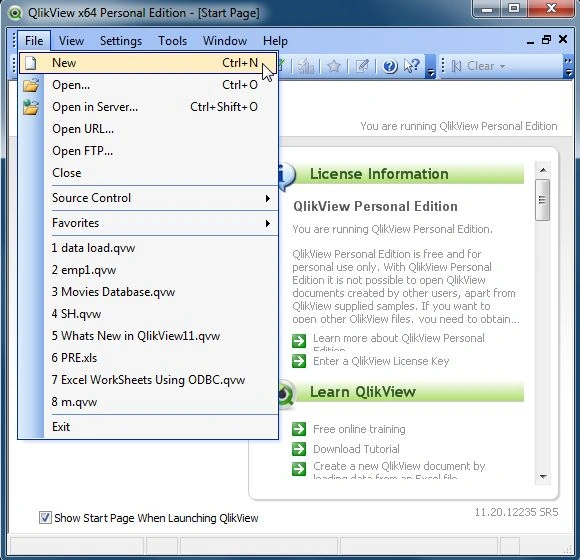
Step 2: Open Edit Script Window
The next step is to open the edit script window from File-> Edit Script then, this window will be opened.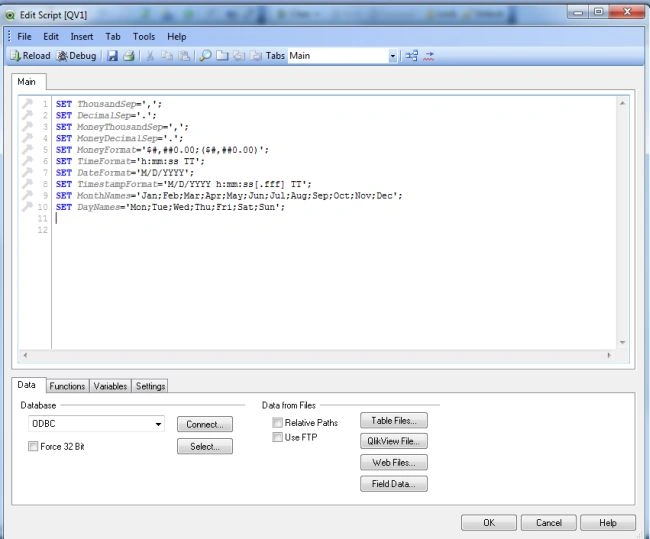
Step 3: Open the table files
The next step is to open the table files and open our Excel file and click on the Open button.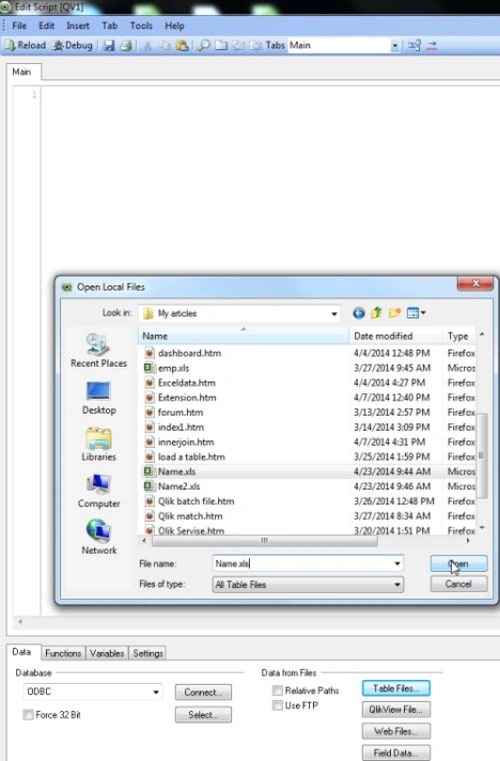
Step 4: Open File Wizard Type
After opening the Excel file the file wizard type window will be opened and click on the Finish button.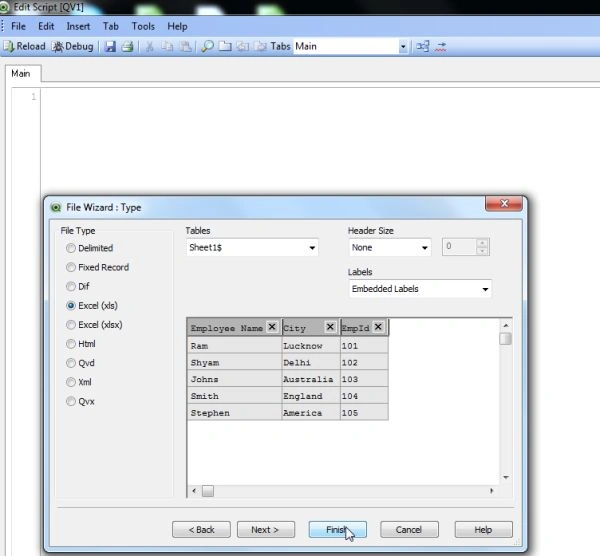
Step 5: Code of edit script
After this process it shows the code of the Excel table that you opened in table files and click on the Reload button to execute the code.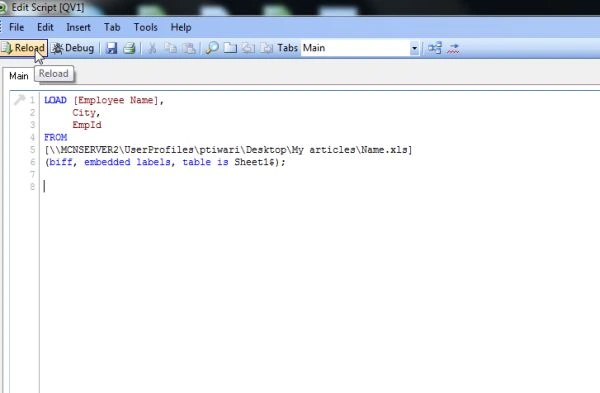
Step 6: Save QlikView file
After reloading the code the next is save the QlikView file and click on the Save button.
Step 7: Sheet Property Window
After saving the file the next step is to select the field from the sheet property window and click on the OK button.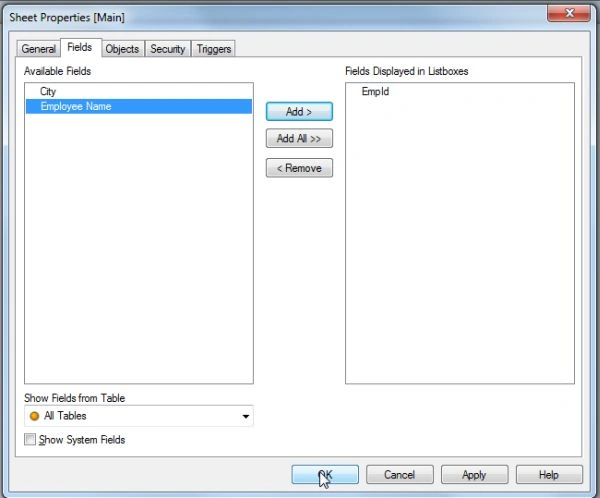
Step 8: Main Window
This window will show the table of the Excel sheet that you imported into table files.
Step 9: Add A Table box
To add a table box, right-click anywhere in the blank white sheet and select New sheet object and select the table box.
Step 10: New Table Box window
After adding a table box, the New Table Box window will be opened and in this window we add all fields that are available in the Available Fields and click on the OK button.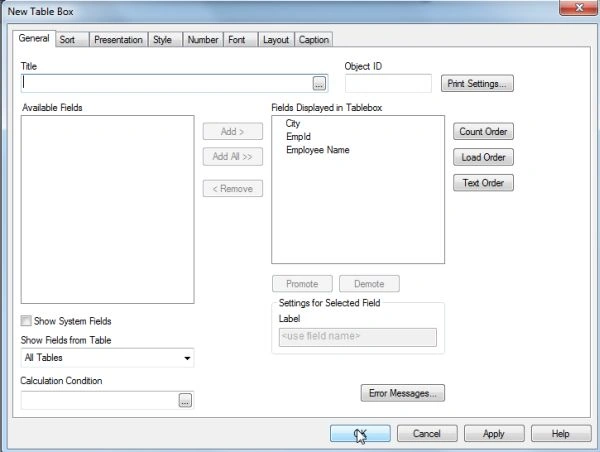
Step 11: The window will then look like:
Step 12: The next step is to open the edit script window again and following this process we again load an Excel file, then this window look like this and reload it.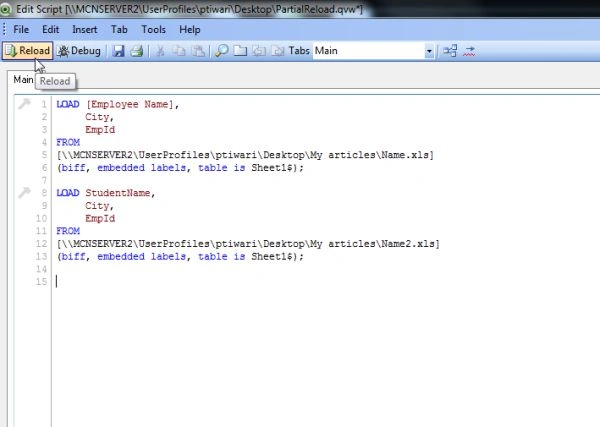
Step 13: Sheet Property Window
The next step is to select the field from the sheet property window and click on the OK button.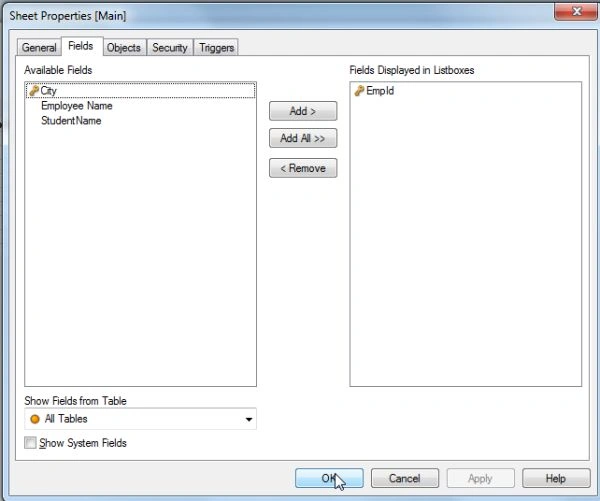
Step 14: The window will then look as in this window; you will find that in both tables that I have opened in the tables file there are the common fields City and EmpId then EmpId and City are combined in both tables.
Step 15: The next step is to go to the properties of the table.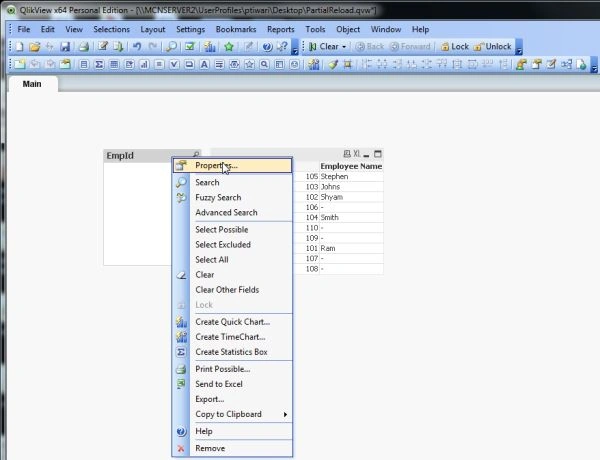
Step 16: List Box Property Window
In this window we set the Show Frequency and click on the OK button.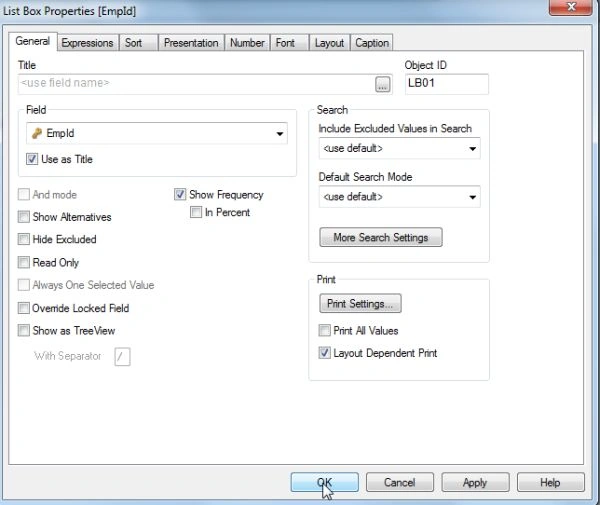
Then this window will look like.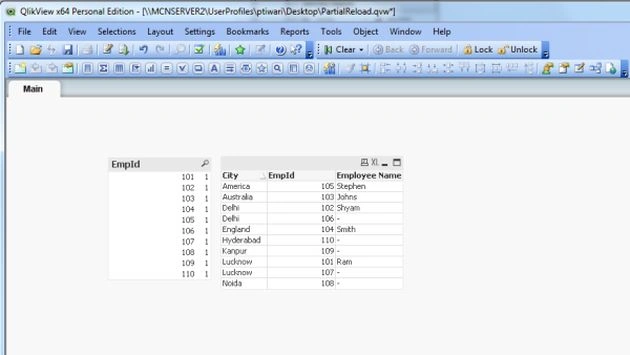
Step 17: Write the code of Add Prefix in the edit script.
This is the second step of Partial Reload- Part I. In this window we write the code for Add Prefix and reload it.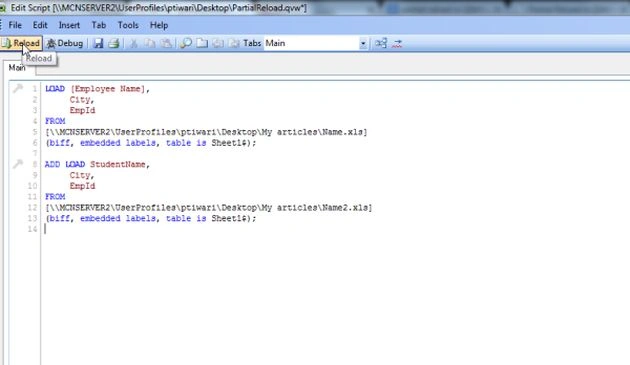
When you reload it then you will find this window and click on the OK button.
Then this window will be looking like: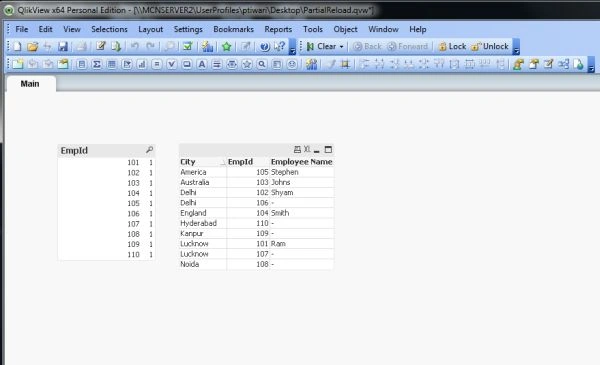
Step 18: Working of Partial Reload
Simply open the edit script and write this code in the edit script and reload it.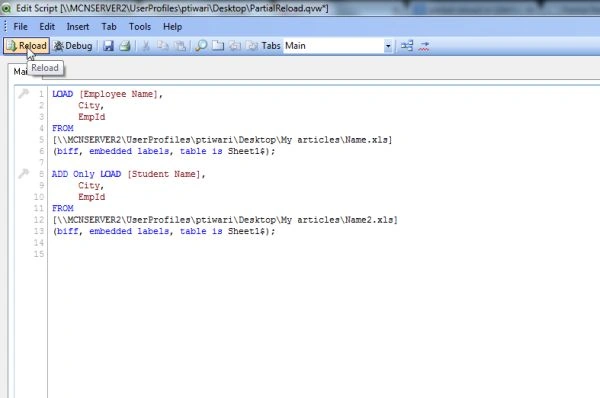
Step 19: Reload Partial Code
After reloading the partial code this window will be looking as in the following and click on the OK button.
Then, this window will look as in the following:
Step 20: Go to Partial Reload option
In the File menu is the option of Partial Reload; click on it then, this window will shown.
Now you can see the previous window after using the Partial Option. So this is the basic use of the Partial Option.
Step 21: Write the code for the Exit function in the edit script
If you want to exit from the current script then this function will be used. This is the third step of Partial Reload- Part I In this window we write the code of Exit function and reload it.
This is the final window.
Now by using the Partial Reload option, you will be find again the previous script.
Summary
These are the basic steps for a Partial Reload-Part I that is helpful for executing the current script.
Settu BalaPosted Feb 19, 2016, 11:17 AM
Thanks for step by step explained. Why don't you write now a days