

In general, a Partial View is like a web user control in ASP.Net applications. Partial Views and User Controls serve the same purpose.
Uses of Partial Views
- A partial view can be used as a reusable component that can be called or used from multiple and different views.
- A partial view contains reusable mark-up if you want to render from inside multiple views.
- The partial view are used to render a consistent look like header, footer, comments and so on.
Rendering Partial View: We can render a partial view using one of the following 4:
- Html.Partial
- Html.RenderPartial
- Html.Action
- Html.RenderAction
Now in my example, I will add a partial view. For this go to Solution Explorer then select Views -> Shared Folder -> Right-click -> Add View.
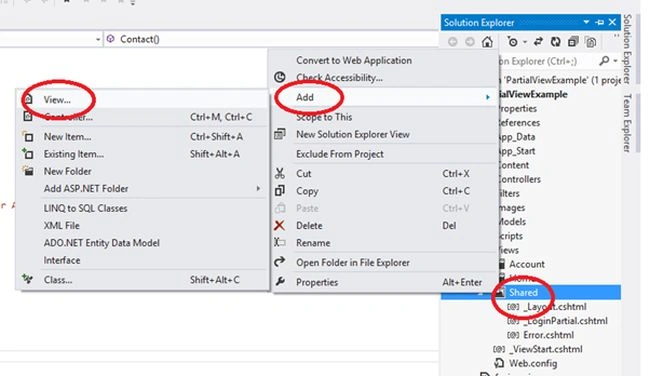
Image 1
Give a name to your View and check Create As a partial View as in the following:
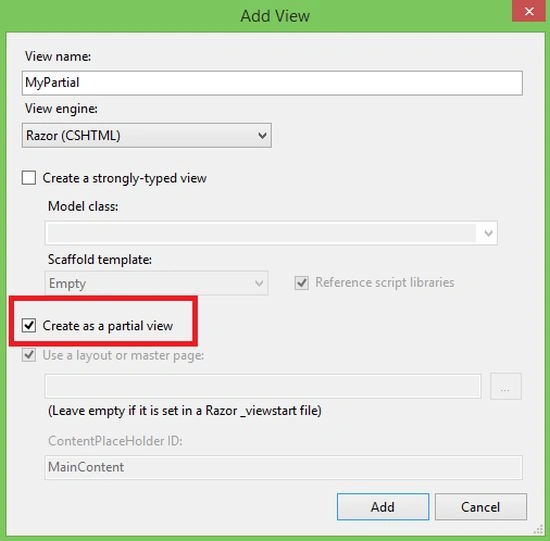
Image 2
Now I am writing a line of text in this Partial View:
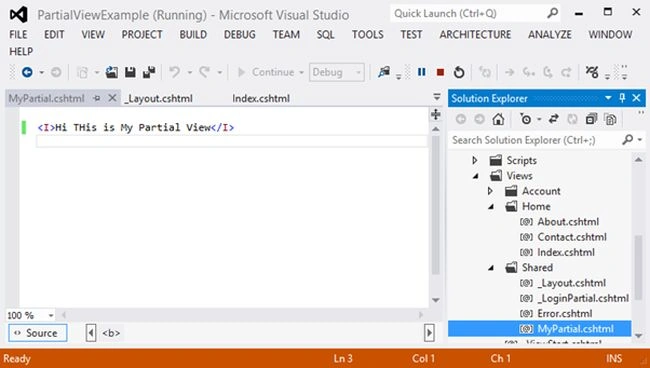
Image 3
Now for the Home controller, here I add a new action ShowMyPartialView(). So after it my Home Controller will look such as below:
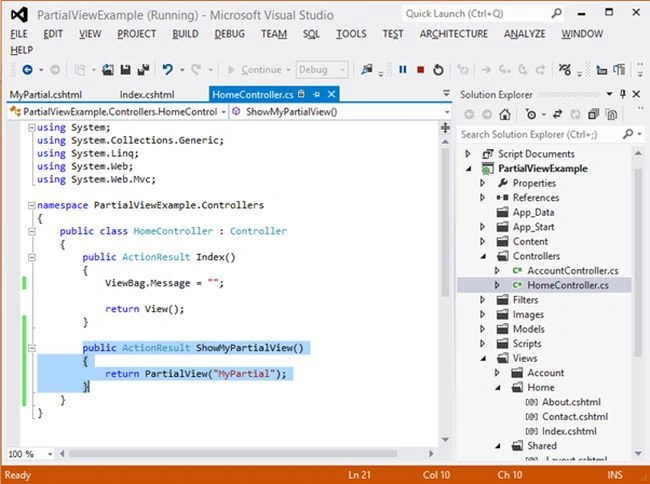
Image 4
Now for the View -> Home -> Index.cshtml.
Here I am rendering a Partial View using 4 types, so the index.cshtml will be like the following:
- @{
- ViewBag.Title = "Home Page";
- }
- @section featured {
- <section class="featured">
- <div class="content-wrapper">
- <hgroup class="title">
- <h1>@ViewBag.Title.</h1>
- <h2>@ViewBag.Message</h2>
- </hgroup>
- </div>
- </section>
- }
- <h3>Rendering Partial View:</h3>
- <ol class="round">
- <li class="one">
- <h5>By Using Html.RenderPartial #</h5>
- @{Html.RenderPartial("MyPartial"); }
- </li>
- <li class="two">
- <h5>By Using Html.Partial #</h5>
- @Html.Partial("MyPartial")
- </li>
- <li class="three">
- <h5>By Using Html.RenderAction #</h5>
- @{Html.RenderAction("ShowMyPartialView", "Home");}
- </li>
- <li class="four">
- <h5>By Using Html.Action #</h5>
- @Html.Action("ShowMyPartialView");}
- </li>
- </ol
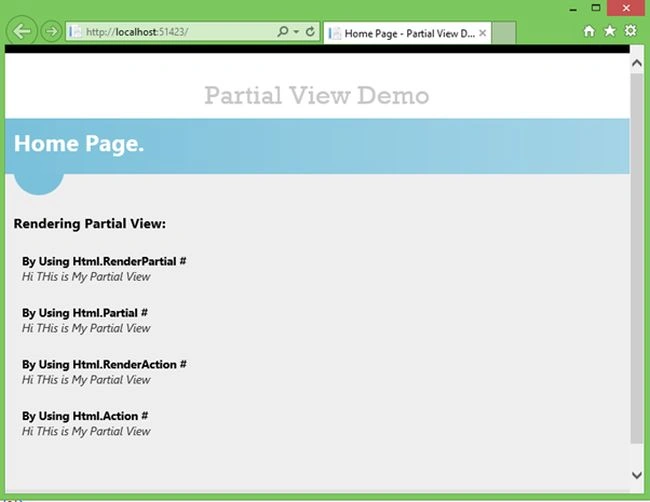
Image 5
Join the conversation! Your thoughts help the community grow.