

In this article I will be talking much more about Particle Animations.
In the previous article you've seen how to show a particle in XNA. That was a simple application. But this time we will be making a much more detailed animation using 3D models & Particles.
Whats Next?
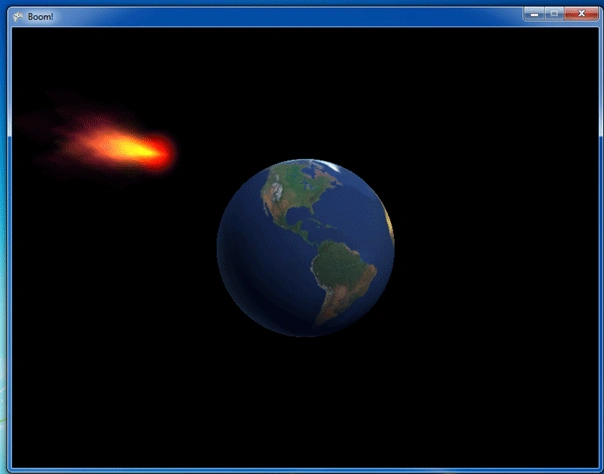
This sample contains 2 particle effects & a rotating 3D model.
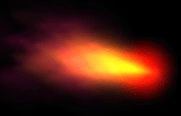
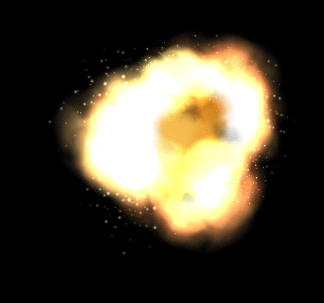
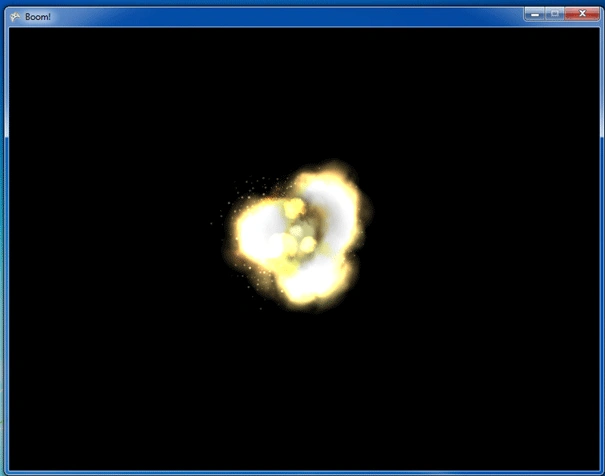
The Red Comet will crush to Earth and it will explode :) Theres no reality but I believe it will be a nice sample to show Particle Animations on demonstration.
Particle Effects:
Red Comet
Explosion
World 3D Model:

Lets create the project and see how its done.
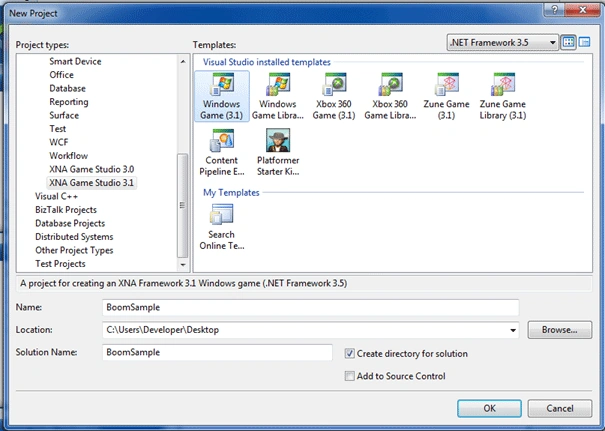
First of all we need to add some variables:
Model myModel;
float aspectRatio;
Vector3 modelPosition = Vector3.Backward;
float modelRotation = 0.0f;
Vector3 cameraPosition = new Vector3(100, 100, 1500);
int spx, spy;
bool boom;
int a;
Texture2D myTexture;
Vector2 spritePosition = new Vector2(400, 400);
int ani_2;
Texture2D boom_part;
myModel is the Model Object we will be using for 3D Rotating World Model.
modelPosition will help us to store the position infos of the 3d Model.
modelRotation will help us in which speed we wish to rotate it.Lesser values will make it rotate slower.
Spx & Spy are the position values of SpriteBatch which will be used for positioning Particles.
Boom is the boolean value which query whether red comet has crushed the World or not.
"a" variable is the counter as you will know from the previous sample.
spritePosition is the variable we use for storing the particles' positions.
Ani_2 is the counter variable for Explosion Particle.
boom_part is the explosion particle.
Update Game1 as:
public Game1()
{
graphics = new GraphicsDeviceManager(this);
Content.RootDirectory = "Content";
Window.Title = "Boom!";
}
We have added a Title to the XNA Window named "Boom!"
Update LoadContent as:
protected override void LoadContent()
{
spriteBatch = new SpriteBatch(GraphicsDevice);
myModel = Content.Load<Model>("Model\\world");
myTexture = Content.Load<Texture2D>("particles//Comet//comet_1");
boom_part = Content.Load<Texture2D>("particles//Explosion//explosion_1");
aspectRatio = graphics.GraphicsDevice.Viewport.AspectRatio;
}
We have added the start values of 3d model and particle textures.
Update the "Update" function as:
protected override void Update(GameTime gameTime)
{
modelRotation += (float)gameTime.ElapsedGameTime.TotalMilliseconds *
MathHelper.ToRadians(0.02f);
KeyboardState keystat = Keyboard.GetState();
if (keystat.IsKeyDown(Keys.Up))
{
spx += 1;
spy += 1;
}
else if (keystat.IsKeyDown(Keys.Down))
{
spx -= 1;
spy -= 1;
}
if (boom)
{
ani_2++;
if (ani_2 == 50)
{
ani_2 = 49;
}
else
{
boom_part = Content.Load<Texture2D>("particles//Explosion//explosion_" + ani_2);
}
}
a++;
Fazal BurhanPosted Jul 11, 2010, 2:54 PM
Very nice sir.
Mahesh ChandPosted Jul 7, 2010, 9:10 AM
Nice example. Good work.
DionisioPosted Jul 7, 2010, 7:04 AM
Ibrahim, your articles on XNA are very good. Thank you for writing them. They help me as a student of this programming technology. Just one minor note on this article - you may want to write "particle" in the title, as you did for Part I. Please, continue to post your helpful examples. Best wishes, D.