Pass a Parameter into a Screen from the Command Bar in a LightSwitch Application step by step.
Step 1: Right click on the OrderHeader table->Add Query.
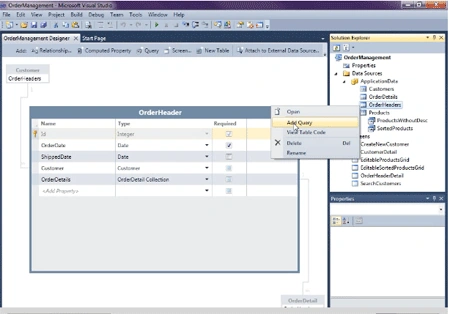
Step 2: Change query
name (OpenOrders)->Add filter (ShippedDate is null)->Save like the below image.
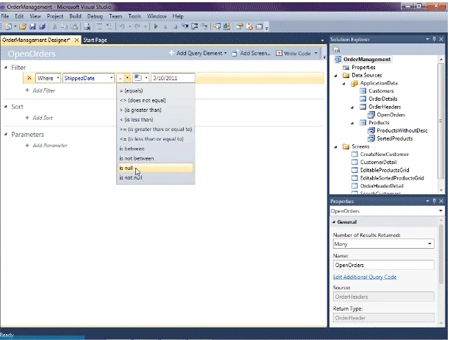
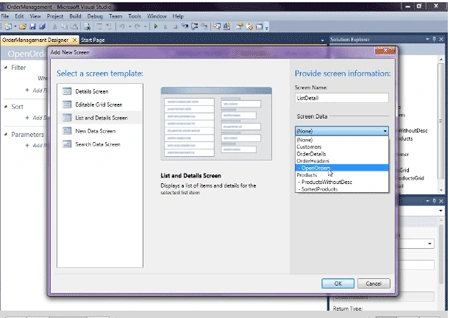
Step 3: Add screen->List and
Details screen->Select OpenOrder from screen data->Check OrderHeader->Ok.
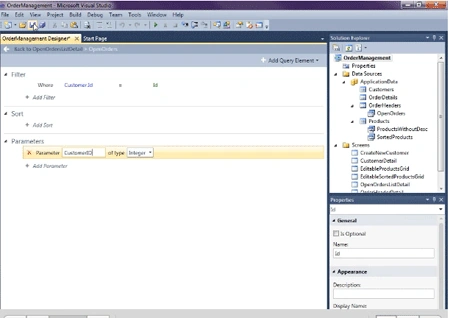
Step 4: Now edit query
of OpenOrders->Add filter->Select CustomerID as parameter->Add new
ID->Parameter (CustomerID) and type is Integer->Save.
Step 5: Click
OpenOrderListDetail screen->AddDataItem->Local Property->Type (Integer)->Name
(CustomerID)->Ok->Check parameter box.
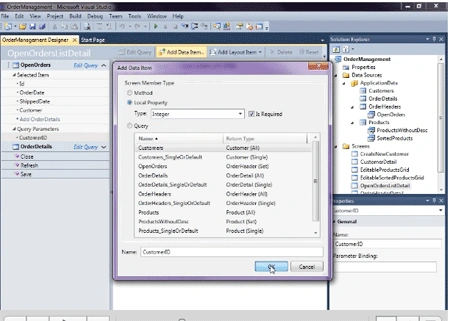
Step 6: Click
CustomerID of OpenOrder->Select Parameter Binding as CustomerID.
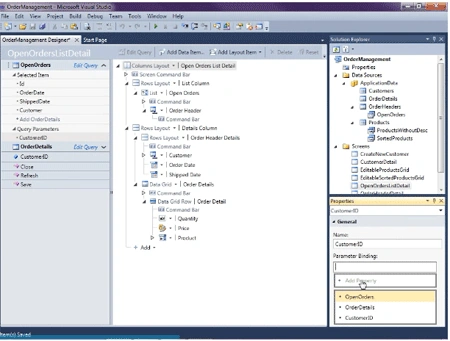
Step 7: Click
CustomerDetail screen->Screen CommandBar->Add->New button->Write name
(OpenOrder)->Ok.
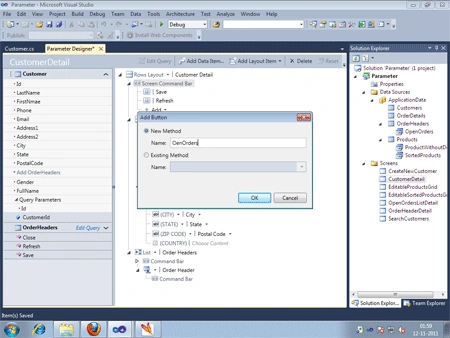
Step 8: Now Choose
image->Import image->Ok.
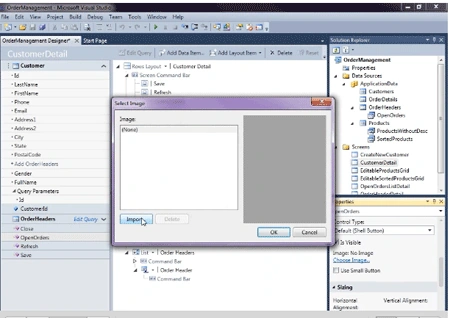
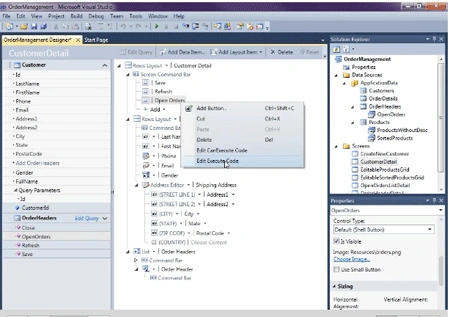
Step 9: Right click on
OpenOrder->Edit Execute Code->Write the below code.
- using System;
- using System.Linq;
- using System.IO;
- using System.IO.IsolatedStorage;
- using System.Collections.Generic;
- using Microsoft.LightSwitch;
- using Microsoft.LightSwitch.Framework.Client;
- using Microsoft.LightSwitch.Presentation;
- using Microsoft.LightSwitch.Presentation.Extensions;
- namespace LightSwitchApplication
- {
- public partial class CustomerDetail
- {
- partial void Customer_Loaded(bool succeeded)
- {
-
- this.SetDisplayNameFromEntity(this.Customer);
- }
- partial void Customer_Changed()
- {
-
- this.SetDisplayNameFromEntity(this.Customer);
- }
- partial void CustomerDetail_Saved()
- {
-
- this.SetDisplayNameFromEntity(this.Customer);
- }
- partial void OenOrders_Execute()
- {
-
- this.Application.ShowOpenOrdersListDetail(this.Customer.Id)
- }
- }
- }
Step 11: Click
OpenOrderListDetail screen->AddDataItem->Query->Select
Customer_SinglrOrDefault->Ok.
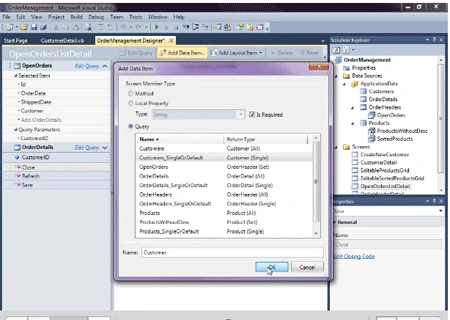
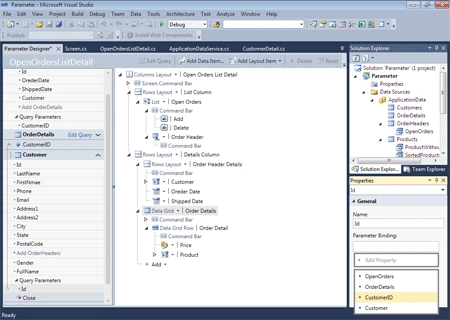
Step 12 Click Id of Customer->Select Parameter Binding (CustomerID).
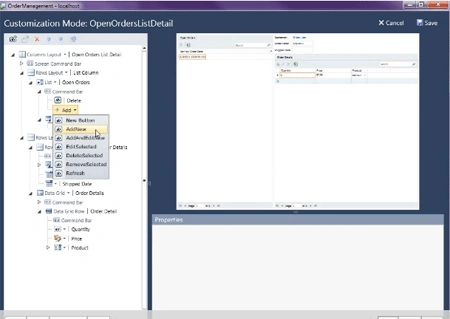
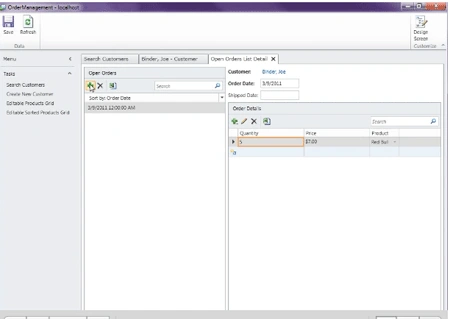
Step 13: Run
application->Design screen->Add->AddNew>Move up first->Save.
Step 14: Click + sign
in OpenOrder->Fill data->Save.


Join the conversation! Your thoughts help the community grow.