

We use SQL datasource to bind GridView and DetailView.
Initial chamber
Step 1: Open Visual Studio 2010 and create an empty website. Give a suitable name gridview_demo.
Step 2: In Solution Explorer you will get your empty website, then add a Web Form and SQL Server Database. Here are the steps:
For Web Form
gridview_demo (Your Empty Website) - Right Click , Add New Item, then Web Form. Name it gridviewid_demo.aspx.
For SQL Server Database:
gridview_demo (Your Empty Website) - Right Click, Add New Item, then SQL Server Database. Add Database inside the App_Data_folder.
Database chamber
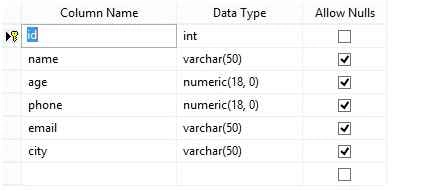
Step 3: In Server Explorer, click on your database Database.mdf - Tables, Add New Table and form a table like this:
Table - tbl_data and don’t forget to make ID as IS Identity - True
Design chamber
Step 4: Now make some design for your application by going to gridviewid_demo.aspx and try the code like this:
Gridviewid_demo.aspx
- <%@ Page Language="C#" AutoEventWireup="true" CodeFile="Default.aspx.cs" Inherits="_Default" %>
- <!DOCTYPE html PUBLIC "-//W3C//DTD XHTML 1.0 Transitional//EN" "http://www.w3.org/TR/xhtml1/DTD/xhtml1-transitional.dtd">
- <html xmlns="http://www.w3.org/1999/xhtml">
- <head runat="server">
- <title></title>
- <style type="text/css">
- .style1 {
- width: 229px;
- }
- .style2 {
- width: 24px;
- }
- .style3 {
- text-decoration: underline;
- }
- </style>
- </head>
- <body>
- <form id="form1" runat="server">
- <div class="style3"> <strong>GridView to DetailsView<br />
- </strong> </div>
- <table style="width:100%;">
- <tr>
- <td class="style1">
- <asp:SqlDataSource ID="SqlDataSource2" runat="server" ConnectionString="<%$ ConnectionStrings:ConnectionString %>" SelectCommand="SELECT [id], [name] FROM [tbl_data]"></asp:SqlDataSource>
- </td>
- <td class="style2"> </td>
- <td> </td>
- </tr>
- <tr>
- <td class="style1">
- <asp:GridView ID="GridView1" runat="server" AutoGenerateColumns="False" DataKeyNames="id" DataSourceID="SqlDataSource2" CellPadding="4" ForeColor="#333333" GridLines="None">
- <AlternatingRowStyle BackColor="White" />
- <Columns>
- <asp:BoundField DataField="id" HeaderText="ID" InsertVisible="False" ReadOnly="True" SortExpression="id" />
- <asp:BoundField DataField="name" HeaderText="Name" SortExpression="name" />
- <asp:CommandField ShowSelectButton="True" /> </Columns>
- <FooterStyle BackColor="#990000" Font-Bold="True" ForeColor="White" />
- <HeaderStyle BackColor="#990000" Font-Bold="True" ForeColor="White" />
- <PagerStyle BackColor="#FFCC66" ForeColor="#333333" HorizontalAlign="Center" />
- <RowStyle BackColor="#FFFBD6" ForeColor="#333333" />
- <SelectedRowStyle BackColor="#FFCC66" Font-Bold="True" ForeColor="Navy" />
- <SortedAscendingCellStyle BackColor="#FDF5AC" />
- <SortedAscendingHeaderStyle BackColor="#4D0000" />
- <SortedDescendingCellStyle BackColor="#FCF6C0" />
- <SortedDescendingHeaderStyle BackColor="#820000" /> </asp:GridView>
- </td>
- <td class="style2"> </td>
- <td> </td>
- </tr>
- <tr>
- <td class="style1">
- <asp:SqlDataSource ID="SqlDataSource1" runat="server" ConnectionString="<%$ ConnectionStrings:ConnectionString %>" DeleteCommand="DELETE FROM [tbl_data] WHERE [id] = @id" InsertCommand="INSERT INTO [tbl_data] ([name], [age], [phone], [email], [city]) VALUES (@name, @age, @phone, @email, @city)" SelectCommand="SELECT [id], [name], [age], [phone], [email], [city] FROM [tbl_data] WHERE ([id] = @id)" UpdateCommand="UPDATE [tbl_data] SET [name] = @name, [age] = @age, [phone] = @phone, [email] = @email, [city] = @city WHERE [id] = @id">
- <DeleteParameters>
- <asp:Parameter Name="id" Type="Int32" /> </DeleteParameters>
- <InsertParameters>
- <asp:Parameter Name="name" Type="String" />
- <asp:Parameter Name="age" Type="Decimal" />
- <asp:Parameter Name="phone" Type="Decimal" />
- <asp:Parameter Name="email" Type="String" />
- <asp:Parameter Name="city" Type="String" /> </InsertParameters>
- <SelectParameters>
- <asp:ControlParameter ControlID="GridView1" Name="id" PropertyName="SelectedValue" Type="Int32" /> </SelectParameters>
- <UpdateParameters>
- <asp:Parameter Name="name" Type="String" />
- <asp:Parameter Name="age" Type="Decimal" />
- <asp:Parameter Name="phone" Type="Decimal" />
- <asp:Parameter Name="email" Type="String" />
- <asp:Parameter Name="city" Type="String" />
- <asp:Parameter Name="id" Type="Int32" /> </UpdateParameters>
- </asp:SqlDataSource>
- </td>
- <td class="style2"> </td>
- <td> </td>
- </tr>
- <tr>
- <td class="style1">
- <asp:DetailsView ID="DetailsView1" runat="server" AutoGenerateRows="False" DataKeyNames="id" DataSourceID="SqlDataSource1" Height="50px" Width="125px" CellPadding="4" ForeColor="#333333" GridLines="None">
- <AlternatingRowStyle BackColor="White" />
- <CommandRowStyle BackColor="#FFFFC0" Font-Bold="True" />
- <FieldHeaderStyle BackColor="#FFFF99" Font-Bold="True" />
- <Fields>
- <asp:BoundField DataField="id" HeaderText="ID" InsertVisible="False" ReadOnly="True" SortExpression="id" />
- <asp:BoundField DataField="name" HeaderText="Name" SortExpression="name" />
- <asp:BoundField DataField="age" HeaderText="Age" SortExpression="age" />
- <asp:BoundField DataField="phone" HeaderText="Phone" SortExpression="phone" />
- <asp:BoundField DataField="email" HeaderText="Email" SortExpression="email" />
- <asp:BoundField DataField="city" HeaderText="City" SortExpression="city" /> </Fields>
- <FooterStyle BackColor="#990000" Font-Bold="True" ForeColor="White" />
- <HeaderStyle BackColor="#990000" Font-Bold="True" ForeColor="White" />
- <PagerStyle BackColor="#FFCC66" ForeColor="#333333" HorizontalAlign="Center" />
- <RowStyle BackColor="#FFFBD6" ForeColor="#333333" /> </asp:DetailsView>
- </td>
- <td class="style2"> </td>
- <td> </td>
- </tr>
- </table>
- </form>
- </body>
- </html>
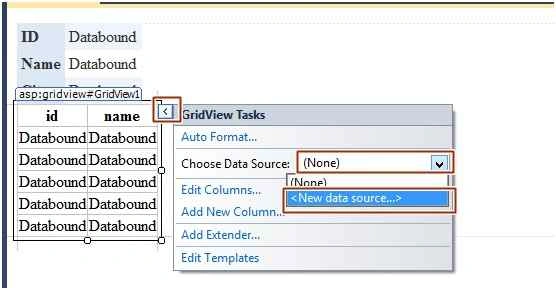
Data Source Configuration Wizard Window
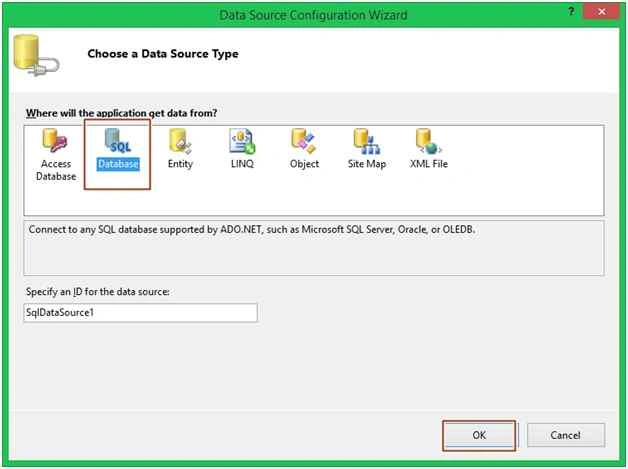
Configure Data Source
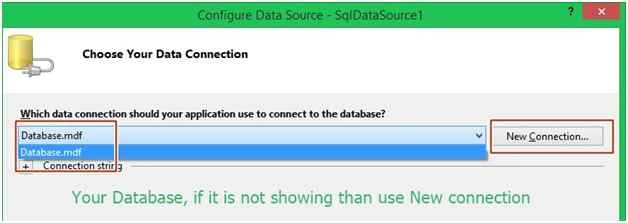
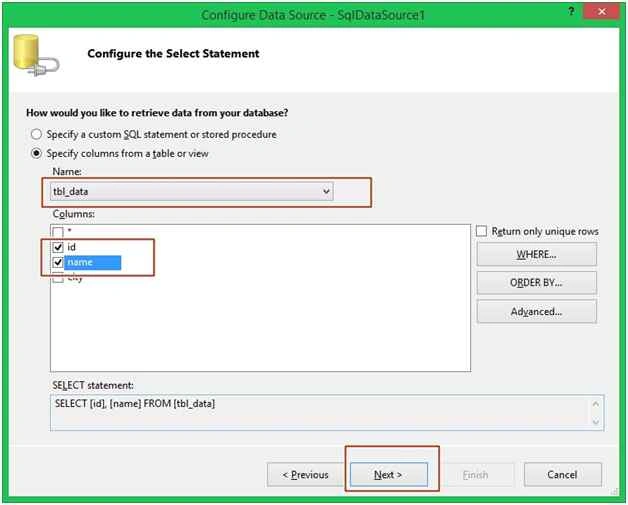
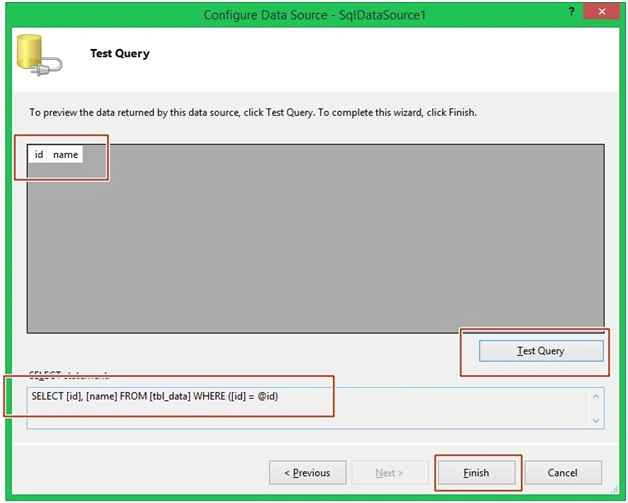
Alternative method: [For DetailsView]
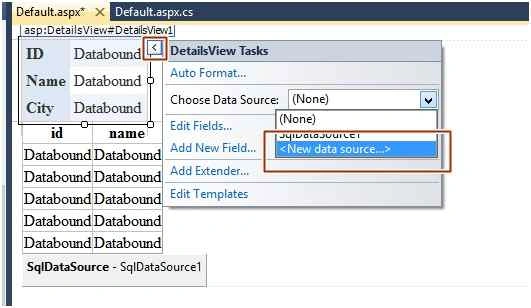
All other process for DetailsView is same as that of above GridView. Just make sure to change these settings.
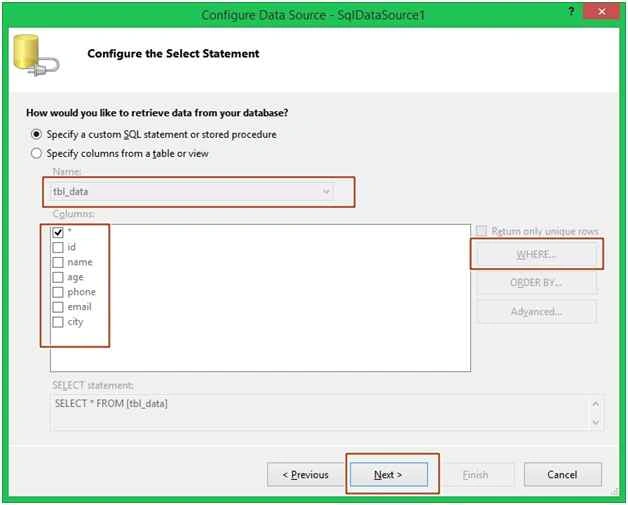
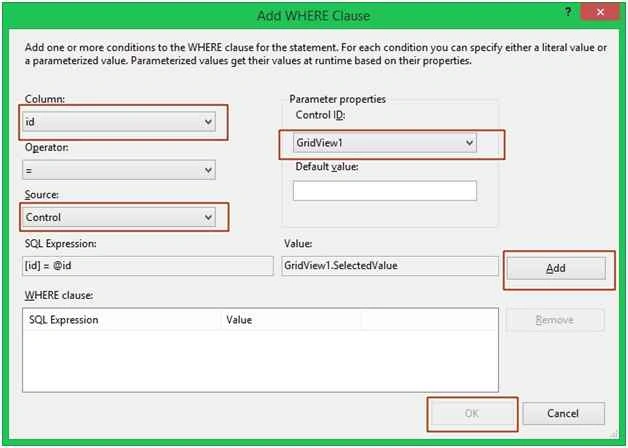
Finish this whole process; you will see your two SQL DataSource, one for GridView and other for DetailsView.
Output chamber
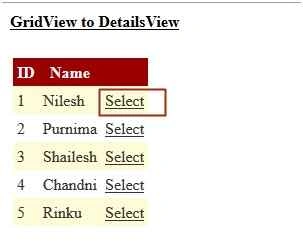
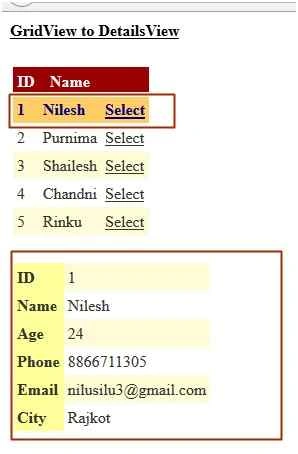
Hope you like it. Thank you for reading.
Arul RPosted Oct 28, 2015, 5:26 AM
Good one !!!
Santhakumar MunuswamyPosted Oct 25, 2015, 10:48 AM
Good Article
Gowtham KPosted Oct 25, 2015, 3:12 AM
Nice One
NitinPosted Oct 25, 2015, 2:12 AM
Good one
Mohammed IbrahimPosted Oct 24, 2015, 11:18 PM
nice