

This article explains how to use Dapper and do CRUD operations with Dapper in MVC.

The preceding image is from slideshare.net.
Whats Dapper is
Dapper.NET is an Open-Source, lightweight ORM developed by the developers of Stack Overflow.
They develop this ORM keeping performance in mind.
Dapper is authored by Sam Saffron of Stack Overlfow.
One of the common required by most applications is accessing data from a relational database.
If we are using a three-layered architecture with a Data Access Layer (DAL) for getting records from a database and doing various CRUD operations.
If we are using an Entity Framework (ORM) Object relationship and mapping then we are using Dbcontext for creating the connection and getting records from the database.
Now we will see a simpler way to access data from a database using an open source ORM called Dapper.
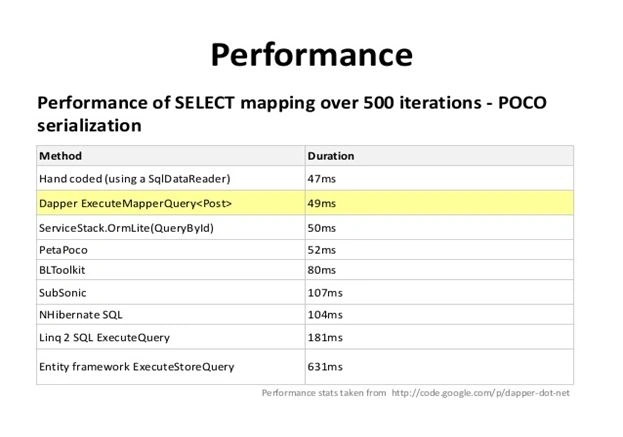
It is easy to use and write compared to Entity Framework.
And also in performance.
The preceding image is from slideshare.net.
You can check the Code Licence at Dapper - a simple object mapper for .Net.
Let's start with the procedure to easily understand.
Step 1: Geting Dapper
You can get Dapper from the Nuget Package Manager.
Just right-click on the project and select Manage NuGet Packages.
Here is a snapshot:

After clicking on Nuget Package Manager you will see this screen appear.
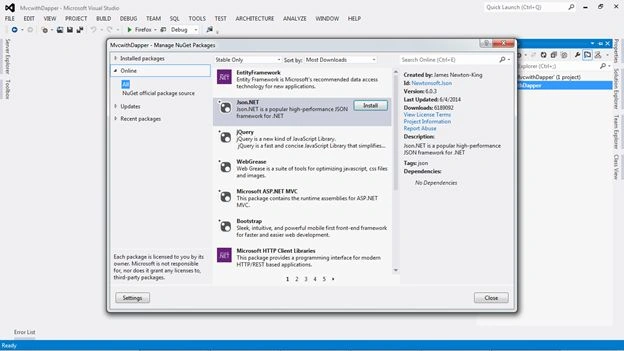
Just select an online panel from the preceding and inside that just select the All option.
Then you will see a search option at the right corner of the screen; just type Dapper and click on the search button.
Here is a snapshot:
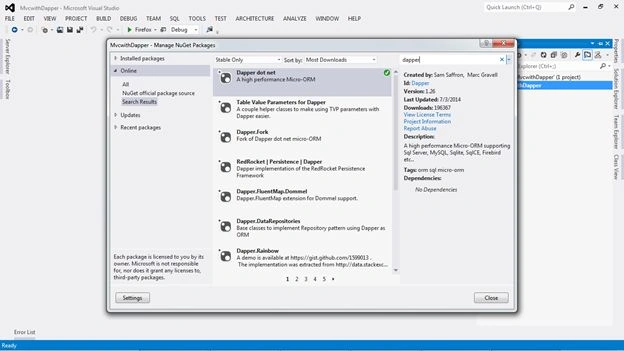
Then you will see the Dapper dot net package that is marked green that tells us that it is already installed.
From your side it will be an Install button; just click on the install button and it will be installed.
After installing you will see this in you References.
Here is a snapshot:
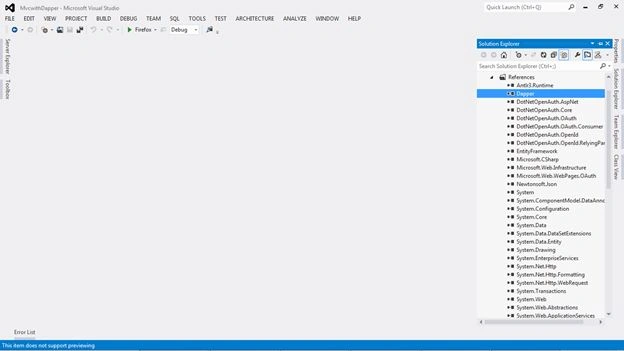
Now we have completed the installation part.
Step 2: The database part
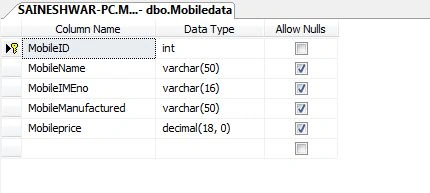
Let's create a table for inserting data into.
Here I am creating a table Mobiledata for storing it.
- CREATE TABLE [dbo].[Mobiledata]
- (
- [MobileID] [int] IDENTITY(1,1) NOT NULL PRIMARY key,
- [MobileName] [varchar](50) NULL,
- [MobileIMEno] [varchar](16) NULL,
- [MobileManufactured] [varchar](50) NULL,
- [Mobileprice] [decimal](18, 0) NULL,
- )
Here is a snapshot:
Step 3: Creating the Model
After creating the table now I will create a Model with the name TBMobileDetails.cs.
Refering to the same column names.
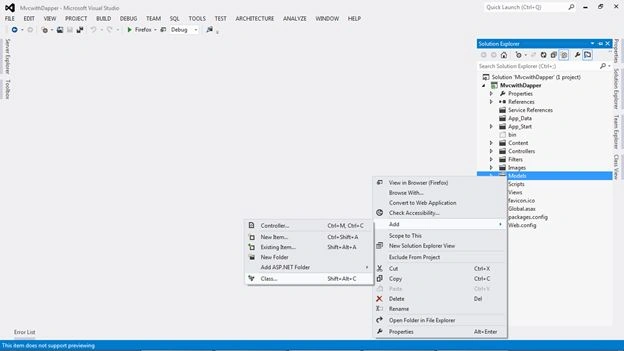
How to add a model.
Here is a snapshot:
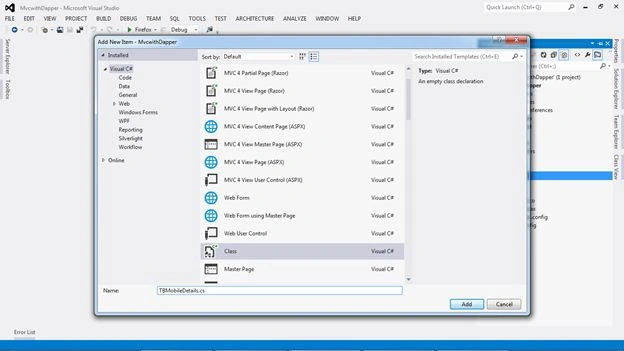
How to provide a name to the model.
Name it TBMobileDetails.cs.
Here is a snapshot:
Here is a snapshot:
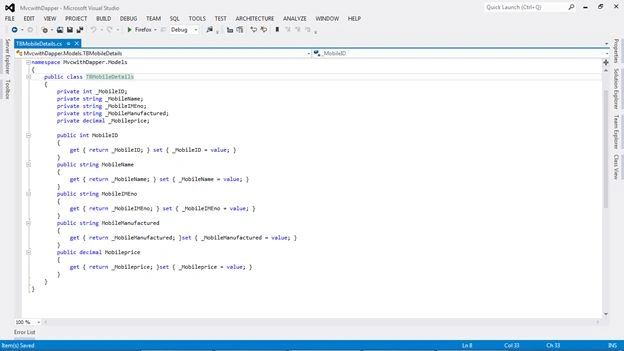
This model contains POCO objects.
Step 4: Adding Controller
Right-click on the Controller folder then select Add then select Controller.
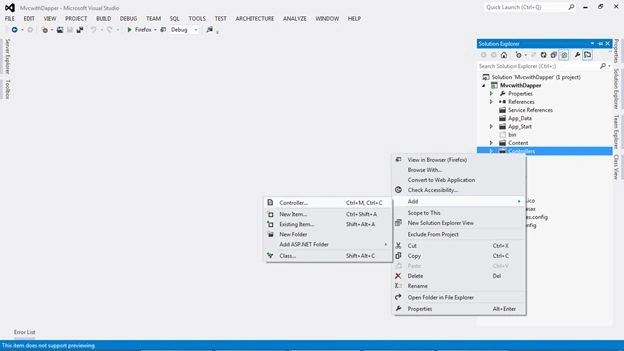
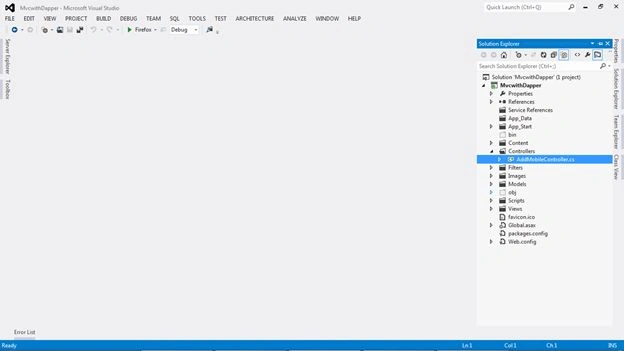
Name it AddMobileController.cs.
Here is a snapshot: After adding AddMobileController.cs.
Adding Model
After adding the controller I am adding the Model.
Like an Entity Framework we create a Dbcontext class. Here we will add another class.
In this step I will add another Model with the name MobileMain.cs in the Model Folder.
In this model I am using Dapper for inserting into the database.
For this I am importing some namespaces.
- using Dapper; // for using dapper
- using MvcwithDapper.Models; // for accessing model in this class
- using System.Configuration; // for using Configuration Setting.
- Using Connection string For database operations.
- SqlConnection con = new SqlConnection(ConfigurationManager.ConnectionStrings["DBstring"].ToString());
For Inserting in Dapper we use Dapper's built-in methods:
con.Execute( name of query , Dynamic Parameters )
Some people may think, what is con.
Con is an object of a connection string.
Here the query should be the same way as in SQL.
This is easy because we are no more losing handson with SQL.
Here is a snapshot for inserting a statement with Dapper.
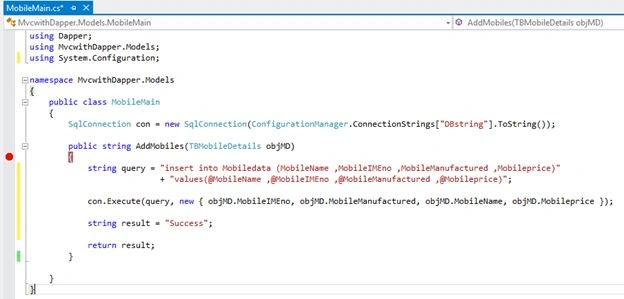
In con.Execute I am just passing my query and parameters and we are getting parameters from the model while we post data.
Here I have completed the model part and moving to the Controller.
For the controller that I added I am just going to add an action method for the Controller with the name Addmobile.
- [HttpGet]
- public ActionResult AddMobiles() // Work while we request page
- {
- return View();
- }
- [HttpPost]
- public ActionResult AddMobiles(TBMobileDetails MD) // Work while we post page
- {
- MobileMain MM = new MobileMain();
- MM.AddMobiles(MD);
- }
Here is a snapshot:
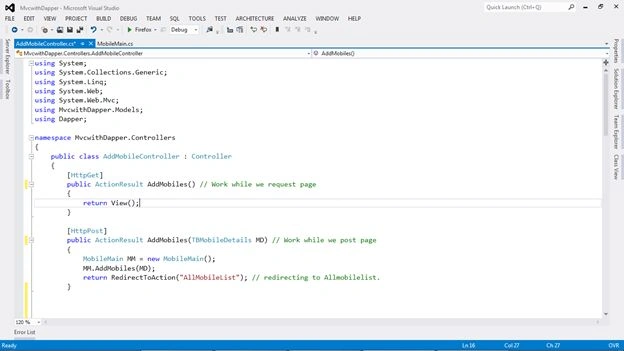
In the [HttpPost] method we are passing the model to it as an input parameter.
- [HttpPost]
- public ActionResult AddMobiles(TBMobileDetails MD) // Work while we post page
- After this part I am going to access model and its method.
- Now I have created object of class MobileMain.
- MobileMain MM = new MobileMain();
- After creating object I am going to access method of that class and pass model to it.
- MM.AddMobiles(MD);
At last we need to return a view.
- return RedirectToAction("AllMobileList"); // redirecting to Allmobilelist.
Now we have completed the controller part and will add the View Final.
For adding the view we first need to do right-click on the [Httppost] method as select add view.
Here is a snapshot:
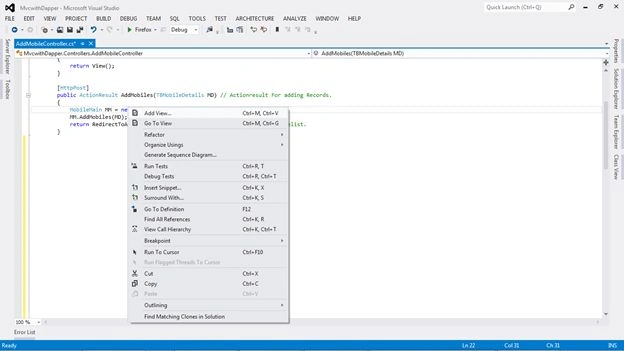
After selecting add View a new dialog will popup.
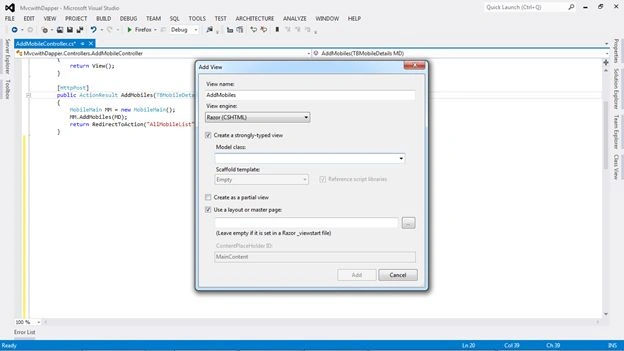
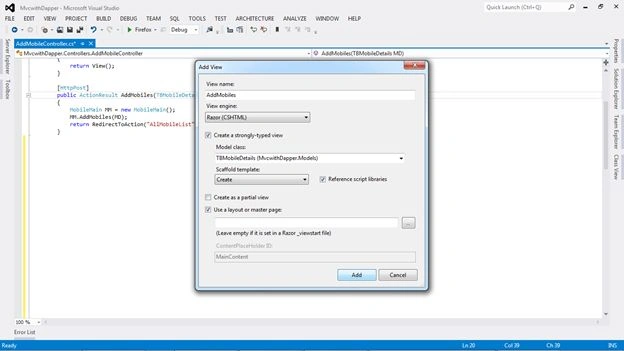
In this dialog just provide a view name and select Create a strongly typed view.
In the Model class select our model name (TBMobileDetails).
In Scafffolding select the Create option from the list.
And click add and its done.
Now we need to just run our application and check.
Here is a snapshot of selecting the model for the View.
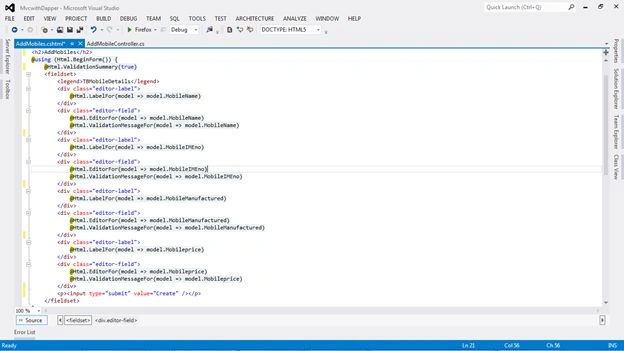
Like this view should be generated.
Here is a snapshot:
Here is a snapshot of the final output of the Insert.
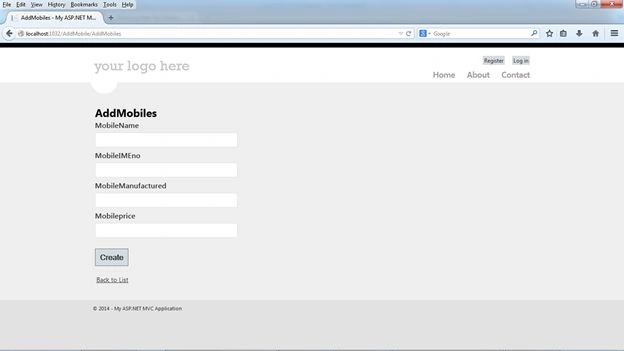
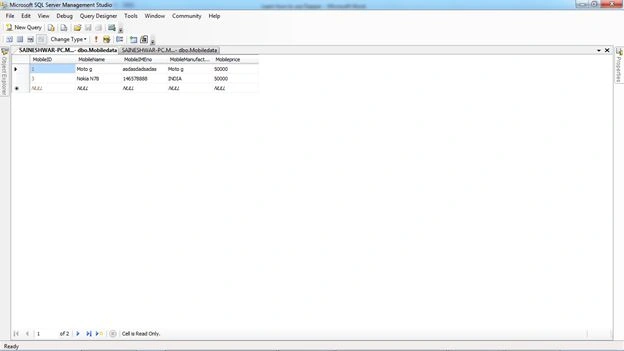
Step 5: Displaying List (READ)
Now we will display a list of all added records using Dapper.
IN Mobilemain model
In the Mobilemain model add another method for showing records in the list.
- public IEnumerable<TBMobileDetails> Allmobilelisting()
- {
- string query = "select * from Mobiledata";
- var result = con.Query<TBMobileDetails>(query);
- return result;
- }
This will return a list of models.
- con.Query< modelname >(your query);
- // Way to get records for database in dapper way.
- IN AddMobileController Controller
- In Controller Add new Actionresult for accessing this method in Controller.
- public ActionResult AllMobileList() // Actionresult for Showing all mobile List.
- {
- MobileMain MM = new MobileMain();
- return View(MM.Allmobilelisting().ToList()); // returning all mobile list
- }
After adding a new method in the controller now I will add a new view for displaying this list.
The procedure is the same as above for adding the view.
But this time we would select a List instead of selecting the Create in Scaffolding option.
The following is a snapshot of selecting the Model for adding the list.
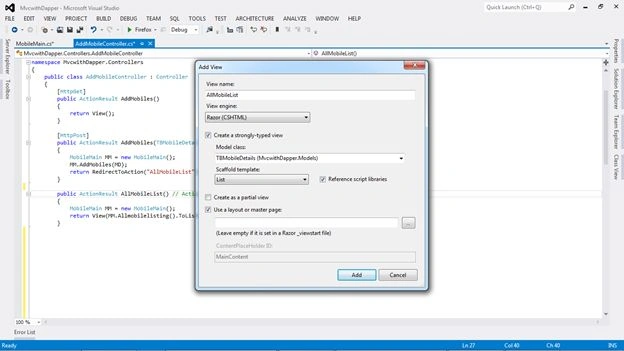
After adding you will see a new view with the name AllMobileList.cshtml.
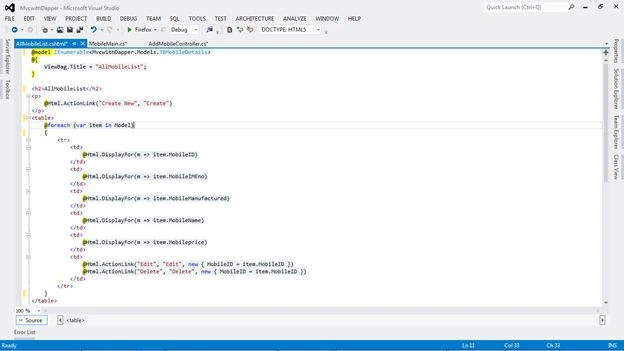
In this you need to make a small change in the view. Just remove the comment of id and name it MobileID.
- @Html.ActionLink("Edit", "Edit", new { /* id=item.PrimaryKey */ })
- @Html.ActionLink("Details", "Details", new { /* id=item.PrimaryKey */ })
- @Html.ActionLink("Delete", "Delete", new { /* id=item.PrimaryKey */ })
- After Change
- @Html.ActionLink("Edit", "Edit", new { MobileID = item.MobileID })
- @Html.ActionLink("Delete", "Delete", new { MobileID = item.MobileID })
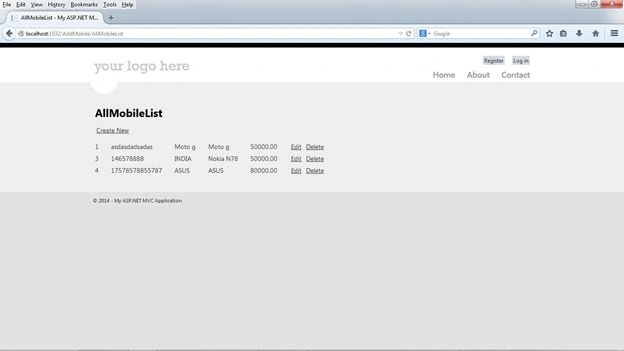
We have completed the displaying List, just run the application and check.
Here is a snapshot of the output of the list.
Step 6: Editing Records (EDIT / UPDATE)
Now I will show you the Edit Records part using Dapper.
The few steps for the Edit are the same as for the Create.
Here we have both [Httppost] and [HttpGet]
The [HttpGet] method will contain Input parameters as the ID for getting the record for Editting.
The [Httppost] method will contain the model as input for updating the record.
For this I will add a method in the MobileMain model for getting the record from the table with the name GetMobileList.
- public TBMobileDetails GetMobileList(string MobileID)
- {
- string query = "select MobileID,MobileName,MobileIMEno,MobileManufactured"+
- ",Mobileprice from dbo.Mobiledata where MobileID =" + MobileID;
- var result = con.Query<TBMobileDetails>(query).Single<TBMobileDetails>();
- return result;
- }
And adding a get method to the controller.
- [HttpGet]
- public ActionResult Edit(string MobileID) //Actionresult for getting Editing records.
- {
- MobileMain mm = new MobileMain();
- return View(mm.GetMobileList(MobileID));
- }
For updating the record I am adding another method in the MobileMain model with the name Updatemobile.
- public string Updatemobile(TBMobileDetails objMD)
- {
- string query = "update Mobiledata MobileName=@MobileName,MobileIMEno=@MobileIMEno,"
- + "MobileManufactured=@MobileManufactured,Mobileprice =@Mobileprice"
- +"where MobileID =@MobileID";
- con.Execute(query, new { objMD.MobileIMEno,objMD.MobileManufactured,
- objMD.MobileName,objMD.Mobileprice, objMD.MobileID});
- string result = "updated";
- return result;
- }
For updating in Dapper we use Dapper's built-in methods that are common for both insert and update.
con.Execute( name of query , Dynamic Parameters ).
Now I need to add a Post Method for Updatemobile in the Controller AddMobile.
- [HttpPost]
- public ActionResult Edit(TBMobileDetails MD) // Actionresult for Posting records.
- {
- MobileMain mm = new MobileMain();
- mm.Updatemobile(MD);
- return RedirectToAction("AllMobileList");
- }
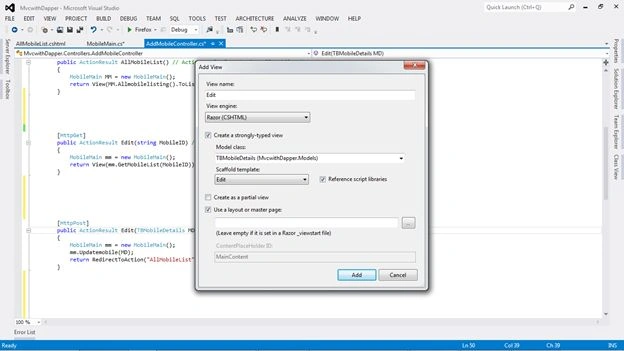
After adding this method I will now create a view for this method.
The process is the same as above, just right-click in the Edit Post method and Add View.
In Scaffold template Select Edit.
In the Model class select the Model TBMobileDetails and click add.
Here is a snapshot:
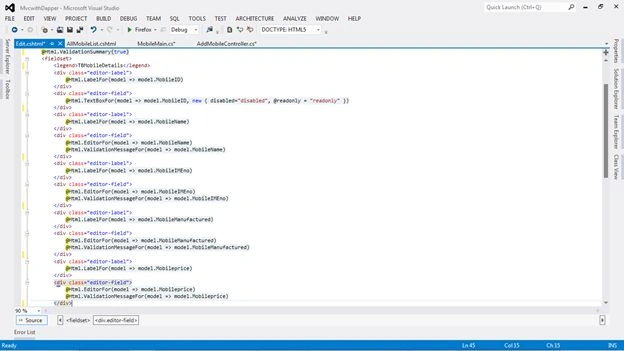
This Model will be generated.
Here is a snapshot:
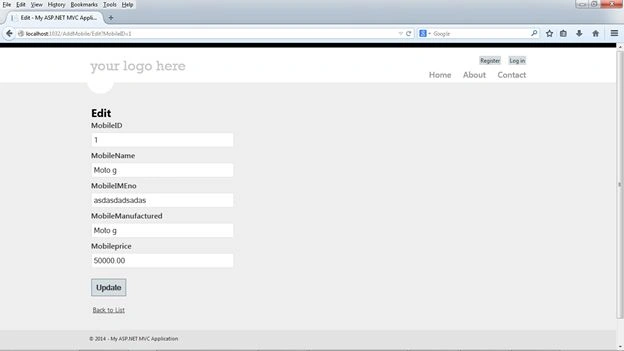
Now for testing, just run this application and check it.
Final Output for Edit/Update.
Here is a snapshot :
Step 7: Deleting (DELETE)
Now the last process of CRUD is D for Deleting Records.
Let's start with the adding method in the Mobilemain class with the Method name DeleteMobile.
- public string DeleteMobile(TBMobileDetails objMD)
- {
- string query = "Delete from Mobiledata where Mobiledata.MobileID = @MobileID";
- con.Execute(query, new { objMD.MobileID});
- string result = "Deleted";
- return result;
- }
In this method we are passing the model as input to a DeleteMobile method.
Here I am writing a normal SQL Delete Query.
And passing a query to the Execute method of Dapper.
Now we have completed the Model part, let's move to the Controller.
In the Controller I will be adding a new method for Deleting as in the following:
- [HttpGet] //Actionresult for Getting records for deleting.
- public ActionResult Delete(string MobileID)
- {
- MobileMain MM = new MobileMain();
- return View(MM.GetMobileList(MobileID));
- }
- [HttpPost] // Actionresult for deleting records.
- public ActionResult Delete(TBMobileDetails MD)
- {
- MobileMain MM = new MobileMain();
- MM.DeleteMobile(MD);
- return RedirectToAction("AllMobileList");
- }
Here I have added 2 Action results.
One is for getting records for deleting.
The second is for deleting records.
In [HttpGet] Method I will display records before deleting.
[HttpGet] is using the same method that is used for getting GetMobileList.
In the [HttpPost] method I will delete records.
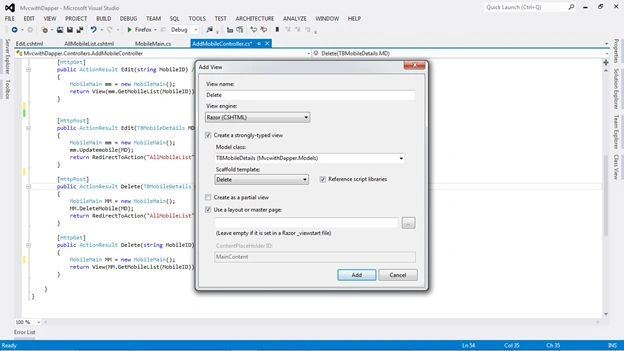
Now I will add a view to this controller.
In the same process just right-click on the [HttpPost] method of Delete Actionresult.
Here is a snapshot:
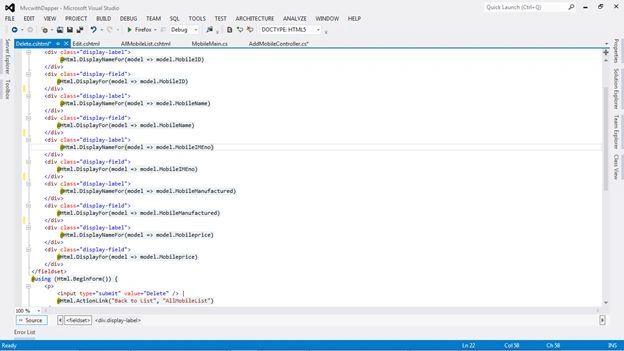
After adding a view like this the method will display.
Here is a snapshot:
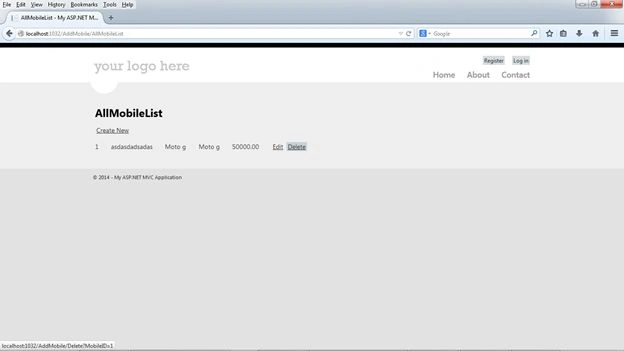
Now just run the Final run.
Step 8: Final Output
Here is a snapshot:
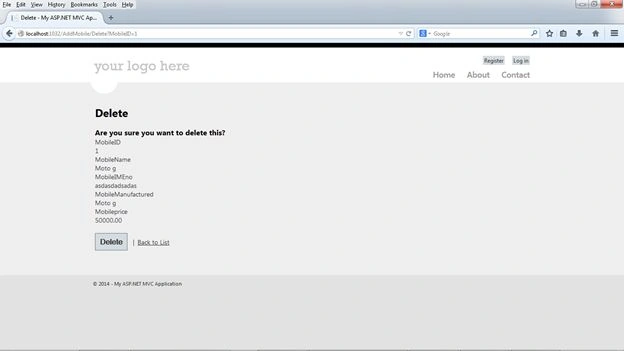
Just to wrap up, this is a simple example of Dapper. Just download the Table Script and solution and explore.
gobi cskPosted Nov 22, 2018, 1:35 AM
Hi Dear Saineshwar,can i use MVC and Webapi same Solutions if i add Webapi dll in MVC Reference then i run MVC project its showing error..System.IO.FileLoadException: 'Could not load file or assembly 'System.Web.Http, Version=5.2.4.0, Culture=neutral, PublicKeyToken=31bf3856ad364e35' or one of its dependencies. The located assembly's manifest definition does not match the assembly reference. (Exception from HRESULT: 0x80131040)' this is first-time webapi workout please guide me sir...
Sameer ParabPosted Apr 18, 2018, 1:42 AM
Very Nice Article for Begineers!
Jimit BhattPosted Jan 24, 2016, 10:39 AM
Hi Dear Saineshwar, Nice Article and quite useful too. One small updation needed The thing is that while selecting using ID during Edit and Delete(public TBMobileDetails GetMobileList(string MobileID)) we use to get error as Invalid Column name as code you have mentioned. Well I've gone through code and the problem was the syntax you are using is of simply ADO.NET instead of Dapper.CRUD. Actual Query for that method should be ::::::::::::::::::::::::::::::::::::::::::::::::::::::::::::::::::::::::::::::::: public Employee GetEmployeeList(string E_Id) { string query = "select E_Id,E_Name,E_Address,E_Contact,E_DOB from Emp_Personal where E_Id=@E_Id"; var result = con.Query<Employee>(query, new { E_Id }).Single<Employee>(); return result; } .................... Some thing in this way.
Shubham KumarPosted Jan 18, 2016, 4:49 AM
Dapper is good but can i use in large applications ?
Ajay KadamPosted Jan 11, 2016, 6:10 AM
Great...Useful Artical....Thanks for Sharing..
Ankur MistryPosted Dec 12, 2015, 1:28 PM
super cool, thanks for Sharing Saine
Sanjay SabariyaPosted Dec 4, 2015, 4:52 AM
thanx for sharing. but it's really fast compare to other ? please share your experience those people use this ORM
Yashwanth MuthineniPosted Aug 27, 2015, 3:17 AM
Nice Share
Vithal WadjePosted Jan 1, 2015, 2:22 AM
nice to learn thanks for sharing
Deepak Kumar JenaPosted Dec 16, 2014, 3:19 AM
Work is not matter Saineshwar , it is just what about helpful for project and i can't see any advantages of this DAPPER !!!!
Deepak Kumar JenaPosted Dec 15, 2014, 9:39 AM
It's just disgusting. it's not a good technique. if anybody want , then i am ready to prove it. Even Hand-coded query is better than this technique. i am suggesting u all not use this DAPPER !!!!!!!!!!!!!
Guest UserPosted Aug 19, 2014, 12:38 AM
got it. in my next project i'll try using Dapper rather PetaPoco as the URL you provided show its faster than others.
Guest UserPosted Aug 18, 2014, 11:08 AM
hey, how do you compare dapper with other ORM's like PetaPoco, Massive.
Liu boPosted Aug 5, 2014, 5:57 AM
One word,awesome
Mahesh ChandPosted Aug 3, 2014, 10:37 PM
Very detailed. Thank you!
Saineshwar BageriPosted Jul 19, 2014, 12:26 AM
thanks manas sir
manas sahuPosted Jul 18, 2014, 8:43 AM
very nice and awesome