Introduction
This article explains how to play a video using the Video Player in Android.
This application will show you a video when you click on the "Start video" button and hide it when you click on the Stop button. For this, you will store a 3gp video file inside the raw folder that you will call on a button click.
Step 1
Create an XML file with the following. In this file you will use two buttons to start the video and to stop the video. Use a VideoView that will show the video on button click at runtime.
- <?xml version="1.0" encoding="utf-8"?>
- <LinearLayout xmlns:android="http://schemas.android.com/apk/res/android"
- android:orientation="vertical"
- android:layout_width="fill_parent"
- android:layout_height="fill_parent">
-
- <Button
- android:id="@+id/playvideoplayer"
- android:layout_width="fill_parent"
- android:layout_height="wrap_content"
- android:text=" PLAY "/>
-
- <Button
- android:id="@+id/stopvideoplayer"
- android:layout_width="fill_parent"
- android:layout_height="wrap_content"
- android:text=" STOP "/>
-
- <VideoView
- android:id="@+id/viewvideo"
- android:layout_width="fill_parent"
- android:layout_height="wrap_content"/>
-
- </LinearLayout>
Step 2
Create a Java class file with the following:
- package com.example.thread;
-
- import android.app.Activity;
- import android.graphics.PixelFormat;
- import android.media.MediaPlayer;
- import android.net.Uri;
- import android.os.Bundle;
- import android.view.SurfaceHolder;
- import android.view.SurfaceView;
- import android.view.View;
- import android.view.View.OnClickListener;
- import android.widget.Button;
- import android.widget.VideoView;
-
-
-
- public class MainActivity extends Activity implements SurfaceHolder.Callback{
-
- MediaPlayer mediaPlayer;
- SurfaceView surfaceView;
- SurfaceHolder surfaceHolder;
- boolean pausing = false;
- Button stopVideo;
-
-
- @Override
- public void onCreate(Bundle savedInstanceState) {
- super.onCreate(savedInstanceState);
- setContentView(R.layout.activity_main);
-
- Button PlayVideo = (Button)findViewById(R.id.playvideoplayer);
- stopVideo = (Button)findViewById(R.id.stopvideoplayer);
- getWindow().setFormat(PixelFormat.UNKNOWN);
-
-
- final VideoView mVideo = (VideoView)findViewById(R.id.viewvideo);
-
-
-
- PlayVideo.setOnClickListener(new Button.OnClickListener(){
-
- @Override
- public void onClick(View v) {
-
- VideoView mVideo = (VideoView)findViewById(R.id.viewvideo);
-
-
- String Path = "android.resource://com.example.thread/"+R.raw.k;
- Uri uri = Uri.parse(Path);
- mVideo.setVideoURI(uri);
- mVideo.requestFocus();
- mVideo.setVisibility(View.VISIBLE);
- mVideo.start();
- }});
-
- stopVideo.setOnClickListener(new OnClickListener() {
-
- @Override
- public void onClick(View v) {
-
-
- mVideo.stopPlayback();
- mVideo.setVisibility(View.GONE);
- }
- });
- }
-
- @Override
- public void surfaceChanged(SurfaceHolder holder, int format, int width,
- int height) {
-
- }
-
- @Override
- public void surfaceCreated(SurfaceHolder holder) {
-
- }
-
- @Override
- public void surfaceDestroyed(SurfaceHolder holder) {
-
-
- }
- }
Step 3
Android Manifest.xml file with the following:
- <?xml version="1.0" encoding="utf-8"?>
- <manifest xmlns:android="http://schemas.android.com/apk/res/android"
- package="com.example.thread"
- android:versionCode="1"
- android:versionName="1.0" >
-
- <uses-sdk
- android:minSdkVersion="8"
- android:targetSdkVersion="18" />
-
- <application
- android:allowBackup="true"
- android:icon="@drawable/ic_launcher"
- android:label="@string/app_name"
- android:theme="@style/AppTheme" >
- <activity
- android:name="com.example.thread.MainActivity"
- android:label="@string/app_name" >
- <intent-filter>
- <action android:name="android.intent.action.MAIN" />
-
- <category android:name="android.intent.category.LAUNCHER" />
- </intent-filter>
- </activity>
- </application>
- </manifest>
Step 4
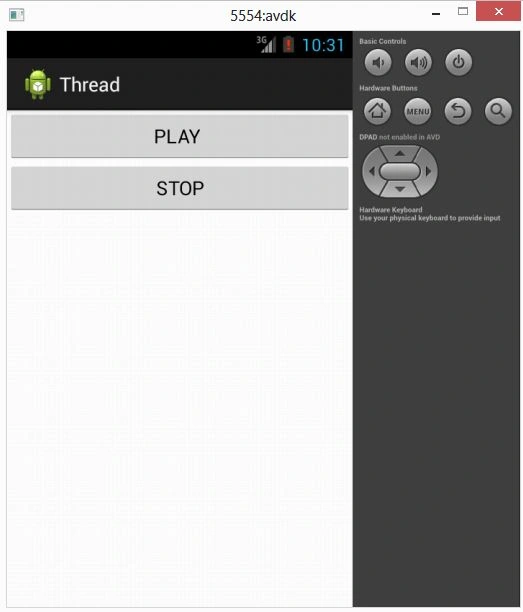
When you run the application:
Click on the play button.
Click on "Stop"; your video will be hidden.


Join the conversation! Your thoughts help the community grow.