

Hello folks,
In the previous part, we explored the fundamental concepts of PnP Modern Search and learned how to set it up and use it in our tenant. We also covered the basics of search queries, filtering options, and available UI layouts. It is giving us a solid foundation to start working with PnP Modern Search solutions, which are search-driven solutions.
If you are new to this series and till now haven't you checked out Part 1 yet, you can start here: PnP Modern Search Results - Part 1: Introduction to Search Results Web Part
Now, let’s start with the Series Part 2 agenda.
What is Handlebars in PnP Modern Search Results?
In simple words, the handlebar is a simple but powerful templating engine that allows you to add and dynamically generate HTML by binding data to your custom template. It allows you to take data from search results and control how it should be displayed in the UI using placeholders.
There is little bit different way how we use data like below with an example.
All dynamic values are written inside: {{dynamicValue}}.
data.items contains actual search results data.
@root – global object everything comes from here.
Item – represents a single item in the loop.
To use a loop in Handlebars is a little bit different than HTML and JavaScript. We will investigate this further.
There are lots more rules available. But we will see the example to understand in better way by implementing a custom template or handlebar to display data in a different way.
How to add Handlebars/HTML to a custom layouts?
we will add a Handlebars template to display data, as shown in the image below.
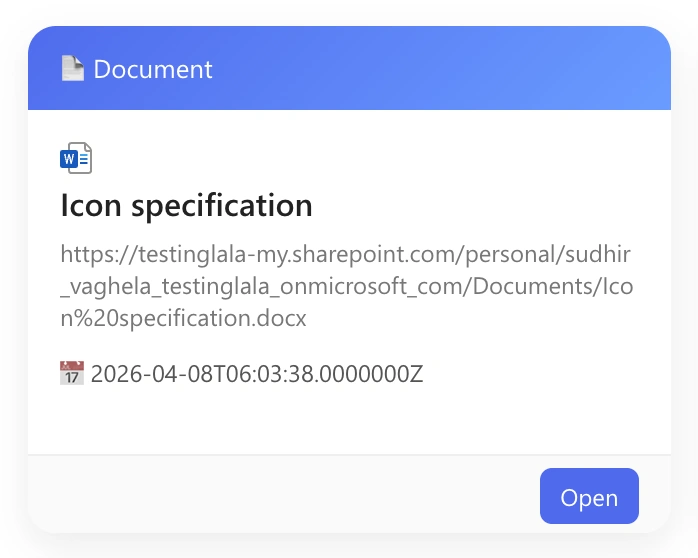
To add a custom handlebar template, go to your SharePoint site page where you have configured the PnP Modern Search Results webpart.
Once you are there, edit the page and edit the PnP Modern Search Results web part.
Got to the next page from below, and there are some out of the box layouts available. One of them is custom options. Shown in the below image.
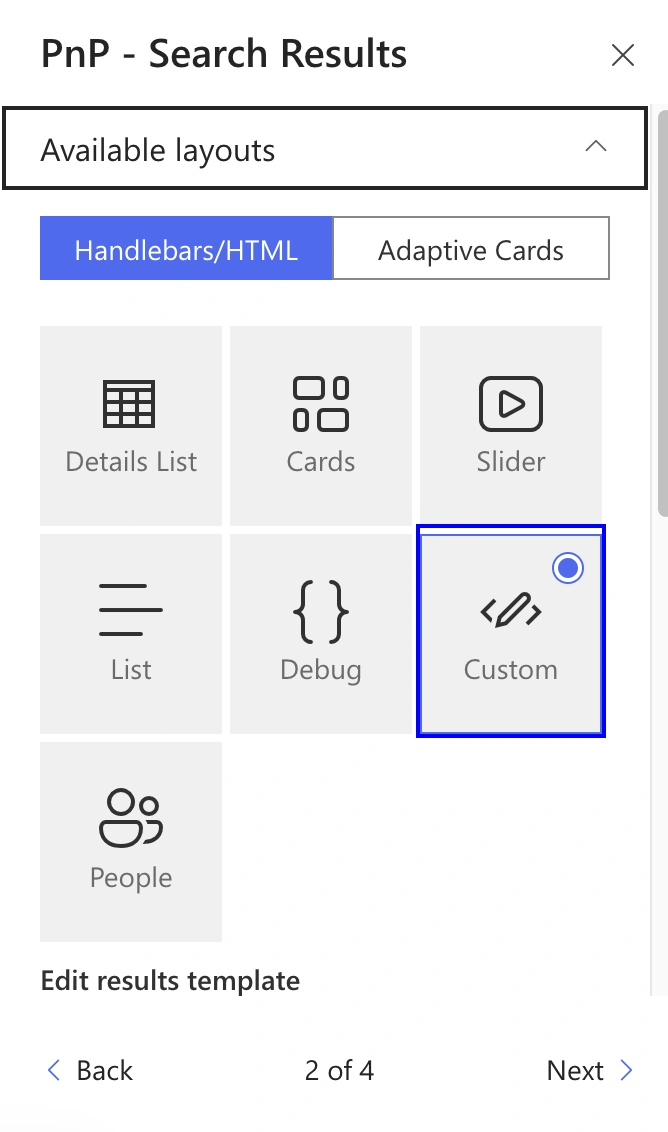
Now, select that custom option, and you will be able to see the Edit results template
field just below that as shown in the image below.
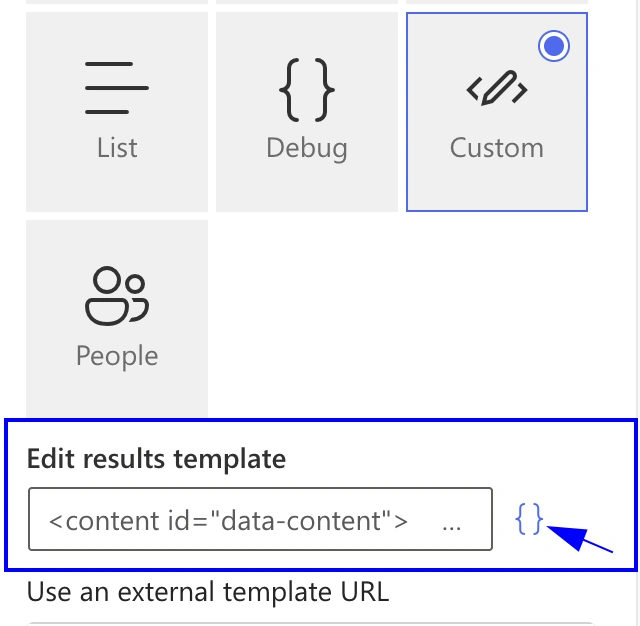
Now, click on the curly brackets marked in the above image, on click it will open the handlebar edit panel like the below image.
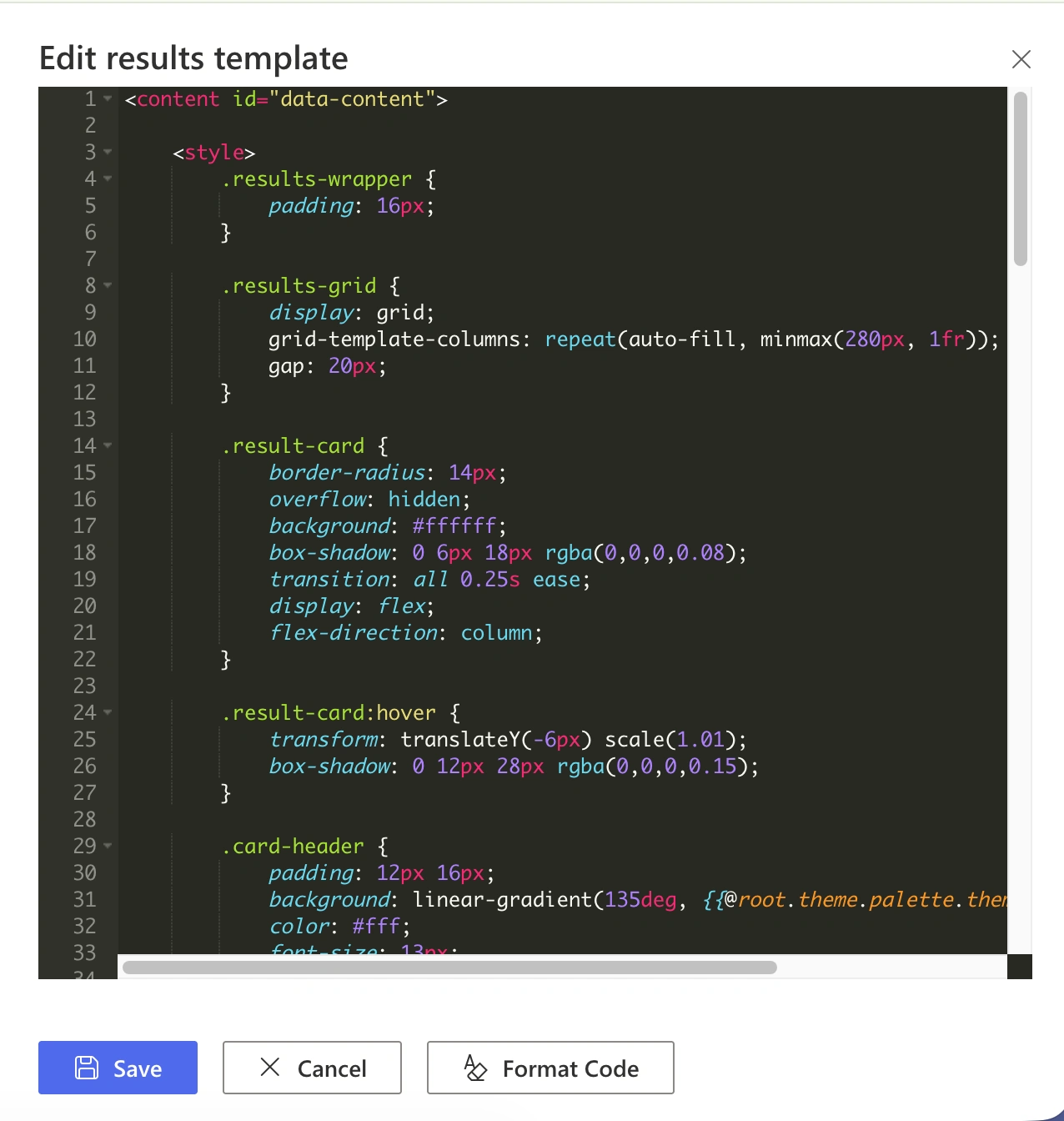
Now, in that window copy the below handlebar template and paste it.
<content id="data-content">
    <style>
        .results-wrapper {
            padding: 16px;
        }
        .results-grid {
            display: grid;
            grid-template-columns: repeat(auto-fill, minmax(280px, 1fr));
            gap: 20px;
        }
        .result-card {
            border-radius: 14px;
            overflow: hidden;
            background: #ffffff;
            box-shadow: 0 6px 18px rgba(0,0,0,0.08);
            transition: all 0.25s ease;
            display: flex;
            flex-direction: column;
        }
        .result-card:hover {
            transform: translateY(-6px) scale(1.01);
            box-shadow: 0 12px 28px rgba(0,0,0,0.15);
        }
        .card-header {
            padding: 12px 16px;
            background: linear-gradient(135deg, {{@root.theme.palette.themePrimary}}, #6a9cff);
            color: #fff;
            font-size: 13px;
            font-weight: 500;
        }
        .card-body {
            padding: 16px;
            flex-grow: 1;
        }
        .file-icon {
            width: 22px;
            height: 22px;
            margin-bottom: 10px;
        }
        .title a {
            font-size: 16px;
            font-weight: 600;
            color: #222;
            text-decoration: none;
        }
        .title a:hover {
            color: {{@root.theme.palette.themePrimary}};
        }
        .path {
            font-size: 12px;
            color: #777;
            margin-top: 6px;
            word-break: break-all;
        }
        .meta {
            margin-top: 12px;
            font-size: 12px;
            color: #555;
            display: flex;
            justify-content: space-between;
        }
        .meta span {
            display: flex;
            align-items: center;
            gap: 4px;
        }
        .card-footer {
            padding: 10px 16px;
            border-top: 1px solid #eee;
            background: #fafafa;
            text-align: right;
        }
        .open-btn {
            font-size: 12px;
            padding: 6px 10px;
            border-radius: 6px;
            background: {{@root.theme.palette.themePrimary}};
            color: white;
            text-decoration: none;
        }
        .open-btn:hover {
            opacity: 0.9;
        }
    </style>

    <div class="results-wrapper">
        <div class="results-grid">
            {{#each data.items as |item|}}
                <div class="result-card">
                    <div class="card-header">
                        📄 Document
                    </div>
                    <div class="card-body">
                        <pnp-iconfile
                            class="file-icon"
                            data-extension="{{slot item @root.slots.FileType}}"
                            data-theme-variant="{{JSONstringify @root.theme}}">
                        </pnp-iconfile>
                        <div class="title">
                            <a href="{{slot item @root.slots.Path}}">
                                {{slot item @root.slots.Title}}
                            </a>
                        </div>
                        <div class="path">
                            {{slot item @root.slots.Path}}
                        </div>
                        <div class="meta">
                            {{#if item.Author}}
                                <span>👤 {{item.Author}}</span>
                            {{/if}}

                            {{#if item.Created}}
                                <span>📅 {{item.Created}}</span>
                            {{/if}}
                        </div>
                    </div>
                    <div class="card-footer">
                        <a class="open-btn" href="{{slot item @root.slots.Path}}" target="_blank">
                            Open
                        </a>
                    </div>
                </div>
            {{/each}}
        </div>
    </div>
</content>
Once you add the provided handlebar inside Edit results template window, click on the Save button. Now you will be able to see the template applied to your data.
Now, let’s take a look at some key Handlebars rules, including how @root and data.items are used to access and manage data within our template.
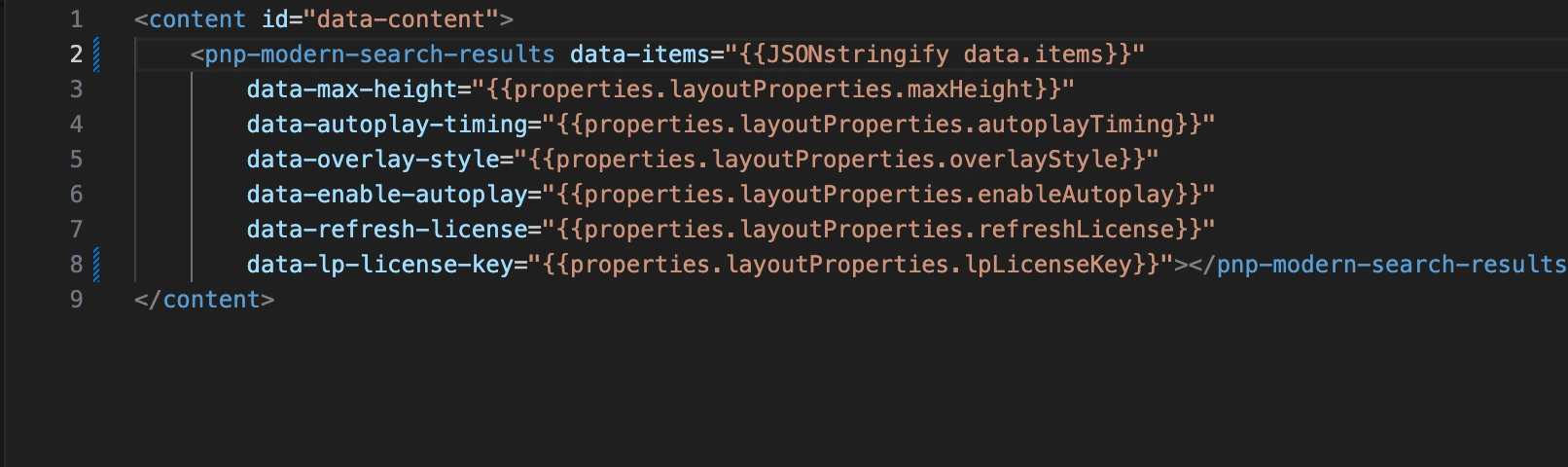
The picture above shows a basic .html template that is used in an extensibility library. The main source of data for this is data.items , which has the search results that are shown in the template.
Your html component always must start with content like <content id=”data-content”></content>
HTML attributes must use the data- prefix to be retrieved correctly.
Note: we'll learn about what an extensibility library is and how it works in next part.
@root is used to access the global or top-level data context in Handlebars, like suppose that you are working with loop inside the handlebar and you use loop like
{{#each data.items as |item|}}
    {{theme.palette.themePrimary }}
{{/each}}
Now, the above will implement themePrimary color, because the theme is not containing inside data; it is global or top-level data. So before loop it looks like this, which is actually root-level data.
{
  "data": { "items": [...] },
  "theme": {...},
  "properties": {...}
}
But inside the loop it will become like.
item = {
  "Title": "...",
  "Path": "...",
  "Author": "..."
}
So, the standard way to get data about a specific item is to use data.items (through item). But if you need to get to global data, like theme settings or web part properties, using @root is the best way to do it.
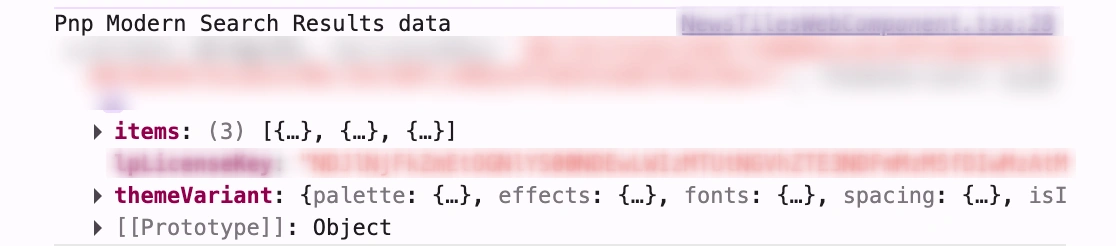
The above image is about the result of PnP Modern Search Result Extensibility in the console. Shows an items array with three items which are going to be displayed.
What you learned?
Basics of Handlebars in PnP Modern Search
How to use {{ }} for dynamic data binding
understanding data.items for search resutls
difference between item(local) and @root(global data)
how to apply a custom Handlebars template
Key rules and common concepts for building templates
What is Next?
in next part of this series, we'll explore:
What is the Search Extensibility Library, and why use it?
How to build a custom template with the Search Extensibility Library?
How to use a custom template with PnP Modern Search?
Conclusion
In this part, we learnt how to use Handlebars in PnP Modern Search to create custom layouts and display data dynamically. We explored how data.items and @root are accessing global data.
With this foundation, now you can start building your own custom templates. In the next part, we will explore the Search Extensibility Library and how to use it for advanced customization.
Join the conversation! Your thoughts help the community grow.