

Overview
PnP has provided a control that renders it as a People Picker field, which can be used to select one or more users from a SharePoint site or group. This control is useful to be used in the SPFx web part to get the people information from the users. People Picker control offers various configuration options to support most business needs.
In this article, we will explore the People Picker control from PnP on how to use and configure it in the SPFx web part. We will develop a practical scenario to capture the people's information in the SPFx web part using PnP People Picker Control and store it in a SharePoint list.
Develop SharePoint Framework Web Part
Open a command prompt. Create a directory for the SPFx solution.
md spfx-pnp-people-picker
Navigate to the above-created directory.
cd spfx-pnp-people-picker
Run the Yeoman SharePoint Generator to create the solution.
yo @microsoft/sharepoint
The Yeoman generator will present you with the wizard by asking questions about the solution to be created.
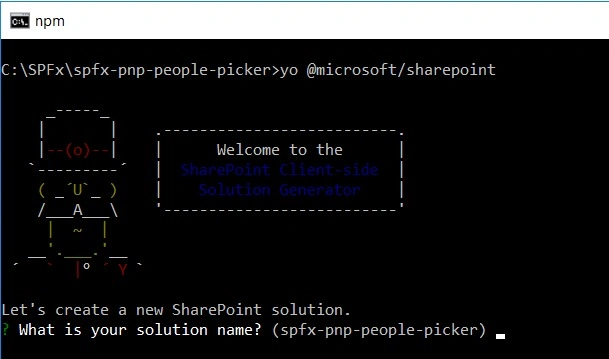
- Solution Name: Hit Enter to have the default name (spfx-pnp-people-picker in this case) or type in any other name for your solution.
- Selected Choice: Hit Enter
- Target for the component: Here, we can select the target environment where we are planning to deploy the client web part, i.e., SharePoint Online or SharePoint OnPremise (SharePoint 2016 onwards).
- Selected Choice: SharePoint Online only (latest)
- Place of files: We may choose to use the same folder or create a subfolder for our solution.
- Selected Choice: Same folder
- Deployment option: Selecting Y will allow the app to be deployed instantly to all sites and will be accessible everywhere.
- Selected Choice: N (install on each site explicitly)
- Permissions to access web APIs: Choose if the components in the solution require permissions to access web APIs that are unique and not shared with other components in the tenant.
- Selected Choice: N (solution contains unique permissions)
Type of client-side component to create
We can choose to create a client-side web part or an extension. Choose the web part option.
- Selected Choice: WebPart
- Web part name: Hit Enter to select the default name or type in any other name.
- Selected Choice: PnPPeoplePicker
- Web part description: Hit Enter to select the default description or type in any other value.
- Selected Choice: Use PnP People Picker control in the SPFx solution
- Framework to use: Select any JavaScript framework to develop the component. Available choices are - No JavaScript Framework, React, and Knockout.
- Selected Choice: React
The Yeoman generator will perform a scaffolding process to generate the solution. The scaffolding process will take a significant amount of time.
Once the scaffolding process is completed, lock down the version of project dependencies by running the below command.
npm shrinkwrap
In the command prompt, type the below command to open the solution in the code editor of your choice.
code .
NPM Packages Used
@pnp/spfx-controls-react (https://sharepoint.github.io/sp-dev-fx-controls-react/)
On the command prompt, run the below command to include the npm package.
npm install @pnp/spfx-controls-react --save
@pnp/sp (https://www.npmjs.com/package/@pnp/sp)
On the command prompt, run the below command.
npm i @pnp/logging @pnp/common @pnp/odata @pnp/sp --save
Pass the context from the web part to the React Component
As we need the SharePoint context to work with People Picker, we will have to pass it from our web part to the React component.
Open React component properties at “src\webparts\pnPPeoplePicker\components\IPnPPeoplePickerProps.ts” and add the below properties.
import { WebPartContext } from '@microsoft/sp-webpart-base';
export interface IPnPPeoplePickerProps {
  description: string;
  context: WebPartContext;
}
From our web part (src\webparts\pnPPeoplePicker\PnPPeoplePickerWebPart.ts), pass the context to the React component.
export default class PnPPeoplePickerWebPart extends BaseClientSideWebPart<IPnPPeoplePickerWebPartProps> {
  public render(): void {
    const element: React.ReactElement<IPnPPeoplePickerProps> = React.createElement(
      PnPPeoplePicker,
      {
        description: this.properties.description,
        context: this.context
      }
    );
    ReactDom.render(element, this.domElement);
  }
  ...
}
Code the Web Part
On the command prompt, type the below command to open the solution in the code editor of your choice.
code .
Open the React component file at “src\webparts\pnPPeoplePicker\components\PnPPeoplePicker.tsx”.
Add below imports.
import { PeoplePicker, PrincipalType } from "@pnp/spfx-controls-react/lib/PeoplePicker";
Use the PeoplePicker control in the render method as follows.
export default class PnPPeoplePicker extends React.Component<IPnPPeoplePickerProps, {}> {
  public render(): React.ReactElement<IPnPPeoplePickerProps> {
    return (
      <div className={styles.pnPPeoplePicker}>
        <div className={styles.container}>
          <div className={styles.row}>
            <div className={styles.column}>
              <span className={styles.title}>Welcome to SharePoint!</span>
              <p className={styles.subTitle}>Customize SharePoint experiences using Web Parts.</p>

              <PeoplePicker
                context={this.props.context}
                titleText="People Picker"
                personSelectionLimit={3}
                groupName={""} // Leave this blank in case you want to filter from all users
                showtooltip={true}
                isRequired={true}
                disabled={false}
                ensureUser={true}
                selectedItems={this._getPeoplePickerItems}
                showHiddenInUI={false}
                principalTypes={[PrincipalType.User]}
                resolveDelay={1000} />
            </div>
          </div>
        </div>
      </div>
    );
  }
}
In the PeoplePicker component, set "ensure user property" to true. It will return the local user ID on the current site.
Implement the selectedItems property to get the selected People from the PeoplePicker.
private _getPeoplePickerItems(items: any[]) {
  console.log('Items:', items);
}
Define the State
Let us define the state to store the selected user IDs.
Add file IPnPPeoplePickerState.ts under folder “\src\webparts\pnPPeoplePicker\components\”.
export interface IPnPPeoplePickerState {
  addUsers: string[];
}
Update the React component “\src\webparts\pnPPeoplePicker\components\PnPPeoplePicker.tsx” to use the state.
import * as React from 'react';
import styles from './PnPPeoplePicker.module.scss';
import { IPnPPeoplePickerProps } from './IPnPPeoplePickerProps';
import { IPnPPeoplePickerState } from './IPnPPeoplePickerState';
// @pnp/sp imports
import { sp, Web } from '@pnp/sp';
import { PeoplePicker, PrincipalType } from "@pnp/spfx-controls-react/lib/PeoplePicker";
export default class PnPPeoplePicker extends React.Component<IPnPPeoplePickerProps, IPnPPeoplePickerState> {
  constructor(props: IPnPPeoplePickerProps, state: IPnPPeoplePickerState) {
    super(props);
    this.state = {
      addUsers: []
    };
  }
}
Define the controls
Let us add a button control. With one click of the button, we will add the selected users from People Picker to the SharePoint list.
Open React component PnPPeoplePicker.tsx in folder “src\webparts\pnPPeoplePicker\components\”.
Add the below import for button control.
// Import button component
import { IButtonProps, DefaultButton } from 'office-ui-fabric-react/lib/Button';
import { autobind } from 'office-ui-fabric-react';
Define a button inside the render method.
<DefaultButton
  data-automation-id="addSelectedUsers"
  title="Add Selected Users"
  onClick={this.addSelectedUsers}
>
  Add Selected Users
</DefaultButton>
Implement the supporting methods as below.
@autobind
private addSelectedUsers(): void {
  sp.web.lists.getByTitle("SPFx Users").items.add({
    Title: getGUID(),
    Users: {
      results: this.state.addUsers
    }
  }).then(i => {
    console.log(i);
  });
}
Add Selected Users to SharePoint list
We are adding the selected users to the React component state using the addSelectedUsers method of PeoplePicker PnP control. Now, we will implement a logic to add the selected users from the React state to the actual SharePoint list.
Add the below imports.
// @pnp/sp imports
import { sp } from '@pnp/sp';
import { getGUID } from '@pnp/common';
// Import button component
import { DefaultButton } from 'office-ui-fabric-react/lib/Button';
import { autobind } from 'office-ui-fabric-react';
Add button insider Render method.
<DefaultButton
  data-automation-id="addSelectedUsers"
  title="Add Selected Users"
  onClick={this.addSelectedUsers}
>
  Add Selected Users
</DefaultButton>
Implement the addSelectedUsers method.
@autobind
private addSelectedUsers(): void {
  sp.web.lists.getByTitle("SPFx Users").items.add({
    Title: getGUID(),
    Users: {
      results: this.state.addUsers
    }
  }).then(i => {
    console.log(i);
  });
}
Setup SharePoint List
Set up a SharePoint list (named “SPFx Users”) with the below schema.
| Column | Type | Comments |
| Title | A single line of text | Out-of-box title column |
| Users | Person or Group | Set "Allow multiple selections" to Yes |
Test the PnP People Picker
- On the command prompt, type “gulp serve”
- Open the SharePoint site.
- Navigate to /_layouts/15/workbench.aspx
- Locate and add the web part (named PnPPeoplePicker) to the page.
- Type in the user names in the people picker.
- Click “Add Selected Users”.

- The selected users should be added to the SharePoint list.

Summary
In this article, we explored the practical use of People Picker control in the SPFx web part. We configured the PnP People Picker control to capture the information from the user and used the PnP list item operation to add the information to the SharePoint list.
Mohammad TabrejPosted Aug 23, 2021, 4:13 PM
Hi nanddeep-nachan, How do we enable the people picker in spfx to search guest users as well. as currently this is not searching guest accounts from the tenant instead only site level guests are shown. did enable ShowPeoplePickerSuggestionsForGuestUsers to True , but still no luck. could you please help on this.
Abish KumarPosted Jul 2, 2021, 3:11 PM
Hi Nanddeep, Is there any chance to show live persona card while hover on the particular user?
SUNNY SINHAPosted May 7, 2020, 11:56 AM
You haven't assigned any user in addUsers array in _getPeoplePickerItems method, how will it be saved ?
Ramakishore GandiPosted Apr 30, 2020, 7:49 AM
Thanks for the article, how can i call this react component in SPFX angular component?
Praveen KanamarlapudiPosted Apr 8, 2020, 8:12 AM
Thanks for the article, I used this people picker in my spfx webpart, got issue in form level validation, on my submit click even though the people picker control is empty it is not firing the error message, it fires only when I delete any selected user in the control, I have made the required property to true, can you please help..
krishanPosted Apr 6, 2020, 5:22 AM
In PayLoad , it should be UsersId: this.state.addUsers instead of just Users
Former memberPosted Mar 13, 2020, 12:12 PM
How can we make People Picker values as read-only?
Kishore KumarPosted Mar 9, 2020, 12:43 PM
Hi I am trying to add 2 or more people picker controls in my spfx page, how do i retrieve each control values I dont see ID property for peoplepicker
Ramakrishna GowdaPosted Mar 4, 2020, 10:07 PM
@autobind private addSelectedUsers(): void { sp.web.lists.getByTitle("SPFx Users").items.add({ Title: getGUID(), UsersId: { results: this.state.addUsers } }).then(i => { console.log(i); }); }
Ramakrishna GowdaPosted Mar 4, 2020, 10:05 PM
import { sp } from '@pnp/sp/presets/all';
Sudheer ChittuluriPosted Feb 14, 2020, 9:49 AM
I got it to finally work when I set the People field in Sharepoint to multiple selection. And reference the Sharepoint field not by internal name but adding Id to it.So if the field internal name was User then add UserId to the addSelectedUsers(). Also I had to download your code to see that you have that private _getPeoplePickerItems(items: any[]) { console.log('Items:', items); } modified in your .zip but not in the article. Big fan of what you do. Thanks for sharing your knowledge and resources!!
Former memberPosted Jan 29, 2020, 11:51 AM
Hi, I can add item from form to SP List Item. But not able to populate Drop Down and People Picker control value from SP List Item to form. Can you help? It's urgent.Thanks
shyam kumarPosted Jan 17, 2020, 10:02 PM
Madhan Thurai thank you.. it helped me..
shyam kumarPosted Jan 9, 2020, 7:35 AM
Public submitClicked = ():void =>{ pnp.sp.web.lists.getByTitle('ListName').items.add({ Title: $("#title_id").val().toString(), Manager : "what command I need to type here"
shyam kumarPosted Jan 9, 2020, 7:33 AM
Hello, I have 4 people picker coulmns in my list. I have created form to save the people from these people picker to my list. I am using something like below for my other text box columns. But unable to do it for my people column to get it saved
Jithil PankajPosted Dec 28, 2019, 12:46 AM
How to copy paste multiple user ids or emails on the control? Will it resolve ?
Madhan ThuraiPosted Dec 6, 2019, 1:27 AM
Before that enable multiple value in the settings
Madhan ThuraiPosted Dec 6, 2019, 1:27 AM
Store in the format for eg Person is your columname ,store as PersonId:5
Yemon GeneratorPosted Dec 6, 2019, 1:15 AM
In Sharepoint list randomly generated ID is stored properly but in Users column Name is not getting stored
Yemon GeneratorPosted Dec 2, 2019, 5:47 AM
I have tried a lot still people picker value is not getting stored in sharepoint list. I have followed the same procedure
Alberto Suárez CaballeroPosted Oct 21, 2019, 11:30 AM
Hi There! Some small suggestion, I think that if the column is named "Users", then the name you should use for the update request is "UsersId"
Alistair HalpernPosted Sep 26, 2019, 10:02 AM
And this outside the render method, but it does not work.private _onChange = (e: React.KeyboardEvent) => { const name = this.props.data.Name; const value = (e.target as HTMLInputElement).value; this.props.onChange(name, value);
Alistair HalpernPosted Sep 26, 2019, 10:02 AM
I've got the People Picker working, but my Sharepoint list has other fields that I would like to update using input boxes and drop down boxes. How do I add the relevant code to the render method? I tried this in the render method. <input type="text" value={this.props.data.Value} onChange={this._onChange}/>
Marshall BensonPosted Sep 19, 2019, 2:53 PM
How could I do the reverse, as in, add people from a SharePoint list to the People Picker web part?
Madhan ThuraiPosted Aug 13, 2019, 3:59 AM
Its working i do some alteration,also i need an code for populating people picker field from list
Madhan ThuraiPosted Aug 13, 2019, 3:59 AM
Var peoplepicarray=[]; for(let i=0;i<this.state.addUsers.length;i++){ peoplepicarray.push(this.state.addUsers[i]["id"]); } let projectname=$("#ProjectName").val(); let projectdetail=$("#ProjectDetails").val(); sp.web.lists.getByTitle("ProjectMaster").items.add({ "ProjectName":projectname, "ProjectManagerId": { "results": peoplepicarray}, "ProjectDetails":projectdetail /* ProjectManager: { results: this.state.addUsers } */ })
Madhan ThuraiPosted Aug 12, 2019, 3:58 AM
The state become empty when storing the data,so peoplepicker field not get updated
selvaa vPosted Jul 2, 2019, 6:38 AM
This is my user id "i:0#.f|membership|[email protected]" and i am using the below options to create the user field. But it throws the error. Manager, ManagerId and ManagerStringId but not yet created the user. Uncaught (in promise) ProcessHttpClientResponseException: Error making HttpClient request in queryable: [400] at new ProcessHttpClientResponseException (https://localhost:4321/dist/react-crud-web-part.js:109734:28) at https://localhost:4321/dist/react-crud-web-part.js:109775:24 -------- We were not facing any issue while adding the user by SPUserId
selvaa vPosted Jun 24, 2019, 9:30 AM
Can we add the people picker column value to the list without PnP?
Harsha VardhiniPosted Jun 11, 2019, 9:45 PM
It gets tricky when we want to bind the users value to this control which is retrieved from SharePoint list. could you please add the same?